How to Enable or Disable Email Sound Alerts in Outlook


Email sound alerts in Outlook play a short chime each time a new message arrives in your inbox on Windows 11. If you get a lot of mail, that sound gets old quickly. You can turn it off to work without interruptions, or turn it back on if you want to hear every message arrive.
The change takes under 30 seconds in the Outlook settings. It applies right away to your main inbox and to the other email accounts connected to the app. You don’t need to restart Outlook. These steps use the new Outlook for Windows app. Classic Outlook has different menus, and it keeps its sound option under File Options Mail
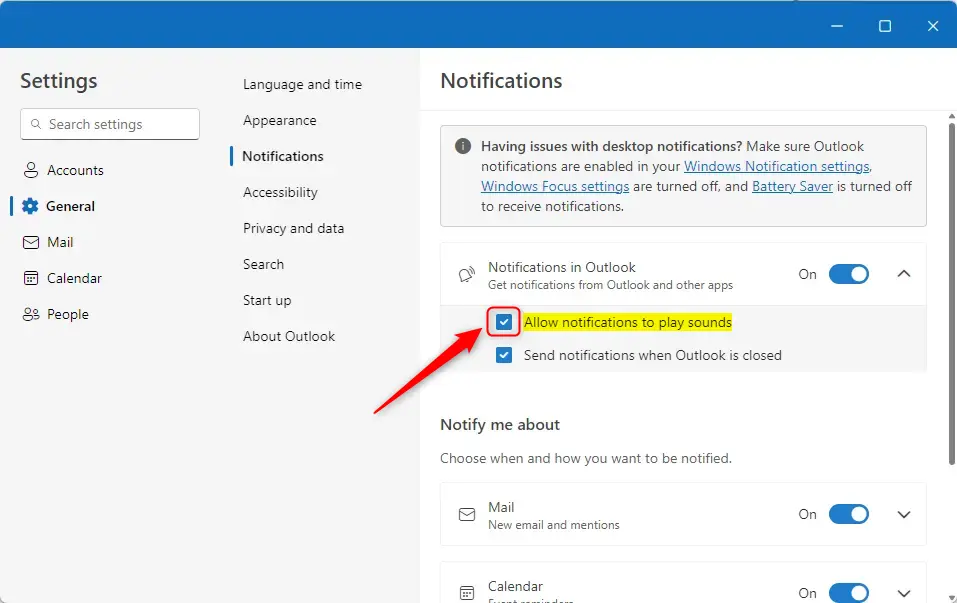
Open Outlook, click the Settings gear, then General, and Notifications. Check “Allow notifications to play sounds” to enable sounds, or uncheck it to disable them. Ensure system notifications for Outlook are also enabled.
How to change notification sounds in Outlook
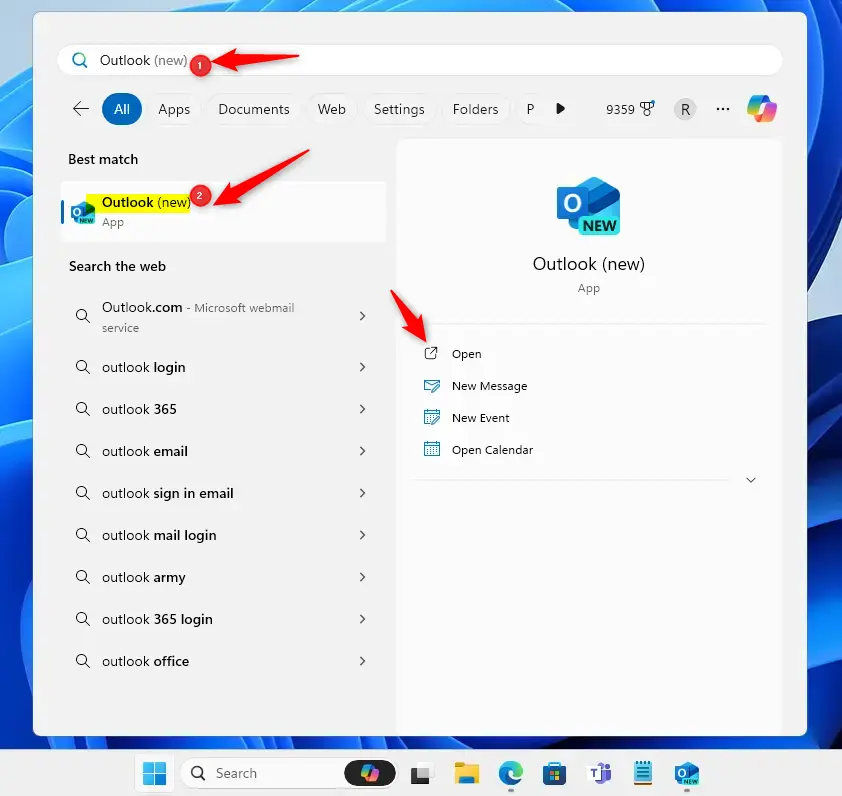
The sound setting controls the audio for new messages. You can switch it on or off here, and the steps below show you where it is. Open Outlook first, then work through the four steps in order. Every step starts from the main Outlook window.
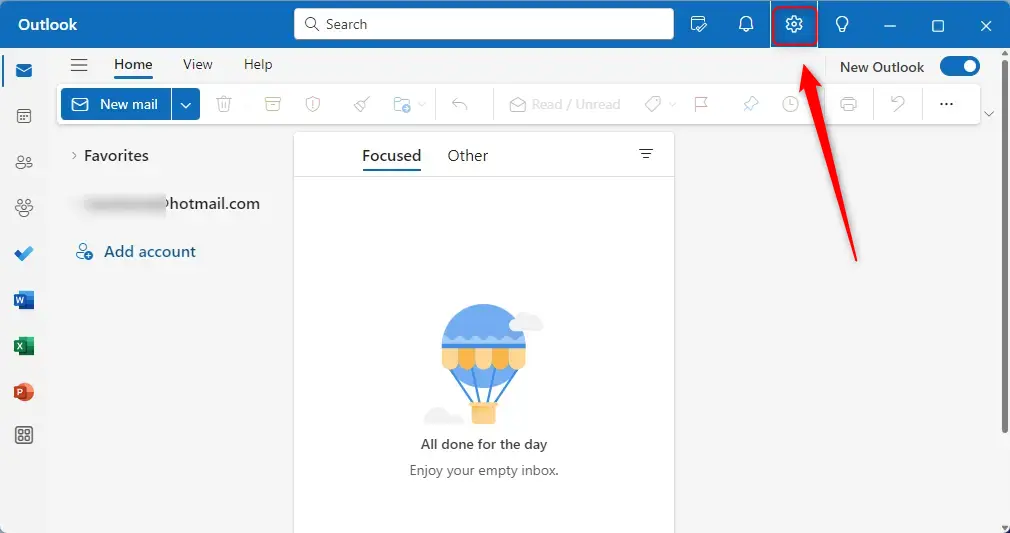
- Click the Settings gear icon at the top right of the window. A Settings panel opens over the Outlook window, with a list of categories down the left side.
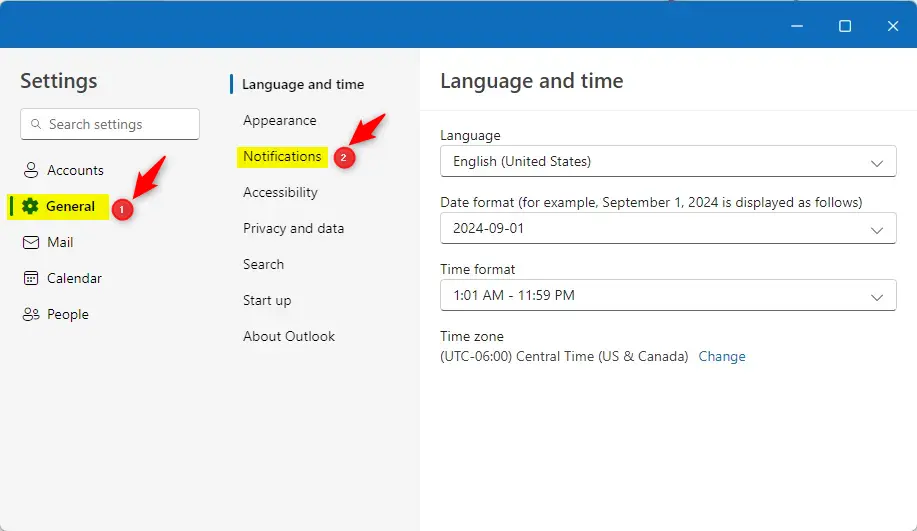
- Choose General in the sidebar, then click Notifications. The notification options appear on the right, including the audio toggles you need.
If you can’t see the gear icon, make the window wider or maximize it. Outlook can hide toolbar items in a narrow window.
- Find the section labeled Notifications in the Outlook. Outlook notifications must stay turned on for the audio switches to work. If the options below look greyed out or missing, check this section first.
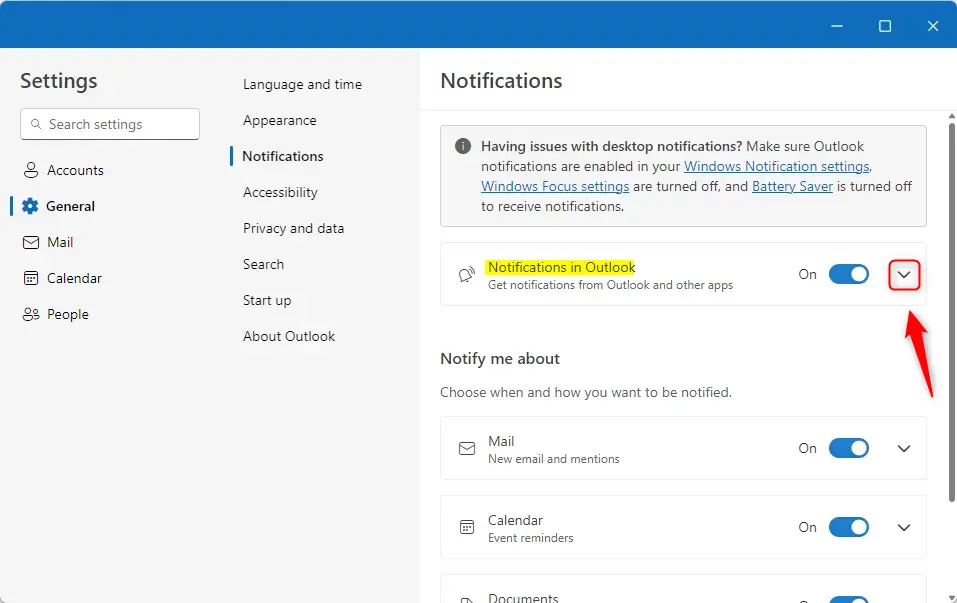
- Check the box labeled Allow notifications to play sounds to turn audio alerts on, or uncheck it to turn them off. These settings control the audio cues for incoming messages.
The change takes effect straight away. To test it, ask someone to send you a message, or send one to yourself from another account. To undo the change, come back to the same box and flip it again.
If the box is checked but you still hear nothing, the cause is usually Windows rather than Outlook. Work through this list:
- Confirm that Outlook notifications are turned on in your Windows Notification settings. Windows can block an app’s alerts even when the app itself is set to play them.
- Check that Focus is off. Windows Focus settings block audio alerts while a session is running. Turn it off via Windows Focus settings.
- Check that Battery Saver is off. It also blocks audio alerts, so disable it via Battery Saver.
- Make sure your PC volume isn’t muted and the right speakers or headphones are selected.
Summary
- Configuring sounds helps you personalize your Outlook experience, and you can change the setting again whenever you like.
- Turning sounds on keeps you updated on incoming mail, even when Outlook isn’t the window in front of you.
- Turning sounds off helps you stay focused by removing distractions. New mail still arrives as usual.
- If sounds do not work, check your Windows system notification settings, then Focus and Battery Saver.
Have a question about this guide?
Answered by AI from this guide. Good questions may be added to this page — please don't include personal details.
Did this guide fix your problem?

About the Author
Richard
Tech Writer, IT Professional
Richard is a writer at Geek Rewind who turns complex IT tasks into clear, step-by-step guides. He draws on years of hands-on experience in system administration and enterprise IT operations, focusing on Windows, Linux and WordPress: the problems people actually run into, and the fixes that work. His server and WordPress guides come from systems he runs himself. Richard builds and maintains the platform behind Geek Rewind, from its Ubuntu servers and Nginx configuration to its custom WordPress plugins. Many new tutorials start with readers' questions, and he's always glad to answer them in the comments.
[…] history, add or remove events from emails to your Calendar, switch to dark mode, link preview, sound alerts for notifications, turn on or off notifications when Outlook is closed, turn on or off incoming email alert […]
[…] or remove events from emails to your Calendar, switch to dark mode, link preview, sound alerts for notifications, turn on or off notifications when Outlook is closed, alerts for emails and mentions, […]
[…] or removing events from emails to your Calendar, switching to dark mode, link preview, sound alerts for notifications, turn on or off notifications when Outlook is closed, turn on or off incoming email alert […]