Outlook for Windows: How to Enable or Disable Offline Mode


Offline mode in Outlook for Windows lets you read, reply to, and organize your emails without an internet connection by keeping a copy of your mail right on your computer. This feature stores up to 12 months of your messages locally, depending on your settings, so you can work during a flight or when your Wi-Fi drops out.
To enable or disable Offline Mode in Outlook for Windows, go to Settings (gear icon) > General Offline. Use the toggle switch to turn offline email, calendar, and people on or off, then select folders and days of data to save.
The new Outlook app handles these offline files automatically, but you can turn the feature on or off in a few clicks. Shutting off offline mode frees up hard drive space if you always have a live internet connection and never need to work away from your desk.
- Sharing a calendar
- Changing language, date, and time format
- Publishing a calendar
- Showing week numbers in Outlook calendar
- Deleting your search history
- Exporting your search history
- Adding or removing events from emails to your Calendar
- Switching to dark mode
- Link preview
- Sound alerts for notifications
- Turning notifications on or off when Outlook is closed
- Turning incoming email alert sounds on or off
- Customizing Calendar alerts
- Sharing your work hours and location
- And much more.
Outlook configures communication to work online or offline with the mail server. Enabling offline access lets the new Outlook for Windows operate without an active internet connection.
Enabling this feature saves a local copy of emails, calendar events, and contacts. Accessing items offline becomes possible while potentially improving performance when online.
Turn on or off Offline mode in Outlook for Windows
Turning on or off Outlook offline mode lets you control whether your emails, calendar, and contacts stay accessible when you lose your internet connection. To change this setting, open Outlook, click the Settings gear icon, select General, click Offline, and toggle the switch next to enable offline email, calendar, and people to your preferred position.
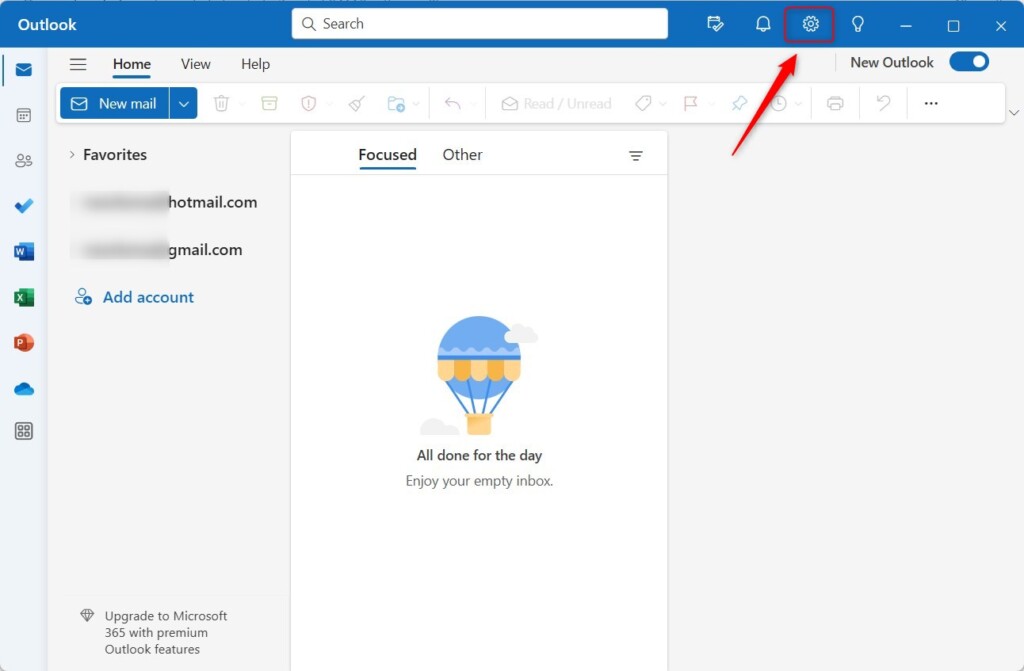
Locate and click the Settings gear icon positioned at the top right of the menu bar.
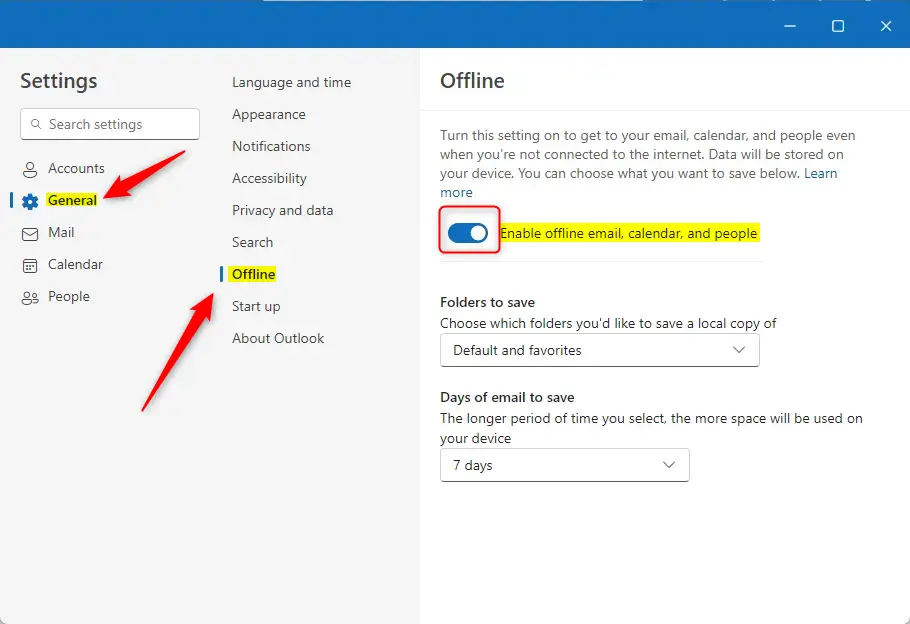
Select General from the left sidebar, then click Offline.
Toggle the switch next to "Enable offline email, calendar, and people" to the On or Off position.
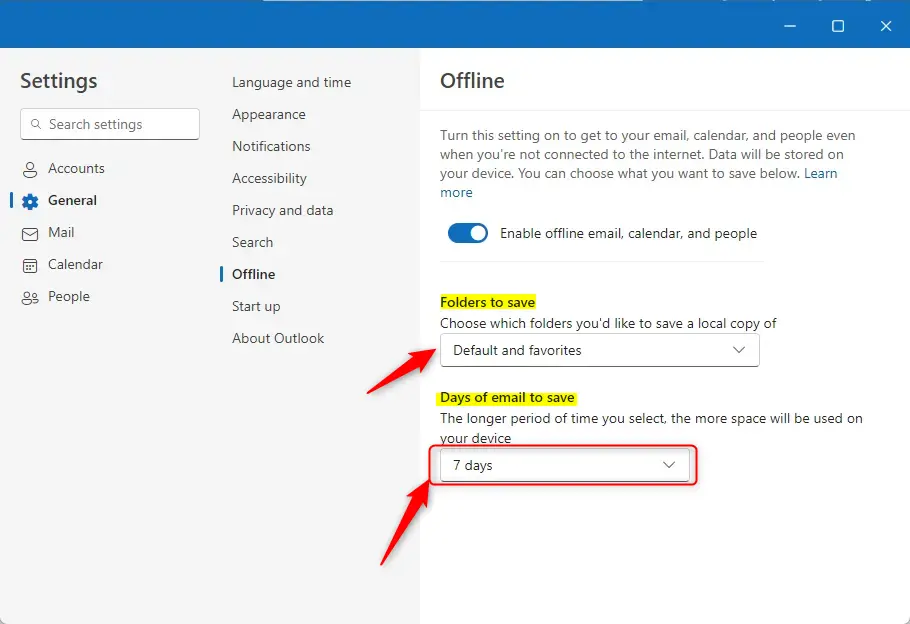
Enabling offline access unlocks options to specify which folders save locally and how many days' worth of emails store on the computer.
Click the Save button to confirm these changes.
What can you do when offline?
Using Outlook offline mode lets you keep working with your emails, calendar events, and contacts even without an internet connection. While offline, you can read messages, draft new replies that wait in your Outbox until you reconnect, view your schedule, and manage your folders just like normal.
Read, manage, and view Outlook items:
- Read emails
- Create and save new email drafts
- Send new messages to Outbox
- Rename folders
- View your calendars and events
- View your people (previously contacts)
Perform actions on emails:
- Archive
- Categorize
- Delete
- Flag / Unflag Ignore
- Mark as Read / Unread
- Move to Focused / Other
- Move to folder
- Pin
- Report Junk / Not Junk
- Report Phishing
- Snooze
View and update your settings:
- About Outlook
- Automatic replies
- Categories
- Email accounts
- People view
Attempting an unavailable offline action triggers an error message. Unsaved changes may revert to their previous state.
These steps restore full offline access to the inbox, letting messages and calendar events stay managed anywhere.
Reference:
Overview:
- The Outlook app in Windows 11 offers the flexibility to work online or offline, providing access to emails, calendar events, and contacts even without an internet connection.
- Users can easily enable or disable offline mode by accessing the Settings menu, toggling the "Enable offline email, calendar, and people" option, and customizing local storage preferences.
- By following the outlined steps, users can optimize their Outlook experience based on their connectivity needs, ensuring seamless online or offline productivity.
Was this guide helpful?

About the Author
Richard
Tech Writer, IT Professional
Richard is a writer at Geek Rewind who turns complex IT tasks into clear, step-by-step guides. He draws on years of hands-on experience in system administration and enterprise IT operations, focusing on Windows, Linux and WordPress: the problems people actually run into, and the fixes that work. His server and WordPress guides come from systems he runs himself. Richard builds and maintains the platform behind Geek Rewind, from its Ubuntu servers and Nginx configuration to its custom WordPress plugins. Many new tutorials start with readers' questions, and he's always glad to answer them in the comments.




No comments yet — be the first to share your thoughts!