How to Manage Sound Notifications in Outlook on Windows 11


Sound notifications in the new Outlook app for Windows 11 are audible alerts that play whenever a new email arrives in your inbox. Outlook version 2310 and newer let you turn these sound alerts on or off. You can hear urgent messages right away, or you can stop constant beeps from breaking your focus.
You manage these sound settings inside the app, so you can match them to how you work. Keeping sounds on helps you catch important messages fast. Turning them off gives you a quiet space to get things done. These steps apply to the new Outlook for Windows. Classic Outlook has its own, different sound options. The change is easy to undo, because you can flip the same switch back at any time.
Open Outlook and click the Settings gear icon in the top right corner. Go to General Notifications, expand the Mail tile, then toggle the Play sound switch to On or Off. Set it to Off to stop email beeps, or On to hear them again. Changes take effect immediately without restarting.
How to change sound settings in Outlook
Outlook sound notifications let you choose which email alerts make a noise, so every message does not pull your attention away. You can turn off sounds for all new messages and still keep alerts on for calendar reminders or for important emails from specific people. All of this is done in the app settings. Before you start, make sure you are on Outlook version 2310 or newer. If the options below are missing, update the app from the Microsoft Store and check again.
- Open the Outlook app from your Start menu or taskbar. Wait for your inbox to load before you go on.
-
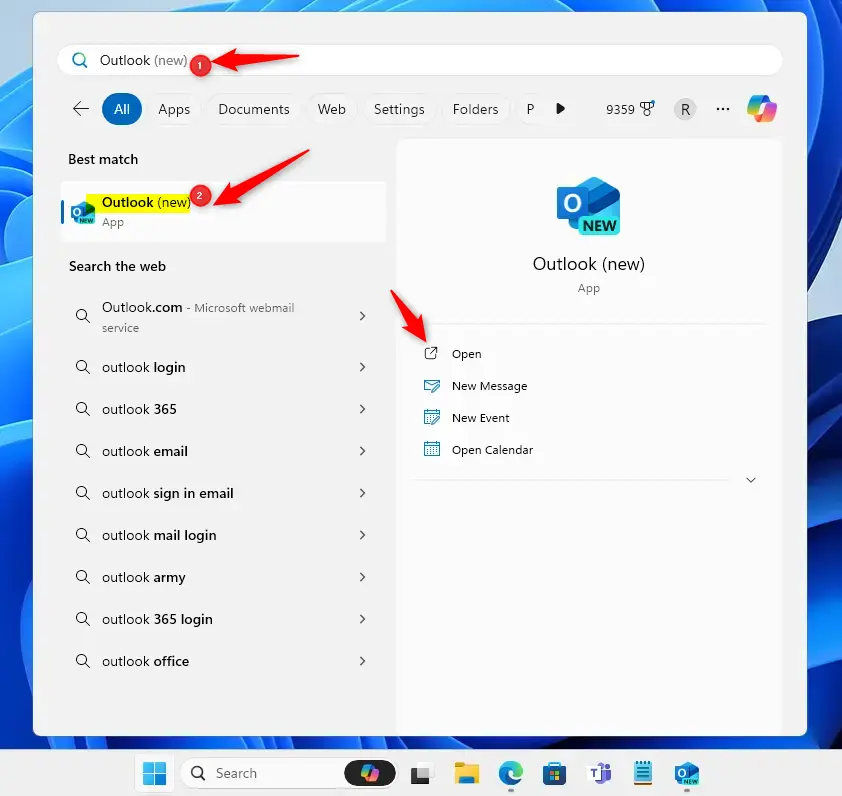
Open Outlook app in Windows 11 - Click the Settings gear icon located in the top right corner. The Settings window opens on top of your mailbox.
-
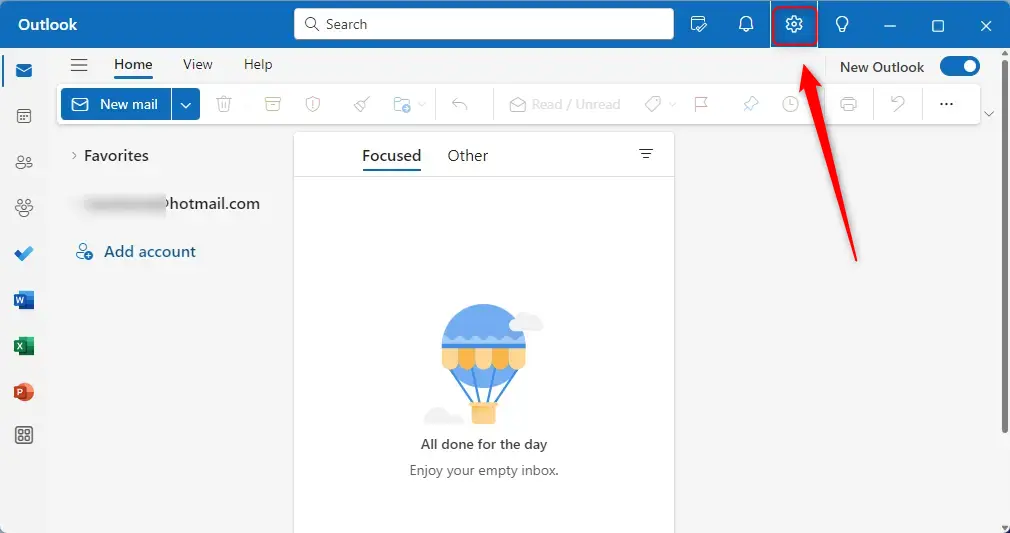
Outlook settings button in the new Windows 11 app interface. - In the menu on the left, click General and then select Notifications. The notification options now appear on the right side of the window.
-
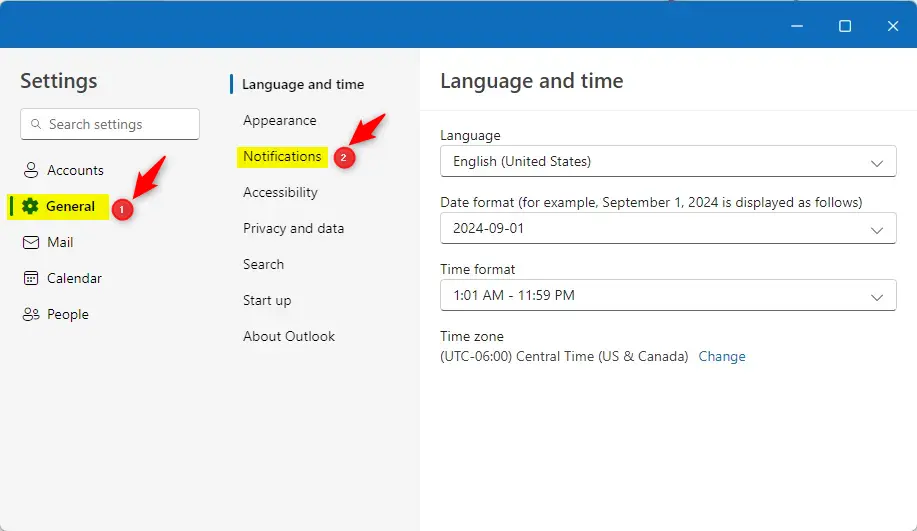
Outlook Genenal Notifications setitngs pane - Ensure that Notifications in Outlook is turned on. (This assumes you have Notification in Outlook enabled in your system settings). If you have trouble, check your Windows Notification settings, ensure Windows Focus settings are off, and verify that Battery Saver is off. Windows can block Outlook’s alerts and sounds from outside the app, so if the options here look right but you still hear nothing, the cause is usually one of these system settings.
-
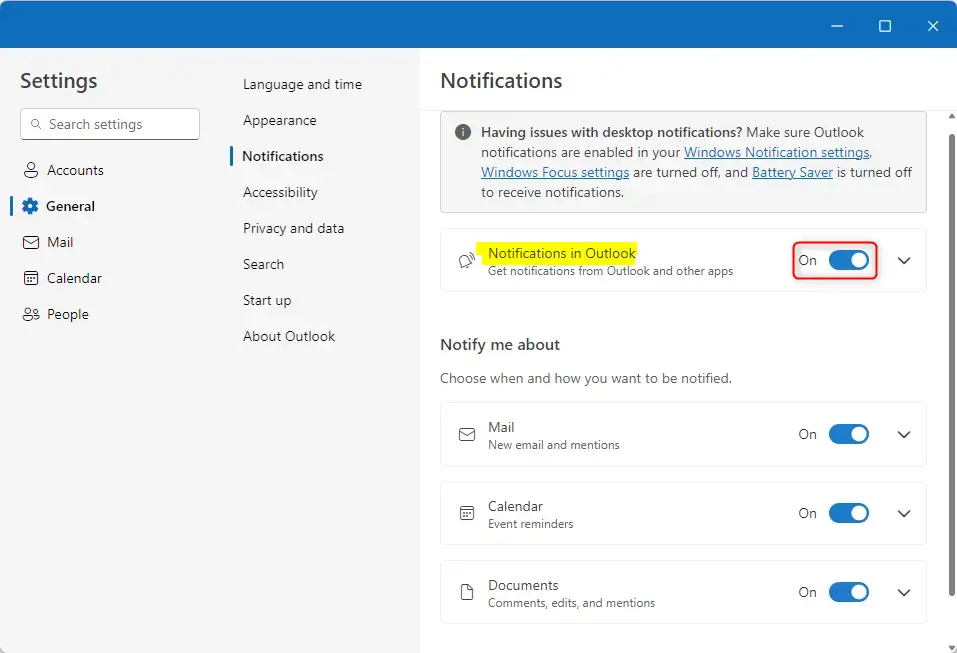
Turn Outlook notifications on or off in Windows 11 settings. - To stop or start alerts for new emails and mentions, find the Mail tile and toggle the switch to On or Off. If you switch it Off, you get no alert for new mail, so there is no sound either. Use this when you want complete quiet.
-
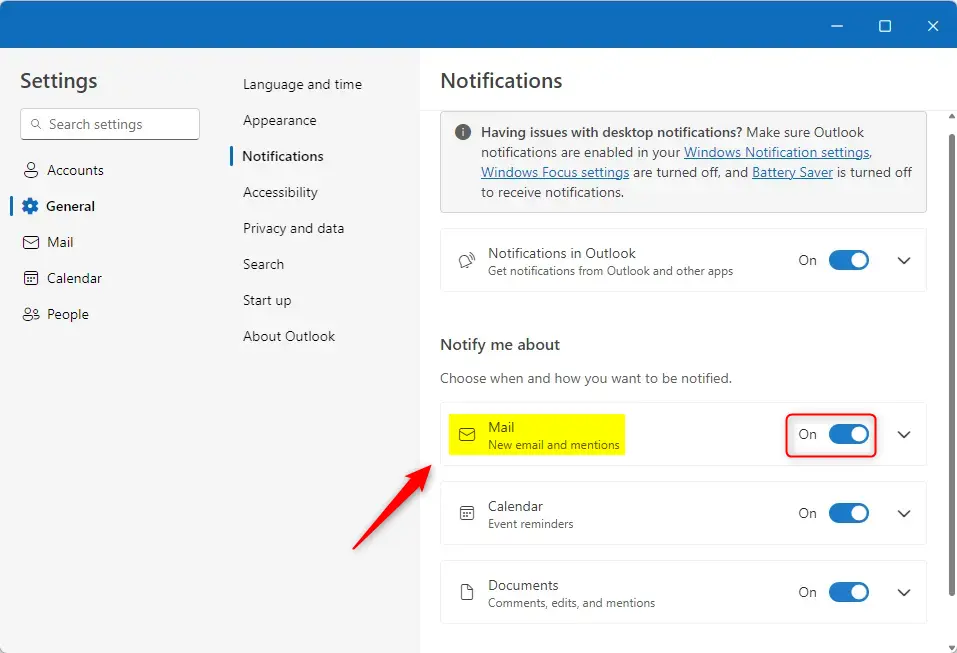
Configure Outlook to receive new email and mention notifications. - To specifically control the sound, make sure Outlook and Mail notifications are enabled. Click the down-arrow on the Mail tile. The tile expands and shows more options underneath it. This lets you keep the pop-up alert but silence the sound, or the other way around.
- Find the Play sound tile and toggle the switch to On or Off. Set it to Off to stop the beep for new mail. Set it to On to hear it again.
-
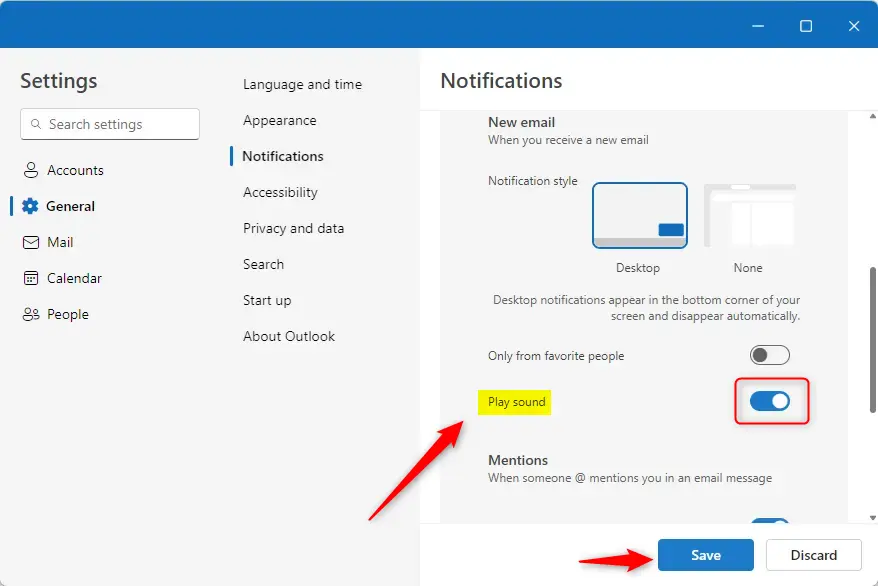
Play sound for incoming emails in Outlook - Click Save if the button appears to apply your changes. In many builds the switches take effect as soon as you flip them, so you may not see a Save button at all. You do not need to restart Outlook or Windows. To check the result, ask someone to send you a test email, or send one from another account. To undo the change, return to the same screen and set the switch back.
They apply only to your own Outlook profile and do not change sound settings for other apps on the PC.
Summary
Managing your sound notifications in the new Outlook app is simple. You decide whether emails and mentions play a sound. If the sound still does not behave as expected, go back to Notifications in Outlook and the Play sound switch first, and then check the Windows notification settings that can override them.
Have a question about this guide?
Answered by AI from this guide. Good questions may be added to this page — please don't include personal details.
Did this guide fix your problem?

About the Author
Richard
Tech Writer, IT Professional
Richard is a writer at Geek Rewind who turns complex IT tasks into clear, step-by-step guides. He draws on years of hands-on experience in system administration and enterprise IT operations, focusing on Windows, Linux and WordPress: the problems people actually run into, and the fixes that work. His server and WordPress guides come from systems he runs himself. Richard builds and maintains the platform behind Geek Rewind, from its Ubuntu servers and Nginx configuration to its custom WordPress plugins. Many new tutorials start with readers' questions, and he's always glad to answer them in the comments.
[…] alerts for notifications, turn on or off notifications when Outlook is closed, turn on or off incoming email alert sounds, customizing Calendar alerts, and […]