How to Show Notifications and Actions Until Dismissed in Outlook

This article explains how to turn on or turn off the setting that keeps error notifications and action confirmations on screen until you dismiss them in the new Outlook for Windows. By default, these small messages disappear after a few seconds. If you step away or look at another window, you can miss them.
In the new Outlook, go to Settings , then General, then Accessibility. Toggle “Show error notifications and action confirmations until I dismiss them” to enable persistent alerts. Click Save to apply the changes.
Why adjust Outlook notification settings?
Notification settings help you manage your inbox and avoid missed emails. Controlling how alerts appear also cuts down on interruptions. Classic Outlook and the new Outlook are two separate applications, and their settings screens are different. The steps below apply to the new Outlook. If you use classic Outlook, you will not find this option in the same place.
You can turn specific notification types on or off to match the way you work. Persistent error and confirmation messages are one of those choices.
What happens when you change these settings?
With this setting on, error notifications and action confirmations stay visible until you close them yourself. Examples are a message that a send failed, or a confirmation that an item was moved or deleted. It is useful if you often work away from the screen, because you can come back and still see what happened.
This setting controls the in-app messages shown while you work in Outlook. It does not control new-mail desktop banners. Those are managed by Outlook’s notification settings and by Windows notification settings.
How to show notifications until dismissed
Follow the steps below to keep these messages on screen until you dismiss them. The same steps turn the feature off again.
- Open the Outlook app from your Start menu. Make sure it is the new Outlook. If you see a New Outlook toggle at the top right of the window, switch it on first.

- Click the Settings gear icon at the top right. The Settings window opens.

- In Settings, go to General, then Accessibility. You should see the accessibility options listed on the right.
- Find Show error notifications and action confirmations until I dismiss them and switch the toggle on. To go back to the default behavior, switch it off.
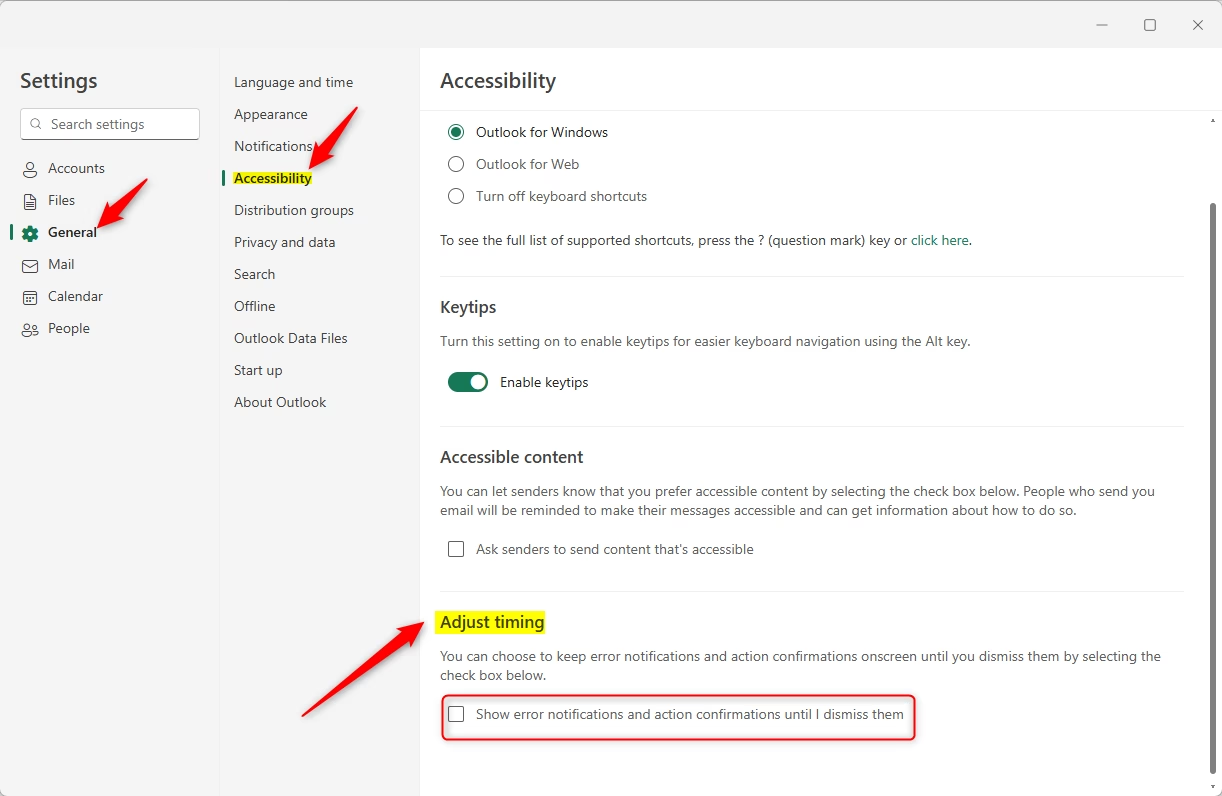
- Click Save to apply the change.
The next time Outlook shows an error or a confirmation, it should stay on screen until you close it. If the option is missing, you are probably in classic Outlook, or your build of the new Outlook is out of date. Update Outlook through Microsoft Store and check again. On a work or school account, an administrator may also control some settings.
Troubleshooting Outlook notifications on 🪟 Windows 11
If Outlook notifications are not showing up on Windows 11, check the common causes below. Make sure Windows is not blocking alerts. Confirm Outlook is not just hiding in the system tray. Review your Outlook rules to see whether they move emails without showing a notice.
- Focus Assist: Ensure Do Not Disturb mode is off in Windows settings. Depending on your Windows 11 version, this feature is called Focus Assist or Do Not Disturb. Both suppress banners while they are active, and Windows can turn them on automatically, for example when you are presenting or playing a full-screen game. Check Settings System Notifications, and also confirm that Outlook is allowed to send notifications in the app list on that page.
- System Tray: Check if Outlook is minimized to the tray. Click the up arrow in the taskbar to show hidden icons and look for Outlook there. If it is running in the background, open it and check that its own notification settings are on.
- Rules: Verify that your Outlook Rules are not moving emails to folders without alerts. A rule that files mail straight into another folder means nothing new arrives in the inbox to trigger a banner. Open the rules list, disable rules one at a time, and send yourself a test message.
- Permissions: [ADMIN PRIVILEGE REQUIRED] Check if your Windows notification policy blocks Outlook via Registry: HKEY_CURRENT_USER\Software\Microsoft\Windows\CurrentVersion\PushNotifications. Editing the registry can break things if done wrong, so back it up first. On a managed work PC, ask your IT team instead of changing it yourself.
Summary
Customizing Outlook notification settings helps you stay organized. Keeping error and confirmation messages on screen means you will not miss a failed send or a moved message. You can also change notification sounds to suit your setup. If alerts stop appearing altogether, check the Focused Inbox and Windows Do Not Disturb settings. Mail that Focused Inbox sorts into Other may not trigger a banner, and Do Not Disturb silences everything while it is on.
Have a question about this guide?
Answered by AI from this guide. Good questions may be added to this page — please don't include personal details.
Did this guide fix your problem?

About the Author
Richard
Tech Writer, IT Professional
Richard is a writer at Geek Rewind who turns complex IT tasks into clear, step-by-step guides. He draws on years of hands-on experience in system administration and enterprise IT operations, focusing on Windows, Linux and WordPress: the problems people actually run into, and the fixes that work. His server and WordPress guides come from systems he runs himself. Richard builds and maintains the platform behind Geek Rewind, from its Ubuntu servers and Nginx configuration to its custom WordPress plugins. Many new tutorials start with readers' questions, and he's always glad to answer them in the comments.
No comments yet — be the first to share your thoughts!