How to Open Sound Settings in Windows 11

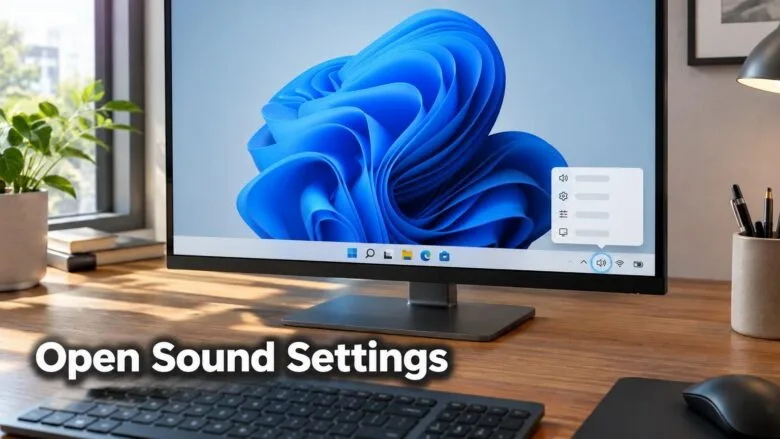
- 29 steps
- Needs administrator rights
- Includes a restart or sign-out
Sound settings in Windows 11 is the page in the Settings app (Settings System Sound) where you choose your speakers or headset, change the volume, and test your audio devices. The quickest way to open it is to right-click the speaker icon next to the clock and select Sound settings.
This guide covers that method and five others, including a shortcut for the classic Sound control panel. It also shows where the speaker and headset options sit once the page is open. None of these methods needs administrator privileges, and none needs a restart.
Right-click the speaker icon in the bottom-right corner of the taskbar and select Sound settings. The Settings app opens directly on the Sound page, where you choose output devices and adjust volume. No administrator rights or restart are needed. Other routes include pressing Win+I, then selecting System Sound.
Open Sound settings from the taskbar speaker icon
This method opens Sound settings in two clicks, and it works on every edition of Windows 11, Home and Pro alike. Use these steps to open Sound settings from the taskbar.
- Find the speaker icon. It sits in the bottom-right corner of the taskbar, next to the Wi-Fi and battery icons. Windows 11 groups these icons into one button.
- Right-click the speaker icon. A small menu appears above the taskbar. Right-click, not left-click. A left-click opens Quick Settings instead, which is covered below.
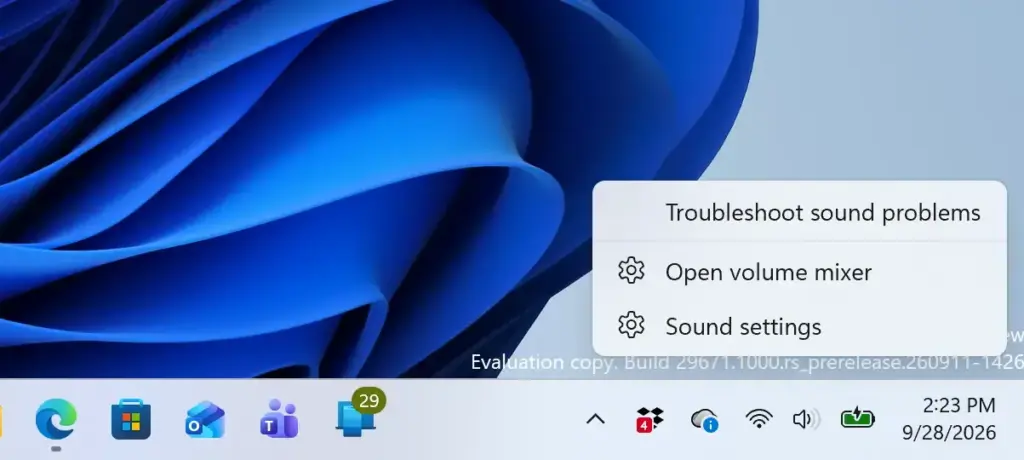
Settings > Sound > Advanced - Select Sound settings. The Settings app opens on the Sound page. The path is Settings System Sound.
The right-click menu may also list entries such as Open Volume mixer or Troubleshoot sound problems. The exact list depends on your Windows 11 version, but Sound settings is always there.
If you do not see a speaker icon, the taskbar may be collapsed or the icons may sit in a different spot. Try one of the other methods below. The Settings app route always works.
Other ways to open Sound settings
The taskbar method is the fastest, but the others help when the icon is missing, when you are working from the keyboard, or when you want a shortcut.
Open Sound settings from Quick Settings
Quick Settings is the panel of toggles and sliders that opens from the taskbar. It also lists your audio devices, which makes it useful when you only need to switch between speakers and a headset. Follow these steps to reach the full Sound page from there.
- Press Win+A. The Quick Settings panel opens above the taskbar. You can also left-click the speaker icon.
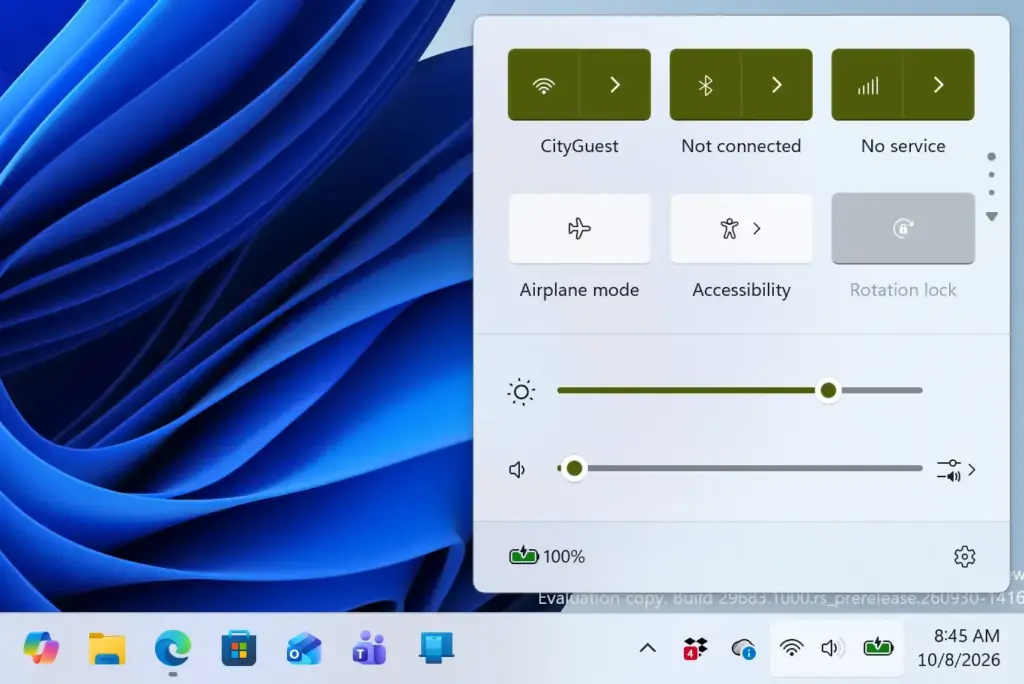
Notification Centre - Select the arrow next to the volume slider. The arrow points right. A list of your sound output devices appears.
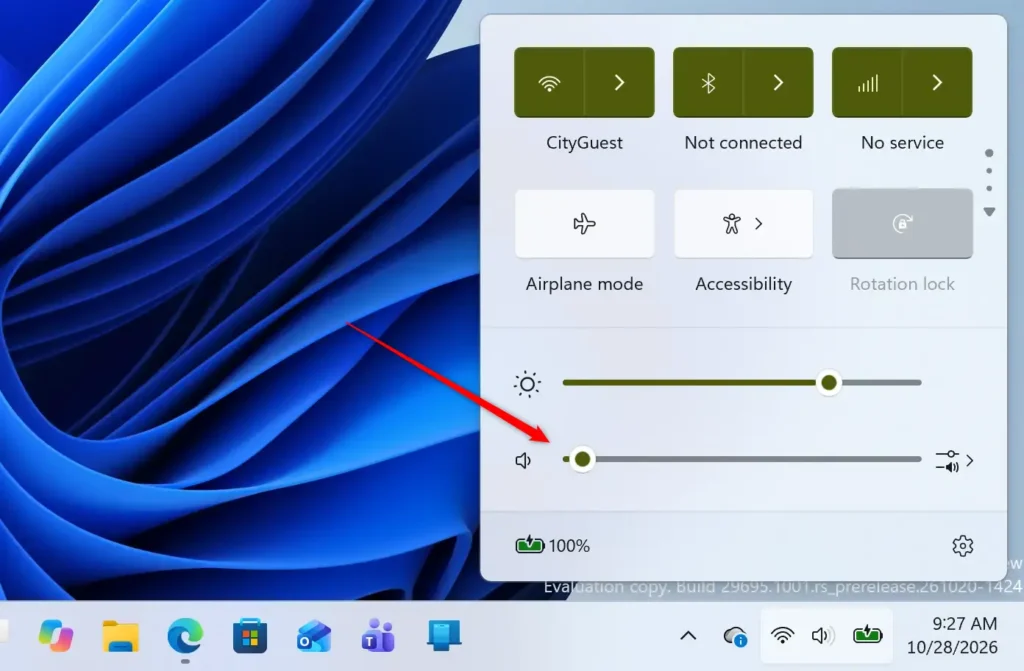
Notification Centre - Select More volume settings. The link sits at the bottom of the device list. Settings opens on the Sound page.
If the volume slider is not visible, select the pencil icon at the bottom of Quick Settings, then Add, and choose Volume. Not every version of Windows 11 shows the same editing options, so use another method if you do not see the pencil.
Open Sound settings from the Settings app
This route takes a few more clicks, but you can use it on any PC, even when the taskbar icons are hidden. These steps open Sound settings through Settings.
- Press Win+I. The Settings app opens. You can also right-click the Start button and select Settings.
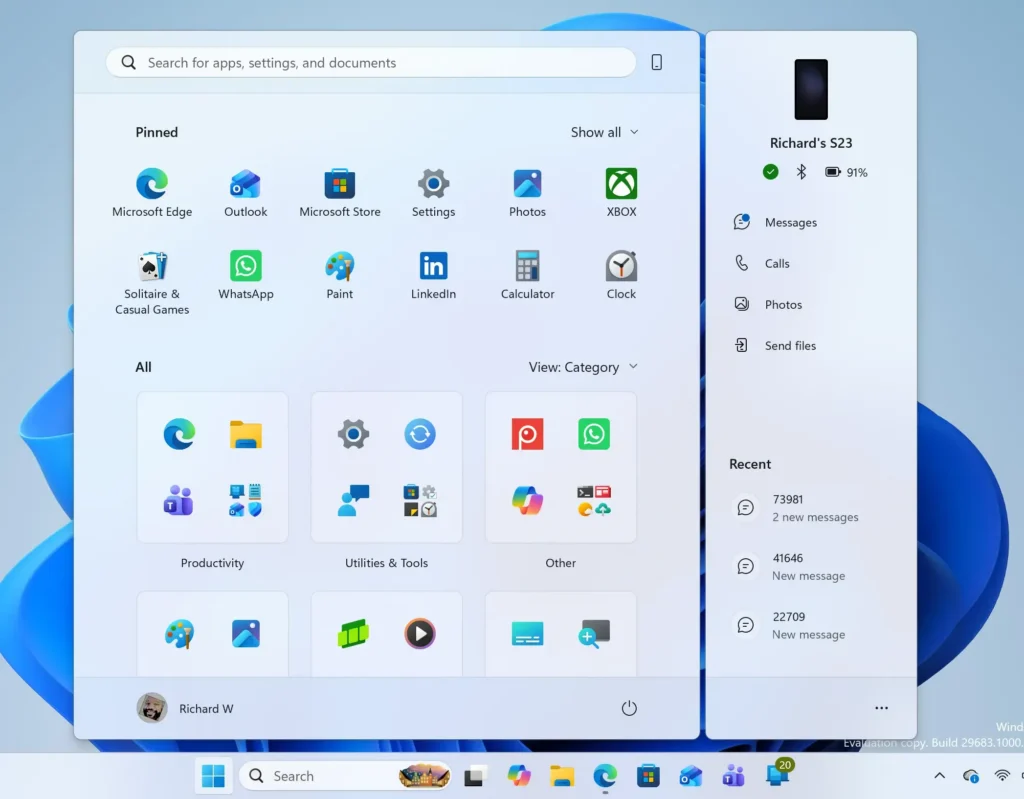
Windows 11 Start menu search panel for opening OpenSSH Client settings - Select System. It is the first item in the left-hand list.
- Select Sound. The page lists your output and input devices, followed by volume and advanced options.
Open Sound settings from Start search
Search is a good choice when you do not remember where a setting lives. It also finds the classic Sound control panel. These steps use the search box.
- Press the Win. The Start menu opens with the cursor in the search box. You can also select the Search icon on the taskbar.
Windows 11 Start menu search panel for opening OpenSSH Client settings - Type sound settings. The top result is Sound settings, labeled as a System settings page.
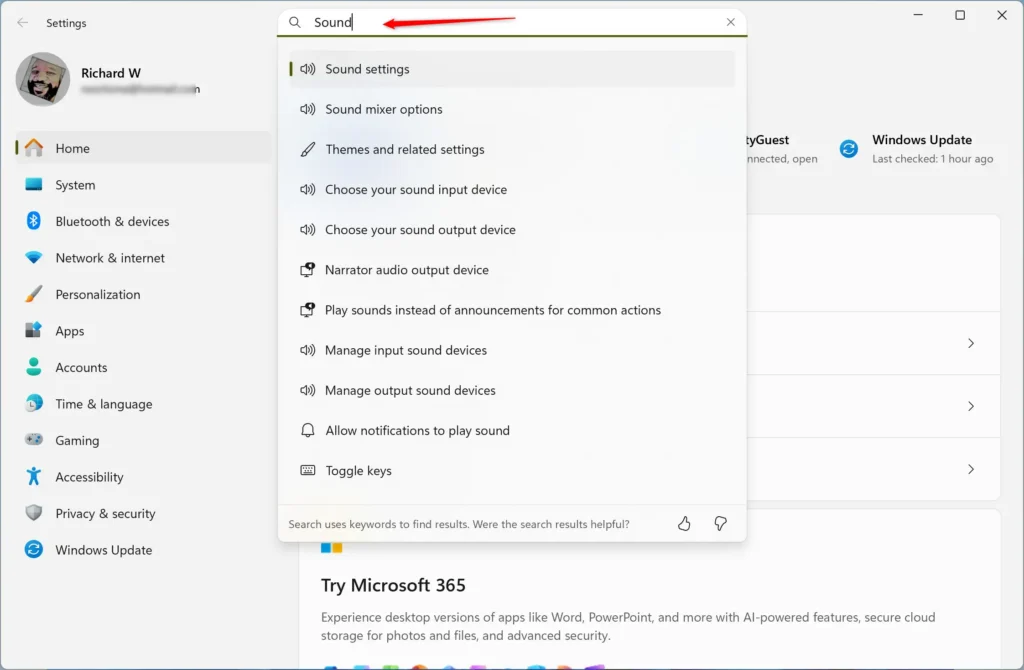
Settings - Press Enter. Settings opens on the Sound page.
If you type sound control panel instead, Windows usually offers Change system sounds or Sound from Control Panel. Both lead to the classic dialog described later in this guide.
Open Sound settings from the Run dialog
The Run dialog (a small box that launches a program or page from a typed command) is the fastest route from the keyboard. The command uses ms-settings:sound, a shortcut address that opens a specific Settings page.
- Press Win+R. The Run dialog opens in the bottom-left corner of the screen.
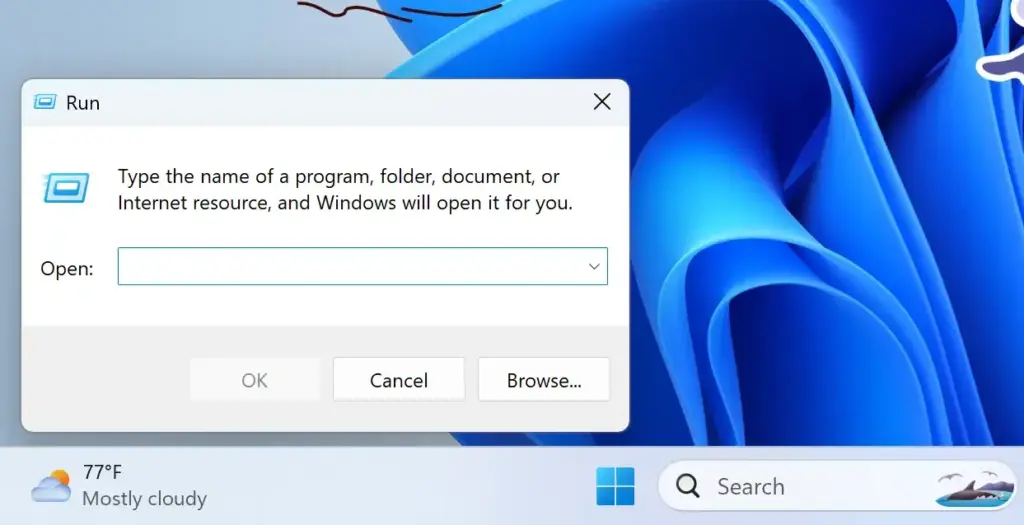
Run dialog - Type ms-settings:sound in the Open box. Enter it exactly as shown:
ms-settings:sound. - Press Enter. Settings opens on the Sound page.
Open the classic Sound control panel
The classic Sound control panel is the older dialog box with the Playback, Recording, Sounds, and Communications tabs. Windows 11 still includes it. It shows some options that the Settings page hides, such as the per-device Levels, Enhancements (audio effects such as bass boost), and Advanced tabs. Choose either route below.
The first goes through Settings, and the second skips Settings entirely and opens the dialog directly.
- Open Sound settings. Use any method above.
- Scroll to the bottom of the page. The Advanced section sits there. The order of items inside it varies by Windows 11 version.
- Select More sound settings. The Sound dialog opens on the Playback tab.
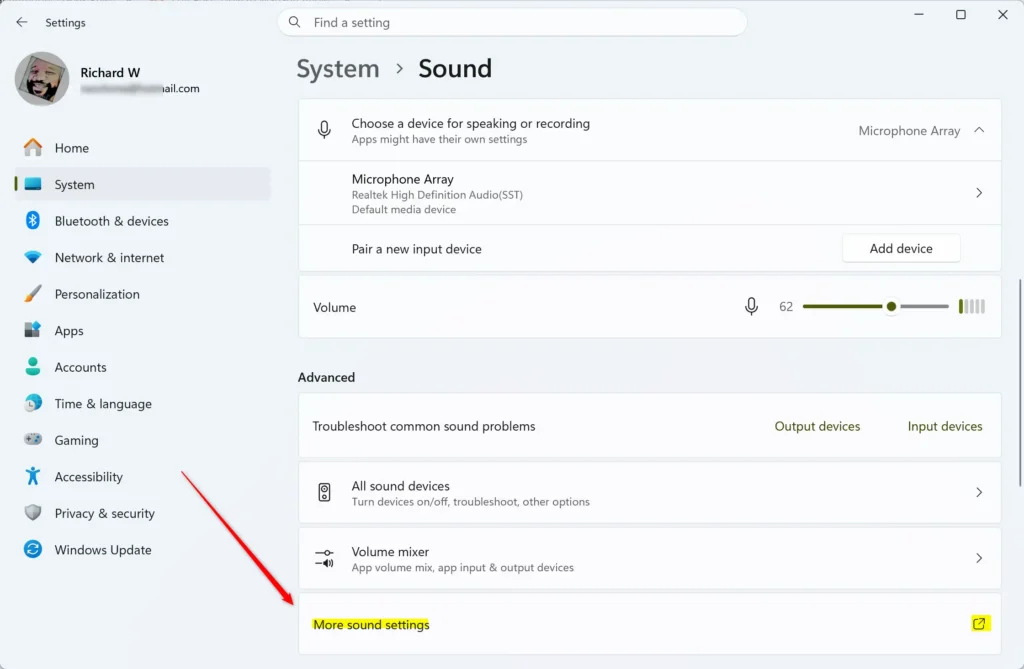
Settings > System > Sound
For the second route, the command mmsys.cpl is the file name of the classic Sound control panel.
- Press Win+R. The Run dialog opens.
Run dialog - Type mmsys.cpl in the Open box. Enter it exactly as shown:
mmsys.cpl. - Press Enter. The Sound dialog opens on the Playback tab.
You can also reach it through Control Panel Hardware and Sound Sound. Control Panel opens from Start search when you type Control Panel.
In the dialog, right-click a device and select Properties to see its detailed tabs. The tabs depend on the driver (the software that runs the hardware), so a device from one manufacturer can show different options than another.
Find speaker settings
Speaker settings live on the Sound page under Output. This is the section to use when you want to change how your speakers sound or which device plays audio. These steps open the settings for one set of speakers.
- Open Sound settings. Use the taskbar method or any other method above.
- Find the Output section. It lists every playback device Windows detects, such as Speakers, a monitor, or a headset.
- Select your speakers. The device’s properties page opens. It shows options such as Format (the sample rate and bit depth), Enhance audio, and Spatial sound, depending on the device and driver.
- Select Test. Windows plays a short sound through the device so you can confirm it works. Not every driver shows this button.
Select the name of a different device in the list to open its page instead. The device you picked as the default plays all system audio, so changing the default is a separate task. The guide on changing the default sound output device in Windows 11 covers it. To set how loud each device plays, see adjusting volume levels in Windows 11 Sound settings.
Find headset settings
A headset appears twice on the Sound page when it has a microphone: once under Output for the earpieces and once under Input for the microphone. Wired headsets, USB headsets, and Bluetooth headsets all follow this pattern. Follow these steps to reach each half.
- Connect the headset. Plug it in or pair it over Bluetooth. Windows adds it to the device lists within a few seconds.
- Open Sound settings. Any method above works.
- Select the headset under Output. This opens the settings for the earpieces, including Format and Spatial sound, if the driver offers them.
- Go back and select the headset under Input. This opens the microphone settings, including the input volume and the Test your microphone meter.
A Bluetooth headset can appear with two entries, for example one labeled Stereo (for music) and one labeled Hands-Free (a call mode that also turns on the microphone). Windows switches between them depending on whether an app is using the microphone. Pairing and connection options for Bluetooth headsets sit in Settings Bluetooth & devices Devices, not on the Sound page.
If the headset microphone is silent or too quiet, work through setting up a microphone in Windows 11 Sound settings. The article on configuring microphone input gain levels covers sensitivity, which is how strongly the microphone picks up sound.
If Sound settings won’t open or a device is missing
Opening Sound settings rarely fails. The usual problems are a page that opens but shows nothing in the device lists, or a device that vanished. Here are the causes and fixes.
The Output or Input list is empty
If the page shows no devices, Windows does not detect any audio hardware, or the device is disabled. Check that the speakers or headset are plugged in, switched on, and set to the right input on the device itself. Then open the page again and look at the list.
A disabled device does not appear in the normal list. See disabling or enabling a sound device in Windows 11 Sound settings to turn it back on.
A device you used before is not listed
Windows 11 can hide devices that are disconnected, unplugged, or disabled. The device may still exist and may return once you reconnect it. These three guides explain how to show or hide each type:
- Hide or show disconnected sound devices
- Hide or show unplugged sound devices
- Hide or show disabled sound devices
The Settings app opens but is blocked or greyed out
The speaker icon is missing from the taskbar
Use Win+A to open Quick Settings, or use Settings System Sound. Both reach the same page without the icon. If neither the icon nor Quick Settings responds, restart the PC once and try again.
Sound settings opens, but audio still behaves oddly
When the page opens but devices misbehave, with the wrong output, missing sound, or stuck levels, resetting the audio settings often fixes the problem. The guide on resetting audio settings in Windows 11 Sound properties walks through that.
What to do next
With Sound settings open, the next task most people need is picking which device plays audio by default. Follow the guide on changing the default sound output device. If you need to change how notification sounds play, see customizing app notification sound alerts in Windows 11.
Have a question about this guide?
Answered by AI from this guide. Good questions may be added to this page — please don't include personal details.
Did this guide fix your problem?

About the Author
Richard
Tech Writer, IT Professional
Richard is a writer at Geek Rewind who turns complex IT tasks into clear, step-by-step guides. He draws on years of hands-on experience in system administration and enterprise IT operations, focusing on Windows, Linux and WordPress: the problems people actually run into, and the fixes that work. His server and WordPress guides come from systems he runs himself. Richard builds and maintains the platform behind Geek Rewind, from its Ubuntu servers and Nginx configuration to its custom WordPress plugins. Many new tutorials start with readers' questions, and he's always glad to answer them in the comments.
No comments yet — be the first to share your thoughts!