Every Ms-Settings Command in Windows 11

- 17 steps
- Needs administrator rights
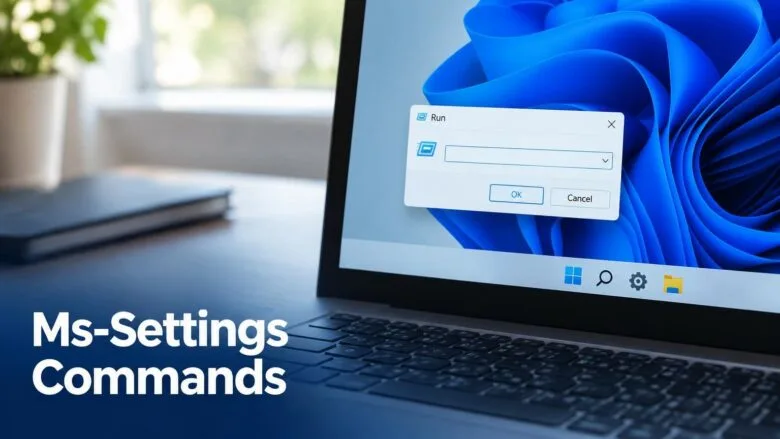
Ms-settings commands open a specific page of the Settings app in Windows 11 with a single line of text, such as ms-settings:display for System Display. Type one into the Run box (the small window you open with Win+R) and the page appears without any clicking through menus.
This post lists every documented ms-settings command by Settings category, then shows four ways to launch one, from the Run box to a browser address bar, and how to turn one into a desktop shortcut. The names below match Windows 11 versions 23H2 and 24H2.
None of these commands needs administrator rights, and none changes a setting by itself. They only open the page.
Ms-settings commands open a specific page of the Settings app in Windows 11 with one line of text. Press Win+R, type a command such as ms-settings:display, and press Enter to open System Display directly. The commands work in versions 23H2 and 24H2 and need no administrator rights.
What an ms-settings command is
An ms-settings command is a URI (uniform resource identifier, a link format Windows recognizes, like https: for websites). The ms-settings: part tells Windows to open the Settings app. The word after the colon names the page.
Three rules apply to every command in this post:
- Type the colon directly after
ms-settings, with no space before or after it. - Capitalization does not matter:
ms-settings:Displayandms-settings:displayopen the same page. - Microsoft renames and moves Settings pages between Windows versions (builds), so a few commands land on a nearby page rather than the exact one named here.
Microsoft publishes its own list of these URIs on Microsoft Learn under “Launch the Windows Settings app”. The tables below follow that documented set, grouped the way Windows 11 groups its Settings sidebar. If you want to open desktop tools instead of Settings pages, the Run command guide covers the other side of the Run box.
How to open a Settings page with an ms-settings command
The Run box is the fastest way to use any ms-settings command from the tables below. These steps open the page directly.
- Press Win+R on your keyboard. The Run dialog box opens in the lower-left corner of the screen.
- Click the Open field, then type a command from the tables below, for example
ms-settings:nightlight. Do not add a space after the colon. - Press Enter. The Settings app opens on the page you named.
If Windows shows a message that it cannot find the command, you have a typo or a space in the wrong place. Retype it and check the colon. If Settings opens but shows its home page instead of the page you asked for, see the troubleshooting section further down.
Other ways to launch an ms-settings command
The Run box is not the only place that accepts these commands. Use whichever window you already have open.
To launch from Command Prompt (the text-based Windows command window):
- Right-click the Start button and choose Terminal. Windows Terminal opens.
- Type
start ms-settings:displayand press Enter. The Display page opens. Replacedisplaywith any command name from the tables.
To launch from PowerShell (the more advanced command window that Terminal opens by default):
- Right-click the Start button and choose Terminal.
- Type
Start-Process ms-settings:displayand press Enter. The Display page opens.
To launch from the Start menu search box or a browser address bar:
- Click the Search box on the taskbar, or open Edge and click the address bar.
- Type the full command, such as
ms-settings:sound, and press Enter. - If a browser asks whether to open Settings, click Open. The page opens in the Settings app.
None of these methods needs an elevated (administrator) window. A normal window works. If you use the terminal often, the Sudo command guide explains when a task needs administrator rights (sometimes called elevation).
System commands
These commands open pages under Settings System. The System group is the largest, so it holds many of the commands you will use most.
| Command | Page it opens |
|---|---|
ms-settings:display | Display |
ms-settings:nightlight | Night light settings (inside Display) |
ms-settings:display-advanced | Advanced display |
ms-settings:sound | Sound |
ms-settings:sound-devices | Manage sound devices |
ms-settings:apps-volume | Volume mixer |
ms-settings:notifications | Notifications |
ms-settings:powersleep | Power & battery |
ms-settings:storagesense | Storage |
ms-settings:storagepolicies | Storage Sense configuration |
ms-settings:multitasking | Multitasking (snap layouts and desktops) |
ms-settings:project | Projecting to this PC |
ms-settings:crossdevice | Shared experiences |
ms-settings:clipboard | Clipboard |
ms-settings:remotedesktop | Remote Desktop |
ms-settings:optionalfeatures | Optional features |
ms-settings:about | About (device name, edition, version) |
ms-settings:troubleshoot | Troubleshoot |
ms-settings:recovery | Recovery (reset this PC, advanced startup) |
ms-settings:activation | Activation |
ms-settings:findmydevice | Find my device |
ms-settings:developers | For developers |
Two of these are worth remembering. ms-settings:about shows your Windows edition and version number. Support staff ask for it first. ms-settings:storagepolicies jumps to the Storage Sense (a tool that deletes temporary files on a schedule) options.
Windows Update and backup commands
Windows Update has its own section in the Windows 11 sidebar. These commands open its pages, plus a few closely tied ones.
| Command | Page it opens |
|---|---|
ms-settings:windowsupdate | Windows Update |
ms-settings:windowsupdate-action | Windows Update, with a check for updates started |
ms-settings:windowsupdate-history | Update history |
ms-settings:windowsupdate-options | Advanced options |
ms-settings:windowsupdate-optionalupdates | Optional updates (driver and preview updates) |
ms-settings:delivery-optimization | Delivery Optimization (how your PC shares update files) |
ms-settings:windowsinsider | Windows Insider Program |
ms-settings:backup | Windows Backup |
ms-settings:windowsupdate-action is the one to save for later. It opens the Windows Update page and starts the check for you, so you skip one click.Bluetooth and devices commands
These commands cover hardware pages: Bluetooth, printers, the mouse, and the keyboard.
| Command | Page it opens |
|---|---|
ms-settings:bluetooth | Bluetooth & devices |
ms-settings:connecteddevices | Bluetooth & devices (device list) |
ms-settings:printers | Printers & scanners |
ms-settings:mobile-devices | Mobile devices |
ms-settings:camera | Cameras |
ms-settings:mousetouchpad | Mouse |
ms-settings:devices-touchpad | Touchpad |
ms-settings:typing | Typing |
ms-settings:pen | Pen & Windows Ink |
ms-settings:autoplay | AutoPlay |
ms-settings:usb | USB |
The Touchpad, Pen & Windows Ink, and Cameras pages depend on hardware. A desktop PC with no touchpad may open the Settings home page instead.
Network and internet commands
These commands open the network pages, which are useful when you need Wi-Fi or proxy settings without searching for them.
| Command | Page it opens |
|---|---|
ms-settings:network-status | Network & internet |
ms-settings:network-wifi | Wi-Fi |
ms-settings:network-wifisettings | Manage known networks |
ms-settings:network-ethernet | Ethernet |
ms-settings:network-vpn | VPN |
ms-settings:network-airplanemode | Airplane mode |
ms-settings:network-mobilehotspot | Mobile hotspot |
ms-settings:network-proxy | Proxy |
ms-settings:network-dialup | Dial-up |
ms-settings:network-advancedsettings | Advanced network settings |
ms-settings:network-cellular | Cellular |
ms-settings:datausage | Data usage |
Personalization commands
These commands open the appearance pages. They match the items under Settings Personalization.
| Command | Page it opens |
|---|---|
ms-settings:personalization | Personalization |
ms-settings:personalization-background | Background |
ms-settings:colors | Colors |
ms-settings:themes | Themes |
ms-settings:lockscreen | Lock screen |
ms-settings:personalization-start | Start |
ms-settings:personalization-start-places | Start folders |
ms-settings:taskbar | Taskbar |
ms-settings:fonts | Fonts |
ms-settings:personalization-textinput | Text input |
ms-settings:deviceusage | Device usage |
Apps commands
These commands open the pages that manage installed programs and default apps.
| Command | Page it opens |
|---|---|
ms-settings:appsfeatures | Installed apps |
ms-settings:defaultapps | Default apps |
ms-settings:startupapps | Startup |
ms-settings:appsforwebsites | Apps for websites |
ms-settings:videoplayback | Video playback |
ms-settings:maps | Offline maps |
The page title for ms-settings:appsfeatures reads “Installed apps” in Windows 11 version 23H2 and later, and “Apps & features” in earlier Windows 11 builds. The command is the same on both versions, so you do not need to change it.
Accounts commands
These commands open the sign-in and account pages.
| Command | Page it opens |
|---|---|
ms-settings:yourinfo | Your info |
ms-settings:emailandaccounts | Email & accounts |
ms-settings:signinoptions | Sign-in options |
ms-settings:otherusers | Other users (Family & other users in older builds) |
ms-settings:workplace | Access work or school |
Time and language commands
These commands open the clock, region, and speech pages.
| Command | Page it opens |
|---|---|
ms-settings:dateandtime | Date & time |
ms-settings:regionformatting | Region (regional format) |
ms-settings:regionlanguage | Language & region |
ms-settings:speech | Speech |
Gaming commands
These commands open the pages under Settings Gaming.
| Command | Page it opens |
|---|---|
ms-settings:gaming-gamebar | Game Bar |
ms-settings:gaming-gamemode | Game Mode |
ms-settings:gaming-captures | Captures |
Accessibility commands
easeofaccess. That is not a typo.| Command | Page it opens |
|---|---|
ms-settings:easeofaccess | Accessibility |
ms-settings:easeofaccess-display | Text size |
ms-settings:easeofaccess-mousepointer | Mouse pointer and touch |
ms-settings:easeofaccess-cursor | Text cursor |
ms-settings:easeofaccess-magnifier | Magnifier |
ms-settings:easeofaccess-colorfilter | Color filters |
ms-settings:easeofaccess-highcontrast | Contrast themes |
ms-settings:easeofaccess-narrator | Narrator |
ms-settings:easeofaccess-audio | Audio |
ms-settings:easeofaccess-closedcaptioning | Captions |
ms-settings:easeofaccess-keyboard | Keyboard |
ms-settings:easeofaccess-mouse | Mouse |
ms-settings:easeofaccess-eyecontrol | Eye control |
Privacy and security commands
These commands open the permission pages, where you decide which apps can use your camera, microphone, location, and files.
| Command | Page it opens |
|---|---|
ms-settings:privacy | Privacy & security |
ms-settings:windowsdefender | Windows Security |
ms-settings:privacy-general | General |
ms-settings:privacy-speech | Speech |
ms-settings:privacy-feedback | Diagnostics & feedback |
ms-settings:privacy-activityhistory | Activity history |
ms-settings:search-permissions | Search permissions |
ms-settings:privacy-location | Location |
ms-settings:privacy-webcam | Camera |
ms-settings:privacy-microphone | Microphone |
ms-settings:privacy-notifications | Notifications (access to notifications) |
ms-settings:privacy-contacts | Contacts |
ms-settings:privacy-calendar | Calendar |
ms-settings:privacy-callhistory | Call history |
ms-settings:privacy-email | |
ms-settings:privacy-messaging | Messaging |
ms-settings:privacy-documents | Documents |
ms-settings:privacy-pictures | Pictures |
ms-settings:privacy-videos | Videos |
ms-settings:privacy-broadfilesystemaccess | File system |
The ms-settings:windowsdefender command opens the Windows Security page inside Settings. This page has an Open Windows Security button. Click it to start the separate Windows Security app.
How to turn an ms-settings command into a desktop shortcut
A shortcut saves you from typing the command each time. This is useful for pages you open often, such as Night light or Windows Update.
- Right-click an empty spot on the desktop. A context menu opens.
- Choose New Shortcut. The Create Shortcut wizard opens.
- Type a command, such as
ms-settings:nightlight, in the location box. - Click Next.
- Type a name, such as Night light, in the name box.
- Click Finish. The shortcut appears on your desktop.
- Double-click the shortcut to test it. The Settings page opens.
To remove the shortcut, right-click it and choose Delete. Deleting the shortcut does not change any setting.
The same shortcut works with any command in the tables above. To add a keyboard shortcut, right-click the shortcut, choose Properties, and set a shortcut key if you want one. See every Windows 11 keyboard shortcut for built-in features for the shortcuts Windows already provides.
Why an ms-settings command opens the wrong page or nothing
Four causes explain most failures. Check them in this order.
The page is missing on your build. If the Settings home page opens instead of your target, Windows could not match the name. Microsoft retires and renames pages across feature updates, so an older command may no longer work. Open Settings from the Start menu and look for the page by name to confirm it still exists.
Your hardware does not support the page. Pages such as Touchpad, Mobile hotspot, Cellular, and Power & battery details depend on the device. A desktop without a battery or a Wi-Fi adapter may show no page or a reduced one.
Your edition or policy hides the page. Some pages differ between Windows 11 Home and Pro, and a work or school PC can hide Settings pages through a policy (a setting that an administrator applies to the PC). If an administrator manages your PC, the page may be blocked on purpose. Ask your IT team before trying to work around it.
You typed the command with a space or a typo. ms-settings: display with a space fails. Retype it with the colon attached to the page name.
For desktop-style tools such as Event Viewer or Disk Management, ms-settings commands do not apply. Those open from different commands, covered in every Windows 11 administrative tool explained.
What to do next
Pick the three or four pages you open most, and make shortcuts for them using the steps above. After a Windows 11 feature update, test any shortcut that stops working, because Microsoft sometimes renames a page and the command changes with it. For window management beyond Settings, see every Windows 11 keyboard shortcut for window snapping.
Have a question about this guide?
Answered by AI from this guide. Good questions may be added to this page — please don't include personal details.
Did this guide fix your problem?

About the Author
Richard
Tech Writer, IT Professional
Richard is a writer at Geek Rewind who turns complex IT tasks into clear, step-by-step guides. He draws on years of hands-on experience in system administration and enterprise IT operations, focusing on Windows, Linux and WordPress: the problems people actually run into, and the fixes that work. His server and WordPress guides come from systems he runs himself. Richard builds and maintains the platform behind Geek Rewind, from its Ubuntu servers and Nginx configuration to its custom WordPress plugins. Many new tutorials start with readers' questions, and he's always glad to answer them in the comments.
No comments yet — be the first to share your thoughts!