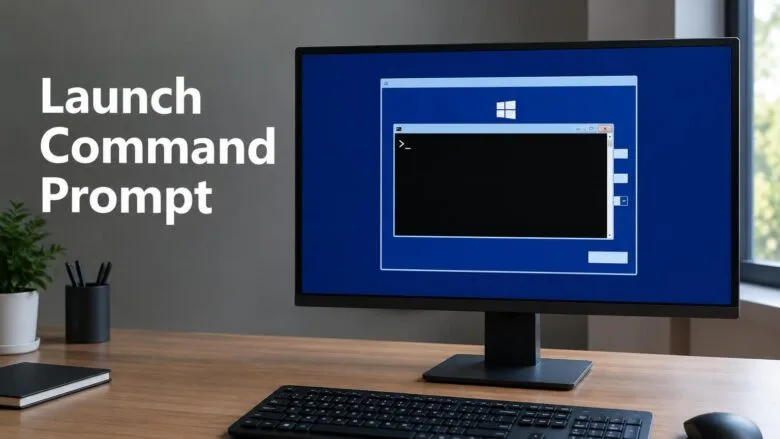
Launch Command Prompt with Shift+F10 at the Windows Boot Screen

- 11 steps
- Includes a restart or sign-out
Shift+F10 opens a Command Prompt window on top of Windows Setup, the installer screen that appears when you boot from Windows 11 media. To use it, click the Setup window to give it focus, then press Shift + F10. Most people searching for this problem need the Shift+F10 shortcut, so start with the key and the step.
A Command Prompt (a text window where you type commands) opened this way runs inside the Windows Preinstallation Environment. This is a small copy of Windows that loads from the installer into memory. You can partition disks, browse files and restart the PC from it before Windows is installed. The steps below apply to media for any currently supported Windows 11 version (25H2 or 26H2) and are identical on Home and Pro.
Press Shift+F10 on the Windows Setup screen to open a Command Prompt window. First click an empty area of the Windows Setup window so it has focus, then press the keys. The shortcut works on the language and keyboard pages and on Install now, but not on the Windows Boot Manager menu. On a laptop that needs the Fn key, press Shift+Fn+F10.
What Shift+F10 Does at the Windows Setup Screen
Shift+F10 is a shortcut built into Windows Setup. It works on the first screens, where you pick your language, time and currency format, and keyboard layout. It also works on the Install now screen and during the later setup pages.
It does not work at the earlier Windows Boot Manager screen, the text menu that lists the operating systems on your PC. It also does not work on the lock screen or sign-in screen of an installed Windows. The shortcut only works once the Windows Setup window is on screen.
If you only want a Command Prompt on a PC that already has Windows installed, you do not need this shortcut. See How to Access Command Prompt in Windows 11 instead.
Before You Start
You need bootable Windows 11 installation media, usually a USB flash drive. You also need to know how to make your PC boot from it. Check these points first:
- The USB drive must contain Windows 11 setup files. A drive holding only the ISO file as a regular file will not boot.
- Know your PC’s one-time boot menu key. Manufacturers use different keys, and F12, F10, F9 and Esc are common. The key appears briefly on the manufacturer’s logo screen. Your PC’s manual lists it.
- On a laptop, the function keys may need the
Fnkey held down. If so, you pressShift + Fn + F10. - Use the PC’s own keyboard or a wired USB keyboard. Some Bluetooth keyboards do not work until Windows loads.
Booting from media does not change anything on the PC’s drive by itself. Changes only happen if you click through the installer or run a command that alters the disk.
How to Launch Command Prompt with Shift+F10 at the Windows Boot Screen
These steps take you from a powered-off PC to a working Command Prompt, with Shift+F10 focused on the right window. Follow them in order.
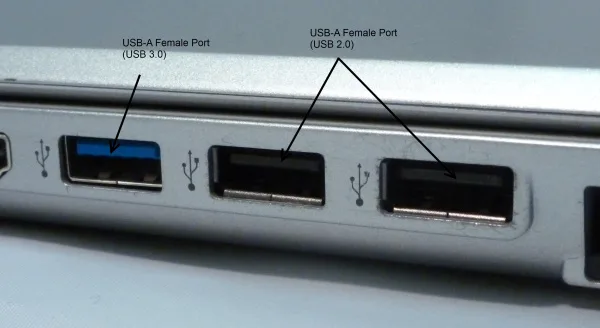
- Plug in the Windows 11 USB drive. Use a port on the PC itself rather than an unpowered hub, which can cause the drive to be missed at startup.
Settings > Bluetooth & devices > USB - Shut down the PC. If Windows is running, select Start Power Shut down. Wait until the screen and power light go off.
- Turn on the PC and press the boot menu key repeatedly. Start tapping as soon as the power button is pressed. A list of bootable devices appears, such as the internal drive and the USB drive.
- Select the USB drive in the list. Use the arrow keys to highlight the USB drive, then press
Enter. Some PCs list the same drive twice, once labelled UEFI (the newer startup method). Pick the UEFI entry if that happens. - Watch for “Press any key to boot from CD or DVD” if it appears. Press any key within a few seconds. If you miss the prompt, the PC starts from its internal drive. Restart and try again.
- Wait for the Windows Setup window. It shows Language to install, Time and currency format and Keyboard or input method, with a Next button. This can take a minute.
- Click an empty area of the Windows Setup window. This makes it the active window, so it receives your key presses. Avoid clicking a drop-down list, because the shortcut may not register while one is open.
- Press Shift+F10. On a laptop that needs the function key, press
Shift + Fn + F10. A black window titled Administrator: 📁X:\windows\ opens over the Setup screen.system32\ cmd.exe 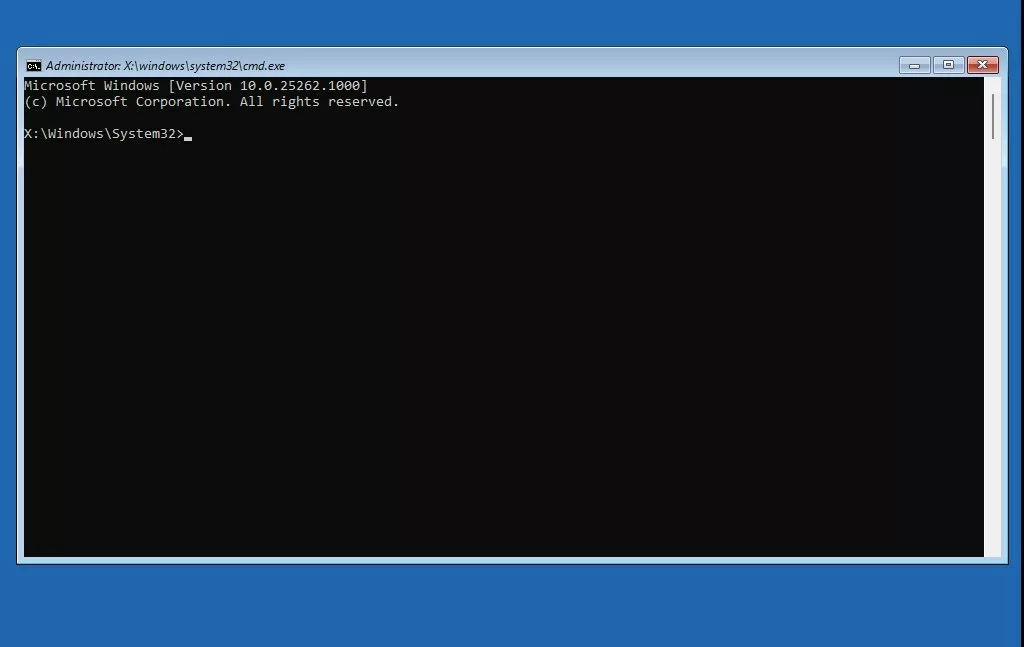
command prompt at boot windows - Check the prompt text. It usually reads
X:\Sources>. The X: drive is the temporary drive the installer runs from, not your real drive. Your own drive often appears under another letter, such as C: or D:. - Type your commands in the window and press
Enterafter each one. The window accepts keyboard input as soon as it is active. If your typing goes nowhere, click the black window once and try again. - Type
exitand pressEnterwhen you finish. The Command Prompt closes and the Windows Setup window returns. You can then continue the install or restart the PC.
If the PC does not boot from the USB drive
If the PC starts the installed Windows instead, the boot menu key did not register. You can also reach the menu from Windows.
Open Settings System Recovery, select Restart now next to Advanced startup, and choose Use a device on the blue screen that follows. Pick the USB drive from the list. The PC restarts into Windows Setup. 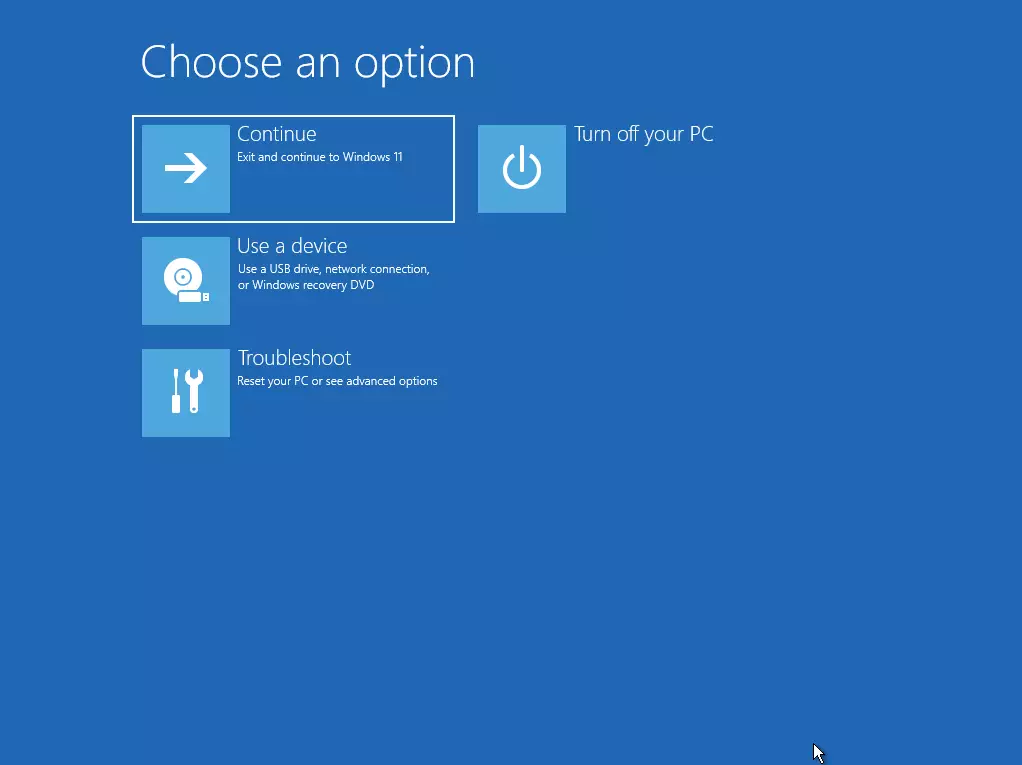
If your PC still ignores the USB drive, check the firmware settings (the UEFI or BIOS screen) for a boot order that lists the USB drive first. The menu for opening those settings varies by manufacturer, so look it up for your model.
If Shift+F10 Does Nothing or Focus Is Wrong
Most failures come from the keyboard shortcut going to the wrong place. Work through these in order, because the earlier ones are the most common.
The Setup window does not have focus
If you pressed the keys before the window finished loading, Windows Setup may ignore them. Click an empty area of the Setup window and press the shortcut again. Wait a second or two between attempts, because holding the keys down can confuse the shortcut.
The Command Prompt opened behind the Setup window
On some builds, the Command Prompt starts but stays hidden behind the full-screen installer. Press Alt + Tab to switch to it. If it appears, click inside it before typing.
The function keys are not responding
Many laptops treat F10 as a media or brightness key until you hold Fn. Try Shift + Fn + F10. Some keyboards have an Fn Lock key (a key that switches the top row between special functions and F keys). Press Fn + Esc or the Fn Lock key, then try again.
You are testing in a virtual machine
The virtual machine (a computer that runs inside your own, here called a VM) window must have captured your keyboard. Click inside the VM’s screen first. If the shortcut still does not reach the VM, your virtualization program may have a menu option to send key combinations to the guest. Check its menus.
You are not on the Setup screen
The shortcut does not work at the Windows Boot Manager menu or at the sign-in screen of an installed Windows. Make sure the Windows Setup window is showing. Press the Next button once to move to the Install now screen if the first screen is slow to respond.
Use Shift+F10 During the Out-of-Box Experience
The same shortcut works later in a new installation. The out-of-box experience (OOBE) is the set of screens that appear after the first restart, such as the region selection and the account sign-in pages. Click an empty part of the page, then press Shift + F10.
A Command Prompt opens, but it is running inside the newly installed Windows rather than the installer. The prompt path normally points to a folder under 📁C:\
Use this prompt carefully. You are running commands with full rights on a system that has not finished setting itself up. Type exit, the command that closes the window, when you are done, then continue the setup pages.
What You Can Do from the Prompt
Four tasks come up most often. Each runs in the black window you opened above.
Find the drive letters
The installer assigns drive letters on its own, so C: may not be your Windows drive. Type diskpart and press Enter, then type list volume and press Enter. The table shows each volume with its letter, label and size. Type exit to leave DiskPart (the built-in disk management tool) and return to the prompt.
Browse files with Notepad
Type notepad and press Enter. In Notepad, select File Open and choose All files in the file type list. You can then browse every folder on every volume, which helps you find a file or confirm that a drive holds the data you expect.
Wipe or change a disk
list disk and compare the sizes to the drive you intend to change. Back up first if you are unsure.Restart the PC
Type wpeutil reboot and press Enter. The PC restarts at once. Remove the USB drive during the restart if you want the PC to boot from its own drive instead of going back into Setup.
Another Route: Command Prompt from Repair Options
If Shift+F10 does not work on your hardware, the installer has a second way in. On the first Setup screen, select Next, then select Repair your computer at the bottom left of the Install now screen. Windows opens the recovery environment. Select Troubleshoot Advanced options Command Prompt.
This opens a similar Command Prompt, but it can ask you to pick an account and enter its password first. The shortcut does not ask for either. Our guide How to Open Command Prompt at Boot In Windows 11 covers the recovery route in more detail. For a prompt with elevated rights inside a running Windows session, see Open Command Prompt as Administrator in Windows 11.
Security and Drive Encryption
Anyone with physical access to a PC and a Windows 11 USB drive can open this prompt, because the shortcut does not need a password. This is why encryption matters. If the drive uses BitLocker (Windows drive encryption), the installed Windows volume stays locked until someone enters the recovery key. Without that key, the person at the prompt cannot read your files.
If you are locked out of your own encrypted drive, find your BitLocker recovery key before you start. It is normally stored with your Microsoft account or printed when you set up encryption. The Command Prompt does not bypass it.
Policies that disable Command Prompt for users on an installed PC are a separate topic. Our guide How to Disable Command Prompt in Windows 11 covers that. It is not confirmed whether those policies affect the prompt in Setup, so do not rely on them to block it.
What to Do Next
When you finish, type exit to close the window, then continue installing or restart the PC with wpeutil reboot. Once Windows is running again, use How to Access Command Prompt in Windows 11 for everyday command-line work. If the shortcut never worked on your hardware, use the Repair your computer route above instead.
Have a question about this guide?
Answered by AI from this guide. Good questions may be added to this page — please don't include personal details.
Did this guide fix your problem?

About the Author
Richard
Tech Writer, IT Professional
Richard is a writer at Geek Rewind who turns complex IT tasks into clear, step-by-step guides. He draws on years of hands-on experience in system administration and enterprise IT operations, focusing on Windows, Linux and WordPress: the problems people actually run into, and the fixes that work. His server and WordPress guides come from systems he runs himself. Richard builds and maintains the platform behind Geek Rewind, from its Ubuntu servers and Nginx configuration to its custom WordPress plugins. Many new tutorials start with readers' questions, and he's always glad to answer them in the comments.
No comments yet — be the first to share your thoughts!