Run a Microsoft Defender Scan from Command Prompt in Windows 11

- 17 steps
- Needs administrator rights
Microsoft Defender can scan your PC from Command Prompt with MpCmdRun.exe, a command-line tool that is part of Windows 11 and drives the same antivirus engine as Windows Security. Open Command Prompt as administrator, go to the Defender folder, and run MpCmdRun.exe -Scan -ScanType 1 to start a quick scan.
The command line is useful when the Windows Security window will not open or when you are connected to a PC through a remote session. It also helps when you want to put a scan in a script. It works on Windows 11 Home, Pro, Enterprise and Education. It needs no registry changes and no extra downloads.
This guide covers quick, full and custom scans, updating Defender before you scan, reading the output, and fixing the errors you are most likely to hit.
Run a Microsoft Defender scan from Command Prompt by opening Command Prompt as administrator, typing cd /d “📁C:\
Before You Start
Three checks save time later. They take less than a minute and explain most failed scans.
- Administrator rights. The scan commands in this guide need an elevated Command Prompt (one that runs with full administrator permissions). A standard window can fail with an access denied message.
- Microsoft Defender must be active. If another antivirus product is installed, Windows may turn Defender off or put it in a reduced mode. If you are unsure, read how to enable Microsoft Defender in Windows 11 first.
- Time. A quick scan is short, but a full scan can run for a long time on a large drive. Do not start one right before you need the PC.
MpCmdRun.exe only starts scans and manages Defender. It does not change any Defender setting, and none of the steps below are hard to undo.
Run a Microsoft Defender Scan from Command Prompt
These steps run a quick scan, which checks the folders where malware most often hides, after first updating the definitions (the files Defender uses to recognize known threats). Follow these steps to run a quick Defender scan from Command Prompt.
- Search for Command Prompt. Press the Windows key and type cmd. Command Prompt appears at the top of the results.
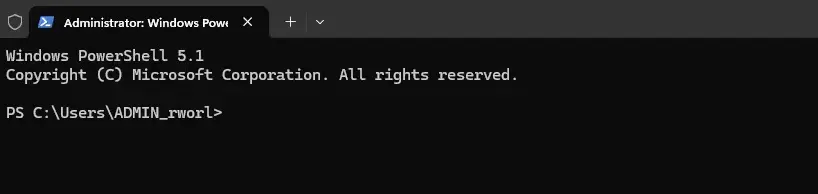
Command prompt window showing terminal commands for Dropbox. - Right-click Command Prompt and choose Run as administrator. This step requires administrator privileges. You can also select Run as administrator in the pane on the right side of the search results.
- Click Yes when User Account Control (the permission prompt) appears. A black window opens with Administrator: Command Prompt in the title bar. If you do not see “Administrator” there, close the window and repeat step 2.
- Go to the Defender folder. Type
cd /d "C:\Program Files\Windows Defender"and press Enter. The prompt changes toC:\Program Files\Windows Defender>. The/dswitch changes drive as well as folder, so the command works even if your window opened on a different drive. - Update the definitions. Type
MpCmdRun.exe -SignatureUpdateand press Enter. Defender contacts Microsoft and prints a message when the update finishes. An update that finds nothing new is normal. - Start the quick scan. Type
MpCmdRun.exe -Scan -ScanType 1and press Enter. The window prints Scan starting… and then shows no new prompt while the scan runs. - Wait for the scan to finish. The window prints Scan finished. and returns to the
>prompt when it is done. Do not close the window early. - Read the result line. A clean scan reports that it found no threats. If Defender finds something, the output says so and Defender acts on it under your current settings.
- Open Windows Security to confirm the result. Go to Windows Security Virus & threat protection Protection history. Windows Security lists every threat Defender found or removed, with the date.
Here are the commands from steps 4 to 6 together, in the order you run them:
cd /d "C:\Program Files\Windows Defender"
MpCmdRun.exe -SignatureUpdate
MpCmdRun.exe -Scan -ScanType 1
If MpCmdRun.exe Is Not Found in That Folder
Sometimes newer Defender updates put MpCmdRun.exe in a folder named with a version number instead. If Command Prompt says ‘MpCmdRun.exe’ is not recognized after step 4, open File Explorer and go to 📁C:\
Inside Platform you find one or more folders named with a version number. Open the newest one, and you should see MpCmdRun.exe. Then change to that folder in Command Prompt with cd /d, putting the full path in quotation marks, and repeat from step 5.
Choose the Right Scan Type
The scan type you set with the -ScanType option decides how much Defender checks. It takes a number, and each number matches a scan you can start from the Windows Security app.
| Option | What it does | When to use it |
|---|---|---|
-ScanType 1 | Quick scan of common malware locations | Routine checks and after downloading something unfamiliar |
-ScanType 2 | Full scan of every file on the PC | When you suspect an infection that a quick scan missed |
-ScanType 3 -File "path" | Custom scan of one file or folder | Checking a download, a USB drive or a shared folder |
-ScanType 0 | Runs the default scan type set in your configuration | Rarely needed |
The same options are described in how to scan for malware in Windows 11 with Defender, which covers the Windows Security route.
Run a Full Scan from Command Prompt
A full scan reads every file on your drives, so it takes far longer than a quick scan. Use it when a quick scan comes back clean but the PC still behaves oddly.
- Open an elevated Command Prompt. Follow steps 1 to 3 in Run a Microsoft Defender Scan from Command Prompt above. This step requires administrator privileges.
- Go to the Defender folder. Type
cd /d "C:\Program Files\Windows Defender"and press Enter. - Start the full scan. Type
MpCmdRun.exe -Scan -ScanType 2and press Enter. The window prints Scan starting…. - Leave the window open until the scan ends. Keep the PC plugged in if it is a laptop, because a full scan uses the disk and processor heavily.
If you need to stop a running scan, open a second elevated Command Prompt, go to the same folder, and run MpCmdRun.exe -Scan -Cancel.
If a full scan slows the PC too much, see how to optimize Microsoft Defender CPU usage in Windows 11.
Scan a Specific File or Folder
A custom scan checks only the item you name. It finishes quickly and suits a download folder, a single installer or a removable drive. Add the path of a file or folder after the -File option.
- Open an elevated Command Prompt. Follow steps 1 to 3 in Run a Microsoft Defender Scan from Command Prompt above. This step requires administrator privileges.
- Go to the Defender folder. Type
cd /d "C:\Program Files\Windows Defender"and press Enter. - Scan the folder. Type
MpCmdRun.exe -Scan -ScanType 3 -File "C:\Users\USERNAME\Downloads"and press Enter. Replace USERNAME with your own account name. - Wait for Scan finished. to appear. The output tells you whether Defender found any threats in that location.
Keep the quotation marks around the path. Without them, any folder name that contains a space makes the command fail or scan the wrong location. To scan a USB drive, use its drive letter, for example -File "E:\".
Read the Output and Deal with Threats
Defender prints very little while it works. The lines that matter are the start message, the finish message and any line that names a threat. If a threat appears, Defender normally quarantines it (moves it to a locked area where it cannot run), depending on your protection settings.
To see what Defender holds in quarantine, run this command in the same folder:
MpCmdRun.exe -Restore -ListAllIf Defender flagged a file you trust, the -Restore option can bring it back. Restoring a file that is actually malicious is risky, so confirm the file is safe first.
For a known-safe file, adding an exclusion (a rule that tells Defender to skip that file) is often a better fix. Read how to exclude files from Microsoft Defender on Windows 11 before you restore anything.
For a full record of past detections, open Windows Security Virus & threat protection Protection history. This list is easier to read than the command output, and it keeps entries after you close the window.
Fix Problems When the Scan Will Not Run
Most failures come from a short list of causes. Match what you see to the cases below.
Access Is Denied or the Command Does Nothing
This almost always means the Command Prompt window is not elevated. Check the title bar for the word Administrator. If it is missing, close the window and reopen it using the Run as administrator option.
The Scan Starts but Fails Right Away
Defender may be switched off, or another security product may be in control. Open Windows Security Virus & threat protection and look for a warning or a message that another provider is active. If Real-time protection is off, turn it on and try again. The guide to activating Microsoft Defender Antivirus in Windows 11 shows where that switch is.
The Signature Update Fails
The update needs an internet connection. If the PC is online and the update still fails, check that Windows Update works. Then compare your version with the steps in how to check Microsoft Defender updates in Windows 11. You can still run a scan with the definitions already installed, but an out-of-date scan is less reliable.
The Scan Seems Stuck
A full scan can sit with no output for a long time. Open Task Manager and look for Antimalware Service Executable, the Defender process that does the scanning. If it shows disk or processor activity, the scan is still working. Give it time before you cancel it.
Use PowerShell Instead
PowerShell has its own Defender command. Open Windows Terminal or PowerShell as administrator and run Start-MpScan -ScanType QuickScan. It starts the same quick scan without changing to the Defender folder first. This guide uses MpCmdRun.exe because it works in a plain Command Prompt window and in older scripts.
What to Do Next
Put the commands in a scheduled task if you want them to run without you. How to schedule Microsoft Defender scans in Windows 11 shows the setup. If a threat keeps returning after a clean scan, run a Microsoft Defender offline scan on Windows 11, which checks the PC before Windows fully starts. The Windows 11 built-in antivirus guide covers the other Defender settings worth reviewing.
Have a question about this guide?
Answered by AI from this guide. Good questions may be added to this page — please don't include personal details.
Did this guide fix your problem?

About the Author
Richard
Tech Writer, IT Professional
Richard is a writer at Geek Rewind who turns complex IT tasks into clear, step-by-step guides. He draws on years of hands-on experience in system administration and enterprise IT operations, focusing on Windows, Linux and WordPress: the problems people actually run into, and the fixes that work. His server and WordPress guides come from systems he runs himself. Richard builds and maintains the platform behind Geek Rewind, from its Ubuntu servers and Nginx configuration to its custom WordPress plugins. Many new tutorials start with readers' questions, and he's always glad to answer them in the comments.
No comments yet — be the first to share your thoughts!