How to Check Your Microsoft Defender Antivirus Signature Version in Windows 11

The Microsoft Defender Antivirus signature version identifies the set of definitions, also called security intelligence, that Windows 11 uses to recognize known viruses, malware and ransomware. Microsoft publishes new definitions several times a day. The version number and its date show whether your PC has the latest ones.
You can find the number in under a minute with either the Windows Security app or a command in Terminal or PowerShell. Neither method needs a restart or changes any settings.
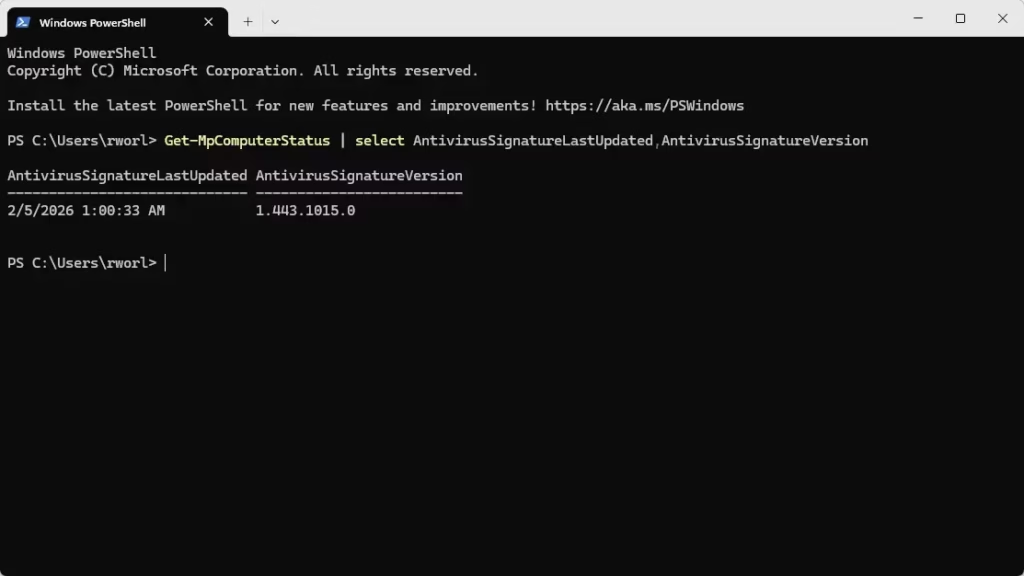
Open Windows Security, go to Virus & threat protection, click Protection updates, and read the Security intelligence version number. Alternatively, open Windows Terminal and run Get-MpComputerStatus | Select-Object -Property AntivirusSignatureVersion to see the version and its last update date.
Method 1Check Signature Version in Windows Security
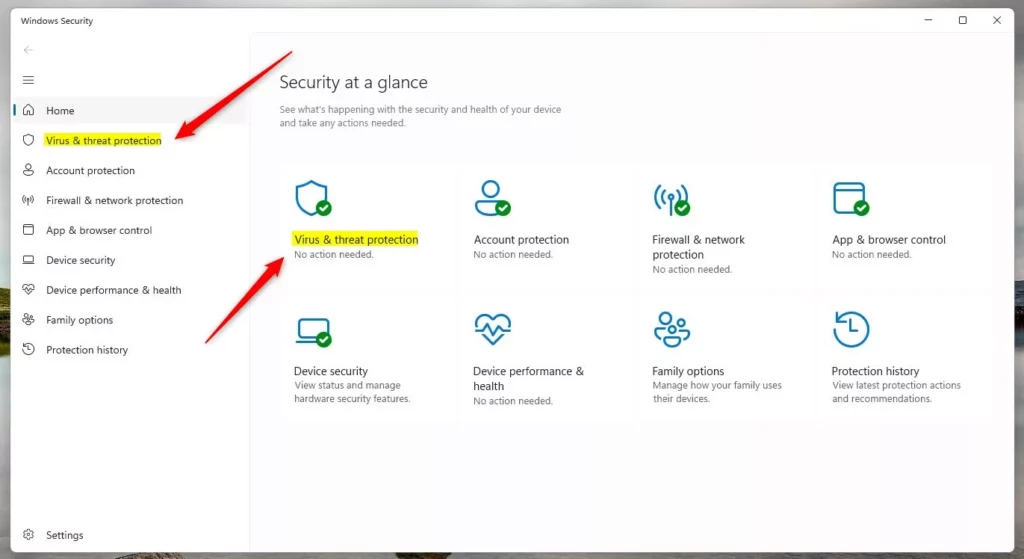
- Click the Start button, type Windows Security, then open the app from the results. You can also open it from Settings Privacy & security Windows Security by clicking Open Windows Security. The Windows Security home screen should now be on your display.
- In Windows Security, click Virus & threat protection. The page shows your current threats, scan options and protection settings.
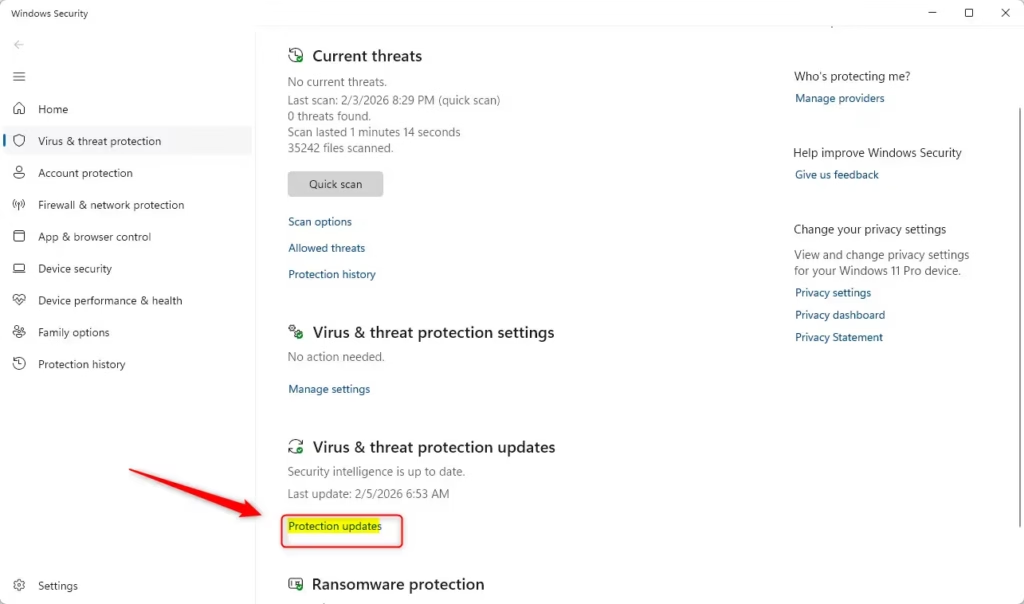
- Scroll to the section called Virus & threat protection updates, then click Protection updates. If the section is missing, another antivirus product may be active and have switched Defender off. In that case, check the version in the other product instead.
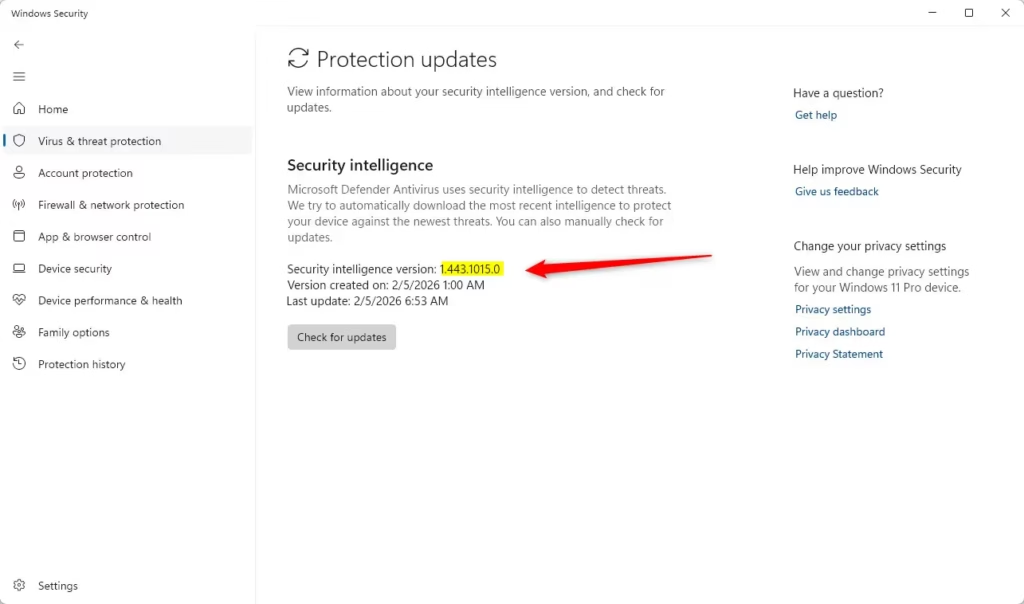
- Read the Security intelligence version on the page that opens. This is your signature version. Below it you will see when the version was created and when Windows last checked for updates. To pull the newest definitions right now, click Check for updates . This needs an internet connection and works the same on Windows 11 Home and Pro. If your PC is managed by an organization, the update options may be greyed out because your administrator controls them.
In short: open the Start menu, type Windows Security and open the app. Go to Virus & threat protection, click Protection updates, and read the Security intelligence version. That number is your Microsoft Defender signature version. A recent creation date means your protection is current.
Method 2Check Signature Version Using Command Prompt or PowerShell
- Right-click the Start button and choose Windows Terminal. On some builds the entry is labelled Terminal. You can also open Command Prompt or PowerShell from the Start menu . A normal, non-administrator window is enough for this check. A command window should now be open with a blinking cursor.
- Copy and paste the command below, then press Enter. The output should appear within a few seconds. If you get an error, make sure you pasted the whole command and that you are not in a restricted window.
The command reads the current signature version from the system, so you do not have to click through any menus. This is also handy when you want to check several PCs quickly or work over a remote session.
The output shows the signature version and the date it was last updated. Compare that date with today’s date. If it is more than a day or two old, open Windows Security and click Check for updates on the Protection updates page. You can also run Windows Update. No restart is normally needed after a signature update.
Why This Matters
- Automatic UpdatesDefender updates itself in the background, usually several times a day. It is still worth checking the version now and then, especially after a long period offline or if updates have been failing.
- SecurityThe signature version, along with its creation date, tells you how current your protection is. Old definitions can miss recently released threats.
- Easy to CheckUse the Windows Security app or a quick command. Both show the same information, and neither changes anything on your PC.
- Stay SafeKnowing your signature version lets you confirm your PC is protected. If the date looks stale, run Check for updates and look again.
Windows updates this file automatically in the background. A manual check lets you verify that your security is actually up to date instead of assuming it is.
That covers both ways to check your Microsoft Defender Antivirus signature version on Windows 11: the Windows Security app and the command line.
Have a question about this guide?
Answered by AI from this guide. Good questions may be added to this page — please don't include personal details.
Did this guide fix your problem?

About the Author
Richard
Tech Writer, IT Professional
Richard is a writer at Geek Rewind who turns complex IT tasks into clear, step-by-step guides. He draws on years of hands-on experience in system administration and enterprise IT operations, focusing on Windows, Linux and WordPress: the problems people actually run into, and the fixes that work. His server and WordPress guides come from systems he runs himself. Richard builds and maintains the platform behind Geek Rewind, from its Ubuntu servers and Nginx configuration to its custom WordPress plugins. Many new tutorials start with readers' questions, and he's always glad to answer them in the comments.
No comments yet — be the first to share your thoughts!