How to Enable or Disable Cloud-delivered Protection for Microsoft Defender Antivirus in Windows 11

- 28 steps
- Needs administrator rights
- Group Policy needs Windows 11 Pro, Enterprise or Education
Cloud-delivered protection lets Microsoft Defender Antivirus check suspicious files against Microsoft’s cloud services. Turn cloud-delivered protection on or off in one of four ways, shown below.
Microsoft Defender Antivirus is the antivirus built into Windows 11. It protects your device from viruses, malware, and other threats.
Cloud protection and automatic sample submission (sending suspicious files to Microsoft for analysis) work with Microsoft Defender Antivirus to give accurate, real-time protection. Microsoft also calls these cloud services Microsoft Advanced Protection Service (MAPS). They extend standard real-time protection and can identify new threats quickly, sometimes before any device on the network gets infected.
Administrator privileges required: Sign in as an administrator to turn Cloud-delivered protection on or off.
Before you start, know this: a value set in Group Policy or the registry overrides the Windows Security setting and the Option Two commands.
Open Windows Security, select Virus & threat protection, then Manage settings, and set Cloud-delivered protection to On or Off. The change takes effect immediately, but you need to be signed in as an administrator, and a Group Policy or registry value overrides it.
Option 1Turn On or Off Cloud-delivered Protection in Windows Security
Option One is the quickest way. It changes the setting in Windows Security.
- Open Windows Security.
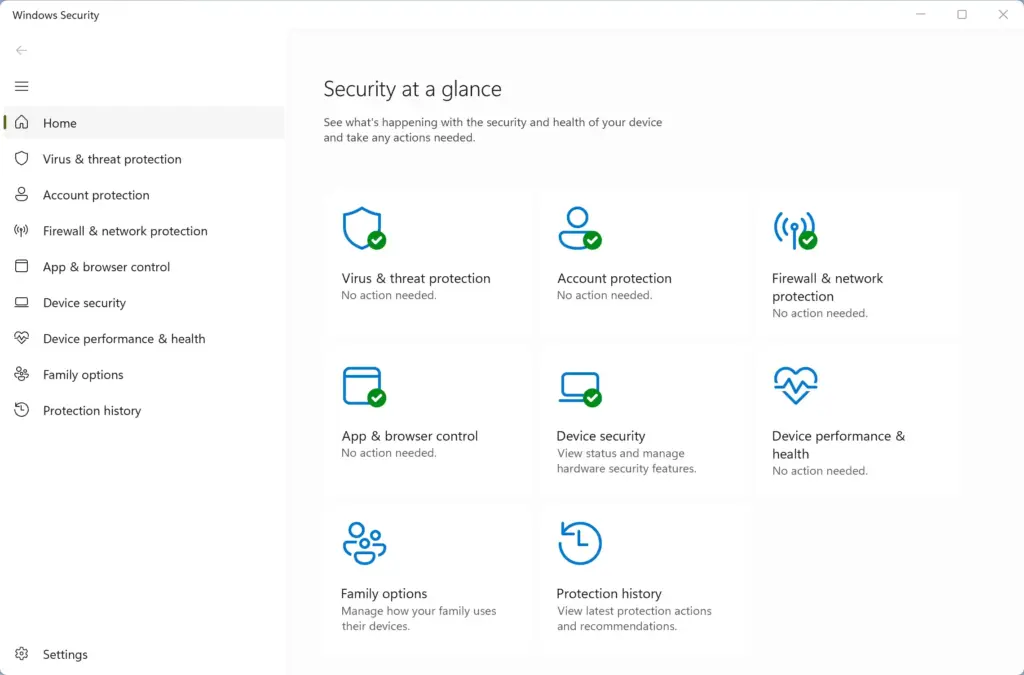
Windows Security - Select Virus & threat protection.
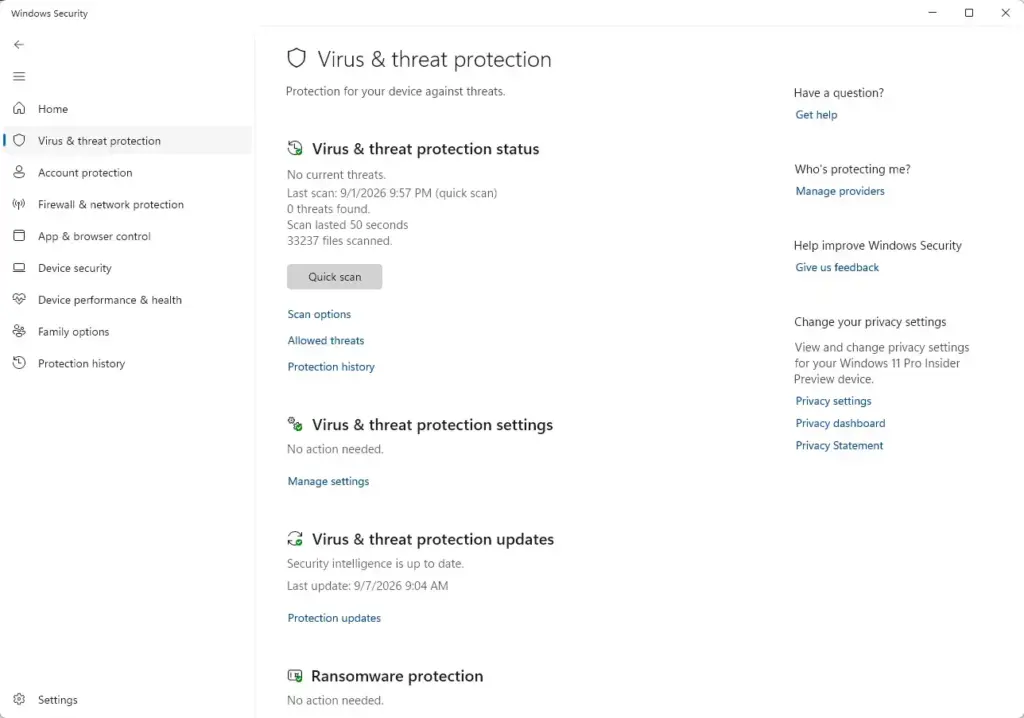
Windows Security › Virus & threat protection - Under Virus & threat protection settings, select Manage settings.
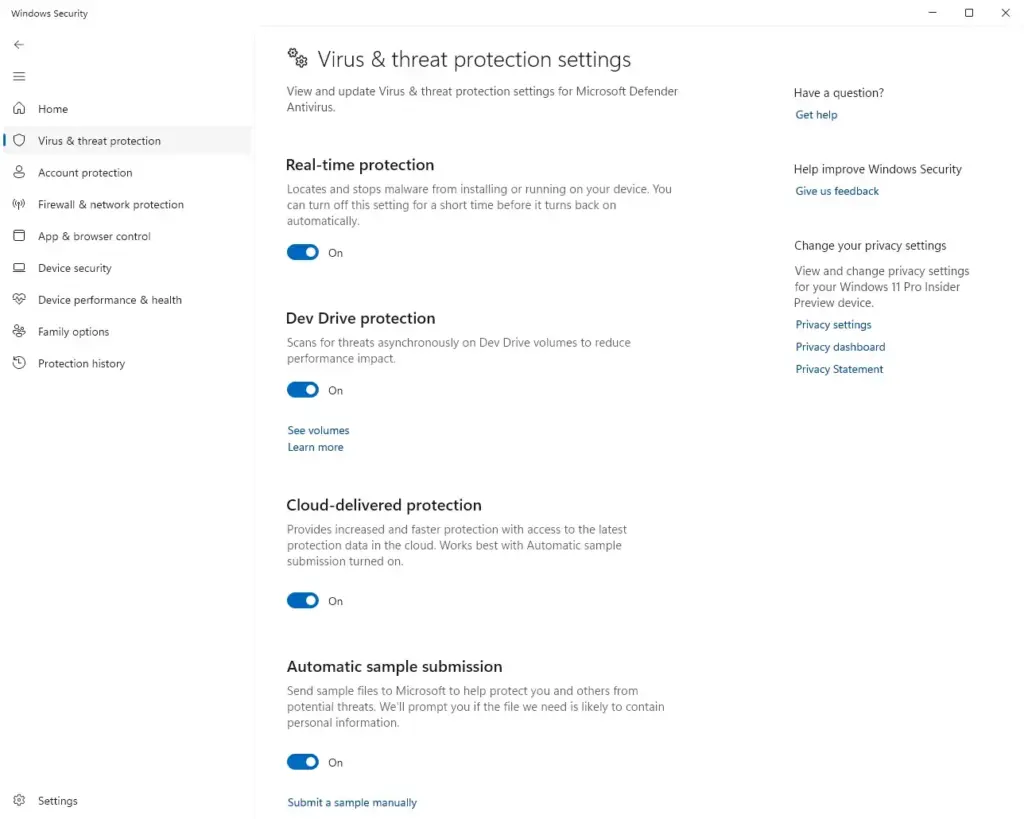
Windows Security - Set Cloud-delivered protection to On (the default) or Off.
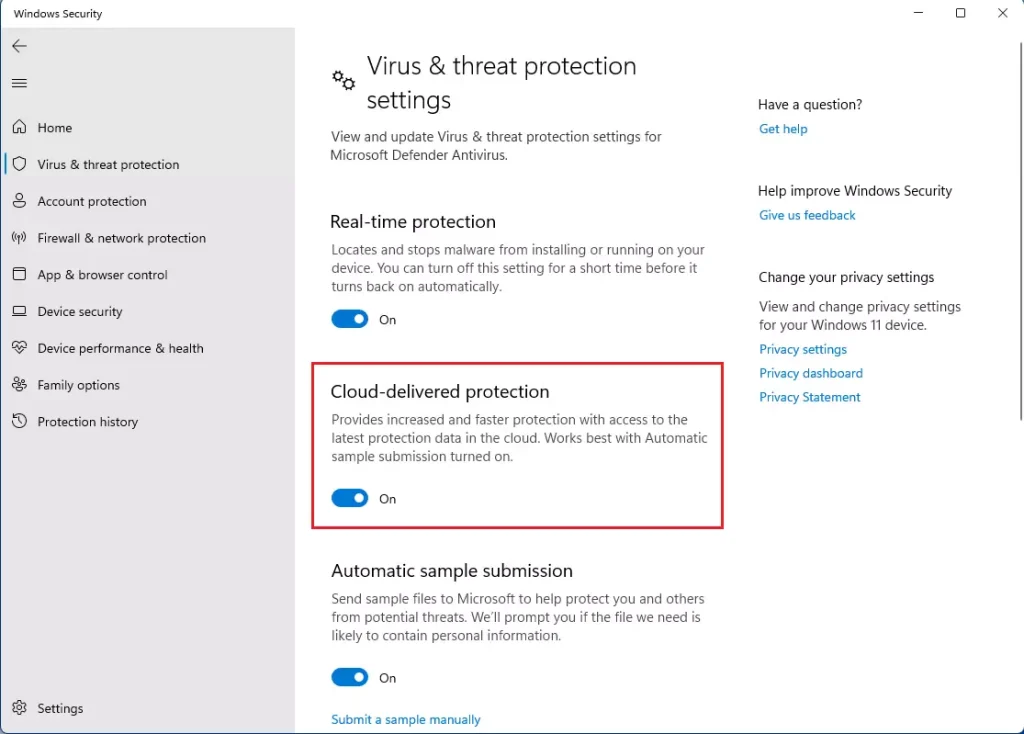
windows 11 cloud delivered protection - If User Account Control (UAC, the prompt that asks permission for administrator actions) appears, select Yes. This step requires administrator privileges.
- Close Windows Security.
Option 2Turn On or Off Cloud-delivered Protection Using a Command
This method changes the setting from the command line. It needs a terminal opened as administrator.
- Open Windows Terminal (Admin). This step requires administrator privileges.
- Choose Windows PowerShell or Command Prompt.
- Paste the command you want, then press Enter. Use one of these commands, depending on what you want:
- To turn on Cloud-delivered protection (the default), use
PowerShell Set-MpPreference -MAPSReporting 2orPowerShell Set-MpPreference -MAPSReporting Advanced. - To turn off Cloud-delivered protection, use
PowerShell Set-MpPreference -MAPSReporting 0orPowerShell Set-MpPreference -MAPSReporting Disabled.
- To turn on Cloud-delivered protection (the default), use
- Close Windows Terminal (Admin).
Option 3Enable or Disable Cloud-delivered Protection in Local Group Policy Editor
- Open the Local Group Policy Editor: press Win+R, type
gpedit.msc, and press Enter. This step requires administrator privileges. - In the left pane, go to this policy location:
Computer Configuration Administrative Templates Windows Components Microsoft Defender Antivirus MAPS
- In the right pane of MAPS, double-click Join Microsoft MAPS. A policy is a setting that Group Policy controls. Double-click it to change it.
Enable Cloud-delivered Protection
This is the default setting. It allows Cloud-delivered protection.
- Select Not Configured.
- Select OK.
Disable Cloud-delivered Protection
This setting turns off Cloud-delivered protection. Windows will not use it.
- Select Enabled.
- Under Options, select Disabled in the Join Microsoft MAPS drop-down menu.
- Select OK.
When you finish, close the Local Group Policy Editor.
Option 4Enable or Disable Cloud-delivered Protection Using the Registry
This option applies the same policy through Registry Editor. It works on every edition of Windows 11. This option requires administrator privileges.
Enable Cloud-delivered Protection
- Open Registry Editor: press Win+R, type
regedit, and press Enter. - Go to this key:
🗝️HKEY_LOCAL_MACHINE\
SOFTWARE\ Policies\ Microsoft\ Windows Defender\ Spynet - Right-click the SpynetReporting value and choose Delete.
Disable Cloud-delivered Protection
This setting turns off Cloud-delivered protection. Windows will not use it.
- Open Registry Editor: press Win+R, type
regedit, and press Enter. - Go to this key:
🗝️HKEY_LOCAL_MACHINE\
SOFTWARE\ Policies\ Microsoft\ Windows Defender\ Spynet - If the key does not exist, right-click its parent key, choose New Key, and name it Spynet.
- Right-click the Spynet key, choose New DWORD (32-bit) Value, and name it SpynetReporting.
- Double-click SpynetReporting. In the Value data box, type 0, then select OK.
What to do next
To reverse the change, repeat the option you used and choose the opposite setting. If you changed the policy in Option Three or Option Four, use the same option to switch it back. [Verification Required: Registry path should be confirmed] [Verification Required: Registry path should be confirmed]
Reference: Turn on cloud protection in Microsoft Defender Antivirus – Microsoft Defender for Endpoint
Source: learn.microsoft.com, “Turn on cloud protection to benefit from fast and advanced protection features.”
Frequently asked questions
How to secure 🪟 Windows 11 with defender?
Open Windows Security from the Start menu, then select Virus & threat protection. Make sure Real-time protection is turned on. Select Manage settings to turn on Cloud-delivered protection and Automatic sample submission. Then run a Quick scan to check your PC for threats.
How to enable mobile hotspot in 🪟 Windows 11?
Open Settings, select Network & internet, then select Mobile hotspot. Turn on the Mobile hotspot switch. Select Edit to set a network name and password, then share that password with the devices you want to connect. Your PC needs a working internet connection, Wi-Fi or Ethernet, for the hotspot to share.
How to disable automatic updates in 🪟 Windows 11?
Turning off updates leaves your PC open to security risks, so pausing is the safer choice. Open Settings, select Windows Update, then select Pause updates and choose a date up to five weeks away. Updates stay paused until that date, then resume on their own.
How to import pictures from an sd card to 🪟 Windows 11 and not to cloud?
Insert the SD card, then open Photos from the Start menu. Select Import, then choose From a connected device. Before you start, check the import destination and pick a folder on your PC, such as Pictures, instead of OneDrive. The photos are copied to your PC and stay there.
Still have a question?
Answered by AI from this guide. Good questions may be added to this page — please don't include personal details.
Did this guide fix your problem?

About the Author
Richard
Tech Writer, IT Professional
Richard is a writer at Geek Rewind who turns complex IT tasks into clear, step-by-step guides. He draws on years of hands-on experience in system administration and enterprise IT operations, focusing on Windows, Linux and WordPress: the problems people actually run into, and the fixes that work. His server and WordPress guides come from systems he runs himself. Richard builds and maintains the platform behind Geek Rewind, from its Ubuntu servers and Nginx configuration to its custom WordPress plugins. Many new tutorials start with readers' questions, and he's always glad to answer them in the comments.
No comments yet — be the first to share your thoughts!