How to Enable or Disable Microsoft Defender Cloud Protection


Microsoft Defender Cloud Protection is a built-in Windows security feature. It checks live threat data on Microsoft’s servers so Defender can stop new attacks within seconds. Regular virus definitions only update a few times a day. The cloud setting flags unknown, risky files and matches them against live online databases almost instantly.
You can turn the feature on or off at any time through Windows Security. This controls whether your PC shares diagnostic data with Microsoft to help spot emerging threats. This guide covers two ways to do it. The Windows Security app works on every edition, Home included. Local Group Policy is for Pro, Enterprise and Education.
To enable or disable Microsoft Defender Cloud Protection, open Windows Security, go to Virus & threat protection Manage settings, and toggle Cloud-delivered Protection on or off. This feature enhances real-time threat detection by sending suspicious files to Microsoft for analysis.
Why use Cloud Protection?
Traditional definition updates can lag behind emerging malware. A new threat may circulate for hours before a signature file exists for it. With cloud intelligence on, Defender can ask Microsoft about a suspicious file the moment it appears. It can then block brand-new threats before the standard signature files ever download.
On a normal home or office PC, there is little reason to turn this off. It runs quietly in the background and you won’t notice it during everyday work.
What happens when done?
Disabling Microsoft Defender Cloud Protection stops your PC from getting real-time threat updates from the cloud. That leaves your computer more vulnerable to brand-new viruses. Turning on Microsoft Defender Cloud Protection also lets Microsoft automatically collect suspicious files to check them for risks, so you should weigh the privacy trade-off before changing this setting.
Here is a practical way to decide. If the PC handles sensitive documents and you are worried about files leaving the machine, keep cloud protection on and review the sample submission option separately. If you are testing software in a lab or a virtual machine, turning the feature off for a short time is reasonable. Turn it back on when you finish.
How to change settings in Windows Security
You can turn Microsoft Defender Cloud Protection on or off using the built-in Windows Security app. The app holds the virus and threat protection settings, where you can control cloud-delivered protection and automatic sample submission with a few clicks. You need an administrator account, because Windows asks for permission before it saves the change.
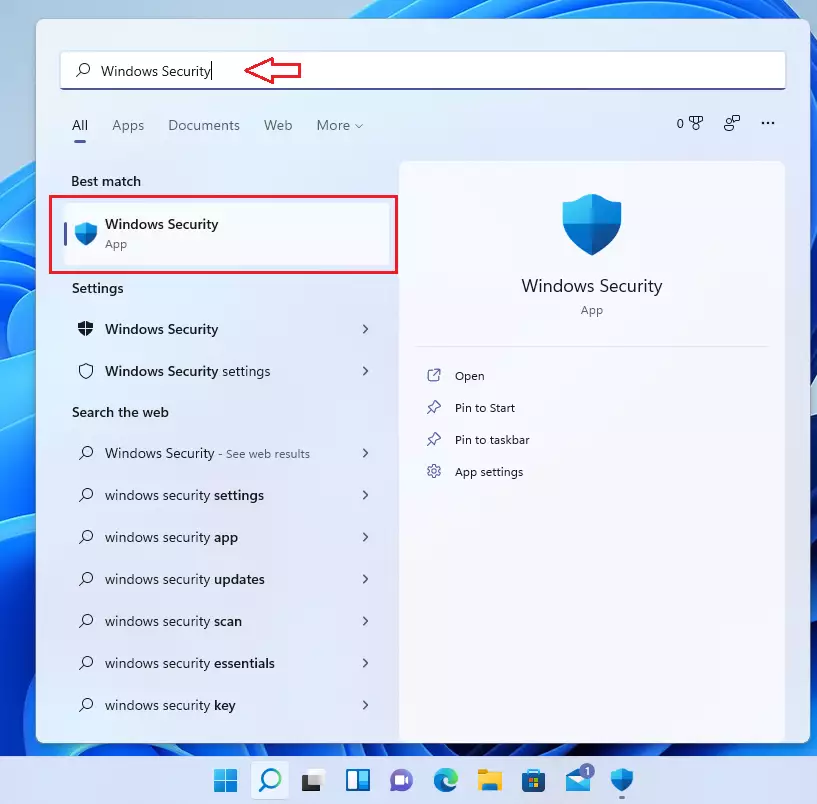
- Click the search box on your taskbar and type Windows Security. The Start menu search works the same way.
- Select Windows Security from the list. The Windows Security window opens on its home page, with a tile for each protection area.
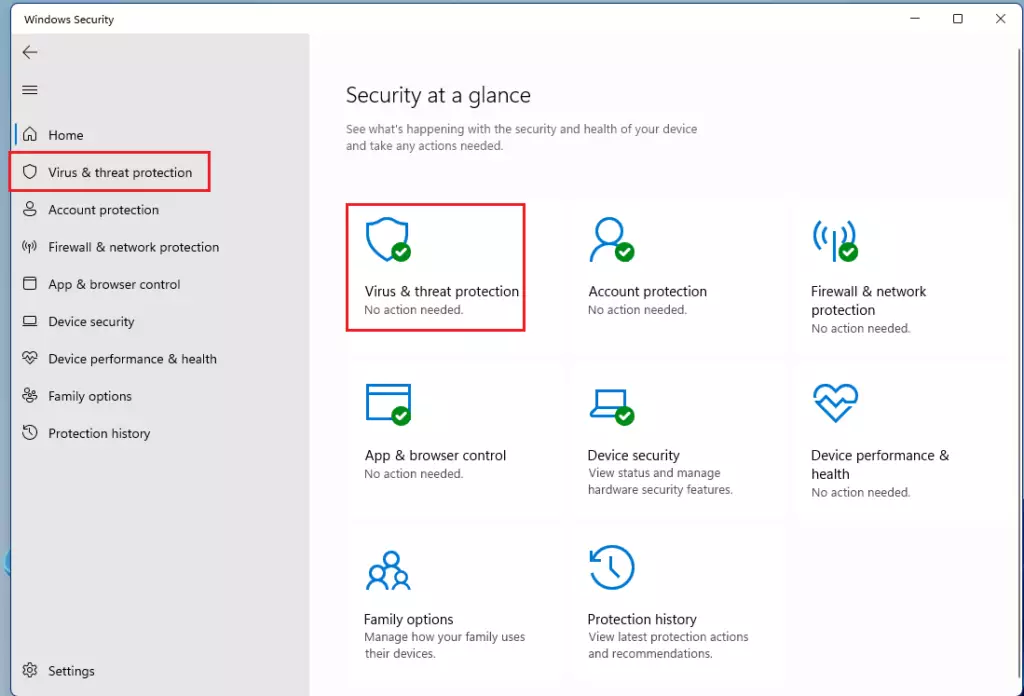
- Click on Virus & threat protection. You can find it in the left pane or as a tile on the home page. The page shows your current threats, scan options and the latest protection updates.
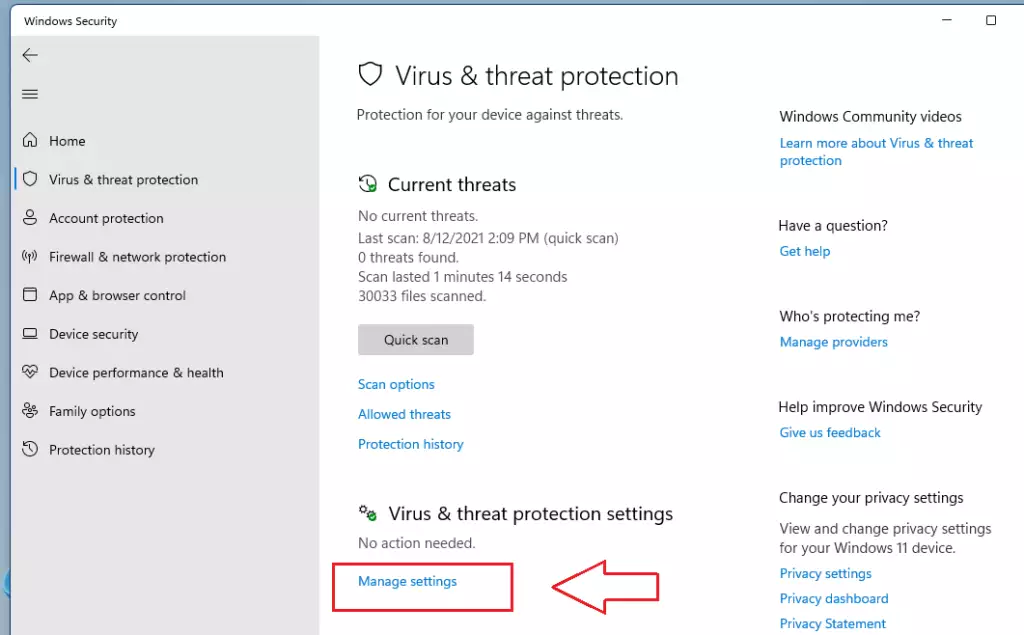
- Look for Virus & threat protection settings and click Manage settings. A list of toggles opens, including Real-time protection, Cloud-delivered protection and Automatic sample submission. If you see a message that your settings are managed by your organization, or that another antivirus app is in charge, the toggles may be greyed out. In that case Windows Security can't change them, and you need to use the policy that controls them or the other antivirus app.
- Toggle Cloud-delivered Protection to On or Off. If a User Account Control prompt appears, click Yes. The switch then changes state straight away. When it is off, Windows Security may show a warning that your device is vulnerable. Turn the switch back to On at any time to undo the change. No restart is needed.
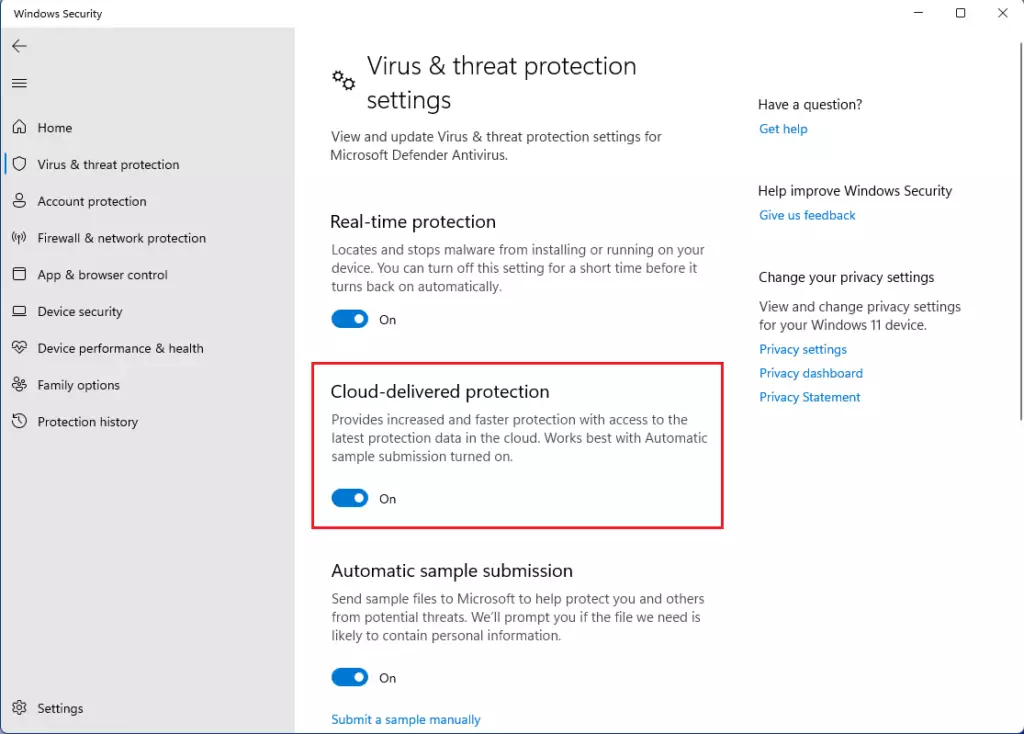
Automatic sample submission is a separate toggle just below this one. It is the setting that sends suspicious files to Microsoft. It relies on cloud-delivered protection, so it is only useful while that switch is on. If the privacy side concerns you, you can keep cloud protection on and turn sample submission off.
How to use Group Policy (Admin Privileges Required)
Network administrators can manage Microsoft Defender Cloud Protection across multiple computers by using the Local Group Policy Editor in Windows. This method requires administrator rights. It lets you enforce the cloud protection setting through a policy path, so users can't change it in Windows Security.
The Local Group Policy Editor is not included in Windows 11 Home. If you run Home, use the Windows Security method above. A policy set here is also separate from the toggle in the app. The policy wins, and the toggle in Windows Security may show as greyed out afterwards.
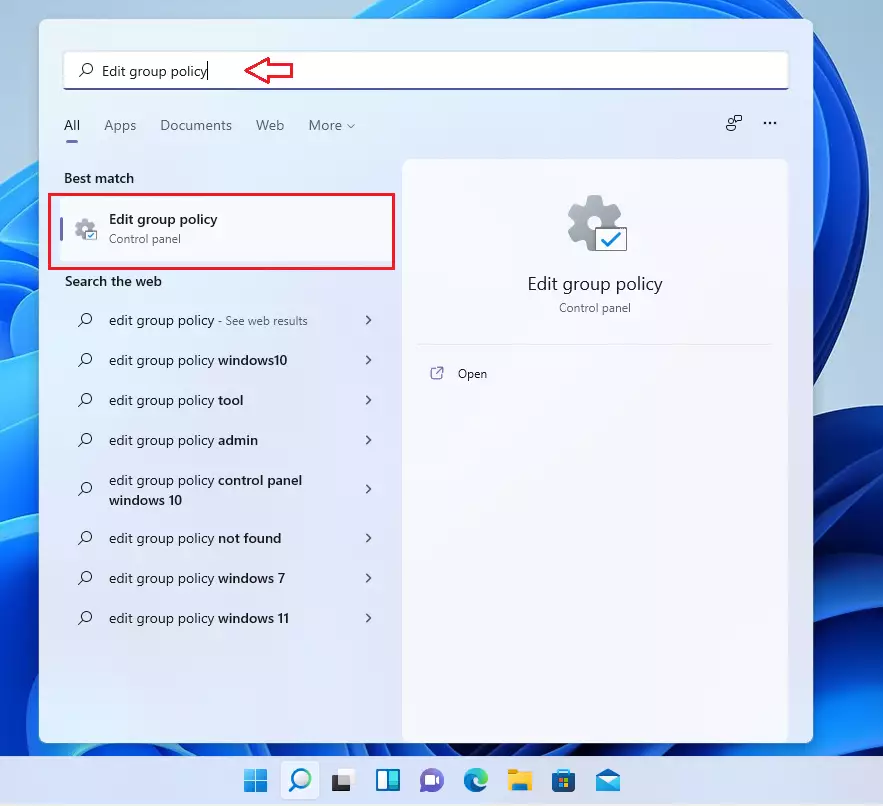
- Click the Start menu and search for Edit group policy.
- Select it to open the editor. The Local Group Policy Editor window opens with a folder tree on the left.
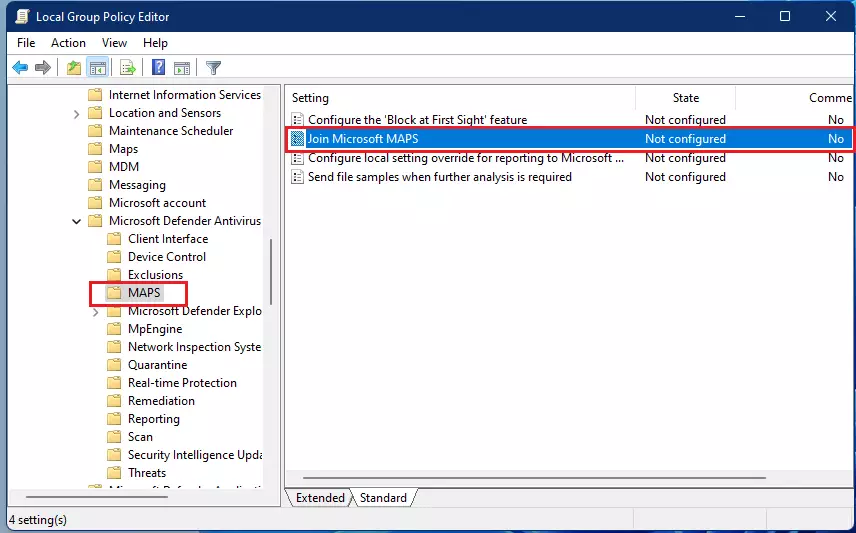
- In the left menu, follow this path: Computer Configuration Administrative Templates Windows Components Microsoft Defender Antivirus MAPS. MAPS is Microsoft Active Protection Service, the name Defender uses for its cloud protection. The policies for it appear in the right pane.
- On the right side, double-click Join Microsoft MAPS. A settings window opens for that policy.
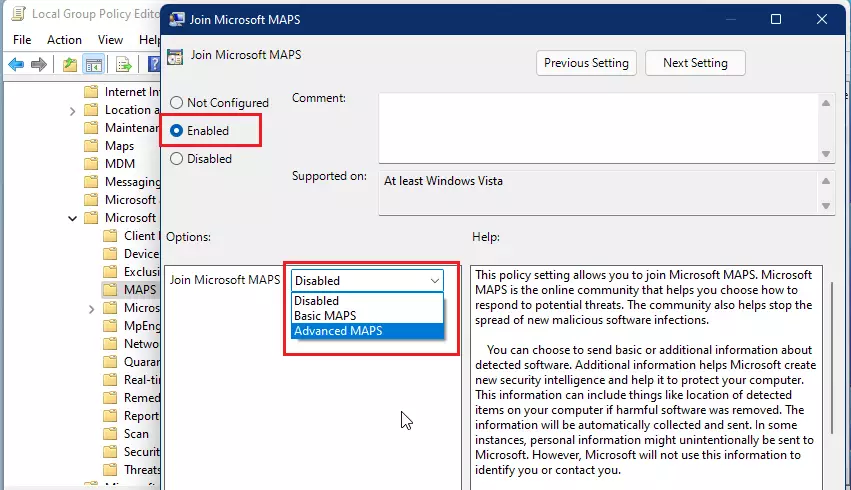
- Choose Enabled and set it to Basic MAPS or Advanced MAPS. Basic MAPS sends basic information about detected threats. Advanced MAPS also sends more detail about suspicious files and how they behave. To turn cloud protection off instead, choose Disabled. To hand control back to the user and Windows Security, choose Not Configured.
- Click OK and close the window. The policy is saved. Windows normally applies it within a short time, and a restart applies it straight away. Afterwards, check Cloud-delivered protection in Windows Security to confirm it matches what you set.
If the policy does not seem to take effect, check whether Tamper Protection is on in Windows Security. Tamper Protection can block changes to Defender settings made outside the app. Also check whether another antivirus product is installed, because that product usually takes over from Defender.
Summary
Microsoft Defender Cloud Protection is a vital security feature. It connects your device to Microsoft's threat analysis service for real-time defense against the latest digital attacks. Keeping this toggle active offers maximum protection. If you do turn it off for testing or privacy reasons, make a note to switch it back on afterwards.
Was this guide helpful?

About the Author
Richard
Tech Writer, IT Professional
Richard is a writer at Geek Rewind who turns complex IT tasks into clear, step-by-step guides. He draws on years of hands-on experience in system administration and enterprise IT operations, focusing on Windows, Linux and WordPress: the problems people actually run into, and the fixes that work. His server and WordPress guides come from systems he runs himself. Richard builds and maintains the platform behind Geek Rewind, from its Ubuntu servers and Nginx configuration to its custom WordPress plugins. Many new tutorials start with readers' questions, and he's always glad to answer them in the comments.
No comments yet — be the first to share your thoughts!