How to Run Microsoft Defender Offline Scan On Windows 11

This guide shows you how to run an offline scan with Microsoft Defender Antivirus on a Windows 11 PC. The scan takes a few clicks to start and does the rest on its own after a restart.
Open Windows Security, click Virus & threat protection, select Scan options, choose Microsoft Defender Antivirus (offline scan), then click Scan now. Your PC restarts and the scan runs automatically before Windows loads, taking about 15 minutes.
What is Microsoft Defender Antivirus?
Microsoft Defender Antivirus is the free security program that comes with Windows 11. It runs quietly in the background and is your main defense against viruses and other harmful software. It is turned on by default, on both Home and Pro, unless you install another antivirus product.
It protects your PC all the time through real-time protection (real-time protection). It can also scan your computer when you ask it to, or on a set schedule (scheduled and on-demand scans).
Microsoft Defender also has features such as cloud protection, tamper protection, and blocking of potentially unwanted apps. You can learn more about these here:
What is an Offline Scan?
A Microsoft Defender offline scan is a special check that runs before Windows fully loads. Some malware hides while Windows is running, or loads early enough to interfere with the antivirus itself. Because the offline scan runs outside the normal Windows session, that malware has far less room to hide.
You might want to use an offline scan if:
- Your PC has a virus that is hard to remove.
- Malware is stopping Microsoft Defender from working properly.
- You want to double-check your PC is clean.
Save the offline scan for cases where something looks wrong and the usual scans don't fix it.
How to Run Microsoft Defender Offline Scan on 🪟 Windows 11
The scan runs before Windows loads, so it can find malware that hides from regular checks. Before you start, save your work and close your apps, because the PC will restart as soon as you begin. You will need to be signed in with an administrator account, and you may see a User Account Control prompt.
- Open the Windows Security app: Click the Start button (Windows icon), type
Windows Security, then press Enter. You should see the Windows Security window open. If you need more ways to open it, see this guide: Open Windows Security app - Click Virus & threat protection: This opens the section where you manage your antivirus scans.
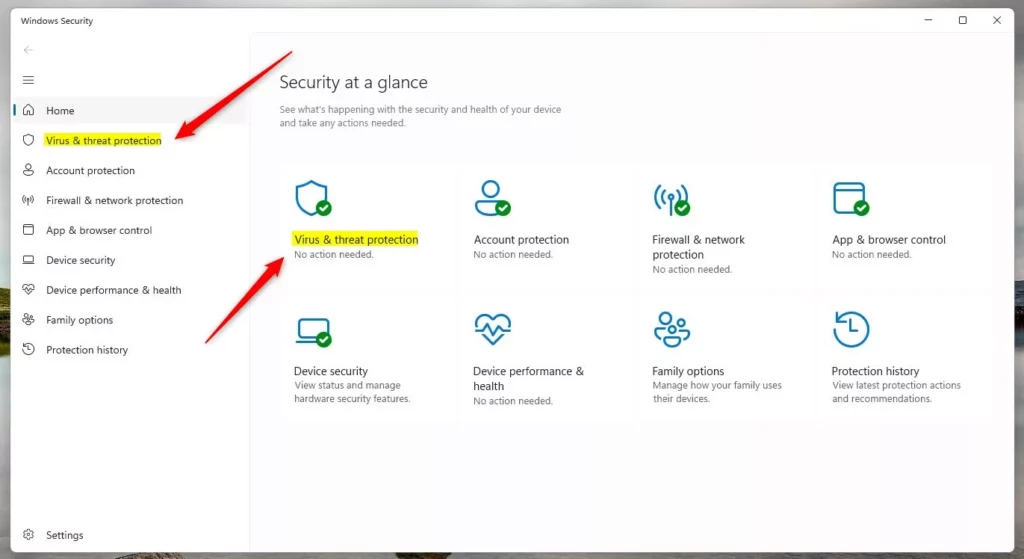
Windows Security Virus and threat protection - Click Scan options under the Current threats section. You should now see a list of scan types with radio buttons.

Microsoft Defender Antivirus scan options in Windows 11. - Select Microsoft Defender Antivirus (offline scan): This option lets Defender scan your PC before Windows fully starts. It helps remove tough malware. The description under it says your PC will restart.
- Click Scan now to start the offline scan. Windows warns you that you are about to be signed out and that the PC will restart. Confirm it, and the PC restarts into a blue scan screen. The scan then begins automatically. It usually takes around 15 minutes, but it can take longer, so be patient and don't switch the PC off.

Microsoft Defender antivirus scan options offline
After the scan finishes, your PC will restart again and you can sign in as usual. Microsoft Defender will show you if any threats were found and removed. To review the details later, open Windows Security, go to Virus & threat protection and click Protection history.
If the offline scan option is missing or greyed out, check two things. First, a third-party antivirus may be active, which turns off most of Defender's scan options. Second, your PC may be managed by an organization that controls these settings. In either case, you need to deal with that before the option comes back.
Summary
Microsoft Defender Antivirus is your built-in shield against PC viruses. Its offline scan is a powerful tool for finding and removing stubborn malware. Running the scan before Windows starts helps make sure your system is clean, even of persistent threats.
- Microsoft Defender Antivirus protects your PC from viruses and malware all the time.
- The offline scan is a strong way to find and remove hard-to-get viruses by scanning before Windows fully starts.
- Save your work first, because starting the scan restarts the PC. Check Protection history afterward to see what was found.
If you have questions or want to share your experience, please leave a comment below!
Have a question about this guide?
Answered by AI from this guide. Good questions may be added to this page — please don't include personal details.
Did this guide fix your problem?

About the Author
Richard
Tech Writer, IT Professional
Richard is a writer at Geek Rewind who turns complex IT tasks into clear, step-by-step guides. He draws on years of hands-on experience in system administration and enterprise IT operations, focusing on Windows, Linux and WordPress: the problems people actually run into, and the fixes that work. His server and WordPress guides come from systems he runs himself. Richard builds and maintains the platform behind Geek Rewind, from its Ubuntu servers and Nginx configuration to its custom WordPress plugins. Many new tutorials start with readers' questions, and he's always glad to answer them in the comments.
No comments yet — be the first to share your thoughts!