How to Exclude Files from Microsoft Defender on Windows 11

- 17 steps
- Needs administrator rights
Microsoft Defender is the built-in security app on Windows 11 that scans your system for viruses. Now and then it blocks a safe program or game by mistake. A file exclusion tells Defender to ignore a specific file, folder, file type, or running process, so your apps run without constant interruptions.
An exclusion stops Defender from checking only the items you list. The rest of your computer stays protected against real threats. This guide covers the Windows Security steps, how to use wildcards, how to check that your exclusions work, and how to keep the risk low.
To exclude a file from Microsoft Defender, open Windows Security Virus & threat protection Manage settings, then click Add or remove exclusions under the Exclusions section. Click Add an exclusion, choose File, Folder, File type or Process, and select the item. The exclusion takes effect immediately, with no restart needed.
How to add exclusions in 🪟 Windows 11
The Windows Security app is where you manage exclusions on a single PC. It is built into Windows 11 Home and Pro alike. You add the items to an ignore list in the virus protection settings, and the whole job takes a few clicks. You need an administrator account, or the administrator password, because Windows asks for permission before it saves the change.
Defender must also be your active antivirus. If you run a third-party antivirus, Windows turns Defender’s real-time protection off. The Virus & threat protection page then shows the other product, and the options below may be missing or inactive. In that case, set exclusions in the other product instead.
- Click the Start button and type Windows Security. Click the app in the search results. The Windows Security window opens on its home page, with tiles for each protection area.
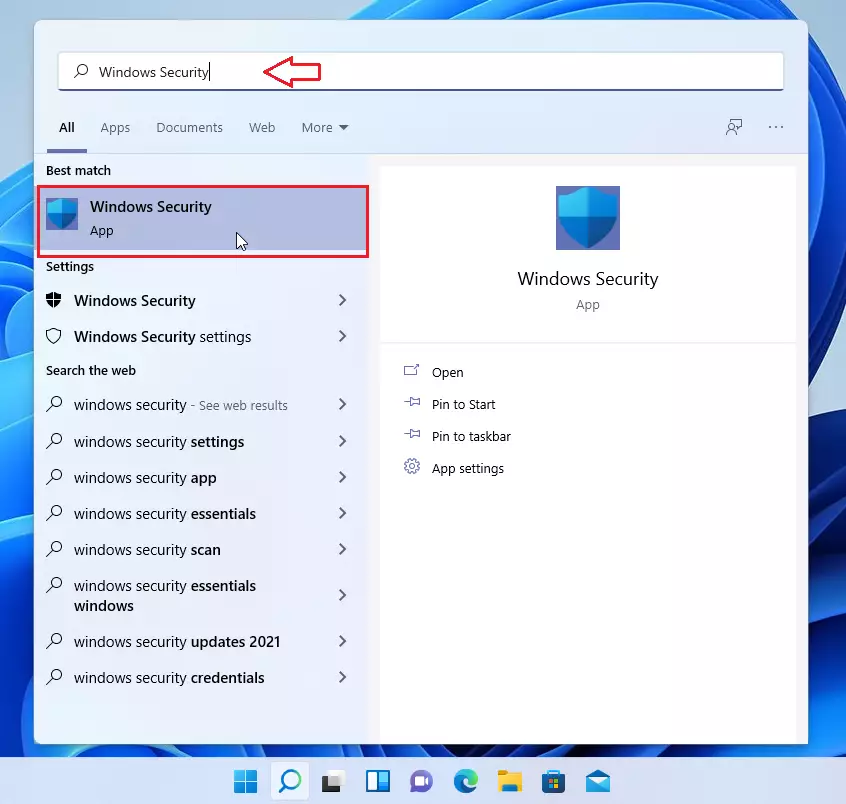
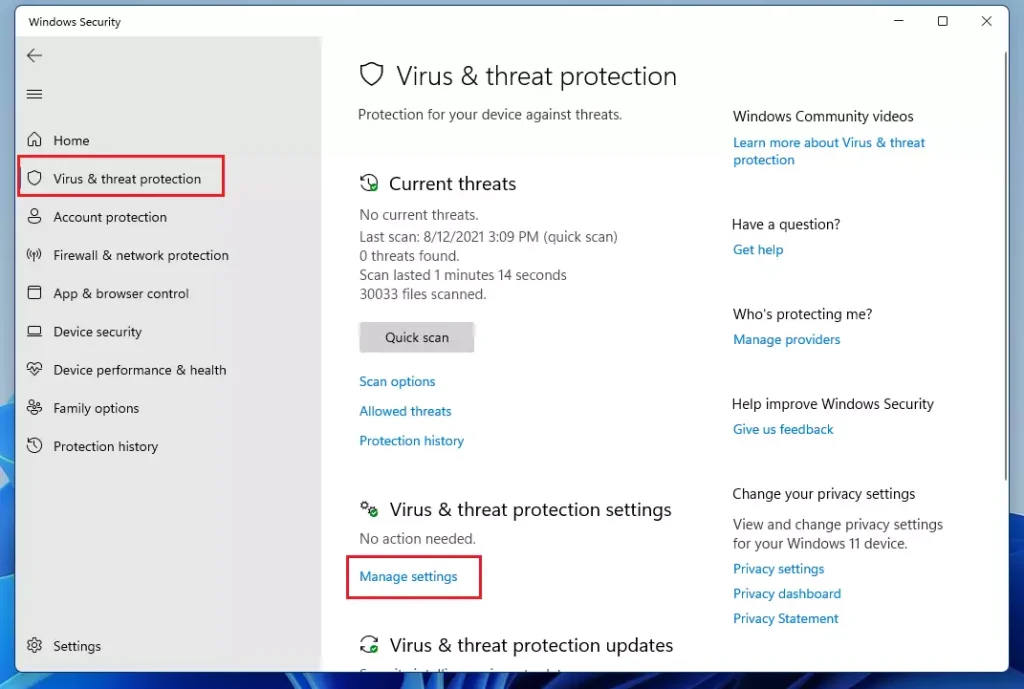
- Click Virus & threat protection in the left pane or on the home page.
- Under Virus & threat protection settings, click Manage settings. You now see switches such as Real-time protection, Cloud-delivered protection, and Tamper Protection.
The full path is Windows Security Virus & threat protection Manage settings.
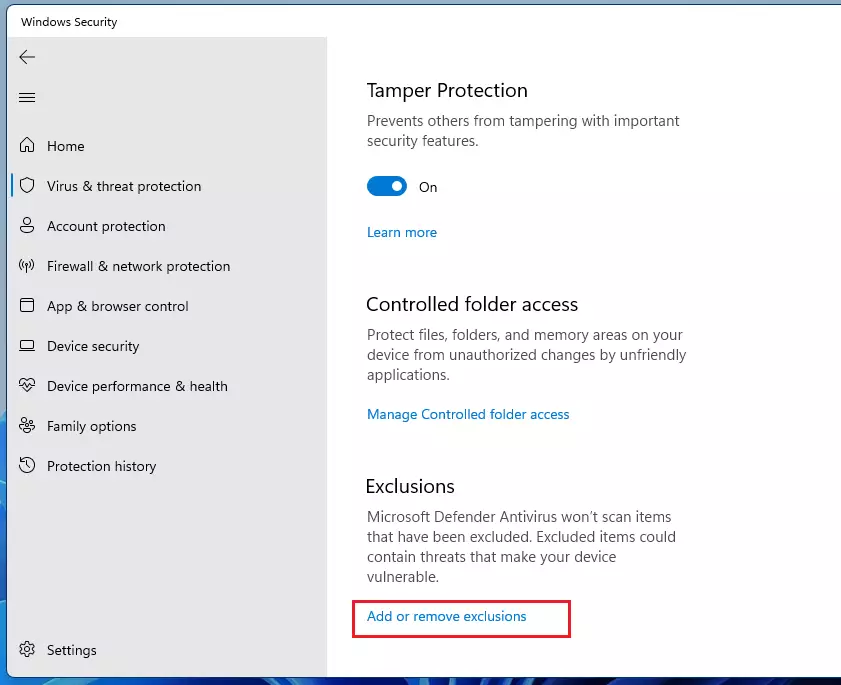
- Scroll down to the Exclusions section.
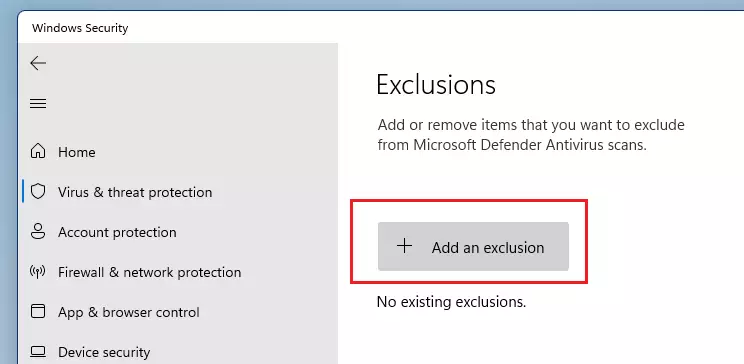
- Click Add or remove exclusions. If a User Account Control prompt appears, click Yes. The Exclusions page opens and lists anything you have already excluded.
If the option is greyed out, or the page says some settings are managed by your organization, a policy from your workplace or school controls Defender. You will need your IT administrator to add the exclusion.
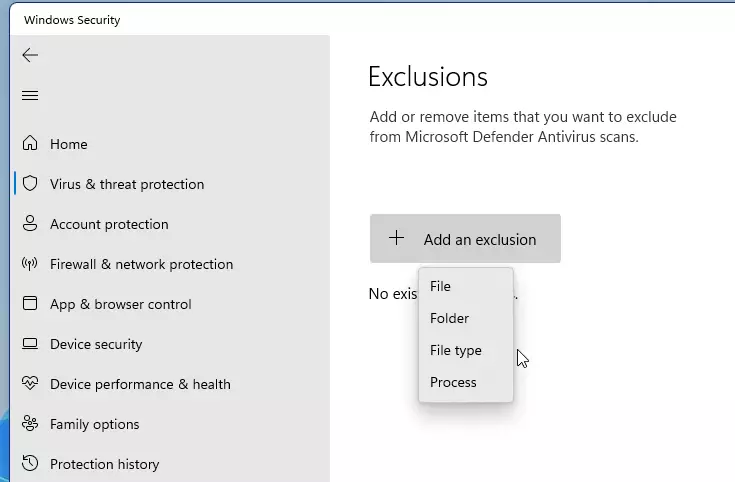
- Click the Add an exclusion button. A short menu opens.
- Choose the type of item you want to exclude:
- File skips one specific file, such as a single .exe.
- Folder skips a folder and everything inside it.
- File type skips every file with a given extension, for example .log. You type the extension into the box that appears.
- Process skips files that a running process opens. You enter the process name, such as the program’s .exe name, or its full path.
- For a file or folder, browse to the item in the dialog that opens and select it. Click Open for a file or Select Folder for a folder. For a file type or process, type the value and click Add if the box asks for it.
- Confirm any prompt that appears. The item now shows up in the exclusions list, and the change takes effect right away. You do not need to restart.
To undo an exclusion, return to Windows Security Virus & threat protection Manage settings Add or remove exclusions. Click the item in the list, then click Remove.
Comparison of Exclusion Methods
| Method | Best For | Difficulty |
|---|---|---|
| Windows Security App | Home users | Easy |
| PowerShell | Advanced users | Medium |
| Intune/GPO | IT Administrators | High |
Advanced Configuration and Enterprise Management
If you manage many PCs, you do not have to click through Windows Security on each one. You can push Microsoft Defender exclusions across a network with Intune, Configuration Manager, or PowerShell. These tools apply the same rules to many computers at once, and they support wildcard paths that skip whole groups of files.
Run PowerShell as an administrator for any change that touches Defender settings. Devices managed through Intune or Group Policy may show the exclusions as managed by the organization. If you set an exclusion by hand on such a PC, the policy can overwrite it later.
Add-MpPreference -ExclusionPath "C:\Projects\Development"
Wildcards cover a whole group of files when you need broader coverage. The asterisk (*) stands in for any name at that position in the path. For example, C:\Projects\*\bin excludes the ‘bin’ folder inside every subfolder of your projects directory.
The more of the path you replace with a wildcard, the more files Defender stops checking, so a loose pattern can skip far more than you intended.
Validation and Verification
After you add exclusions, confirm they work. You can list every ignored path with a command in PowerShell, and you can run a manual scan to see that Defender skips your chosen files. Open PowerShell as an administrator first. Without administrator rights, the list of exclusions may not display.
- Click the Start button and type PowerShell.
- Right-click Windows PowerShell and click Run as administrator.
- Click Yes at the User Account Control prompt. A blue PowerShell window opens.
- Run the command shown below.
Get-MpPreference | Select-Object -ExpandProperty ExclusionPath
This command lists all paths currently ignored by Defender. Look through the output for the file, folder, extension, or process you added. If an item is missing, add it again in Windows Security.
The MpCmdRun.exe tool also runs manual scans. You can use it to confirm that excluded files are skipped during security checks. Do not test an exclusion with a file you think might be harmful.
Best Practices for Security
Defender will not scan that item, so malware placed there goes unnoticed. Add an exclusion only to fix a verified performance problem or a false positive, and only after you are sure the file is safe.
- Avoid excluding entire drives like
C:\or broad system directories. - Prefer a file-specific exclusion over a folder-wide one. A single file gives better protection than exempting everything in a folder.
- Review the list now and then, and remove exclusions for software you no longer use.
Summary
Microsoft Defender exclusions keep trusted applications running without interruptions. You can set them up in Windows Security or with PowerShell. Keep them narrow, check them with the listing command, and remove any you no longer need.
Have a question about this guide?
Answered by AI from this guide. Good questions may be added to this page — please don't include personal details.
Did this guide fix your problem?

About the Author
Richard
Tech Writer, IT Professional
Richard is a writer at Geek Rewind who turns complex IT tasks into clear, step-by-step guides. He draws on years of hands-on experience in system administration and enterprise IT operations, focusing on Windows, Linux and WordPress: the problems people actually run into, and the fixes that work. His server and WordPress guides come from systems he runs himself. Richard builds and maintains the platform behind Geek Rewind, from its Ubuntu servers and Nginx configuration to its custom WordPress plugins. Many new tutorials start with readers' questions, and he's always glad to answer them in the comments.
No comments yet — be the first to share your thoughts!