How to Receive a File Using Bluetooth in Windows 11

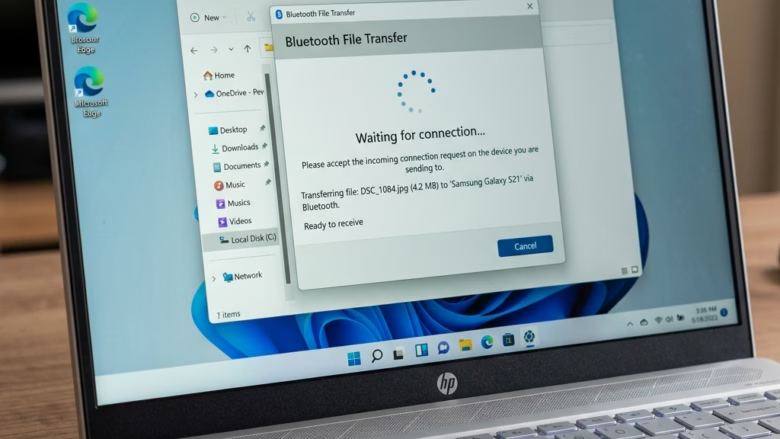
Receiving a file over Bluetooth in Windows 11 starts by opening the Bluetooth settings menu and setting your PC to allow incoming file transfers. Bluetooth is a wireless technology that lets you send photos, music, and documents between your computer and nearby devices like phones or tablets without using the internet.
Before any transfer starts, you must open the hidden Bluetooth File Transfer wizard by going to Settings Bluetooth & devices > Devices More Bluetooth settings and clicking “Receive a file”. The wizard is not a normal app with a Start menu icon, which is why most people never find it. The sections below cover two ways to open it.
To receive a Bluetooth file on Windows 11, pair your phone or other device under Settings Bluetooth & devices first, then open Settings Bluetooth & devices Devices More Bluetooth settings and click “Receive a file”. Keep that window open, then start the transfer from the sending device.
Receive a File Using Bluetooth
Someone’s sending you a file through Bluetooth, and you need to get it onto your Windows 11 computer. It’s a process that becomes smooth once you get started. Here’s how to prepare your PC to receive files. The order matters: pair the devices first, open the receive wizard second, and start the transfer from the sender last. The steps are numbered continuously through this guide, so you can follow one list from start to finish.
Make Sure Your Devices Are Connected (Paired)
To pair devices in Windows 11 for file transfers, open Settings and go to Bluetooth & devices to connect your phone or computer. Both devices must have Bluetooth turned on and be paired before you can receive bluetooth files windows 11 from an external source.
Follow these numbered steps to receive a Bluetooth file on your Windows 11 PC, from pairing to saving.
- Open Settings Bluetooth & devices. You can also press the Win+I to open Settings, then pick Bluetooth & devices in the left pane.
- Switch the Bluetooth toggle to On. If you can’t find the toggle at all, your PC probably has no Bluetooth adapter, or its driver is missing. Also check that Airplane mode is off.
- Click Add device. A window opens asking what kind of device you want to add.
- Choose Bluetooth in that window. Windows starts scanning for nearby devices.
- Put the other device in pairing mode. On a phone, open its Bluetooth settings and leave that screen open so it stays visible to nearby devices.
- Select the other device in the list on your PC. You should see it appear under the list of devices as available.
- Confirm the pairing code on both screens if you are asked to. Once it connects, the device shows up under Devices on the Bluetooth & devices page.
You only need to pair once. After that, Windows remembers the device, and you can skip this section next time unless the pairing gets removed. To undo a pairing later, go to Settings Bluetooth & devices > Devices, open the menu next to the device, and remove it.
Good tip: Remember, the device sending the file doesn’t have to be another Windows computer! It could be your Android phone, an iPhone, or another laptop with a different operating system. As long as both devices have Bluetooth and are paired, you’re set. Be aware that some phones limit which file types they will send over Bluetooth, so if a particular file won’t go, try another type to find out whether the phone is the problem.
Get Your PC Ready to Receive
You can open the Bluetooth File Transfer tool in Windows 11 by pressing the Start menu, typing fsquirt, and opening the app. This hidden utility prepares your PC to receive bluetooth files windows 11 from phones, tablets, or other computers.
Follow the steps below in order, continuing from step 8. When the tool opens, you should see a small window titled Bluetooth File Transfer with the options to send or receive files. This works on both Home and Pro editions.
- Click the Start menu button.
- Select Settings.
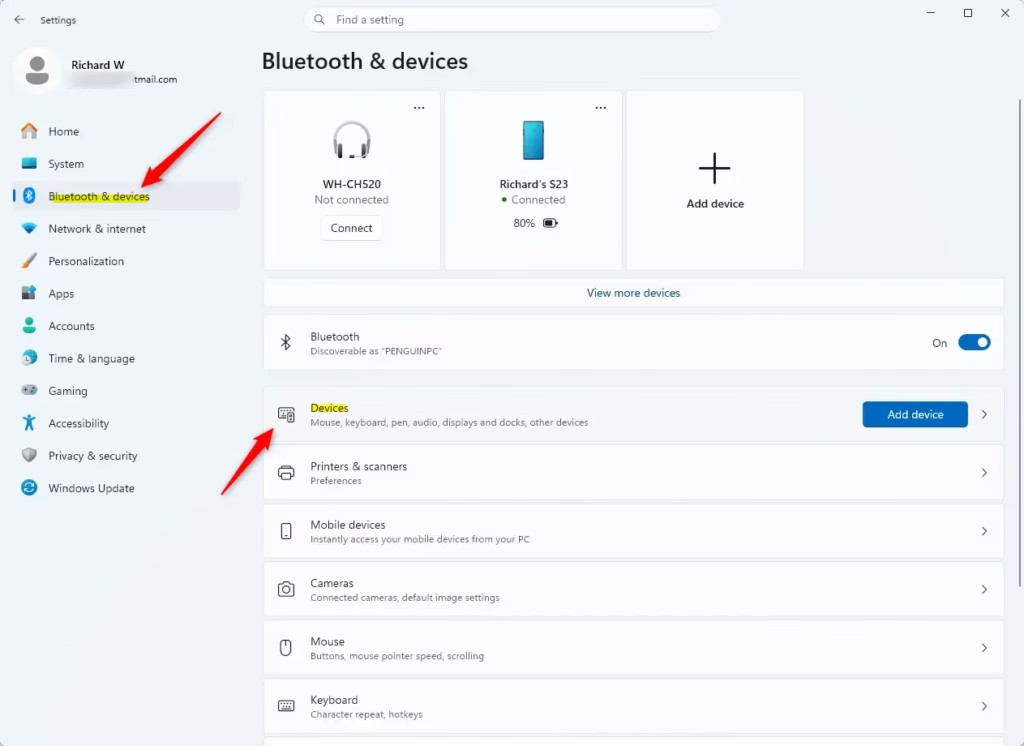
- In the Settings window, click on Bluetooth & devices in the left sidebar.
- Then, click on Devices.
Alternatively, you can use a quick shortcut:
The shortcut below opens the same Bluetooth File Transfer window, so use whichever route you find easier. Either route leads to the same window, so carry on at step 12 afterwards.
- Click the Start menu.
- Type
fsquirt. - Select the matching result.
- From there, click Devices.
To check, right-click Start, open Device Manager, and look for a Bluetooth category. If it’s missing, or a device there has a yellow warning icon, install the latest Bluetooth driver from your PC or adapter maker, then restart and look again. A USB Bluetooth adapter is a cheap fix for a desktop with no built-in Bluetooth.
Open the Bluetooth File Transfer Tool
If you would rather open the tool from Settings, use the step below instead of the fsquirt route. It replaces steps 8 to 11.
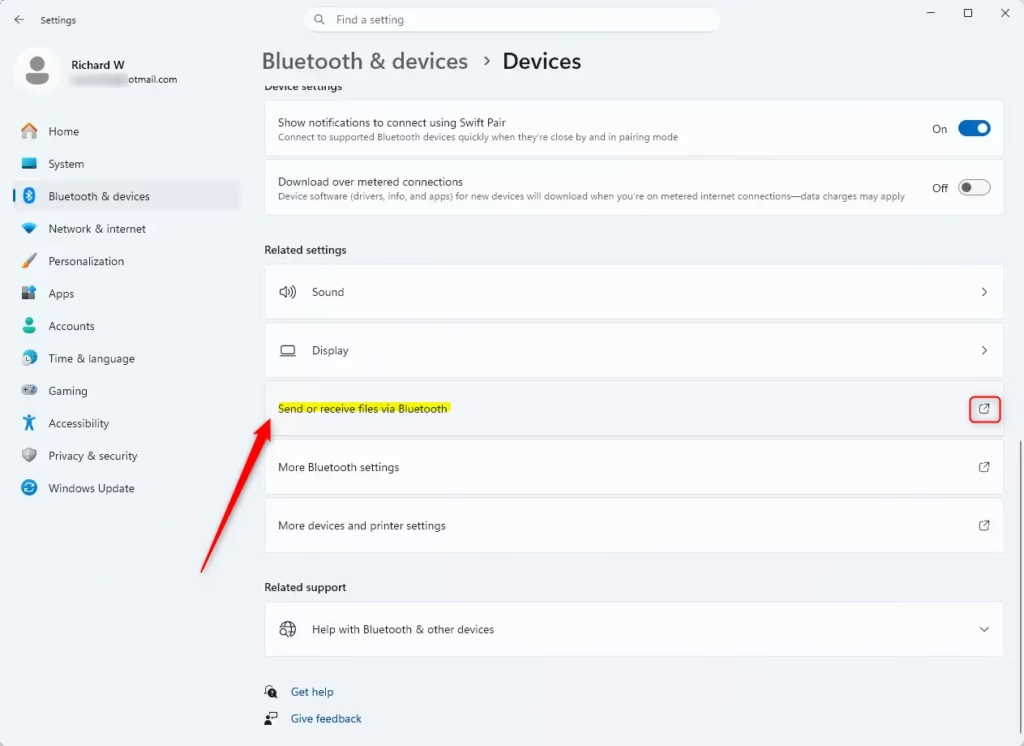
- Click Send or receive files via Bluetooth under “Related settings”. Scroll down on the Bluetooth & devices page to find the section. A small window called “Bluetooth File Transfer” opens. On some builds the link sits on the Devices page, so look there if you don’t see it. It’s the same window you get from the fsquirt method above.
Tell Your PC You’re Waiting
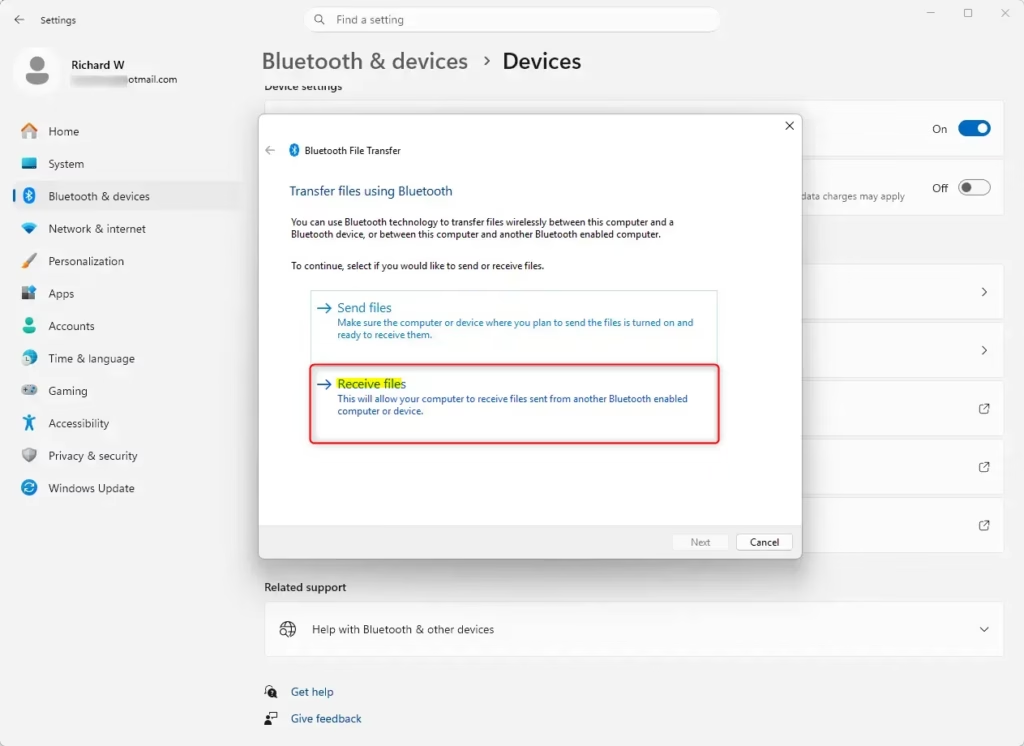
With the Bluetooth File Transfer tool open on your Windows 11 PC, select ‘Receive files’ to signal your computer is ready to accept files.
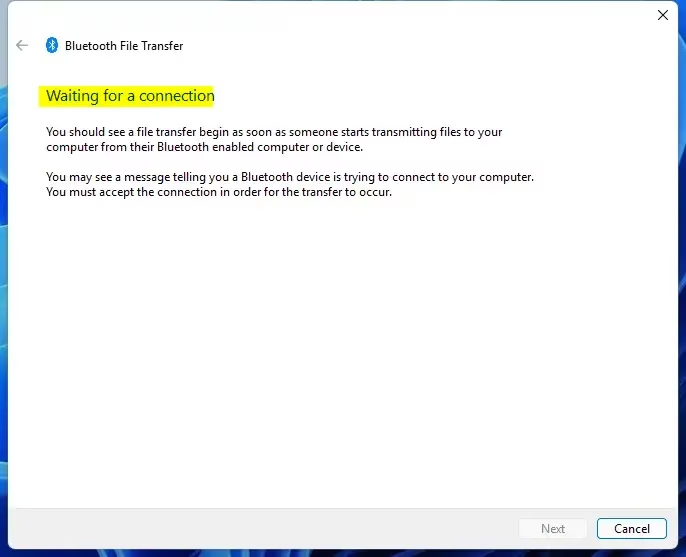
- Select Receive files in the Bluetooth File Transfer window. Your computer is now actively listening for a file transfer request from a paired Bluetooth device.
It’s ready! You should see the message “Waiting for a connection”. Leave this window open. If you close it, your PC stops listening and the sender will get an error.
Start the Transfer from the Other Device
You must trigger the transfer from your phone or sending computer once your Windows 11 PC is ready to receive bluetooth files windows 11. The sending device must begin the transfer *after* your Windows 11 PC is in “Waiting for a connection” mode.
- Open the share menu on the sending device. The exact wording differs between phones and computers.
- Choose Bluetooth as the way to send. The sending device lists the paired devices it can see.
- Select your Windows PC from the list of available devices. Your PC should show a progress bar once data starts to arrive.
Receiving a file using Bluetooth in Windows 11 involves different steps depending on the sending device. If another Windows 11 computer sends the file, follow the steps for sending a file via Bluetooth. If a phone or different device sends the file, consult that device’s user manual or manufacturer’s website for Bluetooth file sending instructions.
If the sender says the connection failed, check that both devices are still paired and within a few meters of each other. Then cancel, go back to the “Waiting for a connection” screen, and send again.
Choose Where to Save Your New File
You can pick a new destination folder when the transfer finishes by clicking the Browse button in the transfer window. This lets you save your incoming bluetooth files windows 11 to your Documents, desktop, or any custom folder you prefer.
- Click Browse in the transfer window. This lets you navigate your computer’s folders, for example to a project folder or your “Documents”.
- Select the folder and confirm. The new location should appear in the path box.
Important Note: Make sure you remember where you save the file! If you don’t pick a location and click “Finish,” it will go to the default Downloads folder. You might need to search for it later if you forget. Check the location shown in the window before you finish, as that is where the file will go.
All Done!
Your file transfer is fully complete once you click Finish in the transfer window after saving your item.
- Click Finish in the transfer window. The wizard closes and the file is saved in the folder you chose.
- Open your chosen folder to view the file. You can now see the bluetooth files windows 11 that you just transferred.
Reference:
Summary
This guide walks you through receiving files on your Windows 11 PC using Bluetooth. We covered pairing devices, opening the file transfer tool, setting your PC to receive, initiating the transfer from the sender, and choosing where to save the file. If something fails, the usual causes are a missing Bluetooth driver, devices that aren’t paired, or a sender that started before the PC was waiting for a connection.
Have a question about this guide?
Answered by AI from this guide. Good questions may be added to this page — please don't include personal details.
Did this guide fix your problem?

About the Author
Richard
Tech Writer, IT Professional
Richard is a writer at Geek Rewind who turns complex IT tasks into clear, step-by-step guides. He draws on years of hands-on experience in system administration and enterprise IT operations, focusing on Windows, Linux and WordPress: the problems people actually run into, and the fixes that work. His server and WordPress guides come from systems he runs himself. Richard builds and maintains the platform behind Geek Rewind, from its Ubuntu servers and Nginx configuration to its custom WordPress plugins. Many new tutorials start with readers' questions, and he's always glad to answer them in the comments.
No comments yet — be the first to share your thoughts!