How to Change Your Cellular Data Roaming Options in Windows 11

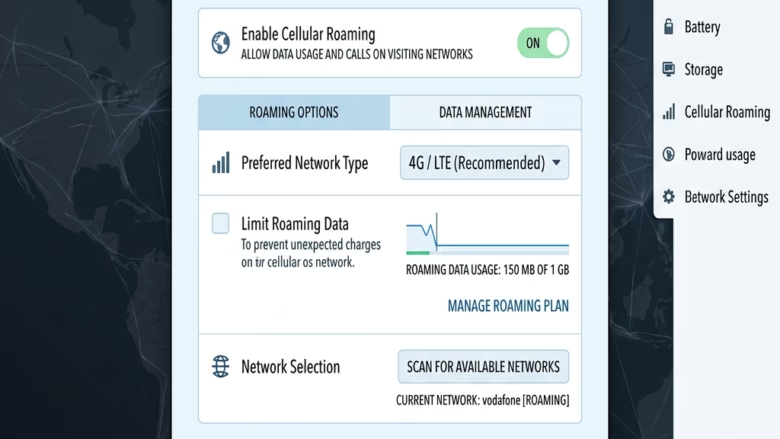
Cellular data roaming settings in Windows 11 control how your laptop or tablet connects to mobile networks outside your home carrier’s area. Roaming keeps you online while you travel by using partner networks, and those connections can add charges to your monthly bill.
The Cellular settings page offers three choices for managing that cost: turn roaming off, leave it on, or have your PC ask permission before it connects to a partner network. The “ask” option is not shown on every device, as covered later. The change takes about a minute in the Settings app. The steps below also explain why the options may be missing and what to check before you travel.
Open Settings , navigate to Network & internet, and select Cellular. Within Cellular settings, find and click Data roaming options to choose whether to enable or disable roaming.
Understanding Data Roaming Options
In short, the data roaming options decide whether your device is allowed to use cellular data when it is outside your normal network coverage area.
What is Data Roaming?
Data roaming lets your PC reach the internet through a different mobile network when you leave your home coverage area. If you take a cellular-enabled laptop or tablet abroad, it automatically tries to join local partner networks. That traffic counts against your plan, and it is often billed at a much higher rate than data at home.
A common example is an international trip. You land, the PC finds a local network, and background activity such as Windows Update , cloud sync and email starts using data before you have opened a single web page. If the roaming settings are left unmanaged, that can add up to a large bill.
Why You Need to Manage Roaming Settings
Managing your roaming settings is worth doing before you travel, because it prevents surprise charges on your mobile or broadband bill. Carriers usually charge far more for data used outside your home network. Setting the option yourself means you decide when that data is used, not the PC.
- Avoid high charges: This is the main benefit. Turning roaming off entirely is the surest way to avoid roaming fees.
- Stay connected when necessary: If you need internet access abroad, you can enable roaming, ideally with a plan that covers it, and keep an eye on your usage so you stay within your limits.
- Control your data usage: Even with roaming on, checking how much data you use helps you stay within budget. Windows shows usage under Settings Network & internet Data usage
How to Access Data Roaming Options in 🪟 Windows 11
The roaming controls live in the Settings app, under the cellular connection settings. You can reach them in a few clicks, and you do not need to restart the PC afterwards. The change normally applies as soon as you pick an option.
- Open Settings. Click the Start button on the taskbar, then select the Settings icon. You can also press Windows key + I to open it directly. The Settings window should appear with a list of categories on the left.
Windows key + I keys on your keyboard to open Settings directly.- With Settings open, click Network & internet in the left-hand menu. The network options appear on the right.
- Scroll down on the right and click Cellular. The page shows your mobile connection and its settings.
- In the Cellular settings, find Data roaming options and select it. A list of roaming choices opens.
Windows key + I keys on your keyboard to open Settings directly.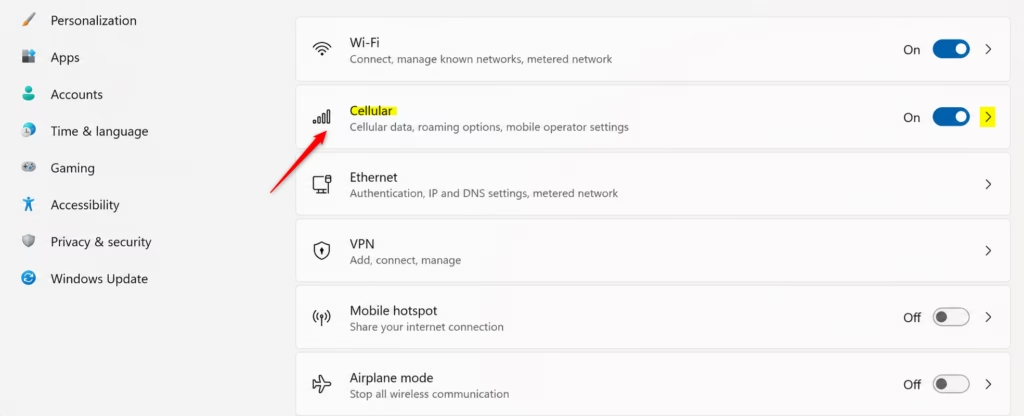
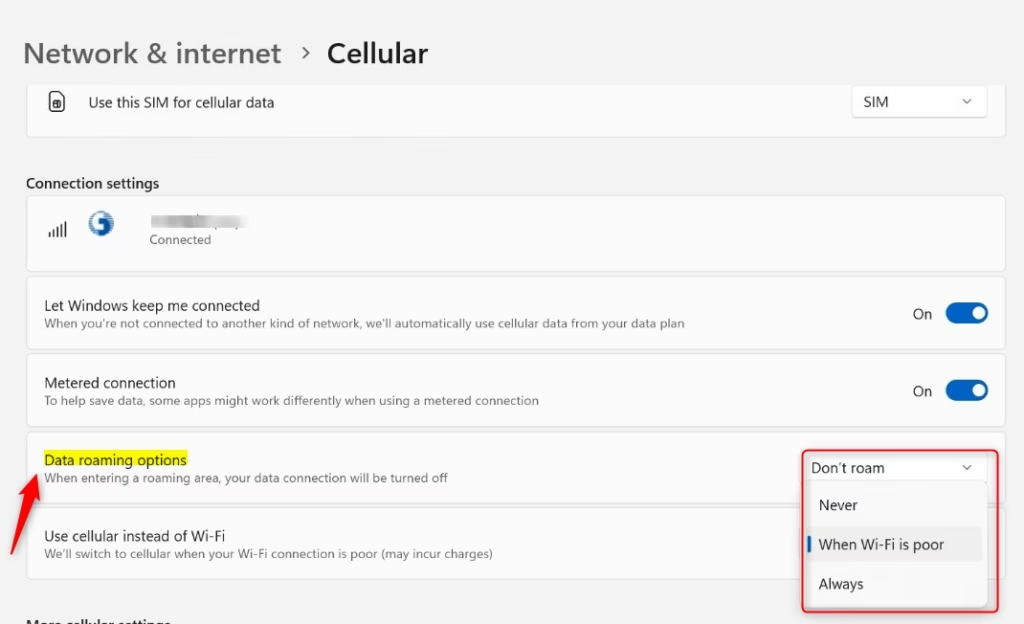
Devices without a SIM card slot, eSIM or internal cellular modem leave the entry out entirely. PCs that do have a cellular modem or module show it as normal. If you know your PC has one and the page is still missing, check that the modem is enabled in Device Manager and that the driver is installed. If the PC has more than one SIM or eSIM profile, the roaming option may be listed per connection, so make sure you are changing the right one.
Configuring Your Data Roaming Settings
Setting your roaming choice means deciding whether the PC may use mobile data on other carriers' networks or should block roaming altogether. Stop roaming completely if you want to be safe from extra fees. Turn it on if you have an international plan and need reliable internet while you travel.
Warning: Choosing "Don't roam" means you won't have internet using cellular data when you're in a roaming area, even if you really need it. Make sure this works for your travel plans.
Good Tip: If you plan to roam, check with your mobile company before you travel. Ask them about their international data plans, roaming packages, or daily/monthly limits. Some companies offer special travel passes that can be cheaper than normal roaming rates.
These are the options you may see in the list:
- Don't roam: The PC does not use cellular data while roaming. It drops the cellular connection until you are back in your home coverage area. This is the safest choice for avoiding charges.
- Roam: The PC may connect to other carriers' networks outside your home coverage area. Use it when your plan covers roaming or you accept the cost.
- Ask every time: The PC asks for your permission before it uses cellular data while roaming. This is a middle ground if you want to approve each connection. Not every device or carrier configuration shows this option.
To undo a change, return to the same page and pick a different option. It takes effect the same way.
Make sure this works for your travel plans.
Good Tip: If you plan to roam, check with your mobile company before you travel. Ask them about their international data plans, roaming packages, or daily/monthly limits. Some companies offer special travel passes that can be cheaper than normal roaming rates.
The exact wording and the list of options vary slightly with your version of Windows 11 and your mobile carrier's configuration. The core choice is always the same: allow or block data use while roaming. If a setting looks different from the descriptions above, read the labels on screen and pick the one that matches what you want.
Reference:
Summary
Data roaming lets your device connect to other cellular networks outside your provider's coverage area. That keeps you online, but it can raise your costs, so set the option you want before you travel.
Was this guide helpful?

About the Author
Richard
Tech Writer, IT Professional
Richard is a writer at Geek Rewind who turns complex IT tasks into clear, step-by-step guides. He draws on years of hands-on experience in system administration and enterprise IT operations, focusing on Windows, Linux and WordPress: the problems people actually run into, and the fixes that work. His server and WordPress guides come from systems he runs himself. Richard builds and maintains the platform behind Geek Rewind, from its Ubuntu servers and Nginx configuration to its custom WordPress plugins. Many new tutorials start with readers' questions, and he's always glad to answer them in the comments.



No comments yet — be the first to share your thoughts!