Where Are Windows Automatic Maintenance Tasks in Windows 11?


Windows Automatic Maintenance is a built-in Windows 11 feature that runs background tasks such as security updates, system diagnostics, and disk cleanup when you step away from your PC. These routine jobs run daily while the computer is idle, so they don’t slow down your active work or games. By default Windows starts them in the early morning, and you can change that time (see the Control Panel section near the end).
You can find and manage these hidden tasks in Task Scheduler, a tool for managing scheduled background tasks on your PC. To get to the maintenance routines:
- Click Start, type Task Scheduler, and open the app. It works the same in Windows 11 Home and Pro.
- In the left pane, select Task Scheduler Library.
- Expand Microsoft, then expand Windows.
- Scroll down and select the Maintenance folder.
The middle pane now lists every scheduled maintenance routine. Select a task to see its triggers, conditions, and history in the tabs at the bottom. Look, but don’t disable or delete anything here unless you know why. These tasks keep Windows secure and up to date.
Windows Automatic Maintenance tasks are located in Task Scheduler under Task Scheduler Library Microsoft Windows Maintenance folder. Open Task Scheduler by clicking Start, typing Task Scheduler, and opening the app. The middle pane lists all scheduled maintenance routines with their triggers and history shown in tabs below.
Why use Windows Automatic Maintenance?
Computers need regular upkeep to stay fast and secure. If you let these background routines finish, you get reliable malware protection, an organized hard drive, and current software without having to do anything yourself. If your PC is often off or in use, these jobs can be skipped, so it helps to know when they are scheduled to run.
How to see your maintenance tasks
Windows runs these tasks every day to keep the system healthy. The steps below show you how to view the active schedule. The task list is the same on Home and Pro, but you may need an administrator account to change anything.
Step 1Open PowerShell as Administrator
You need administrative rights to view these system tasks from the command line. To open an elevated window:
- Right-click the Start button.
- Select Terminal (Admin) or PowerShell (Admin). The label depends on your Windows 11 build.
- Click Yes if User Account Control asks for permission.
If you don't see it, you are in a normal window and the command may fail with an access error. Close the window and try again.
Step 2Run the command to see your tasks
Copy the command below, paste it into the window, and press Enter. In most terminal windows, Ctrl+V or a right-click pastes.
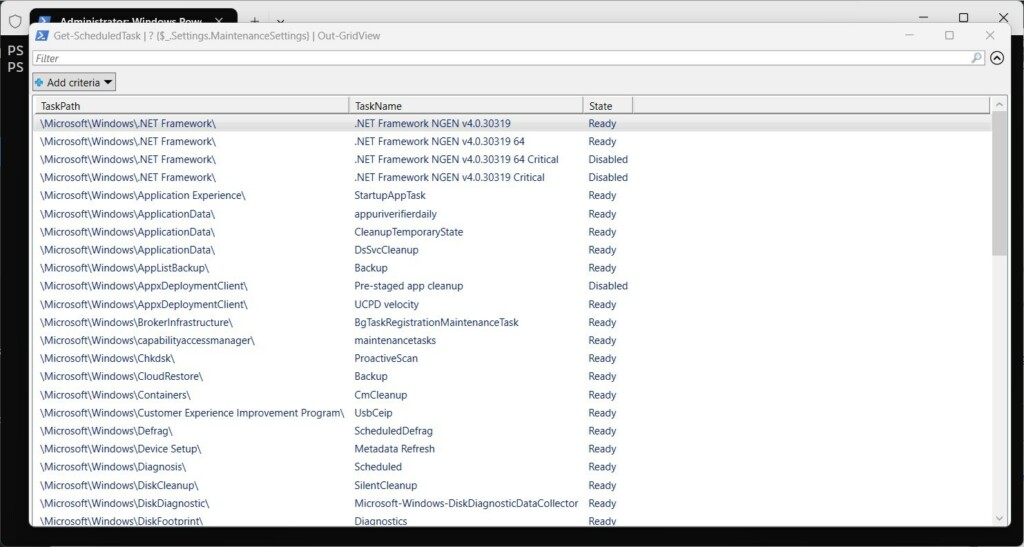
Get-ScheduledTask | ? {$_.Settings.MaintenanceSettings} | Out-GridView
A separate console window appears and displays all scheduled maintenance operations. Scroll through it to see each task. Closing that window does not change any task.
Step 3Save the list to a file (Optional)
Exporting the list of maintenance tasks creates a text file on your desktop. Developers and administrators can use this record to audit scheduled actions such as disk defragmentation or software updates later, without opening Task Scheduler. It is also handy for comparing two PCs.
When it finishes, check your desktop for the new text file and open it in Notepad. To undo the export, delete the file. Nothing on your system changes.
Get-ScheduledTask | ? {$_.Settings.MaintenanceSettings} | Format-Table -AutoSize | Out-file -FilePath "$Env:userprofile\Desktop\WAM.txt"
Troubleshooting and Configuration
Control Panel holds the configuration options for Windows Automatic Maintenance. To reach them:
- Click Start, type Control Panel, and open it.
- Go to System and Security Security and Maintenance.
- Expand the Maintenance section if it is collapsed.
Under Automatic Maintenance you can see its status and the last run. Select Change maintenance settings to choose the daily run time. You can also tick Allow scheduled maintenance to wake up my computer at the scheduled time if you want the PC to wake for the job. This option is not available in every configuration. You need an administrator account to change these settings, and no restart is required. To go back, reopen the same page and restore your earlier time and wake option.
Summary
Windows Automatic Maintenance keeps system integrity intact through scheduled background processes like security scans and disk cleanup. Default execution triggers at 2 AM, but administrators can alter these maintenance settings to match specific operational schedules. Preserving the Windows Automatic Maintenance feature ensures long-term hardware reliability and robust system security.
Have a question about this guide?
Answered by AI from this guide. Good questions may be added to this page — please don't include personal details.
Did this guide fix your problem?

About the Author
Richard
Tech Writer, IT Professional
Richard is a writer at Geek Rewind who turns complex IT tasks into clear, step-by-step guides. He draws on years of hands-on experience in system administration and enterprise IT operations, focusing on Windows, Linux and WordPress: the problems people actually run into, and the fixes that work. His server and WordPress guides come from systems he runs himself. Richard builds and maintains the platform behind Geek Rewind, from its Ubuntu servers and Nginx configuration to its custom WordPress plugins. Many new tutorials start with readers' questions, and he's always glad to answer them in the comments.
[…] Scheduled tasks are automated tasks that run at specified times or when certain events occur in Windows. These tasks can include launching programs, running scripts, backing up files, or performing system maintenance. […]