How to Change Windows 11 Automatic Maintenance Time


Automatic Maintenance is a built-in Windows 11 background feature. It runs tasks such as security scans, software updates and system diagnostics while you are not using the PC. By default it starts every day at 2:00 AM. If your computer is turned off or asleep at that hour, the maintenance can be missed.
You can move the schedule to a time when the PC is on and you are away from it, for example 10:00 PM. That keeps the system healthy without getting in the way of your work. There are three ways to do it: Control Panel , Local Group Policy Editor, or Registry Editor. The sections below cover each one.
Open Control Panel , go to System and Security, then Security and Maintenance, and click Automatic Maintenance. Select “Change maintenance settings” and choose your desired time. Restart your PC for the changes to take effect.
What happens when done?
Once you change the time, Windows waits until your chosen hour to start background tasks. If the computer is idle at that hour, maintenance begins. If you are using the PC, Windows holds off until the system is idle again, so it does not slow you down.
Windows does not need to restart the tasks every time you change something. Still, the Group Policy and Registry methods only take effect after a restart, so plan for one.
How to check if maintenance is running
You can tell whether maintenance is running by watching your computer’s activity. Press Ctrl+Shift+Esc to open Task Manager and look at the Processes tab. Unexplained CPU or disk use from background Windows processes while you are not working often means maintenance is active. The Automatic Maintenance panel in Control Panel (covered in the next section) also shows the current maintenance status.
If maintenance starts while you are working, Windows normally pauses it once you use the PC. A short burst of activity right after you stop touching the keyboard is normal.
Change Windows Automatic Maintenance Time Using Control Panel
Control Panel is the easiest method and works on both Windows 11 Home and Pro. It lets you pick the hour that daily maintenance tasks run, so they do not start while you are using the PC. You need an administrator account to save the change.
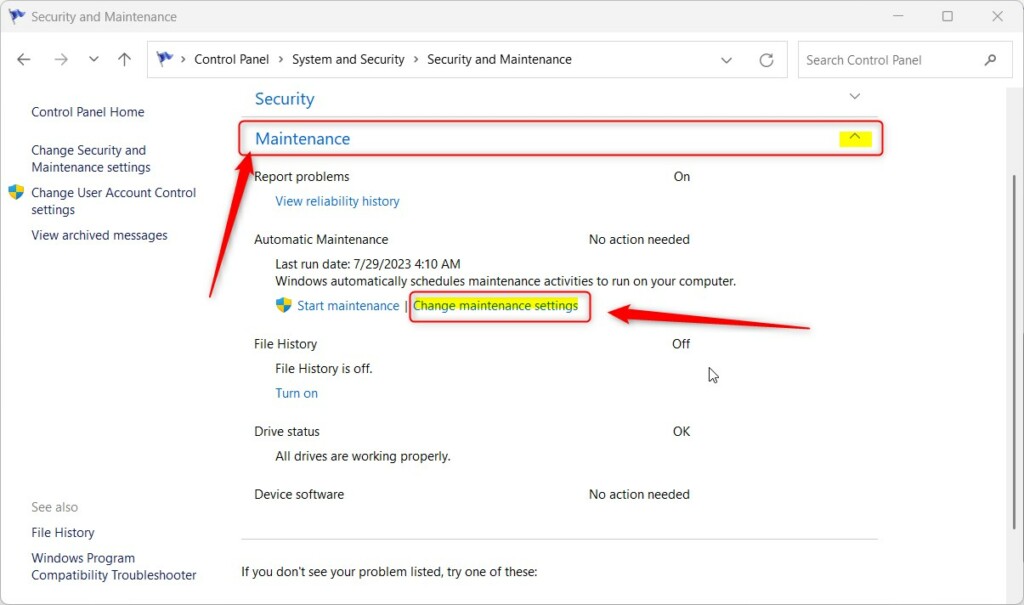
- Go to Control Panel System and Security Security and Maintenance. Expand the Maintenance section if it is collapsed. You should see the Automatic Maintenance settings with the current status.
- Click the Change maintenance settings link under Automatic Maintenance. The Automatic Maintenance settings window opens.
- Select the time you want Automatic Maintenance to run each day from the time list. Pick an hour when the PC is normally on but idle.
- Optionally, tick the box that allows scheduled maintenance to wake up your computer at the scheduled time. Leave it unticked if you do not want a sleeping PC to wake on its own.
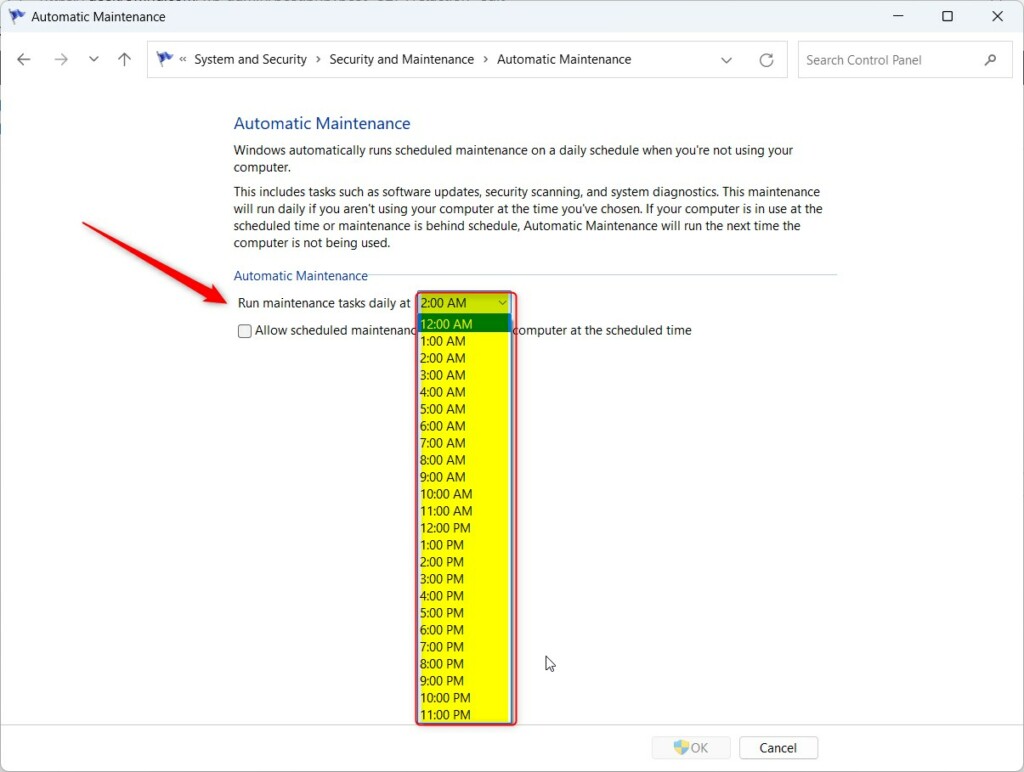
- Click OK to save. If the button asks for permission, approve the User Account Control prompt.
- Close the Control Panel when you are finished.
To undo the change, open the same window and set the time back to 2:00 AM. If the time list is greyed out or the change will not save, check whether a Group Policy or Registry setting is already controlling the schedule, because those override this window.
Change WAM Time Using Local Group Policy Editor
The Local Group Policy Editor lets you lock in a specific hour for automatic maintenance, so tasks only run when you are away from the keyboard. You need an administrator account. The editor is only included in Windows 11 Pro, Enterprise and Education. On Windows 11 Home it is not available, so use the Registry method below instead.
- Open the Local Group Policy Editor.
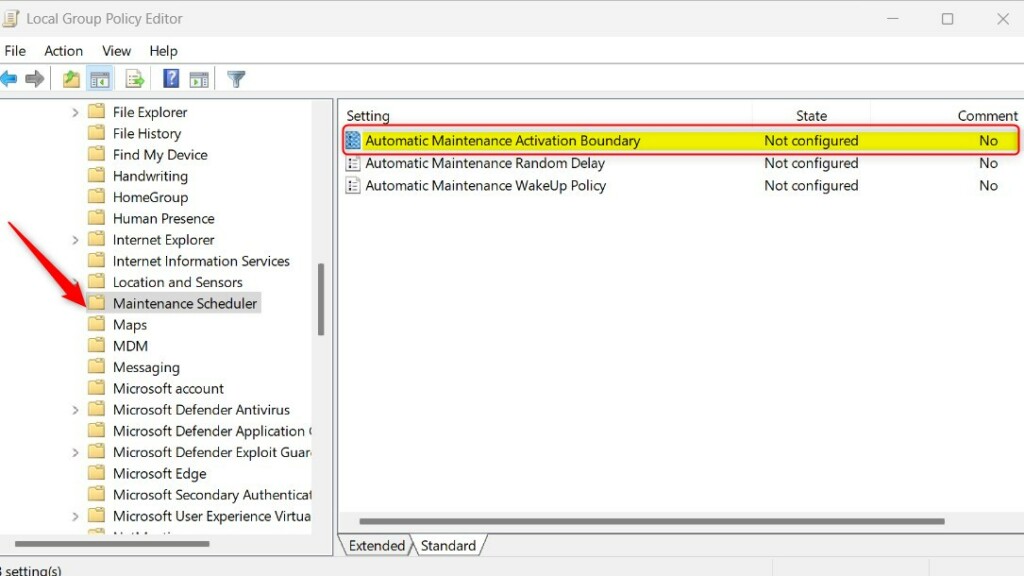
- In the left pane, go to Computer Configuration Administrative Templates Windows Components Maintenance Scheduler The settings for scheduled maintenance appear in the right pane.
- Double-click Automatic Maintenance Activation Boundary in the right pane. A settings window for that policy opens.
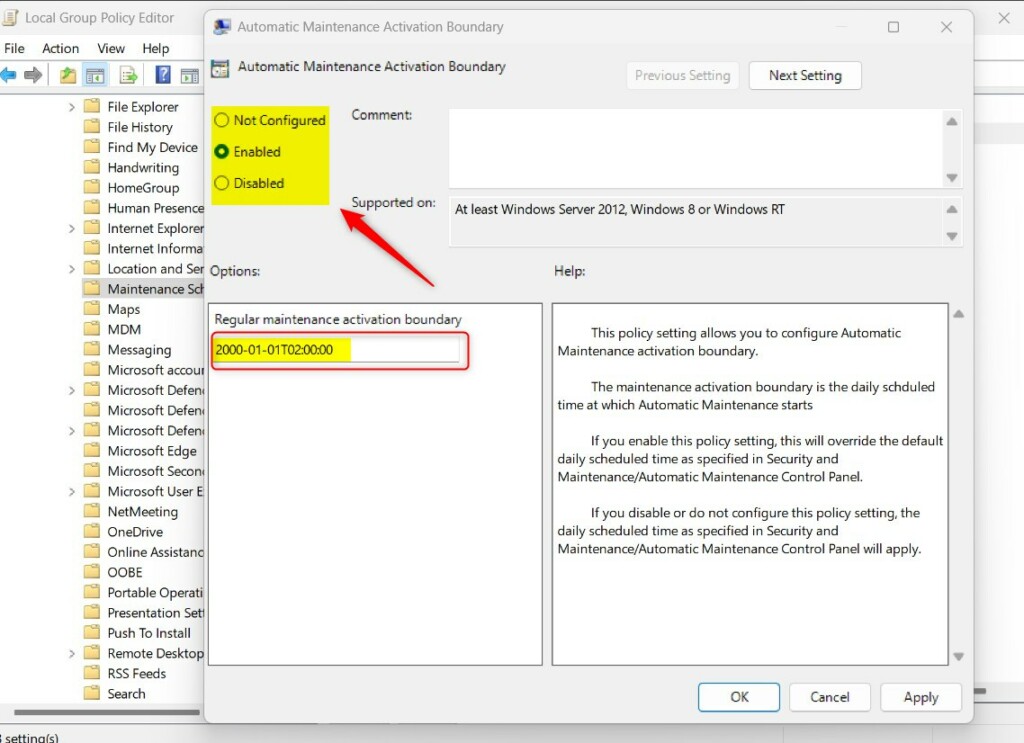
- Choose Enabled.
- Enter the time value for your preferred hour in the options box. The table below lists the value for each time.
- Click Apply, then OK.
- Restart your computer so the change takes effect.
To undo it, open the same policy and select Not Configured, then restart. Windows returns to its default schedule.
Use this table to find the value for your preferred time:
| Standard Time | REG_SZ Data Value |
|---|---|
| 12:00 AM | 2001-01-01T00:00:00 |
| 1:00 AM | 2001-01-01T01:00:00 |
| 2:00 AM | 2001-01-01T02:00:00 |
| 3:00 AM | 2001-01-01T03:00:00 |
| 4:00 AM | 2001-01-01T04:00:00 |
| 5:00 AM | 2001-01-01T05:00:00 |
| 6:00 AM | 2001-01-01T06:00:00 |
| 7:00 AM | 2001-01-01T07:00:00 |
| 8:00 AM | 2001-01-01T08:00:00 |
| 9:00 AM | 2001-01-01T09:00:00 |
| 10:00 AM | 2001-01-01T10:00:00 |
| 11:00 AM | 2001-01-01T11:00:00 |
| 12:00 PM | 2001-01-01T12:00:00 |
| 1:00 PM | 2001-01-01T13:00:00 |
| 2:00 PM | 2001-01-01T14:00:00 |
| 3:00 PM | 2001-01-01T15:00:00 |
| 4:00 PM | 2001-01-01T16:00:00 |
| 5:00 PM | 2001-01-01T17:00:00 |
| 6:00 PM | 2001-01-01T18:00:00 |
| 7:00 PM | 2001-01-01T19:00:00 |
| 8:00 PM | 2001-01-01T20:00:00 |
| 9:00 PM | 2001-01-01T21:00:00 |
| 10:00 PM | 2001-01-01T22:00:00 |
| 11:00 PM | 2001-01-01T23:00:00 |
Change WAM Time Using Windows Registry Editor
The Registry Editor is the option for Windows 11 Home, where the group policy tool is missing. It is an advanced method and needs administrator rights. A wrong change in the registry can cause problems, so create a restore point or export the key before you edit it.
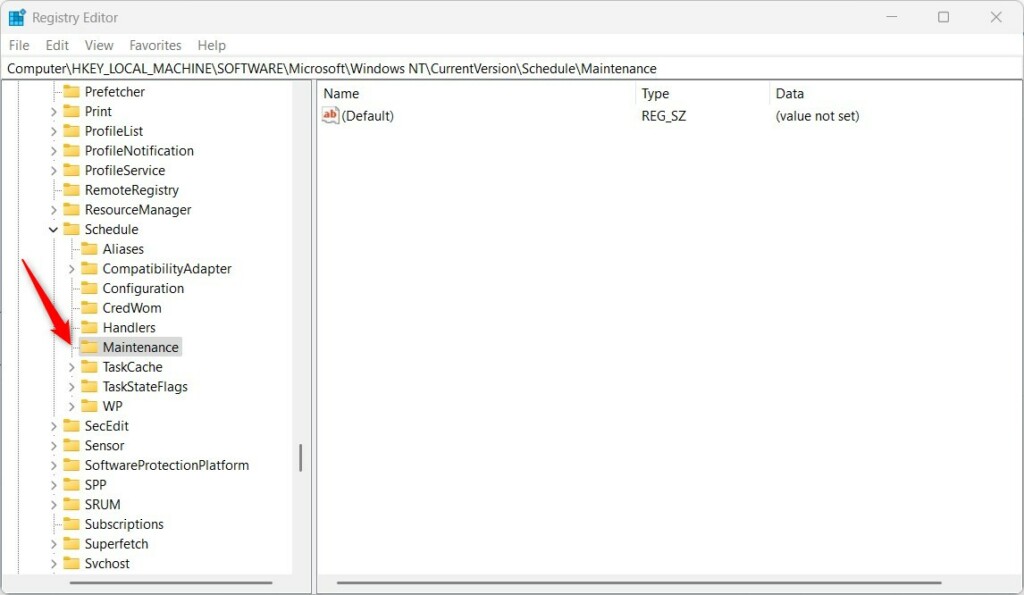
- Open the Registry Editor and go to this path:
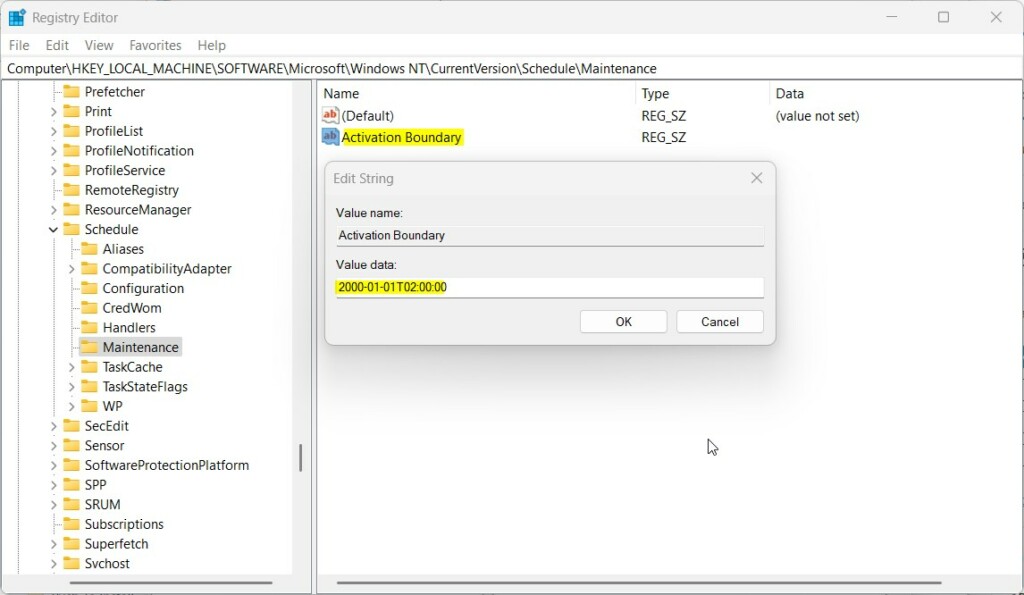
HKEY_LOCAL_MACHINE\SOFTWARE\Microsoft\Windows NT\CurrentVersion\Schedule\Maintenance - Right-click in the empty space in the right pane and select New String Value. A new entry appears with its name highlighted.
- Name this new value
Activation Boundary. - Double-click the new value and enter your time code from the table above.
- Click OK to save the value.
- Close the Registry Editor and restart your computer.
To undo the change, delete the value you created and restart.
Summary
Windows Automatic Maintenance helps keep your system running smoothly. You can change the default 2 AM time using Control Panel, Group Policy, or the Registry. Restart your computer after a Group Policy or Registry change so it applies. If you prefer silent operation, adjust your power settings, or leave the wake option unticked in Control Panel, so the PC does not wake itself up for maintenance.
Have a question about this guide?
Answered by AI from this guide. Good questions may be added to this page — please don't include personal details.
Did this guide fix your problem?

About the Author
Richard
Tech Writer, IT Professional
Richard is a writer at Geek Rewind who turns complex IT tasks into clear, step-by-step guides. He draws on years of hands-on experience in system administration and enterprise IT operations, focusing on Windows, Linux and WordPress: the problems people actually run into, and the fixes that work. His server and WordPress guides come from systems he runs himself. Richard builds and maintains the platform behind Geek Rewind, from its Ubuntu servers and Nginx configuration to its custom WordPress plugins. Many new tutorials start with readers' questions, and he's always glad to answer them in the comments.
[…] you want, you can change the time it runs or start it manually whenever you […]
[…] can change WAM schedules if the 2 AM time does not work for you, and you can lists all available device tasks. You can also […]