How to Start or Stop Windows Automatic Maintenance


Windows Automatic Maintenance runs background system chores like security scans, software updates, and drive cleanups once every 24 hours while your PC is idle and plugged in. You can manually start or stop these background tasks at any time to keep your system fast and prevent performance slowdowns during your work.
You can start or stop Windows Automatic Maintenance via the Control Panel . Navigate to Security and Maintenance, then click Start maintenance or Stop maintenance as needed. Alternatively, use the Windows Terminal with commands like MSchedExe.exe Start or MSchedExe.exe Stop.
Understanding Windows Automatic Maintenance
Windows Automatic Maintenance (often called WAM) keeps your computer running well by handling crucial system chores behind the scenes. Because it only kicks in when the PC is idle, most people never notice it. The exception is a laptop or desktop that is busy at the scheduled time, or one that feels sluggish while a scan is running. In those cases, knowing how to start or stop the run yourself is useful.
This guide covers the Control Panel and command-line methods, and points to the Registry Editor and Group Policy Editor for turning maintenance off completely.
How to Start or Stop Windows Automatic Maintenance
Windows Automatic Maintenance runs background checks and updates when you are not using your PC. You can start or stop it manually through the Control Panel if background tasks slow down your computer or run at the wrong time. This works on both Windows 11 Home and Pro, and you do not need to restart afterwards.
- Open the Control Panel . The quickest way is to press the Win, type Control Panel , and press Enter.
- Go to System and Security Security and Maintenance. If the view is set to icons instead of categories, click Security and Maintenance directly.
- Expand the Maintenance section by clicking the arrow next to it, then find the Automatic Maintenance area. You should see the current status and the next scheduled run time.
- If the task is not running, click the Start maintenance link. The link changes to Stop maintenance, which tells you the run has begun.
The run can take a while, depending on how much work is queued. Disk activity and fan noise are normal during this time.
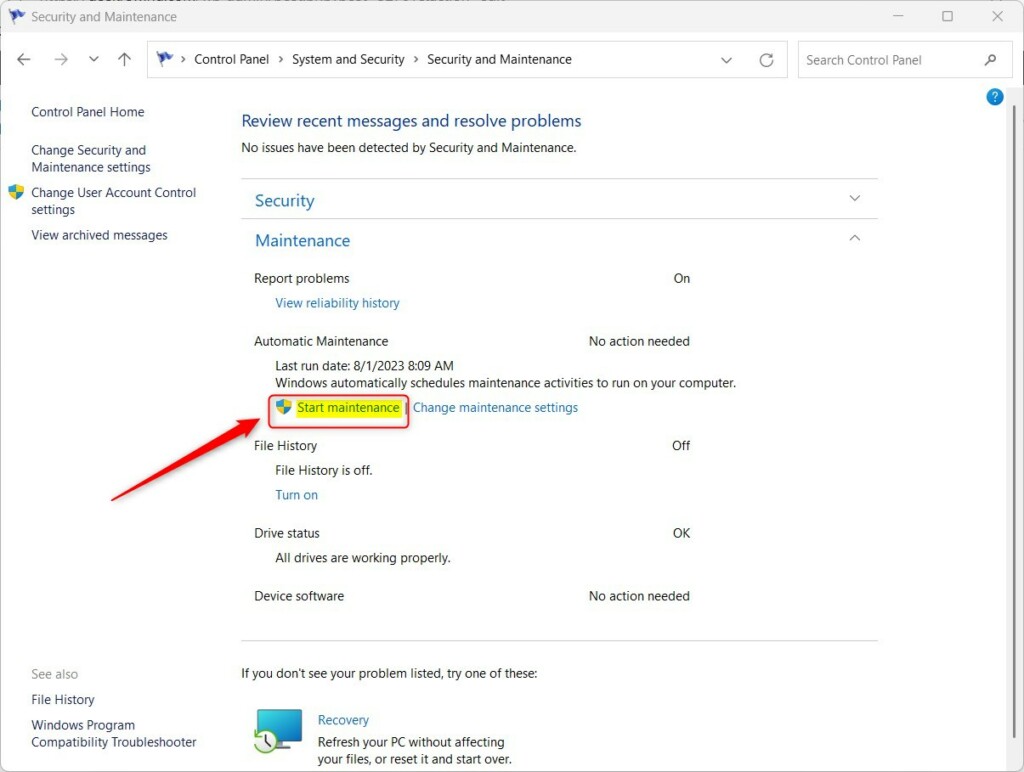
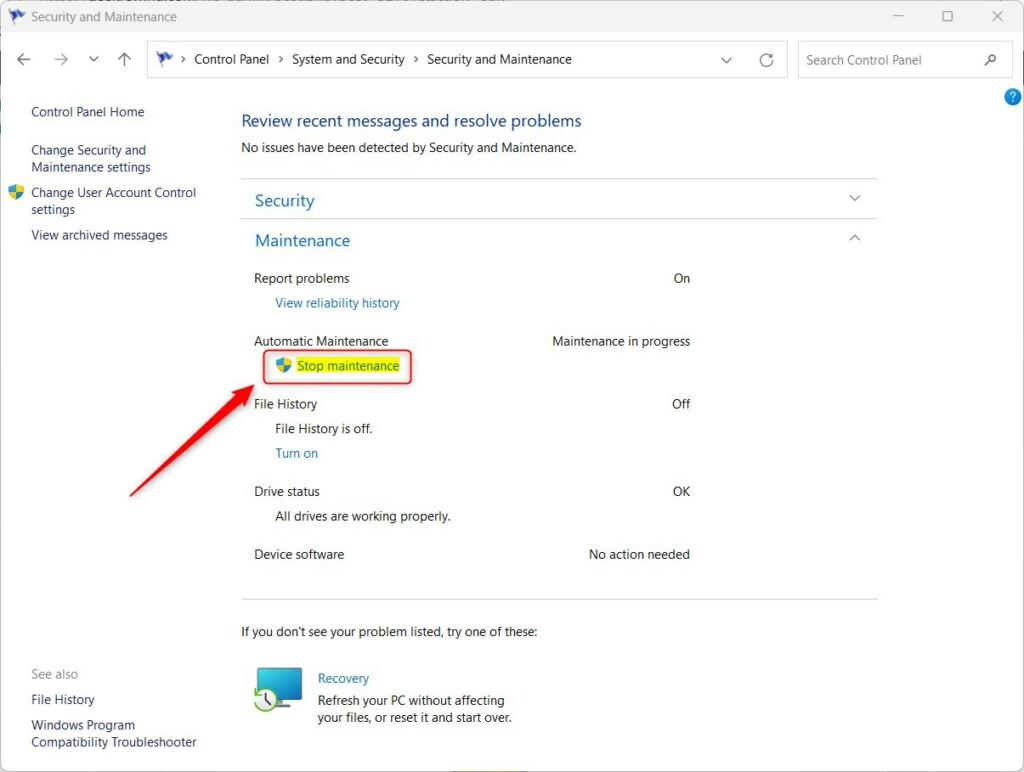
Active tasks display a Stop maintenance link. Clicking that option ends the process immediately. Windows will try again at the next scheduled time, so stopping a run is a pause rather than a permanent change. You can also click Start maintenance later to run it on your own terms, for example when you step away from the PC.
Advanced Control via Windows Terminal
Windows Terminal lets you start or stop Windows Automatic Maintenance using text commands instead of clicking through menus. This method works well if you prefer command lines or need to script maintenance tasks across multiple computers. You need administrator rights, so an ordinary terminal window will not work.
- Right-click the Start button and choose Terminal (Admin). You can also search for Windows Terminal, right-click it, and choose Run as administrator.
- Click Yes if the User Account Control prompt appears. An elevated terminal window opens.
- To start the maintenance, type the following command and press Enter:
MSchedExe.exe Start - To stop the maintenance, type the following command and press Enter:
MSchedExe.exe Stop
If a command returns an access denied error, the window is not elevated. Close it and reopen it as administrator. To confirm the result, open Security and Maintenance in the Control Panel and check whether the link reads Start maintenance or Stop maintenance.
Registry and Group Policy Alternatives
You can also disable Windows Automatic Maintenance through the Registry Editor (a database for low-level Windows settings) or the Group Policy Editor. These methods turn the feature off entirely rather than pausing a single run, so use them only if the Control Panel and command-line options are not enough.
Keep a few points in mind before you try either one:
- The Group Policy Editor is only included in Windows 11 Pro, Enterprise, and Education. On Home, use the Registry Editor instead.
- Back up the registry, or create a restore point, before you edit anything. A wrong change can cause problems that are hard to trace.
- If a change does not seem to take effect, sign out and back in, or restart the PC.
- To undo the change, reverse the setting you made.
Pros and Cons of Disabling Maintenance
| Pros | Cons |
|---|---|
| Prevents performance drops during heavy use. | System updates may fail to install. |
| Stops background disk activity. | Security scans might be missed. |
| Saves battery life on laptops. | System performance may degrade over time. |
Summary
Windows Automatic Maintenance keeps your system healthy by ensuring your machine stays updated and secure. Running these routines optimizes overall system performance. Control Panel modules and command-line interfaces both offer management paths. Administrator privileges remain mandatory for advanced system alterations.
For most people, leaving maintenance on is the right choice. If it gets in the way, stop the current run from the Control Panel and let it start again at its next scheduled time. Turn it off completely only if you have a clear reason and plan to run updates and scans yourself.
Have a question about this guide?
Answered by AI from this guide. Good questions may be added to this page — please don't include personal details.
Did this guide fix your problem?

About the Author
Richard
Tech Writer, IT Professional
Richard is a writer at Geek Rewind who turns complex IT tasks into clear, step-by-step guides. He draws on years of hands-on experience in system administration and enterprise IT operations, focusing on Windows, Linux and WordPress: the problems people actually run into, and the fixes that work. His server and WordPress guides come from systems he runs himself. Richard builds and maintains the platform behind Geek Rewind, from its Ubuntu servers and Nginx configuration to its custom WordPress plugins. Many new tutorials start with readers' questions, and he's always glad to answer them in the comments.
[…] can change the default run time or manually trigger it to start. The Automatic Maintenance feature is enabled by default in Windows, but you can disable it if you […]
[…] If you want, you can change the time it runs or start it manually whenever you like. […]