How to Disable Automatic Maintenance Windows 11

Automatic Maintenance is a built-in Windows 11 feature that runs background tasks such as software updates and security scans. By default it starts around 2:00 AM each day, when the computer is idle. Turning it off stops these scheduled jobs from running on their own, so you decide when maintenance happens.
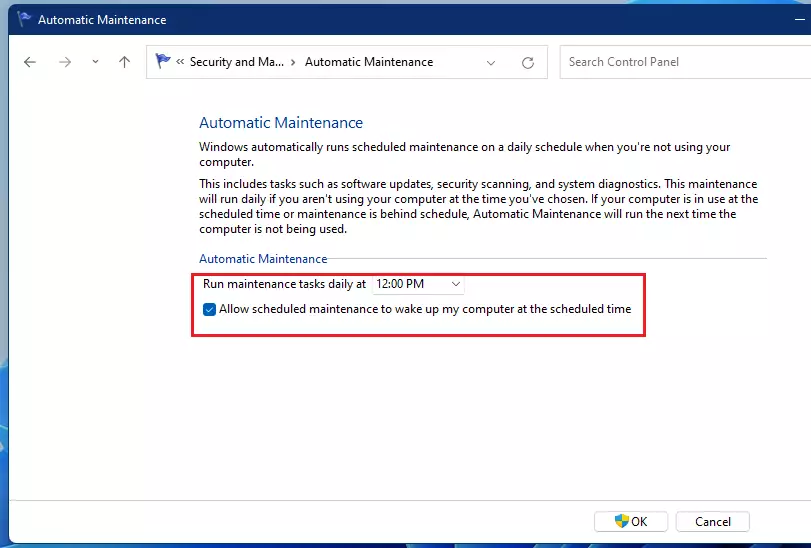
You might disable it while troubleshooting, or to stop the PC waking up unexpectedly in the night. There are two routes. The first is Control Panel , then Security and Maintenance, where the maintenance settings let you change the start time and whether maintenance may wake the PC. The second is the Registry Editor, which this tutorial covers. It switches maintenance off completely and works on both Windows 11 Home and Pro.
Open Registry Editor with Win+R, type regedit, and navigate to 🗝️HKEY_LOCAL_MACHINE\
How Automatic Maintenance Works
Automatic Maintenance bundles the background jobs Windows runs regularly to keep the PC secure and healthy. A security scan is one example: it checks for malware while you are away from the machine.
What Happens During Automatic Maintenance?
Here is what the feature normally covers:
- Windows Updates: Downloads and installs important security fixes and new features.
- Security Scans: Checks for harmful software and viruses using Windows Security.
- System Diagnostics: Checks to make sure system parts are working correctly.
- Performance Optimization: Tidies up storage to keep it fast. On older hard drives this means defragmenting. On newer SSDs it means optimizing, which is a different operation.
- Software Updates: Sometimes, updates for other Microsoft programs are also part of this process.
All of this happens when you are not using the PC, so it rarely interrupts your work. That is the reason most people should leave it on. If you turn it off, you take over these jobs yourself.
Using the Registry Editor to Control Automatic Maintenance
The Registry Editor is a tool for viewing and changing the registry, the database where Windows stores its system settings. Use it when the normal settings screens do not go far enough. Be careful here. A wrong change can cause serious problems, so edit only the value described below.
Before you start, you may want to back up the registry. In Registry Editor, click File, then Export, and save a copy. You can double-click that file later to restore it.
Automatic Maintenance is controlled by a registry value. The setting lives under HKEY_LOCAL_MACHINE\SOFTWARE\Microsoft\Windows NT\CurrentVersion\Schedule\Maintenance, and the value you change is MaintenanceDisabled. You can disable or enable maintenance by editing it.
Step 1Open the Registry Editor
- Press Windows key + R on your keyboard. The Run box opens.
- Type
regeditinto the box and press Enter or click OK. - If a User Account Control (UAC) window appears, click Yes. If you are signed in with a standard account, Windows asks for an administrator password instead. You need administrator rights to change this setting.
Registry Editor should now be open, with a folder tree on the left and values on the right.
Step 2Go to the Correct Registry Location
Next, go to the registry key (a folder-like entry) that holds the Automatic Maintenance settings.
- In the left-hand pane, expand HKEY_LOCAL_MACHINE and keep drilling down through the folders, one level at a time, until you reach the path below.
- As a shortcut, click the address bar at the top of Registry Editor, paste the path, and press Enter. This works on current Windows 11 builds.
The path is:
HKEY_LOCAL_MACHINE\SOFTWARE\Microsoft\Windows NT\CurrentVersion\Schedule\Maintenance
When you arrive, the key is highlighted on the left, and its values are listed on the right. Check the path carefully, because a similar-looking key elsewhere is not the right one.
Step 3Change the 'MaintenanceDisabled' Setting
MaintenanceDisabled is the registry value that turns the background tasks off. It may not exist yet. In that case you create it by right-clicking an empty spot in the right pane, choosing New, selecting DWORD (32-bit) Value, and naming it MaintenanceDisabled. The steps below walk through this.
To Disable Automatic Maintenance:
- In the right side of the window, look for a value named
MaintenanceDisabled. - If it is not there, create it. Right-click an empty space in the right pane, select New, then choose DWORD (32-bit) Value. A new entry appears with its name ready to edit. Name it exactly
MaintenanceDisabled. - Double-click the
MaintenanceDisabledvalue. The Edit DWORD (32-bit) Value window opens. - In the Value data box, enter
1. - Make sure Base is set to Hexadecimal.
- Click OK. The value now shows the number you entered in the right pane.
Explanation: Setting the value to 1 for MaintenanceDisabled tells Windows to stop the automatic maintenance tasks.
Make sure you have a plan for performing updates and scans yourself, for example by checking Windows Update and running Windows Security scans on a regular schedule.
To Enable Automatic Maintenance (Default):
To turn Automatic Maintenance back on, reverse the change:
- Go back to the same key in Registry Editor. If the
MaintenanceDisabledvalue is there, double-click it. - Change the Value data to
0. - Make sure Base is set to Hexadecimal.
- Click OK.
- Alternatively, remove the value. Right-click the
MaintenanceDisabledvalue and select Delete, then confirm if asked. If theMaintenanceDisabledvalue does not exist, there is nothing to delete, and maintenance is already at its default.
Explanation: Setting the value to 0, or removing the value entirely, tells Windows to allow automatic maintenance tasks to run as scheduled.
MaintenanceDisabled value is often the most reliable way to re-enable maintenance, because it returns the system to its default behavior.Step 4Close Registry Editor and Restart
When you have finished, close Registry Editor. Then restart the PC so that Windows services pick up the new setting. This applies whether you disabled or re-enabled maintenance. If you want to undo the change later, follow the enabling steps above and restart again.
Summary
Automatic Maintenance handles important background jobs, such as security scans and updates, while your PC is idle. The Registry Editor can switch it off when you need strict control over system resources or want to troubleshoot. For most people, though, leaving it on is the better choice, because it keeps the computer secure and up to date without any effort. If you do turn it off, schedule your own updates and scans, and re-enable it when you no longer need it off.
Have a question about this guide?
Answered by AI from this guide. Good questions may be added to this page — please don't include personal details.
Did this guide fix your problem?

About the Author
Richard
Tech Writer, IT Professional
Richard is a writer at Geek Rewind who turns complex IT tasks into clear, step-by-step guides. He draws on years of hands-on experience in system administration and enterprise IT operations, focusing on Windows, Linux and WordPress: the problems people actually run into, and the fixes that work. His server and WordPress guides come from systems he runs himself. Richard builds and maintains the platform behind Geek Rewind, from its Ubuntu servers and Nginx configuration to its custom WordPress plugins. Many new tutorials start with readers' questions, and he's always glad to answer them in the comments.
No comments yet — be the first to share your thoughts!