Get Help with File Explorer in Windows 11

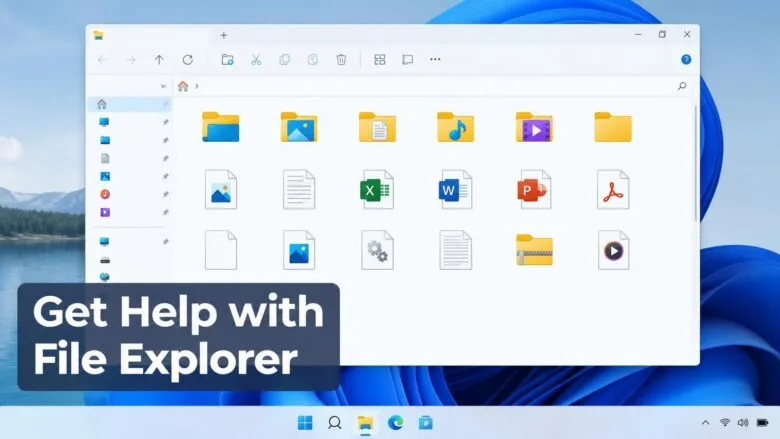
- 41 steps
- Needs administrator rights
- Includes a restart or sign-out
Stuck with File Explorer? Start with the built-in help options, or work through the fixes below that clear most problems. File Explorer is the app that shows your drives, folders, and files. Pressing F1 inside it usually opens a web search in your default browser, which is how many people end up on pages like this one.
This guide starts with the quickest fixes for a slow, frozen, or crashing File Explorer. It then covers missing panes, hidden file extensions, the right-click menu, and features that are not on your PC yet.
To get help with File Explorer in Windows 11, press F1 while File Explorer is open to search the web in your default browser, or open the Get Help app from Start. For a slow, frozen, or crashing File Explorer, first check Windows Update, then restart Windows Explorer in Task Manager (Ctrl+Shift+Esc) under Processes.
Where to Get Help With File Explorer Inside 🪟 Windows 11
Windows 11 has three official routes for File Explorer help. Use them when you do not know what is wrong, or when the fixes below do not work.
- F1 keyPress F1 while File Explorer is the active window. Windows opens a web search for help in your default browser. It needs an internet connection.
- Get Help appOpen Start, type Get Help, and select the app. It walks you through troubleshooting and can connect you to Microsoft support.
- Feedback HubPress Win+F to report a bug to Microsoft. Describe what you did and what happened. Feedback Hub (the app Microsoft uses to collect bug reports) is the right place for a crash that keeps coming back.
Match Your Problem to a Fix
File Explorer problems fall into a few groups. Find yours, then jump to that section.
- File Explorer is slow, freezes, closes on its own, or shows a blank window: use the main fix list below.
- The left pane, file extensions, hidden files, or checkboxes are missing: go to the section on restoring missing items.
- The right-click menu looks short or lacks a command you used on Windows 10: see the context menu section.
- A feature from a news article or screenshot is not on your PC: read the section on why features are missing.
- The preview pane stays empty: see the preview pane section.
How to Fix a Slow, Frozen, or Crashing File Explorer
- Open Settings. Press Win+I.
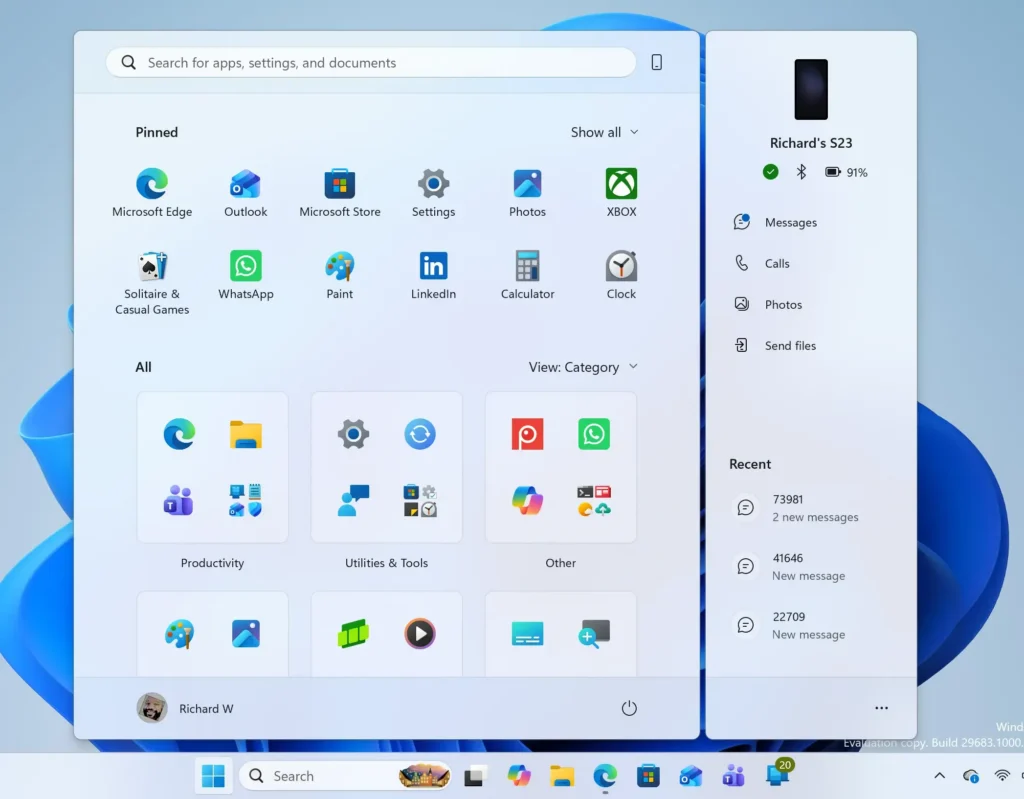
Windows 11 Start menu search panel for opening OpenSSH Client settings - Select Windows Update. It is at the bottom of the left pane.
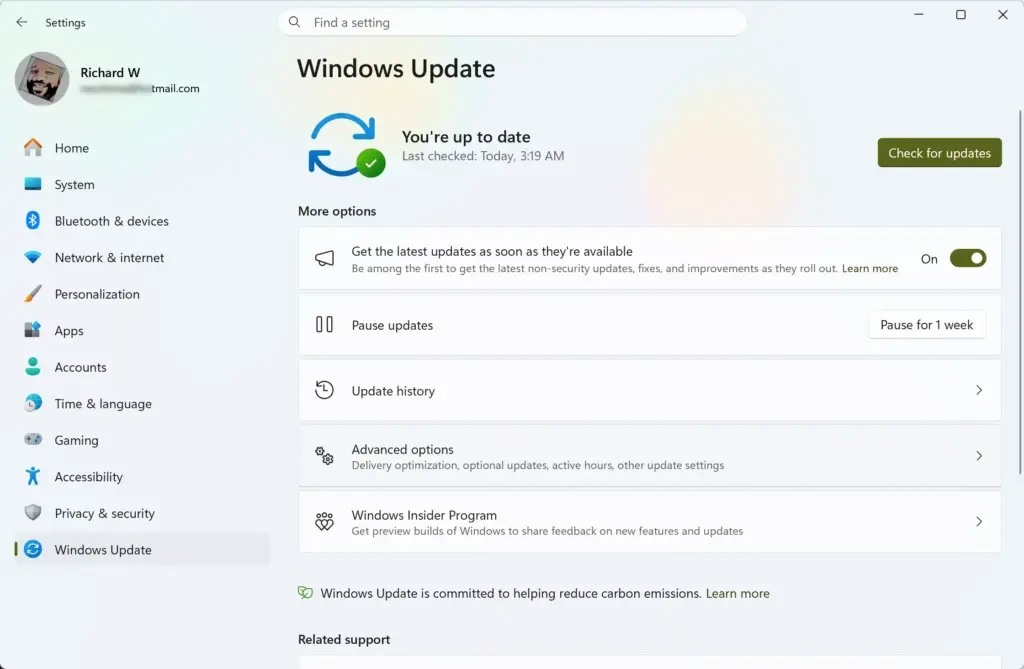
Settings › Windows Update - Click Check for updates. Windows lists any updates it finds and starts downloading them. Many File Explorer bugs are fixed through updates. Microsoft’s November 2026 notes on 8 GB PCs say File Explorer opens up to 20% faster than it did after the January 2026 update, so a PC that is behind on updates can feel slower than it should.
- Restart the PC when Windows asks. Select Restart now. After the restart, open File Explorer and check whether the problem is still there.
- Press Ctrl+Shift+Esc. This opens Task Manager (the tool that lists running apps and processes). If it opens in a small view, click More details at the bottom.
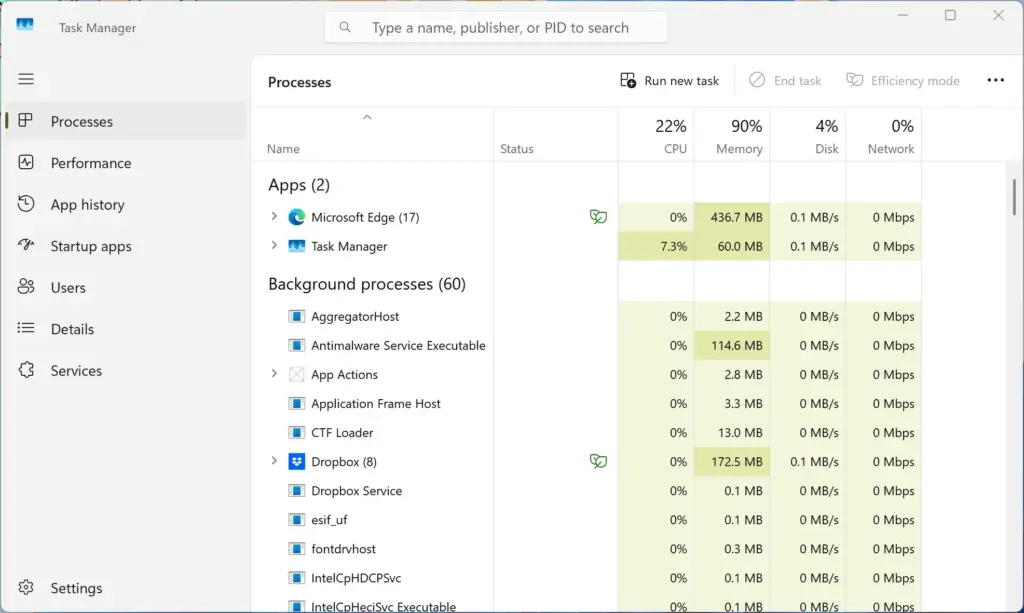
Task Manager - Select Processes. It is in the left pane, and the list of running apps appears on the right.
- Find Windows Explorer in the list. Windows Explorer is the process that runs File Explorer, the taskbar, and the desktop. It sits under Apps if a File Explorer window is open, and under Windows processes if none is. Do not confuse it with Internet Explorer or Microsoft Edge.
- Right-click Windows Explorer and select Restart. The taskbar and desktop disappear for a second or two, then come back. Open File Explorer windows close. This step does not delete any files.
- Press Win+E. This opens a new File Explorer window so you can test it. If the problem is gone, stop here.
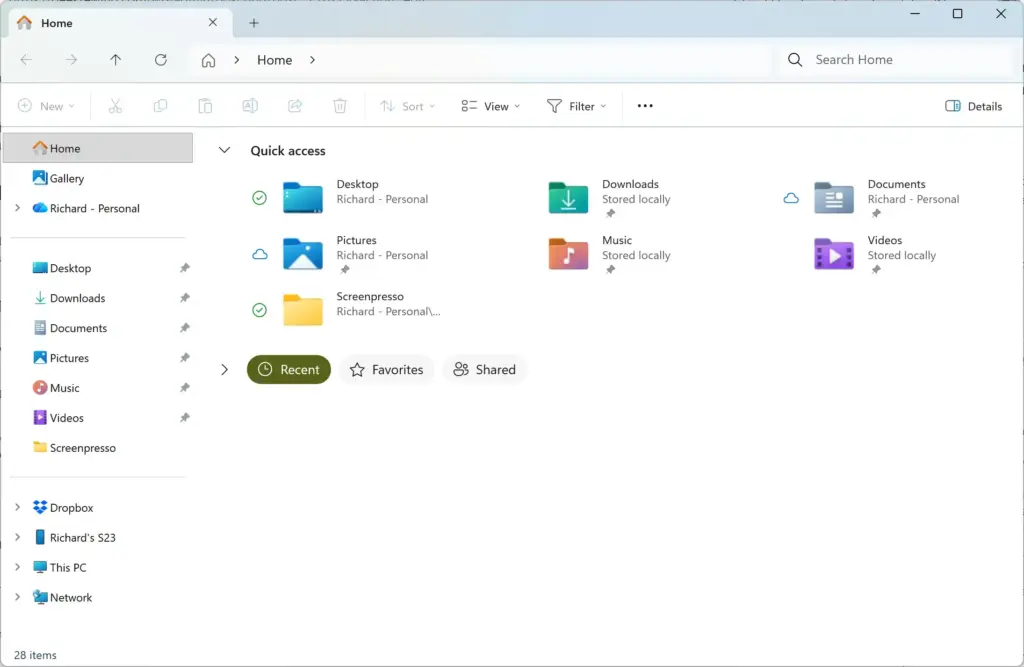
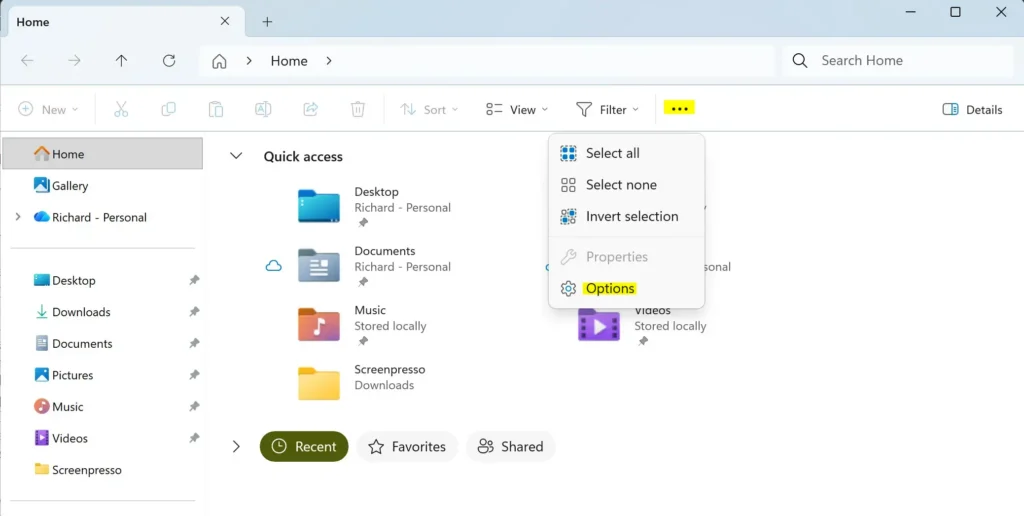
Windows 11 File Explorer showing Dropbox folder in sidebar. - Click See more in the toolbar. It is the button with three dots, and a menu opens below it.
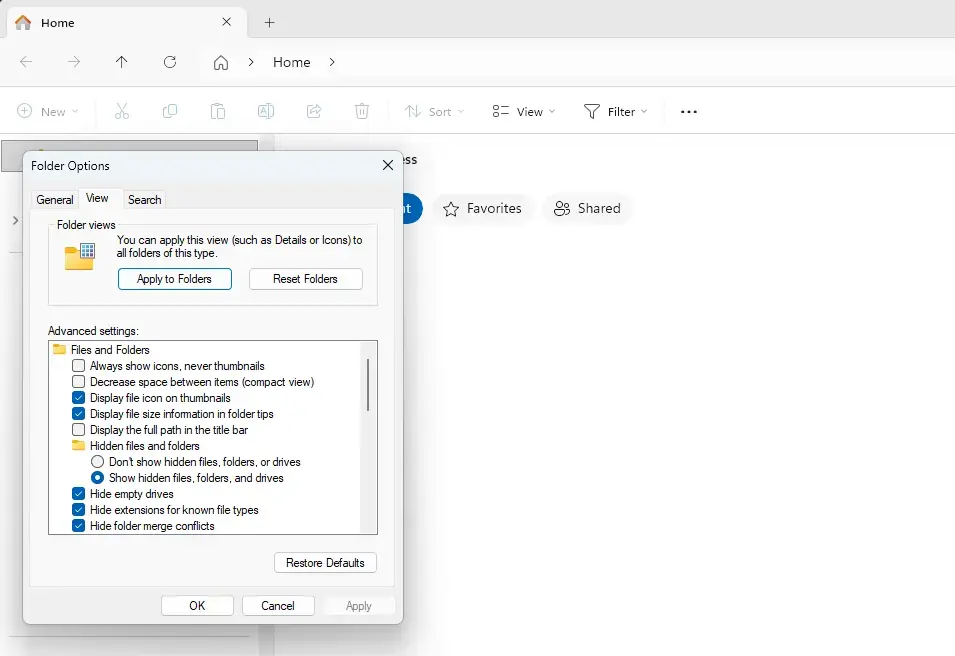
- Select Options. The File Explorer Options dialog box opens. If you cannot find it, see how to open File Explorer Options in Windows 11.
File Explorer - Select the General tab. Look for the Privacy section.
File Explorer - Click Clear next to Clear File Explorer history. This removes the lists of recent files and searches that File Explorer stores. It does not delete your files. The Quick access list may look emptier afterward.
- Select the View tab. The Advanced settings list and the Folder views section appear.
- Before you click Reset Folders, note that it cannot be undone. You will have to set your preferred layouts again. Click Reset Folders. This returns the view settings of your folders to their defaults, such as column widths, sort order, and layout. Select Yes when Windows asks you to confirm.
- Click OK. Close the dialog box and open a few folders to test them.
- Open Start and type Command Prompt. Command Prompt appears at the top of the results.
- Right-click Command Prompt and select Run as administrator. This step needs administrator privileges, because the next tool repairs protected system files. Select Yes if the User Account Control prompt (the pop-up that asks you to approve changes) appears.
- Type
sfc /scannowand press Enter. System File Checker (a built-in tool that checks Windows system files and replaces damaged ones) starts. The scan can take several minutes. Leave the window open until it reaches 100%. - Read the result message. “Windows Resource Protection did not find any integrity violations” means the system files are fine. “Found corrupt files and successfully repaired them” means the problem may now be fixed. “Found corrupt files but was unable to fix some of them” means you need the next step.
- Type
DISM /Online /Cleanup-Image /RestoreHealthand press Enter. Run this only if System File Checker could not repair every file. DISM (Deployment Image Servicing and Management, a repair tool for a hidden library of Windows system files that SFC draws from) needs an internet connection and can take a while. When it finishes, runsfc /scannowagain. - Restart the PC. Open File Explorer and check whether the problem is gone.
- Open Settings. Press Win+I.
- Select System, then Recovery. The recovery options appear.
- Click Reset PC. It sits next to Reset this PC.
- Choose Keep my files. This keeps your personal files but removes apps and settings. Follow the prompts that appear on screen.
If the Desktop and Taskbar Do Not Come Back After a Restart
If the screen stays blank after you restart Windows Explorer, the process has stopped. Here is how to bring it back. Press Ctrl+Shift+Esc to reopen Task Manager.
Select Run new task, type explorer.exe, and select OK. The taskbar and desktop should return within a few seconds.
If System File Checker Will Not Run
Windows shows “You must be an administrator running a console session in order to use the sfc utility” when Command Prompt was not opened as an administrator. Close it and repeat the steps, choosing Run as administrator this time.
How to Restore Missing Items in File Explorer
Most “missing” items in File Explorer are hidden by a setting, not broken. The View menu in the toolbar controls all of them in Windows 11.
Restore the Left Navigation Pane
The navigation pane is the column on the left that lists Home, Gallery, OneDrive, This PC, and your folders. Use these steps to bring it back after it disappears.
- Open File Explorer. Press Win+E.
- Click View in the toolbar. A menu opens.
- Point to Show. A list of panes and options appears.
- Select Navigation pane. A check mark next to it means the pane is on. The left column should now appear.
If your favorite folders are missing from the pane, you may have unpinned them. Managing Favorites in Windows 11 File Explorer shows how to pin them again.
Show File Name Extensions, Hidden Items, and Item Checkboxes
File name extensions are the letters after the dot, such as .docx or .jpg. Showing them helps when a file opens in the wrong app or when you rename a file. Hidden items are files and folders that Windows hides by default. Item checkboxes let you select several files without holding Ctrl.
- Open File Explorer. Press Win+E.
- Click View. It is in the toolbar.
- Point to Show. The submenu opens.
- Select File name extensions. Extensions now appear on every file name.
- Select Hidden items. Open View Show again if the menu closed. Hidden files now appear in a lighter shade.
- Select Item check boxes. Open View Show once more. A checkbox now appears when you point at a file.
To undo any of these, repeat the step. Selecting the same item again removes the check mark and turns the setting off.
Make File Explorer Open to This PC
Windows 11 opens File Explorer to Home by default. If you prefer to see your drives first, change the starting location in File Explorer Options.
- Click See more in the toolbar. It is the button with three dots.
- Select Options. The File Explorer Options dialog box opens.
- Select the General tab. It is the first tab.
- Open the Open File Explorer to list. Choose This PC.
- Click OK. The next File Explorer window you open starts at This PC.
Choose Home from the same list to go back to the default.
How to Find Commands in the 🪟 Windows 11 Right-Click Menu
The Windows 11 context menu (the menu that opens when you right-click a file or folder) is shorter than the one in Windows 10. Common actions such as cut, copy, rename, and delete appear as icons at the top or bottom of the menu. Less common commands are hidden behind one extra click.
Right-click a file and select Show more options at the bottom of the menu to see the older, longer menu. A faster way is to select the file and press Shift+F10, or hold Shift while you right-click. Both open the full menu directly.
If you want to move through File Explorer without the mouse, access keys in Windows 11 File Explorer (keyboard letters that jump to a command) show a shortcut for each toolbar command.
Why a File Explorer Feature Is Missing or Not Working
Windows 11 changes File Explorer through updates, and Microsoft often turns on new features gradually. Two PCs on the same version can show different options. Check these causes before you assume something is broken.
- The feature has not reached your PC yet: Microsoft releases some features in optional preview updates (test releases you can install early) first, then to everyone later. Open Settings Windows Update and check for updates. Some optional updates appear only after you turn on Get the latest updates as soon as they’re available.
- Your region does not get it: Hover actions in File Explorer Home, such as Open file location and Ask Copilot, are not available in the European Economic Area.
- Your account type matters. Quick actions for work and school accounts need a Microsoft Entra ID account (the account system your work or school uses to sign you in). Summaries of OneDrive and SharePoint documents also depend on that kind of account. A local or personal Microsoft account may not show them.
- New image and archive features arrive with newer versions: Windows 11, version 26H2 adds AI actions for supported images in File Explorer, and support for more archive formats. If your PC runs an older version, these do not appear. Press Win+R, type
winver, and press Enter to see your version. - Tabs need a recent version: File Explorer tabs came with an update to Windows 11 version 22H2. For help with them, see switching tabs in Windows 11 File Explorer.
Windows 11 also remembers whether you expanded or collapsed sections in File Explorer Home. If a section looks missing, it may be collapsed. Click its heading to open it again.
How to Fix a Blank Preview Pane
The preview pane shows the contents of a selected file without opening it. Press Alt+P in File Explorer to turn it on or off, or choose View Show Preview pane.
Recent updates treat files you download from the web differently. HTML files show a warning, and a Preview anyway button appears. Click it only if you trust the file.
Other web downloads, such as PDFs, preview automatically. This behavior comes from the October 2026 preview update KB5124010, so an older PC may not have it yet.
A preview can also be blank because no previewer exists for that file type. Some file types need the matching app installed before File Explorer can show them.
How to Fix Search and Thumbnail Problems
If search results are slow or missing, run the Search and Indexing troubleshooter. Open Settings System Troubleshoot Other troubleshooters, find Search and Indexing, and click Run. Choose the problem that matches what you see and follow the prompts.
Windows also pauses background indexing while you are working, according to Microsoft’s November 2026 notes. Search can be incomplete for a while after a large file copy or a fresh install. Give it some time before you treat it as broken.
If thumbnails (the small picture previews on image and video files) show as blank icons, clear the thumbnail cache (the saved copies of those previews). Open Start, type Disk Cleanup, and select the app. Choose your Windows drive, select the Thumbnails check box, and click OK. File Explorer rebuilds the thumbnails the next time you open each folder.
Other File Explorer Tasks You May Need Next
If the problem is a layout you dislike and not a bug, changing the File Explorer layout in Windows 11 covers the view options. For wider changes to how File Explorer looks and behaves, see how to customize Windows 11 File Explorer. If you moved or deleted a file by mistake, Undo and Redo in Windows 11 File Explorer can reverse it.
If This Didn’t Work
Press Win+F to open Feedback Hub and send Microsoft a report. Describe the steps that lead to the problem, so Microsoft can see it happen too. If File Explorer windows reopen or fail to reopen at sign-in, check how to restore File Explorer windows when you log in. Open the Get Help app from Start to reach Microsoft support directly.
Frequently asked questions
How to get help in 🪟 Windows 11 keyboard sound?
Open the Get Help app from Start by typing Get Help and selecting it. Describe the sound problem, such as no keyboard sound or key clicks not playing, and follow its steps. If that does not resolve the issue, use the Feedback Hub to report it to Microsoft.
How to get help in 🪟 Windows 11?
Press F1 while File Explorer is active to open a web search for help in your default browser. For guided troubleshooting, open the Get Help app from Start. To report a bug, press Win+F to open the Feedback Hub and describe what happened.
How to open file explorer?
Press Win+E to open File Explorer. You can also click the folder icon on the taskbar, or open Start, type File Explorer, and select it. The window opens to Home, showing your drives and folders.
How to get help in 🪟 Windows 11 youtube?
The Get Help app links to written Microsoft support articles, not videos. To find a video, search YouTube for your exact problem, such as File Explorer is slow in Windows 11. Check that the clip matches your version of Windows before you follow it.
Where is file explorer?
File Explorer is pinned to the taskbar by default, shown as a yellow folder icon. You can also press Win+E from any screen. If the icon is missing, search for File Explorer in Start, right-click it, and select Pin to taskbar.
What is file explorer in 🪟 Windows 11?
File Explorer is the built-in Windows 11 app that shows your drives, folders, and files. You use it to browse, open, copy, move, rename, and delete files. It also lets you pin folders, search your PC, and view recently used files.
Still have a question?
Answered by AI from this guide. Good questions may be added to this page — please don't include personal details.
Did this guide fix your problem?

About the Author
Richard
Tech Writer, IT Professional
Richard is a writer at Geek Rewind who turns complex IT tasks into clear, step-by-step guides. He draws on years of hands-on experience in system administration and enterprise IT operations, focusing on Windows, Linux and WordPress: the problems people actually run into, and the fixes that work. His server and WordPress guides come from systems he runs himself. Richard builds and maintains the platform behind Geek Rewind, from its Ubuntu servers and Nginx configuration to its custom WordPress plugins. Many new tutorials start with readers' questions, and he's always glad to answer them in the comments.
No comments yet — be the first to share your thoughts!