How to Change Windows 11 Password via Command Prompt


Changing your Windows 11 password via Command Prompt takes under 60 seconds and lets you bypass the Settings app entirely. Command Prompt is a built-in Windows tool that lets you run system tasks by typing short text commands.
You use the built-in net user command to set a brand new password instantly. This method works fast when you get locked out of your PC and need to get back in right away.
Open Command Prompt as administrator, then type “net user USERNAME *” and press Enter. Replace USERNAME with your actual account name. You will be prompted to enter and confirm your new password.
Changing Your Password via Windows Settings
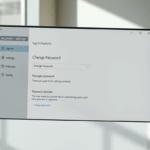
Changing your Windows 11 password through the main Settings app takes just a few clicks if you know where to look. You can use this method for both standard local profiles and connected Microsoft accounts. Open Settings, go to the Accounts section, and follow the prompts under Sign-in options to set your new password.
- Open the Start menu and click the Settings gear icon.
- Select Accounts from the left sidebar.
- Click on Sign-in options.
- Choose Password and click the Change button.
- Follow the on-screen prompts to verify your identity and set a new password.
Microsoft Account vs. Local Account
The correct reset steps depend on whether you use a Microsoft account or a local account. Microsoft accounts tie directly to cloud profiles, requiring updates through the official online portal. Local accounts exist exclusively on the physical machine.
Changing Password via Command Prompt (Admin Required)
You can change your Windows 11 password using Command Prompt if you have administrator access to the computer. This method lets you bypass the standard login screens and reset user credentials directly through the command line. You must run the terminal with full administrator rights for the command to work properly.
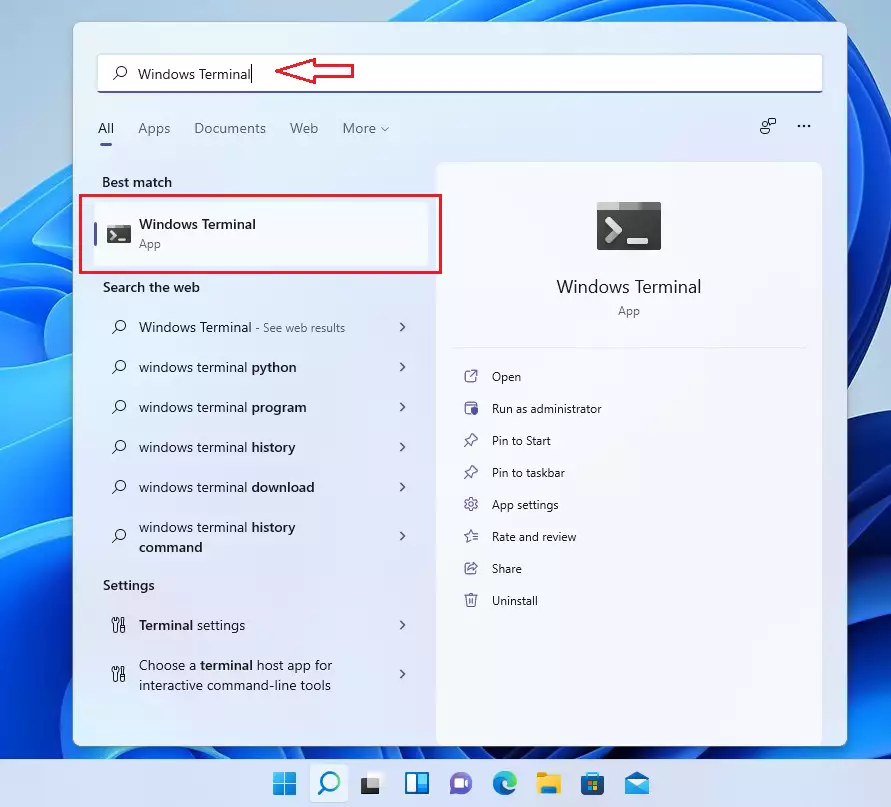
Search for Command Prompt in the Start menu , right-click the result, and select Run as administrator.
2. View your existing user accounts by typing `net user` and pressing Enter.
net user
3. Update the credentials using the net user USERNAME * command.
net user USERNAME *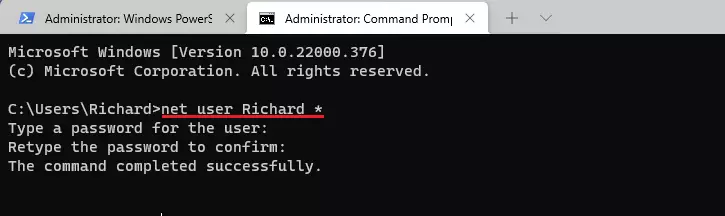
Changing Password via PowerShell (Admin Required)
PowerShell provides another command-line way to change a Windows 11 password when you need administrative control over local user accounts. This tool works well for IT tasks or when the standard desktop settings are blocked. You need to open PowerShell as an administrator and use a secure string variable to apply the new password safely.
1. Open PowerShell as an administrator.
2. View your local users with this command:
Get-LocalUser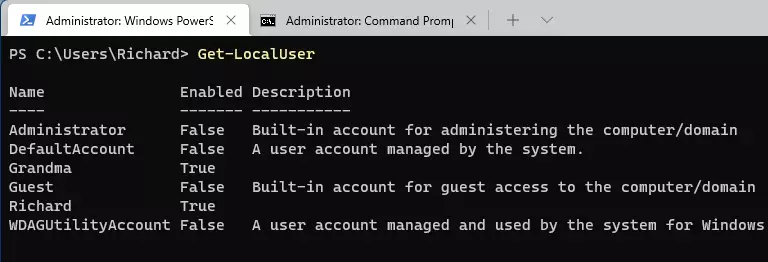
3. Create a secure password variable and apply it to your account:
$Password = Read-Host "Enter the new password" -AsSecureString4. Use these commands to finalize the change:
$UserAccount = Get-LocalUser -Name "USERNAME"
$UserAccount | Set-LocalUser -Password $Password
Summary
Standard desktop users rely on the Settings app, while system administrators prefer the speed of Command Prompt and PowerShell.
Was this guide helpful?

About the Author
Richard
Tech Writer, IT Professional
Richard is a writer at Geek Rewind who turns complex IT tasks into clear, step-by-step guides. He draws on years of hands-on experience in system administration and enterprise IT operations, focusing on Windows, Linux and WordPress: the problems people actually run into, and the fixes that work. His server and WordPress guides come from systems he runs himself. Richard builds and maintains the platform behind Geek Rewind, from its Ubuntu servers and Nginx configuration to its custom WordPress plugins. Many new tutorials start with readers' questions, and he's always glad to answer them in the comments.


No comments yet — be the first to share your thoughts!