How to Change Account Lockout Threshold in Windows 11

The account lockout threshold in Windows 11 sets how many failed sign-in attempts are allowed before Windows locks the account. It is there to stop anyone from guessing your password. If you set it to 5, for example, the account locks after five wrong tries.
You change this number in the Local Group Policy Editor (a built-in tool for advanced security rules) on Windows 11 Pro, Enterprise or Education. Windows 11 Home does not include this tool, so the steps in this guide will not work there.
You change the Windows 11 account lockout threshold using the Local Group Policy Editor (secpol.msc) or Windows Terminal. Navigate to Computer Configuration\Windows Settings \Security Settings\Account Policies\Account Lockout Policy, then double-click Account lockout threshold and enter a number between 1 and 999.
Prerequisites
Changing these policies requires administrator access. Standard user accounts cannot change these system-wide security rules. If you sign in with a standard account, the editor may open but you will not be able to save changes. Sign in as an administrator, or approve the User Account Control prompt with an administrator’s credentials.
If your PC is joined to a work or school domain, the domain’s Group Policy may override what you set here. In that case, ask your IT administrator to make the change.
How to change the Account Lockout Threshold
Changing the account lockout threshold sets how many times someone can type the wrong password before Windows locks the account. The Local Group Policy Editor is the simplest way to do it. Open the Run box by pressing the Win plus R, type gpedit.msc, and press Enter.
If you see a message that Windows cannot find gpedit.msc, you are most likely on Windows 11 Home. This editor is not available there.
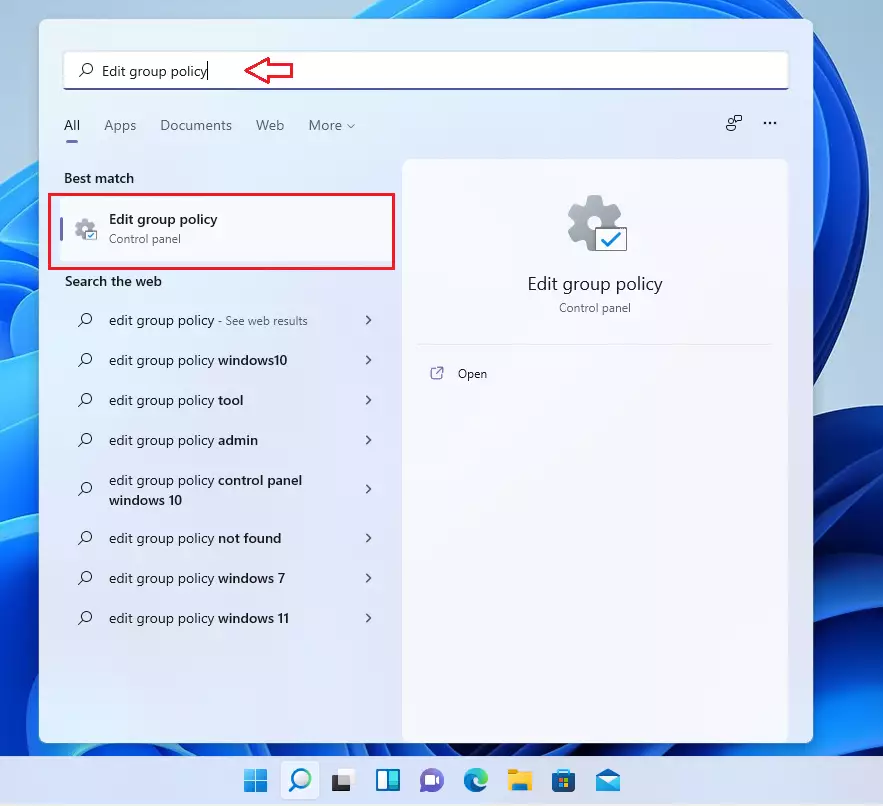
- Press Win+R to open the Run box, type
secpol.msc, and press Enter to open the Local Group Policy Editor. Approve the User Account Control prompt if it appears. A window with a folder tree on the left should open.
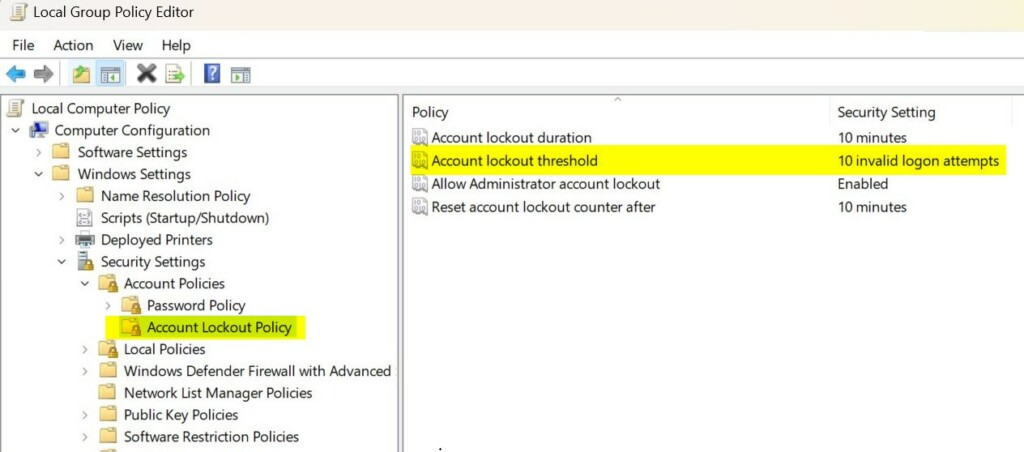
- In the left pane, go to Computer Configuration Windows Settings Security Settings Account Policies Account Lockout Policy. Click Account Lockout Policy once. Three policies should now be listed on the right.
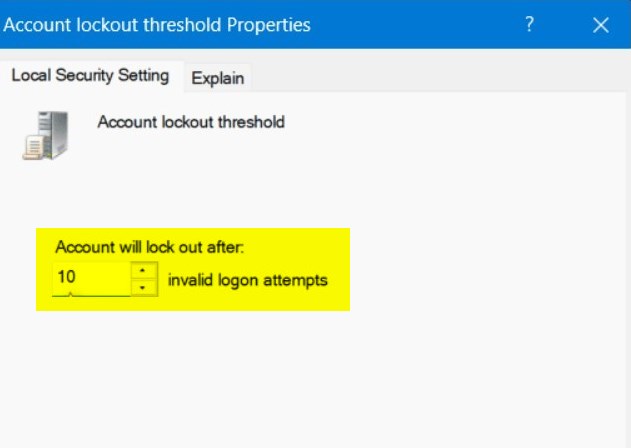
- Double-click Account lockout threshold. Its properties window opens, with the current value shown (0 by default, which means accounts never lock).
- Enter a number between 1 and 999 in the box. Setting this to 0 disables the lockout feature entirely. A value of 5 to 10 works well for most people.
- Click OK to save. If you entered a number above 0, Windows may show a Suggested Value Changes box. It proposes setting the lockout duration and the reset counter to 30 minutes. Click OK to accept, or change those two policies yourself afterwards. You do not normally need to restart. If the new limit does not seem to apply, sign out and back in.
Change the threshold using Windows Terminal
The command line is faster if you are comfortable with it, and it works well when you manage several PCs. It also needs administrator rights. The steps below are for Windows 11 Pro and other editions that support it.
- Right-click the Start button and select Terminal (Admin). In this guide that means Windows Terminal running as an administrator. Click Yes on the User Account Control prompt. The window title should show that it is running as Administrator.
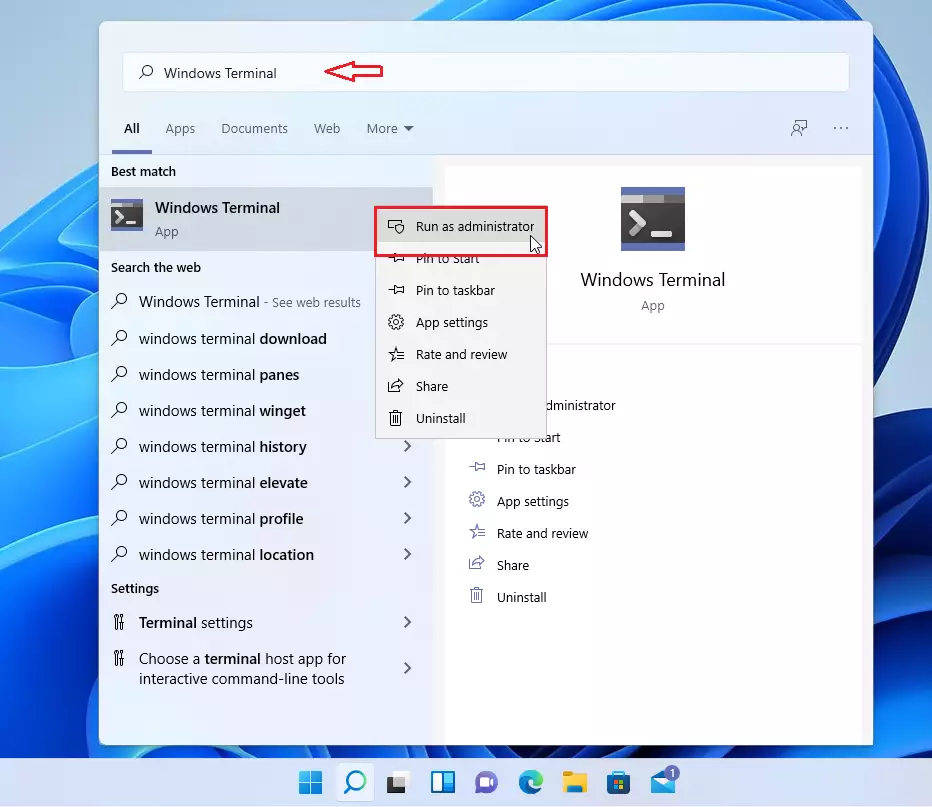
- Type the following command and press Enter. The number in the command is the threshold, so change it to the value you want before you run it. The terminal should report that the command completed successfully.
net accounts /lockoutthreshold:<number>Troubleshooting Locked Accounts
Wait for the account lockout duration to expire, or clear the lock manually. The duration is the period set in the Account lockout duration policy, 30 minutes if you accepted the suggested values. To clear a lock sooner, sign in with another administrator account and follow these steps:
- Open the Computer Management console.
- Go to Local Users and Groups Users
- Right-click the affected user and select Properties.
- Uncheck Account is locked out, then click OK.
Local Users and Groups is not available on Windows 11 Home. Also, if the locked account is the only administrator account on the PC, you will have to wait for the lockout duration to end.
Security Best Practices
A lockout threshold of 5 to 10 attempts combined with a strong password gives the best protection. Too low a number, such as 1 or 2, will lock out real users who mistype. Enable multi-factor authentication whenever it is available.
Disabling the threshold completely leaves your system open to brute-force attacks (automated programs that try thousands of password combinations). To undo any change in this guide, set the threshold back to its previous value, which is 0 by default.
Summary
A lockout threshold gives you a reliable defense against unauthorized login attempts. It takes only a minute to set, and you can change it later if it proves too strict or too lenient.
Consult the official Microsoft documentation for advanced configuration details.
Have a question about this guide?
Answered by AI from this guide. Good questions may be added to this page — please don't include personal details.
Did this guide fix your problem?

About the Author
Richard
Tech Writer, IT Professional
Richard is a writer at Geek Rewind who turns complex IT tasks into clear, step-by-step guides. He draws on years of hands-on experience in system administration and enterprise IT operations, focusing on Windows, Linux and WordPress: the problems people actually run into, and the fixes that work. His server and WordPress guides come from systems he runs himself. Richard builds and maintains the platform behind Geek Rewind, from its Ubuntu servers and Nginx configuration to its custom WordPress plugins. Many new tutorials start with readers' questions, and he's always glad to answer them in the comments.
For all 3 parameters via command line:
net accounts /lockoutthreshold:15 /lockoutduration:15 /lockoutwindow:10
[…] you subject the built-in admin user to the account lockout policy, it will apply the Account lockout threshold policy setting, which determines the number of failed sign-in attempts that will cause a user […]
[…] account lockout threshold is now set to 10 failed sign-in attempts by […]
[…] account lockout threshold is now set to 10 failed sign-in attempts by […]