How to Change Account Lockout Duration in Windows 11

Account lockout duration in Windows 11 sets how many minutes your PC stays locked after someone types the wrong password too many times. Windows uses it to stop automated programs from guessing your password over and over. You change it in the Local Security Policy tool, which is only available in Windows 11 Pro, Enterprise, and Education. On Home, you use a command in Terminal instead.
This guide covers both methods, what you should see at each step, how the related settings depend on each other, and how to put things back if you change your mind. Neither method needs a restart.
Open Local Security Policy by pressing Win+R, typing secpol.msc, and pressing Enter. Navigate to Security Settings Account Policies Account Lockout Policy, then double-click Account Lockout Duration and set the number of minutes. On Windows 11 Home, use Terminal to run the command instead, as Local Security Policy is unavailable.
Why Account Lockout Matters
Account lockout matters because it is one of the main defenses against password guessing. Without it, anyone with access to the sign-in screen, or a script running against your PC, could try passwords all day without being slowed down. A lockout forces a pause after a few bad tries, which makes guessing impractical.
Understanding Account Lockout Settings
Windows 11 account lockout settings protect your PC by temporarily disabling a user account after too many failed password attempts. This stops automated guessing tools from cracking your login. You control how many wrong tries are allowed and how long the account stays locked before Windows lets you try again.
Four settings work together. Here is what each one does.
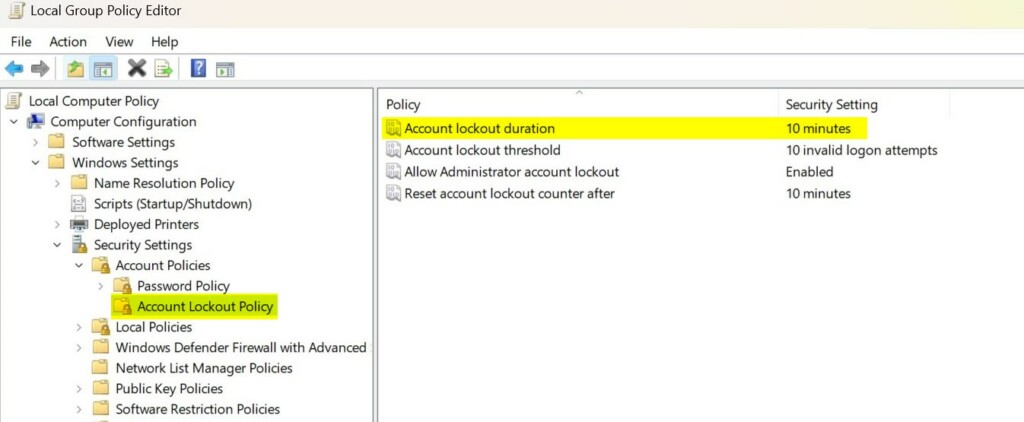
Account lockout threshold sets how many incorrect passwords Windows allows before it locks the account. You can set it anywhere from 1 to 999 attempts. A value of 0 turns account lockout off completely, so the account is never locked no matter how many wrong passwords are entered. The other settings only take effect when this one is above 0.
Account lockout duration defines how many minutes an account stays locked before it unlocks on its own. An administrator can also unlock a locked account manually at any time, so you are never stuck waiting.
Reset account lockout counter after sets how many minutes must pass after a failed attempt before the count of bad attempts goes back to zero. In practice, it gives a user a fixed window to fix a typo before the lockout starts to count against them again. For example, if the threshold is 10 and the counter resets after 10 minutes, 9 wrong tries followed by a 10-minute wait starts you fresh.
Allow Administrator account lockout decides whether the built-in Administrator account can be locked out too. When it is enabled, the Administrator account is locked after too many failed attempts, and it stays locked for at least 15 minutes. That protects an account attackers love to target, but it also means you can lock yourself out of it by mistake. Keep another admin account available.
Default Settings in 🪟 Windows 11
For Windows 11 build 22528 and newer, the default settings are:
- Account lockout threshold: 10 failed attempts
- Account lockout duration: 10 minutes
- Allow Administrator account lockout: Enabled
- Reset account lockout counter after: 10 minutes
On older builds, the threshold is often 0 (never lock), so you may need to set it before the duration does anything.
⚠️ Admin Required: You must be signed in as an administrator to change these settings.
Important Notes
Think about the trade-off before you pick a long duration. Malicious actors sometimes try to lock out every account in an organization by entering wrong passwords across many profiles. A very long lockout, or a duration of 0, turns that into a denial-of-service attack, because real users cannot sign in until an admin steps in. For most home PCs, the 10-minute default is a sensible balance.
Option 1Using Local Security Policy
Local Security Policy lets you change the lockout duration if you use Windows 11 Pro, Enterprise, or Education. It is a built-in tool, so there is nothing to download. You open it by running secpol.msc, then go to the Account Lockout Policy section to set how many minutes Windows keeps an account locked.
If you are on Windows 11 Home, this tool does not exist. Skip ahead to the Terminal method.
- Open Local Security Policy. Type
secpol.mscin the search box and press Enter. If Windows asks for permission, click Yes. The Local Security Policy window opens with a tree of settings on the left. - In the left pane, double-click Account Policies to expand it, then click Account Lockout Policy. The right pane now lists the lockout settings and their current values.
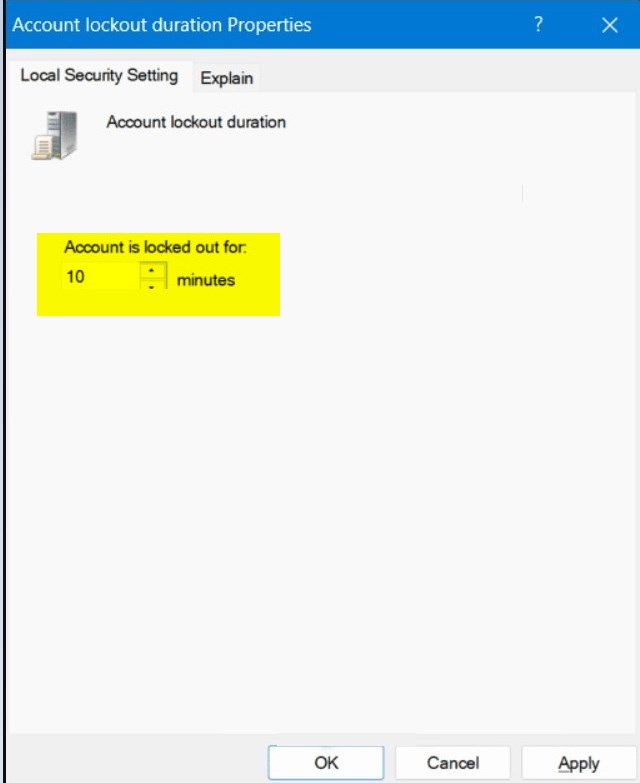
- In the right pane, double-click Account lockout duration. A Properties window opens.
- Type a number between 0 and 99999 minutes. This is how long the account stays locked. Click OK.
- 0 = The account stays locked until an admin unlocks it
- 10 = The default setting
- If a Suggested Value Changes window appears, Windows is telling you that the other lockout settings need to change to match. This happens when the threshold is not enabled yet, or when the duration is lower than Reset account lockout counter after. Review the values and click OK to accept them.
- If you want, you can also change Account lockout threshold, Allow Administrator account lockout, and Reset account lockout counter after. Double-click each one, change the value, and click OK.
- Check the right pane. The Security Setting column should show your new values.
- Close Local Security Policy when done. The change applies immediately, with no restart.
To undo this, open the same setting again and type the old value. 10 minutes is the default on current builds.
Account lockout duration must be greater than or equal to Reset account lockout counter after. If you see an error or a suggested-values prompt, one of these two rules is usually the reason.
Option 2Using Windows Terminal
Windows Terminal lets you change the lockout duration on Home editions, where Local Security Policy is missing. You run a short command with administrator rights to set the exact number of minutes. It also works on Pro, Enterprise, and Education, so use it whenever you prefer typing to clicking. It needs no extra downloads.
- Right-click the Start button and select Terminal (Admin). Alternatively, search for Windows Terminal and choose Run as administrator. Click Yes on the permission prompt. A Terminal window opens, using either Windows PowerShell or Command Prompt. Both work.
- Copy and paste this command, then press Enter to see your current settings:
net accounts - Look for the line that says "Lockout duration (minutes)". That is your current value. The "Lockout threshold" and "Lockout observation window" lines show the other two settings.
- Type this command and press Enter:
net accounts /lockoutduration:<number> - Replace <number> with a value between 0 and 99999 minutes. For example:
net accounts /lockoutduration:10
The Terminal should answer that the command completed successfully. A value of 0 means the account stays locked until an admin unlocks it. - If you want, you can also change other settings using these commands:
- Account lockout threshold:
net accounts /lockoutthreshold:<number> - Reset account lockout counter:
net accounts /lockoutwindow:<number>
- Account lockout threshold:
- Run the first command again to check the new values, then close Windows Terminal. No restart is needed.
To undo the change, run the same command with your old value. The default on current builds is 10 minutes.
Lockout duration must be greater than or equal to Lockout observation window. The observation window is the same setting that Local Security Policy calls Reset account lockout counter after. If a command returns an error, check these two rules first.
Summary
To change how long a Windows 11 account stays locked after failed sign-ins, use Local Security Policy on Pro, Enterprise, and Education, or Windows Terminal on any edition. Whichever you use, make sure the threshold is above 0 and the duration is at least as long as the reset counter.
References
Account Lockout Policy - Windows 10 - Describes the Account Lockout Policy settings and links to information about each policy setting.
Account lockout duration - Windows 10 - Describes the best practices, location, values, and security considerations for the Account lockout duration security policy setting.
Have a question about this guide?
Answered by AI from this guide. Good questions may be added to this page — please don't include personal details.
Did this guide fix your problem?

About the Author
Richard
Tech Writer, IT Professional
Richard is a writer at Geek Rewind who turns complex IT tasks into clear, step-by-step guides. He draws on years of hands-on experience in system administration and enterprise IT operations, focusing on Windows, Linux and WordPress: the problems people actually run into, and the fixes that work. His server and WordPress guides come from systems he runs himself. Richard builds and maintains the platform behind Geek Rewind, from its Ubuntu servers and Nginx configuration to its custom WordPress plugins. Many new tutorials start with readers' questions, and he's always glad to answer them in the comments.
No comments yet — be the first to share your thoughts!