How to Enable or Disable Built-in Administrator Account Lockout in Windows 11

Built-in administrator account lockout in Windows 11 stops hackers from guessing your main admin password by locking the account after 10 failed login attempts. This protects your PC from brute-force attacks, where a program tries hundreds of password combinations in seconds.
You can turn this setting on or off with the Local Security Policy tool on Windows 11 Pro, Enterprise, or Education. Keeping it on stops strangers from breaking in when you walk away from your PC. This guide covers what the setting does, what the related values mean, the defaults, and the one risk that comes with turning lockout on.
Open Local Security Policy by clicking Start and searching for it, then navigate to Security Settings Account Policies Account Lockout Policy. Set Allow Administrator account lockout to On to enable lockout protection or Off to disable it. Changes take effect immediately without restart.
Why Account Lockout Matters
Account lockout locks your Windows 11 account after a set number of failed login attempts. Someone who types the wrong password too many times in a row gets blocked, and your personal data stays protected.
It blocks an account after a number of wrong attempts that you choose, for example 5. Once the limit is reached, even the correct password is refused until the lock expires or an administrator unlocks the account.
The policy applies to local accounts on the PC. It does not change how you sign in with a PIN or Windows Hello. Those methods have their own protections on the device.
Understanding the Settings
Account lockout settings control how your PC handles repeated incorrect login attempts. They define three things:
- when an account locks
- how long it stays locked
- how quickly the failure counter resets
Adjusting them lets you balance security against the risk of locking yourself out. In the Local Security Policy tool, these settings are under Security Settings Account Policies Account Lockout Policy To open the tool, click Start and search for Local Security Policy. If it does not appear in the results, your edition is probably Windows 11 Home, which does not include it.
Account lockout threshold: This is the number of failed sign-in attempts allowed before the account locks. A value of 0 means the account never locks out.
Account lockout duration: This is the number of minutes a Windows 11 account stays locked before it unlocks on its own. A value of 0 means the account stays locked until an administrator unlocks it manually. An administrator can unlock it manually at any time, whatever the duration is.
This value must be less than or equal to the lockout duration. If it is longer, Windows will not accept it.
Allow Administrator account lockout: This setting decides whether the built-in Administrator account can be locked out. When it is on, anyone who types the wrong password too many times is blocked from that account, which adds a security layer. When it is off, the Administrator account is never locked by failed attempts, so a brute-force attack against it can keep running. If you turn it off, make sure the account has a long, unique password. Also remember that the built-in Administrator account is disabled by default on most installations.
To undo a change, open the same policy and set the previous value. Policy changes in Local Security Policy normally take effect without a restart. If a change does not seem to apply, sign out and back in, or restart the PC.
The Security Trade-off
Limiting failed login attempts stops most password-guessing attacks. The trade-off is that a bad actor can deliberately fail logins to lock out every account they can reach at once. This is a denial-of-service attack.
That risk is why the lockout duration matters. A short duration, such as 10 minutes, limits the damage. The lock clears on its own, and an administrator can still unlock an account manually. Avoid setting a very low threshold, such as 3, unless you accept that users will get locked out by simple typos.
New Default Settings
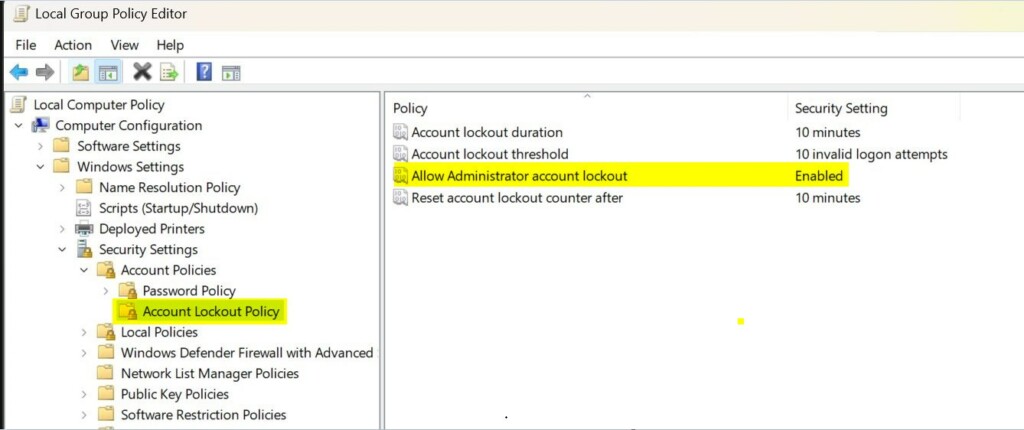
Windows 11 locks an account for 10 minutes after 10 failed password attempts, starting with update build 22528. These defaults apply to standard user accounts as well as the main administrator account, so your system has protection out of the box. The default values are:
- Account lockout threshold: 10 failed attempts
- Account lockout duration: 10 minutes
- Allow Administrator account lockout: Enabled
- Reset account lockout counter after: 10 minutes
If your PC was upgraded or set up from older media, these values may differ from the list above. Check the policy to see what is actually set.
References:
Account Lockout Policy - Windows 10
Describes the Account Lockout Policy settings and links to information about each policy setting.
KB5020282—Account lockout available for built-in local administrators - Microsoft Support
Important Requirements
You need administrator access to change these settings. This feature is only available in Windows 11 Pro, Enterprise, and Education editions.
To check your edition, go to Settings System About and look under Windows specifications. If it says Windows 11 Home, the Local Security Policy tool is not included, so you cannot change these settings from it. If you are signed in with a standard account, the tool will ask for administrator credentials or refuse to save changes.
How to Enable or Disable Administrator Account Lockout
You can enable or disable the built-in administrator account lockout in Windows 11 using the Local Security Policy (a tool for managing advanced security rules) editor. This process lets you turn the security feature on or off for the main administrator profile depending on your specific needs.- [Admin Required] Open Local Security Policy. Press the Windows key and search for
secpol.msc, then press Enter. - In the left pane, click on Account Policies to expand it. Then click on Account Lockout Policy.
- In the right pane, double-click on Allow Administrator account lockout to open its settings.
- Note: The Account lockout threshold policy must be enabled first to change this setting.
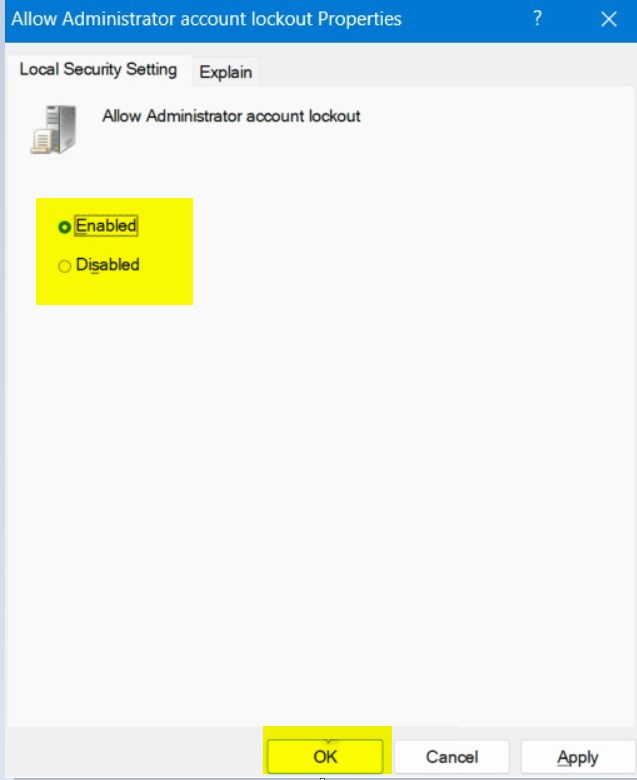
- Select Enabled (the default) or Disabled for what you want. Then click OK.
- If you want, you can also change the Account lockout threshold, Account lockout duration, and Reset account lockout counter after settings.
- When you're done, you can close the Local Security Policy window.
Summary
The Allow Administrator account lockout policy is a key security feature that locks your admin account after several incorrect password entries. Windows 11 now defaults to locking accounts for 10 minutes after 10 failed attempts, but you can change this using Local Security Policy on Pro, Enterprise, or Education versions.
Have a question about this guide?
Answered by AI from this guide. Good questions may be added to this page — please don't include personal details.
Did this guide fix your problem?

About the Author
Richard
Tech Writer, IT Professional
Richard is a writer at Geek Rewind who turns complex IT tasks into clear, step-by-step guides. He draws on years of hands-on experience in system administration and enterprise IT operations, focusing on Windows, Linux and WordPress: the problems people actually run into, and the fixes that work. His server and WordPress guides come from systems he runs himself. Richard builds and maintains the platform behind Geek Rewind, from its Ubuntu servers and Nginx configuration to its custom WordPress plugins. Many new tutorials start with readers' questions, and he's always glad to answer them in the comments.
No comments yet — be the first to share your thoughts!