How to Enable or Disable Sharing Host Folders with Windows Sandbox in Windows 11


Windows Sandbox is a temporary, isolated desktop environment. It lets you run untrusted apps on Windows 11 build 27686.1000 and later without putting your main system at risk.
Sharing host folders lets you open files from your main PC inside the sandbox. Turning the feature on or off gives you strict control over what the sandbox can see and touch on your hard drive. Windows Sandbox is only available on Windows 11 Pro, Enterprise and Education, so you will not find it on Home. If you have it open, close it before you change anything below.
To enable or disable sharing folders with Windows Sandbox, use either the Group Policy Editor or Registry Editor. In Group Policy, navigate to Computer Configuration - Administrative Templates - Windows Components - Windows Sandbox and adjust “Allow mapping folders into Windows Sandbox.” In the Registry, go to 🗝️HKEY_LOCAL_MACHINE\
Turn on or off the Share folder with Sandbox feature on Windows
The first method uses the Local Group Policy Editor. You change one policy setting that decides whether files from your main computer can be mapped into the sandbox. It is the cleanest way to do this on Pro, Enterprise and Education. Home does not include the Local Group Policy Editor, so use the registry method further down if you need it there.
- Open the Local Group Policy Editor. Press Win+R, type gpedit.msc and press Enter. Searching for “Edit group policy” on the Start menu works too. The editor opens in a new window, and you may need to approve a User Account Control prompt.
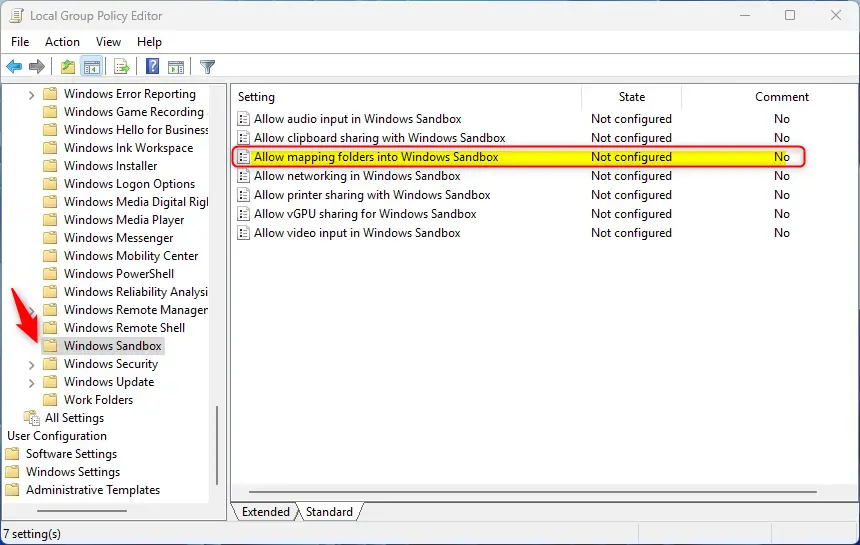
- In the left pane, navigate to the path shown below. Expand each folder in turn until you reach the last one.
Computer Configuration -> Administrative Templates -> Windows Components -> Windows Sandbox
- In the details pane on the right, find the setting “Allow mapping folders into Windows Sandbox” and double-click it. A window with that name opens.
- Choose one of the three options in the setting window:
- Not Configured (default) – No policy applies, and Windows uses its normal behavior.
- Enabled – Mapping folders from the host into Sandbox is permitted.
- Disabled – Mapping folders from the host into Sandbox is not permitted.
Once you choose Enabled, you can also allow Sandbox to write to a mapped folder. Look for the relevant options underneath the setting and select them. Leave them cleared if you want the sandbox to read files but never change them. That is the safer choice when you are testing something you do not trust.
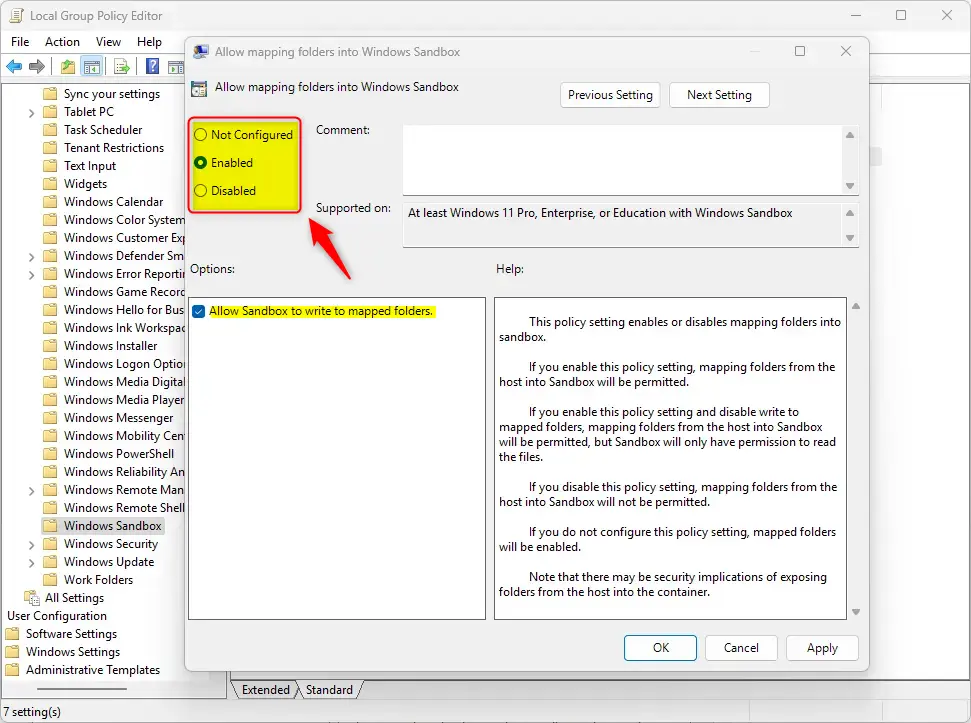
- Click OK to save the change.
- Restart your PC so the new configuration is applied.
To undo the change, open the same setting again and set it back to Not Configured. Then restart.
Enable or disable the Sandbox folder-sharing feature using the Windows Registry Editor
You can also turn Sandbox folder sharing on or off in the Registry Editor by editing two DWORD values. This works well when you want to script the change or when the Local Group Policy Editor is not available. Back up the registry or create a restore point first, because a wrong edit here can cause problems.
- Open the Registry Editor. Press Win + R, type regedit.exe and press Enter. Approve the User Account Control prompt.
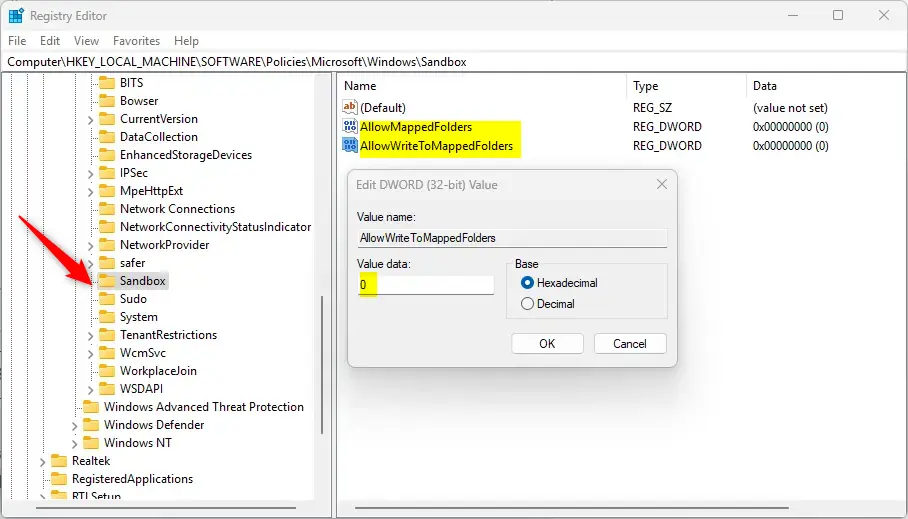
- In the left pane, navigate to the key path shown below.
Computer\HKEY_LOCAL_MACHINE\SOFTWARE\Policies\Microsoft\Windows\Sandbox
- In the right pane, look for the two REG_DWORD values and double-click each one to edit it.
AllowMappedFolders
AllowWriteToMappedFolders
Entering a value of 0 for both turns the Sandbox folder-sharing feature off in Windows.
If the two values are not there, create them. Right-click a blank area in the right pane, choose New DWORD (32-bit) Value, and repeat for the second one. Give each new item the exact name of the matching value shown above. Then double-click each item and enter 0 in the Value data box. With both set to 0, folder sharing is disabled.
To go back to the default behavior, delete both items you created or edited above. Right-click each one, choose Delete, and confirm. With both gone, Sandbox folder sharing with the host is allowed again.
AllowMappedFolders
AllowWriteToMappedFolders
Close the Registry Editor and restart your computer to apply the change.
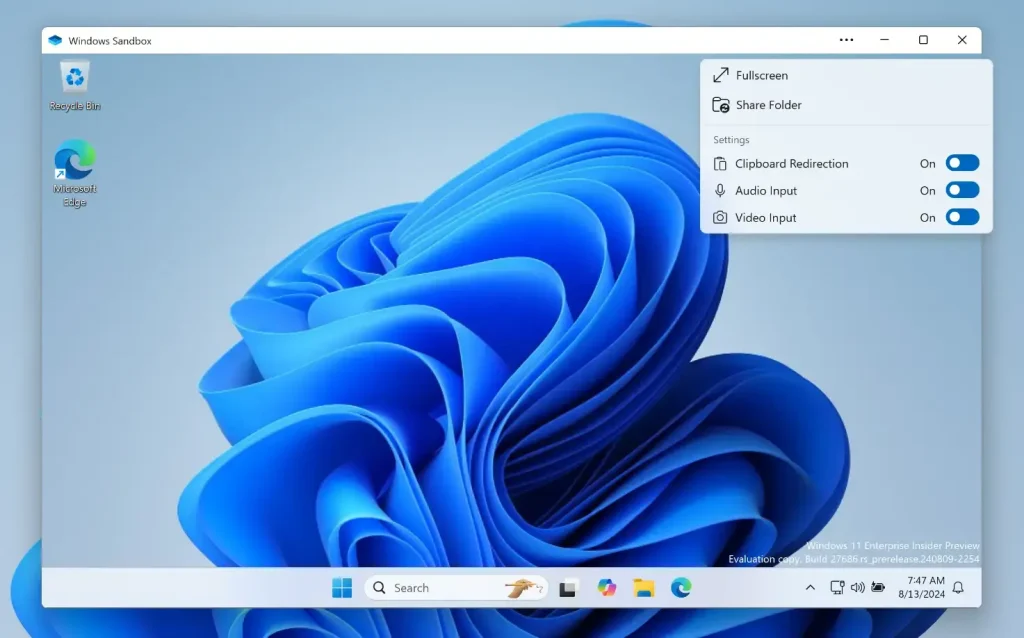
In the end, managing folder sharing in Windows Sandbox comes down to two methods: adjusting the group policy or editing the registry.
Conclusion:
- Enabling or disabling the Windows Sandbox host-sharing feature in Windows 11 requires changing a group policy setting in the Local Group Policy Editor or editing registry values in the Registry Editor.
- You can allow or disallow mapping folders into Windows Sandbox. You can also decide whether Sandbox may write to a mapped folder, which controls how far folder sharing goes.
- Restart the device after changing either the group policy or the registry, so the change takes effect.
- Both methods let you control access to shared folders and keep the Windows Sandbox environment locked down to the level you need.
Have a question about this guide?
Answered by AI from this guide. Good questions may be added to this page — please don't include personal details.
Did this guide fix your problem?

About the Author
Richard
Tech Writer, IT Professional
Richard is a writer at Geek Rewind who turns complex IT tasks into clear, step-by-step guides. He draws on years of hands-on experience in system administration and enterprise IT operations, focusing on Windows, Linux and WordPress: the problems people actually run into, and the fixes that work. His server and WordPress guides come from systems he runs himself. Richard builds and maintains the platform behind Geek Rewind, from its Ubuntu servers and Nginx configuration to its custom WordPress plugins. Many new tutorials start with readers' questions, and he's always glad to answer them in the comments.
[…] new feature that lets you share folders on the host computer with a sandbox environment was added. You can turn off using this feature in Windows, […]