How to Turn On Windows Sandbox in Windows 11

Windows Sandbox is a built-in, disposable desktop environment on Windows 11 Pro, Enterprise, and Education. You can use it to run untrusted apps and files without risking your main PC. Every time you close it, Windows deletes all of its files and changes permanently. It is not included in Windows 11 Home, and there is no supported way to add it there.
Check three things before you start:
- Your PC needs at least 4 GB of RAM (8 GB is more comfortable), about 1 GB of free disk space, and a CPU with at least two cores.
- Hardware virtualization must be turned on in your BIOS/UEFI. To check, open Task Manager , go to the Performance tab, click CPU, and look for Virtualization: Enabled.
- You need an administrator account.
Sandbox is lightweight and does not need a separate virtual machine disk setup. Windows builds a fresh copy of itself each time you open it.
Windows Sandbox is included in Windows 11 Pro, Enterprise, and Education. Enable it by pressing Win+R, typing optionalfeatures.exe, pressing Enter, checking the Windows Sandbox box, clicking OK, and restarting. It will then appear in your Start menu .
What is Windows Sandbox?
Windows Sandbox gives you a safe, temporary desktop for running untrusted apps or files. It is isolated from your main operating system, so anything you do inside it stays there and disappears the moment you close the window. It looks like a second copy of Windows 11 running in a window on your desktop.
Why use it? It is useful when you want to test an installer, open a file from an unknown sender, or check a download you don’t fully trust. If the software turns out to be harmful, you close the window and the damage goes with it.
Software inside it can still reach the internet and other devices on your network, so don’t type real passwords into anything you are testing.
What happens when done? When you close the Sandbox window, Windows warns you that its content will be discarded. Confirm, and everything inside is deleted: files, installed programs, and settings. The next time you open Sandbox, you get a clean desktop again. Restarting Windows from inside the sandbox does not wipe it. Only closing the window does.
If you want to keep something, copy it out to your main desktop before you close the window.
How to Turn On Windows Sandbox
Method 1Using Apps & Features
- Press Windows key + R on your keyboard. The Run box opens in the bottom-left corner of the screen.
- Type
optionalfeatures.exeand press Enter. - Wait for the Windows Features window to open. It shows a list of optional features. Scroll down until you find Windows Sandbox.
- Tick the box next to Windows Sandbox. If the box is greyed out or missing, you are probably on Windows 11 Home, or virtualization is turned off in your BIOS/UEFI.
- Click OK.
- Wait while Windows installs the feature. A progress window appears and then reports that the changes are complete. Click Restart now when prompted. Sandbox will not appear in the Start menu until you restart.
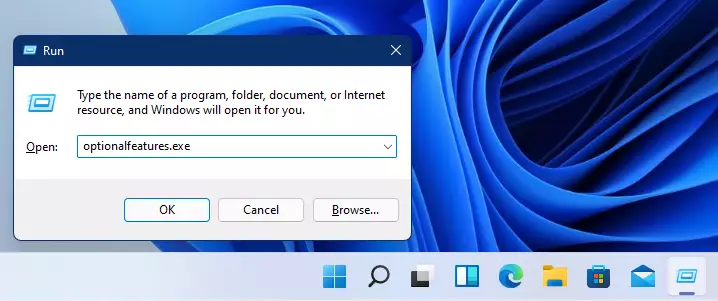
You can turn on Windows Sandbox using the built-in Windows Features menu, with no extra software. You open the optional features list, tick the box for the sandbox tool, and let Windows install the files it needs. This is the easiest method if you prefer clicking through menus to typing commands.
To undo it later, open the same window, clear the Windows Sandbox box, click OK, and restart when asked.
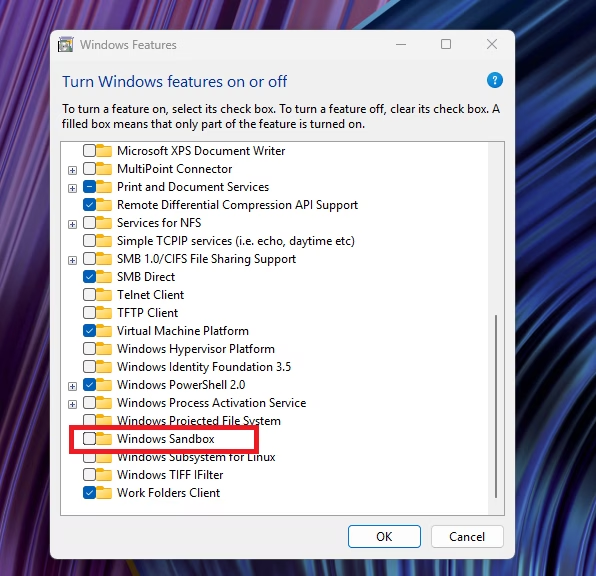
The Windows Features method needs no downloads. Windows already has the sandbox files, and ticking the box switches the feature on. The change applies to all user accounts on the PC. A restart is needed to finish the setup.
If the box won't tick or the entry is missing, check your Windows edition under Settings System About. Then check that virtualization is enabled in your BIOS/UEFI.
Method 2Using Command Prompt
You can also enable Windows Sandbox from Command Prompt by running one command with administrator rights. This is a quick alternative to the graphical menus. It is also handy if you set up several PCs or work over a remote session.
- Click the Start button and type Command Prompt. It appears at the top of the search results.
- [Admin Required] Right-click Command Prompt and choose Run as administrator. Click Yes if User Account Control asks for permission. The window title should start with "Administrator". The command will fail without these rights.
- In the Command Prompt window, type this and press Enter:
dism /online /Enable-Feature /FeatureName:"Containers-DisposableClientVM" /All. A progress bar runs, and you should see a message that the operation completed successfully. - Restart your computer after the command finishes. If Windows asks whether you want to restart now, you can answer there. Sandbox is not ready to use until you restart.
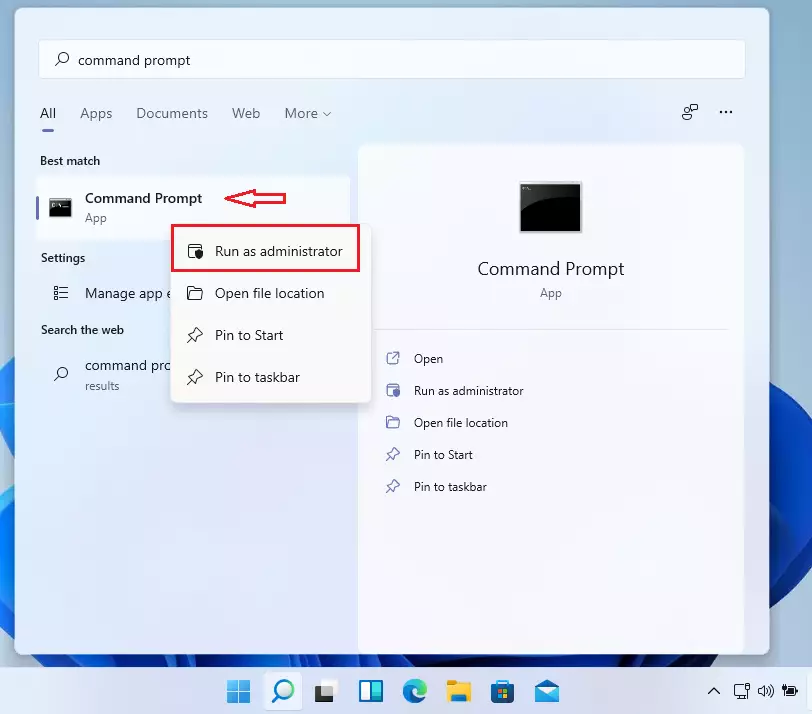
If the command returns an error, first check that the window really is running as administrator. Also check that you are on a Pro, Enterprise, or Education edition.
Method 3Using PowerShell
You can also use PowerShell, another command-line tool built into Windows 11. It does the same job as Command Prompt, so use whichever you are more comfortable with:
- Click the Start button and type PowerShell. Windows PowerShell appears in the results.
- [Admin Required] Right-click Windows PowerShell and choose Run as administrator. Click Yes on the User Account Control prompt. Without administrator rights, the command is refused.
- Type this command and press Enter:
Enable-WindowsOptionalFeature -Online -FeatureName "Containers-DisposableClientVM" -All. Wait for it to finish. It may take a minute while Windows adds the feature. - Restart your computer when the command is done. PowerShell may ask whether you want to restart now. Either way, Sandbox only becomes available after the restart.
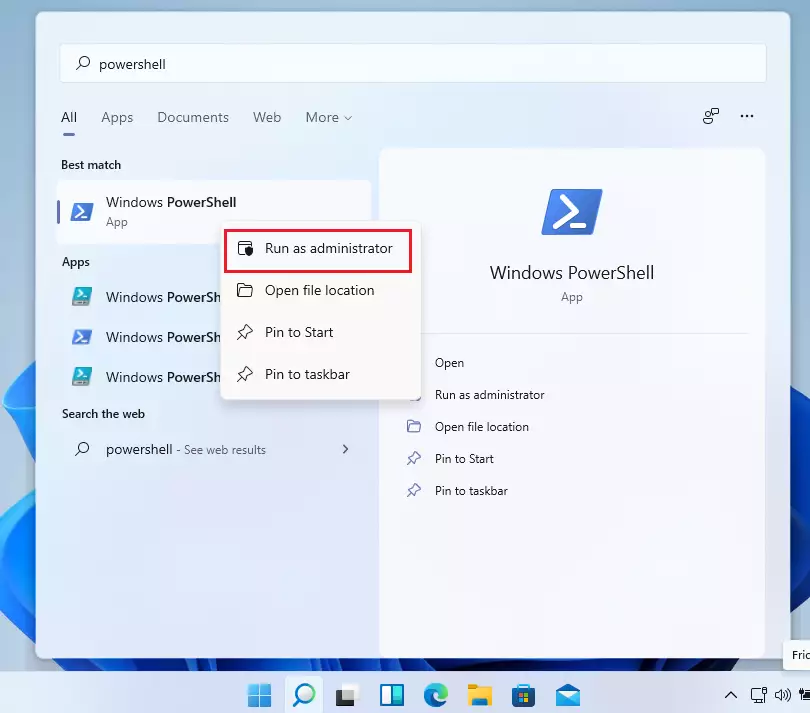
After the restart, search for Windows Sandbox in the Start menu to confirm it is there. If it is missing, repeat the steps and look for error messages.
How to Turn Off Windows Sandbox
To turn off Windows Sandbox, an administrator can run one of the commands below. They disable the Windows Sandbox optional feature, so the isolated environment it creates is no longer available on this PC. Close any open Sandbox window first, because anything inside it is lost anyway. Run the command from a window opened with Run as administrator, then restart if Windows asks you to.
You can also do this from the Windows Features window by clearing the Windows Sandbox box. To bring Sandbox back later, repeat any of the turn-on methods above.
Command Prompt: dism /online /Disable-Feature /FeatureName:"Containers-DisposableClientVM"
PowerShell: Disable-WindowsOptionalFeature -Online -FeatureName "Containers-DisposableClientVM"
How to Use Windows Sandbox
Once Sandbox is turned on and you have restarted, you can open it by searching for the app in the Start menu. It opens a separate desktop window where you can copy files in, test installers, and browse the web safely. Opening it the first time can take a short while. After that, it usually starts within seconds.
- Click the Start button and type Windows Sandbox.
- Click the Windows Sandbox app to open it. If you are asked for permission, click Yes.
- Wait for a new window to open with a clean Windows desktop. It has no files or apps from your main PC.
- Copy files or installers from your main PC and paste them into the Sandbox window, then run them there. Copy and paste works between the two desktops. Dragging files in works for many people, too.
- Close the Sandbox window when you are finished and confirm the warning. Everything inside it is deleted automatically, and the next launch starts clean.
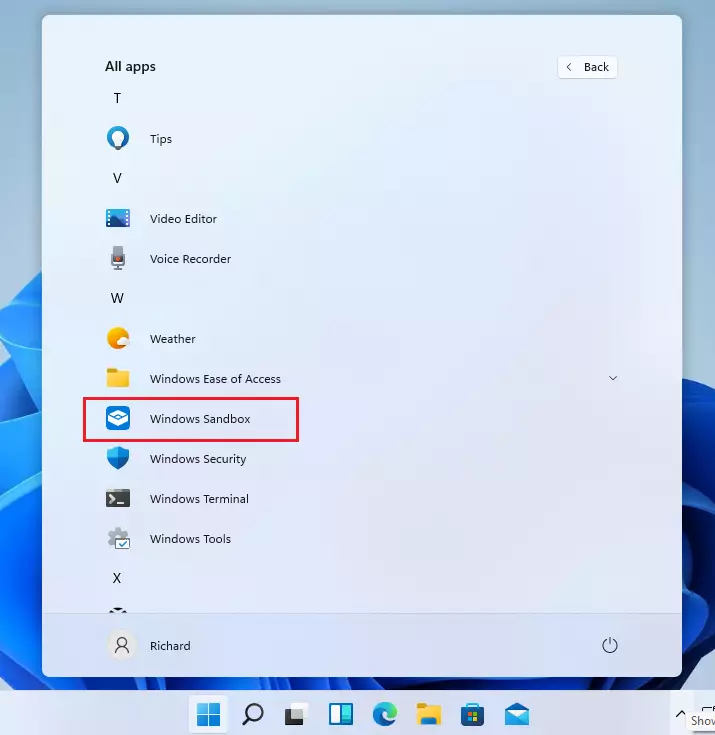
Remember to save or copy out anything you want to keep before you close the window. Nothing in Sandbox can be recovered afterwards.
Summary
Windows Sandbox in Windows 11 gives you a secure, temporary workspace to test new software without risking your main computer. You can turn it on using the Windows Features menu, Command Prompt, or PowerShell. It wipes all data clean every time you close it.
- Windows Sandbox is a safe way to try apps without risking your main computer. It needs Windows 11 Pro, Enterprise, or Education.
- You can turn it on using the Windows Features window, Command Prompt, or PowerShell.
- Don't forget to restart your PC after turning it on or off.
- Use Sandbox to keep your computer safe from harmful software. Copy out anything you want to keep before you close it.
- If you want to learn more about Windows Sandbox, you can visit the official Microsoft guide.
Have a question about this guide?
Answered by AI from this guide. Good questions may be added to this page — please don't include personal details.
Did this guide fix your problem?

About the Author
Richard
Tech Writer, IT Professional
Richard is a writer at Geek Rewind who turns complex IT tasks into clear, step-by-step guides. He draws on years of hands-on experience in system administration and enterprise IT operations, focusing on Windows, Linux and WordPress: the problems people actually run into, and the fixes that work. His server and WordPress guides come from systems he runs himself. Richard builds and maintains the platform behind Geek Rewind, from its Ubuntu servers and Nginx configuration to its custom WordPress plugins. Many new tutorials start with readers' questions, and he's always glad to answer them in the comments.
No comments yet — be the first to share your thoughts!