What Windows 11 Smart App Control Actually Blocks and How to Disable It

- 10 steps
- Needs administrator rights
Smart App Control (SAC) is a security feature in Windows 11 version 22H2 and newer. It blocks apps and scripts that Microsoft’s cloud data flags as unsafe or doesn’t recognize. It runs in the background and stops a lot of malware. It also blocks plenty of harmless programs and trusted tools you download.
Turning it off stops those warnings and lets you run the software you choose. The catch is that, on the Windows 11 builds this guide covers, turning it off is a one-way change. You can’t switch it back on until you reset or reinstall Windows. Be sure you can judge whether the apps you run are safe before you do it.
Smart App Control blocks apps and scripts that Microsoft’s cloud data flags as unsafe or doesn’t recognize, including unsigned installers, unknown scripts and new indie or open-source programs with no reputation. To turn it off, open Settings, go to Privacy & security, then Windows Security, then App & browser control and select Smart App Control settings.
What is Smart App Control and How Does It Work?
Smart App Control checks apps against Microsoft’s cloud-based threat database before they run. It works alongside your regular antivirus, such as Microsoft Defender, as an extra layer. Defender looks for known malware. SAC asks a different question: “Do we have good reason to trust this file?”
Each time you launch a new app, SAC compares its details with Microsoft’s cloud threat intelligence. If the app has a good reputation and a valid digital signature from a known developer, Windows lets it run. If the app is brand new, has no reputation, is unsigned, or looks suspicious, SAC blocks it immediately.
Because SAC relies on global threat data, it can spot new threats quickly. The downside is that new programs, open-source utilities, and niche tools from independent developers get blocked just because few people have run them yet. The block says nothing about whether the software is actually dangerous.
What Does Smart App Control Actually Block?
SAC blocks untrusted executables, installers without a verified digital signature, unknown scripts, and programs that behave suspiciously. In practice, that means unverified indie games, custom developer tools, and modified software are the usual victims. Here are the main types of files and behavior that trigger a block:
- Untrusted ExecutablesPrograms and installer files that do not have a verified digital signature from a recognized developer.
- Unknown ScriptsScript files and macro-heavy documents that come from unverified sources on the internet.
- Suspicious App BehaviorSoftware that attempts to modify core system settings, alter security configurations, or access sensitive folders without a clear reason.
- Unverified DownloadsFiles downloaded from the web that lack a track record of safe usage among other Windows 11 users worldwide.
When SAC blocks a file, you’ll see a warning saying Windows prevented an unrecognized app from running to protect your device. The app simply won’t start. There’s usually no “Run anyway” button, which is what separates SAC from the older SmartScreen warning.
Who is a Good Candidate for Smart App Control?
SAC suits everyday users who only install popular apps from the Microsoft Store or from well-known software companies. If that describes you, leave it on. It protects the PC without getting in the way of normal tasks.
You’re a good candidate to keep SAC turned on if:
- You only download and install popular apps from the official Microsoft Store or well-known software companies.
- You do not play indie video games that require manual file installations or custom launchers.
- You do not work with custom scripts, niche developer tools, or open-source software downloaded from GitHub or forums.
- You want maximum automated security and prefer a hands-off approach to managing file safety.
If your habits are safe browsing and standard app installs, SAC stays out of sight and blocks risky files before they can harm Windows. For a family PC or a machine used by someone less technical, that’s a good trade.
When Should You Disable Smart App Control?
Disable SAC if it keeps blocking legitimate programs, indie games, free open-source software, or developer tools that you trust. Many small developers can’t afford code-signing certificates, so power users, programmers, and gamers often have to turn SAC off to run their software.
Turning it off makes sense if any of these apply to you:
- You frequently download and install free or open-source software from independent creators whose apps do not have expensive digital signatures.
- You are a software developer who needs to test custom code, local builds, and experimental applications on your machine.
- You play independent video games or use older utility programs that trigger false positive security blocks.
- You understand how to evaluate download safety on your own and prefer to use a standard antivirus program instead of automated cloud blocking.
If SAC keeps blocking software you know is safe, disabling it is usually the fastest way to get back to work. Before you do, remember that you lose a layer of protection and can’t easily get it back.
Can You Turn Smart App Control On Manually?
You can only have SAC turned on if Windows 11 version 22H2 or later was freshly installed, either on a new PC or through a clean install, and Windows found no threats on the system. Computers upgraded from an older Windows version generally don’t get SAC turned on. If you turn it off later, the settings page won’t let you switch it back on. On the builds this guide covers, the only way back is to reset or reinstall Windows.
Here’s how Microsoft designed it. On a fresh install, Windows checks whether your system is clean. If it is, SAC starts in Evaluation mode and learns how you use apps. If Windows decides SAC won’t constantly get in your way, it switches SAC on. If it decides your usage doesn’t fit, it turns SAC off by itself.
Windows treats the Off choice as final, so re-enabling means a reset or a clean installation of Windows 11. Microsoft may change this in future updates, so check the settings page after major updates. Don’t count on it, though. Back up your files before you turn SAC off if you think you might want it back someday.
How to Check Your Smart App Control Status
You can check SAC status in the Windows Security app. The page shows whether SAC is On, in Evaluation mode, or Off. If you can’t find the Smart App Control section, your Windows 11 version may be older than 22H2, or the app may need updates through Windows Update.
Follow these steps to check your status:
- Click the Start button on your taskbar or press the Win on your keyboard.

Taskbar - Type Windows Security into the search box and click the app icon from the search results. The Windows Security window opens.
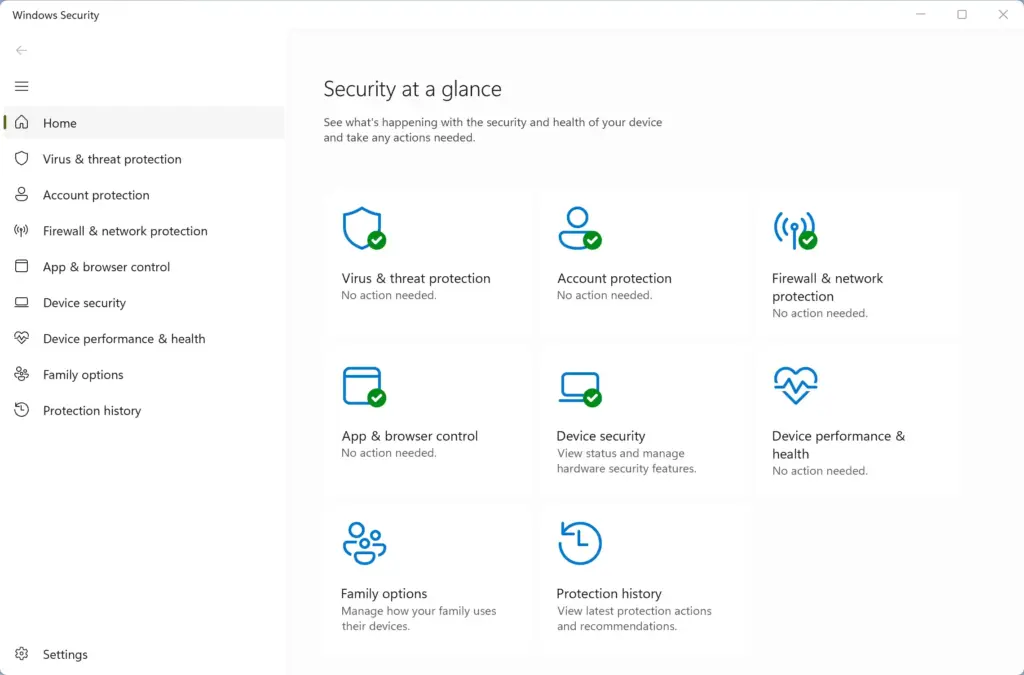
Windows Security - Click App & browser control in the left-hand menu. The page lists several protection settings.
- Find the section labeled Smart App Control.
- Click Smart App Control settings. The page that opens shows your current status: On, Evaluation, or Off.
How to Disable Smart App Control in 🪟 Windows 11
You can turn SAC off in Windows Security, as long as you’re signed in with an administrator account. Remember that this is a one-way change for the current Windows installation. You can’t turn it back on without a reset or reinstall.
Follow these steps to turn off Smart App Control:
- Click the Start button and open the Windows Security app.
- Click App & browser control in the left sidebar.
- Click Smart App Control settings beneath the Smart App Control description. The page shows the On, Evaluation, and Off options.
- Select Off.
- If a confirmation window or User Account Control prompt asks whether you want to make changes to your device, confirm your choice. The page should now show Off as the selected option.
The change takes effect right away. You don’t need to restart. SAC no longer blocks your downloads and programs. Your regular antivirus protection, such as Microsoft Defender, stays active and still protects the PC from known viruses and malware. Keep it updated, and scan new downloads before you run them, because SAC is no longer there to catch unfamiliar files.
How to Allow a Specific App Without Disabling Smart App Control (Unique Expert Angle)
While SAC is on, there is no simple per-app allow list. You can try a few things to get a trusted program running before you give up the feature. If none of them work, turning SAC off is the only reliable way past the block, and it removes an important safety layer.
- Check for an Official Installer: Visit the official website of the software creator and download the latest version. Developers often update their digital signatures and installers so they pass Microsoft’s cloud checks.
- Unblock the File Properties: Right-click the downloaded installer file, choose Properties, and look at the General tab. If an Unblock checkbox appears near the bottom, check it and click Apply. This only helps in some cases, since SAC mainly judges reputation and signatures rather than the download flag.
- Use Alternative Distribution Channels: Check whether the app is available in the official Microsoft Store. Store apps are verified by Microsoft, so SAC doesn’t block them.
If none of these work and the file keeps triggering false positives, disabling SAC with the steps in the previous section is the most practical workaround for power users. Only do it for software you trust, and download it from the developer’s official site.
Summary
Smart App Control protects Windows 11 computers by blocking untrusted apps and unverified files using Microsoft cloud intelligence, making it great for everyday users but restrictive for developers and gamers. You can check or disable this feature in the Windows Security app, though turning it off is a permanent choice for your current system setup.
Frequently asked questions
How to disable smart app control 🪟 Windows 11?
Open Windows Security, select App & browser control, then select Smart App Control settings and switch it to Off. Before you do this, know that Windows 11 won't let you turn it back on without resetting or reinstalling Windows. Use it only if you trust the software you run.
How to turn off smart app control?
Open Windows Security and go to App & browser control. Select Smart App Control settings, then set the switch to Off. This stops SAC from checking and blocking apps, but the change is one-way on Windows 11 builds covered here: you can't re-enable it without a reset or reinstall.
How to stop smart app from blocking?
Stop Smart App Control from blocking by turning it off, since it doesn't offer per-app exceptions. Open Windows Security, go to App & browser control, and select Smart App Control settings. Turn it off, but know this can't be undone without resetting Windows. Only do this if you trust the programs you use.
Is it safe to turn off smart app control?
It lowers your protection. Turning off Smart App Control removes a layer that blocks unknown and unsafe apps, so you're more exposed to malware. It's reasonable if you only install software from trusted sources and keep Microsoft Defender running. Once it's off, you can't turn it back on without resetting Windows.
How to turn off smart app control block?
Turning off Smart App Control is the only way to stop its blocks; there's no separate block setting. Open Windows Security, go to App & browser control, select Smart App Control settings, and set it to Off. Expect a one-way change: it won't turn back on without a reset.
How to have smart app control not block an app?
Smart App Control has no setting to allow one app, so you can't exempt a single program. Your choices are to turn it off entirely, which can't be undone without a reset, or keep it on and wait, since the app may pass the cloud check later. Only turn it off if you trust the software you run.
Still have a question?
Answered by AI from this guide. Good questions may be added to this page — please don't include personal details.
Did this guide fix your problem?

About the Author
Richard
Tech Writer, IT Professional
Richard is a writer at Geek Rewind who turns complex IT tasks into clear, step-by-step guides. He draws on years of hands-on experience in system administration and enterprise IT operations, focusing on Windows, Linux and WordPress: the problems people actually run into, and the fixes that work. His server and WordPress guides come from systems he runs himself. Richard builds and maintains the platform behind Geek Rewind, from its Ubuntu servers and Nginx configuration to its custom WordPress plugins. Many new tutorials start with readers' questions, and he's always glad to answer them in the comments.
No comments yet — be the first to share your thoughts!