What Happens When You Turn Off Smart App Control in Windows Security

- 12 steps
- Needs administrator rights
The short answer to “should I turn off Smart App Control” is no for most people, because the change is permanent in the Windows 11 versions this article covers. Once it is off, Windows stops blocking unverified programs, and getting the protection back means resetting or reinstalling Windows.
Smart App Control is a built-in security feature in Windows 11, version 22H2 and newer. It checks each program against a Microsoft cloud database of known-safe software and valid digital signatures, and it stops anything it cannot vouch for. Windows 10 does not have it, so there is nothing to turn off there.
With the feature off, your PC is more exposed to brand-new threats that standard antivirus programs might miss. Microsoft has been changing how this works, so check the status page described below on your own PC. Until you know otherwise, treat the switch as one-way.
Should you turn off Smart App Control? For most people, no. In Windows 11 version 22H2 and newer, switching it off is effectively permanent: Windows stops blocking unverified programs, and getting the protection back usually means resetting or reinstalling Windows. Smart App Control does not exist in Windows 10, so there is nothing to turn off there.
The Main Risks of Turning Off Smart App Control
The main risk is that nothing checks unknown software before it runs. Unknown malware, unverified programs and dangerous scripts can install themselves quietly. Smart App Control is a primary shield against untrusted software, so turning it off lowers your overall safety.
Is Smart App Control necessary? Windows runs without it, and Microsoft Defender Antivirus keeps working either way. But it adds a check that other tools do not, and that is what you give up.
- Higher risk of malware infectionsWithout this guard, malicious programs get past warnings far more readily. If you download a fake version of a popular app, you could end up with viruses, spyware or ransomware.
- No automatic safety checksNew apps are no longer checked against the cloud database before they run. You become the final line of defense, and you have to judge on your own whether a file is safe.
- Vulnerability to script attacksMany modern threats use hidden scripts to steal data. Smart App Control helps block these attacks. Turning it off removes that automatic barrier.
Why Is Windows Blocking Your App? (Understanding False Positives)
Windows blocks an app when Smart App Control cannot verify its digital signature (a stamp that shows who made the file) or its safety history in the cloud database. Often this is a false positive. A safe program gets flagged because the developer is new, the update is very recent, or the file has too little download history to prove it is safe.
- New or small developersA new programmer’s app may not have a long record of safe use in the cloud database. Windows treats unknown programs with caution.
- Missing digital certificatesA formal code-signing certificate costs money and time. Smaller indie game developers and open-source creators sometimes skip it. Without a certificate, Windows cannot confirm who made the app.
- Unusual installation methodsApps that download extra files from the internet during setup can trigger warnings, because that behavior looks similar to how malware works.
- Look for a More info link on the warning window and click it. More details about the app appear.
- Click Run anyway if the window offers it. The app starts.
That’s it. If the button was there, you ran the app once without changing any security setting.
Smart App Control itself often gives no such option and blocks the app outright. You will usually see the bypass only on the older SmartScreen-style warning. If there is no button, do not reach for the off switch straight away. Check the file first, as described later in this article, or look for a signed version from the developer.
Step-by-Step Guide: How to Check and Manage Smart App Control
You manage Smart App Control from the Windows Security app. Use an administrator account, because standard accounts cannot change security settings without an admin password. In Windows 11 the feature sits under App & browser control, where you can see whether it is on and change the setting.
- Click the Start button on your taskbar. The Start menu opens.
- Type Windows Security into the search box and click the app in the results. The Windows Security window opens.
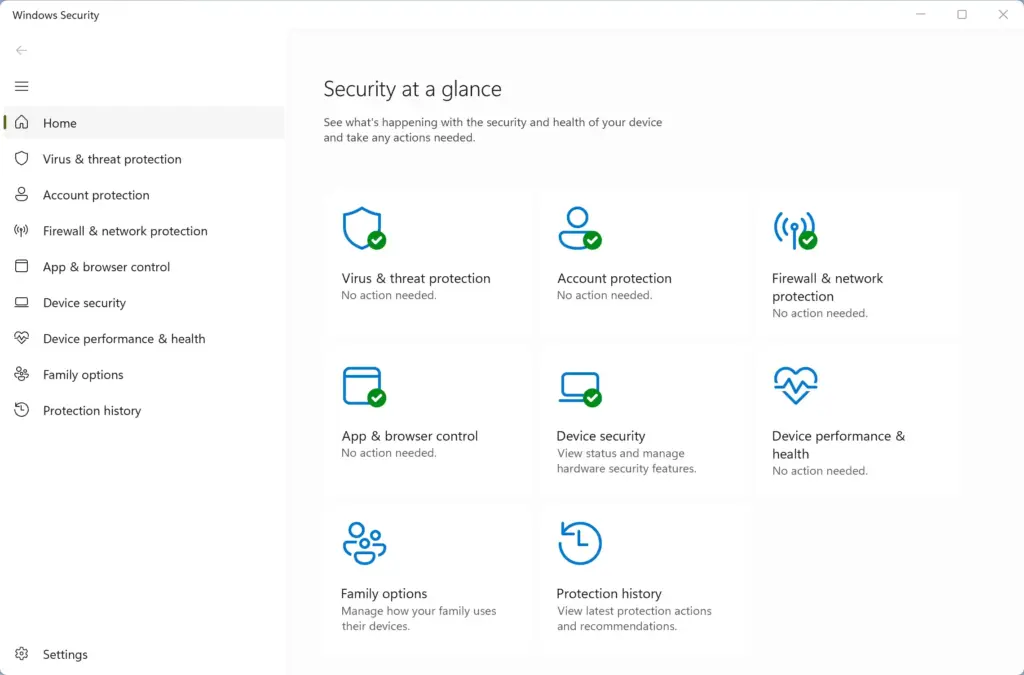
- Click App & browser control in the left-hand menu or the main window. The reputation-based protection settings appear.
- Find the section labeled Smart App Control.
- Click Smart App Control settings to view your current status. You should see the options On, Evaluation and Off, with your current one selected.
You should now see whether Smart App Control is protecting your PC. Nothing has changed yet, as long as you leave the selection alone.
The status tells you what Smart App Control is doing. On means it is actively blocking. Evaluation means Windows is still learning how you use the PC and will decide whether to switch it on. Off means it is disabled.
If it is on, a note explains that turning it off means it cannot be turned back on without resetting the PC. A normal toggle will not bring it back.
If you do not see Smart App Control at all, your copy of Windows 11 was probably upgraded rather than freshly installed, or the feature is not available on that device. On Windows 10 it does not exist. It works the same on Home and Pro. Do not click Off unless you have decided to accept the permanent change.
Unique Expert Tip: Evaluating Apps Safely Before Bypassing Security
Before you bypass security for a blocked file, scan it with a trusted online tool such as VirusTotal. This free service checks your installer against dozens of antivirus engines. You can then judge whether the software is safe instead of guessing or turning off Windows protections blindly.
To use this method:
- Save the downloaded installer to your desktop or Downloads folder. Do not run it yet.
- Open your web browser and go to the VirusTotal website at virustotal.com.
- Click the Choose file button and select the installer you just downloaded. The upload begins.
- Wait while the site scans the file with antivirus engines from around the world. This usually takes a short time.
- Review the results. If all or nearly all scanners report the file as clean, it is likely safe to run. If several scanners flag it as malicious, delete it immediately.
That’s it. You now have an independent opinion on the file, and you did not have to switch off any Windows security feature to get it.
A single odd detection from one obscure engine is often a false alarm, but several detections from well-known engines are a clear warning. A clean scan is not a guarantee either, so download only from the developer’s official site.
Summary
Smart App Control is a built-in Windows security feature that blocks unknown, unverified or potentially dangerous apps before they can run. Turning it off leaves your system open to malware. In the versions covered here, you cannot switch it back on without a full reset.
Verify files with a tool like VirusTotal instead. Use the More info and Run anyway option only for software you trust.
Frequently asked questions
Will disabling the smart app security will let you get virus?
Yes, it can. With Smart App Control off, Windows no longer checks unknown programs before they run, so malware has an easier path onto your PC. Microsoft Defender Antivirus still scans files, but it can miss brand-new threats that Smart App Control would have stopped.
Is there a downside to turning off smart app control?
Yes. The main downside is that Windows stops blocking unverified apps, so an unsafe program can run without any warning from the system. You also cannot turn the feature back on without resetting or reinstalling Windows in the versions covered here, so the change is hard to undo.
What happens if I turn off smart app control?
Windows stops checking unknown apps before they run. It no longer compares programs against Microsoft's cloud database of known-safe software or checks their digital signatures before letting them open. Unverified programs can then install and run like any other app, and you will not get a warning first.
Smart app control turned off is safe?
Not for most people. With it off, Windows no longer blocks unverified programs, so your PC is more exposed to new or unknown software. It can be reasonable if you install only well-known apps from trusted sources and keep antivirus running. It is hard to undo, too.
Is it okay to turn off smart app control?
It depends on how you use your PC. If you install only well-known apps from trusted sources and run antivirus, the risk is lower. If you download software from unfamiliar websites or install many unknown tools, keep Smart App Control on, because turning it off is hard to reverse.
Smart app control is blocking my CLion programs, can i disable it?
Asked by a reader
Yes, you can set it to Off, but the guide advises against it. Once it's off, Windows won't let you turn it back on without resetting or reinstalling Windows. To check it, open Windows Security, click App & browser control, then Smart App Control settings. Before switching it off, scan your CLion installer at virustotal.com and confirm it came from JetBrains' official site. If a warning offers More info, click it, then Run anyway if that button appears.
Still have a question?
Answered by AI from this guide. Good questions may be added to this page — please don't include personal details.
Did this guide fix your problem?

About the Author
Richard
Tech Writer, IT Professional
Richard is a writer at Geek Rewind who turns complex IT tasks into clear, step-by-step guides. He draws on years of hands-on experience in system administration and enterprise IT operations, focusing on Windows, Linux and WordPress: the problems people actually run into, and the fixes that work. His server and WordPress guides come from systems he runs himself. Richard builds and maintains the platform behind Geek Rewind, from its Ubuntu servers and Nginx configuration to its custom WordPress plugins. Many new tutorials start with readers' questions, and he's always glad to answer them in the comments.
No comments yet — be the first to share your thoughts!