How to Turn Smart App Control On/Off in Windows 11


Smart App Control checks apps before they open and blocks ones Microsoft can’t vouch for. It stops untrusted programs that could damage your files or slow down your PC. It is available on Windows 11 Home and Pro alike.
You can turn it off in the Windows Security app. How easily you can turn it back on depends on your Windows 11 version. On older builds, once it was off, the only way back was to reset or reinstall Windows. Recent updates let you turn it on or off without a clean install. If the On option is greyed out on your PC, see the notes below and the registry section further down.
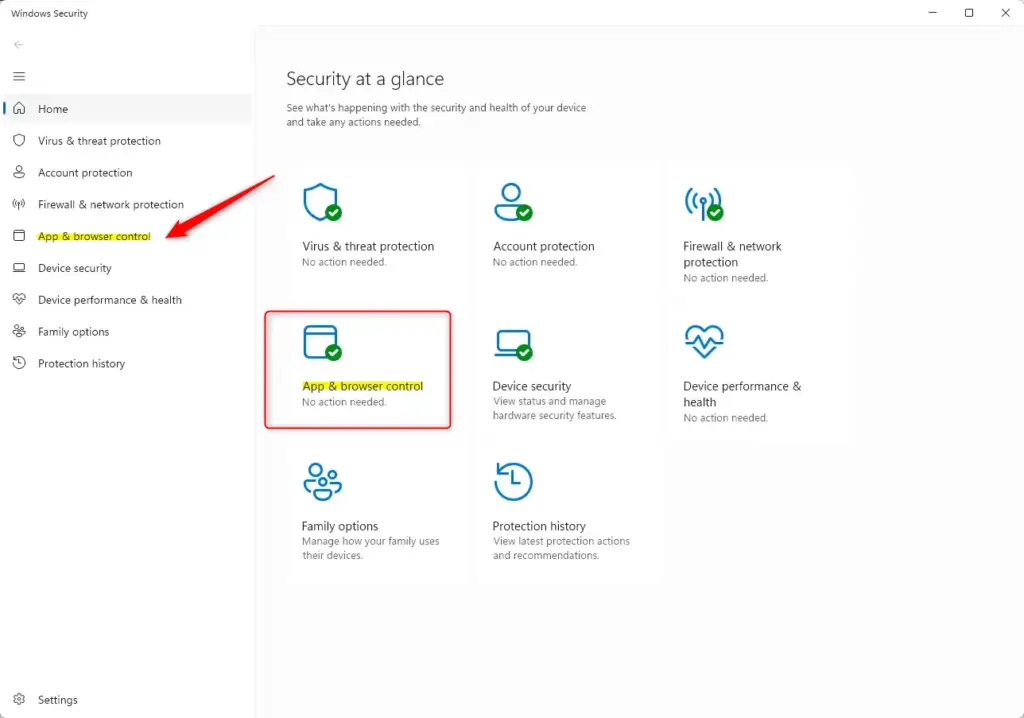
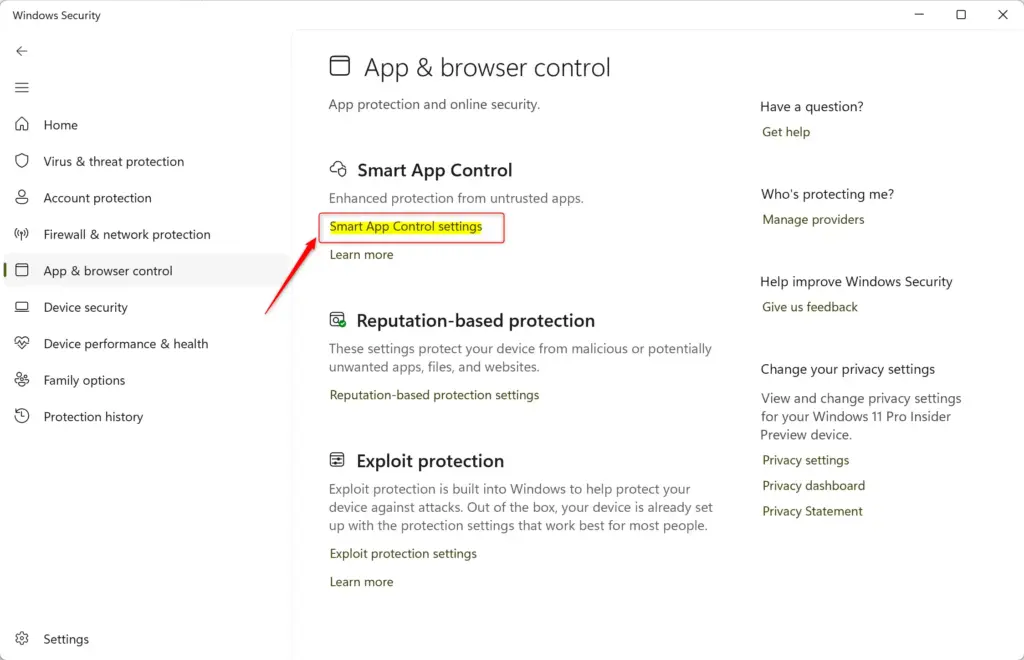
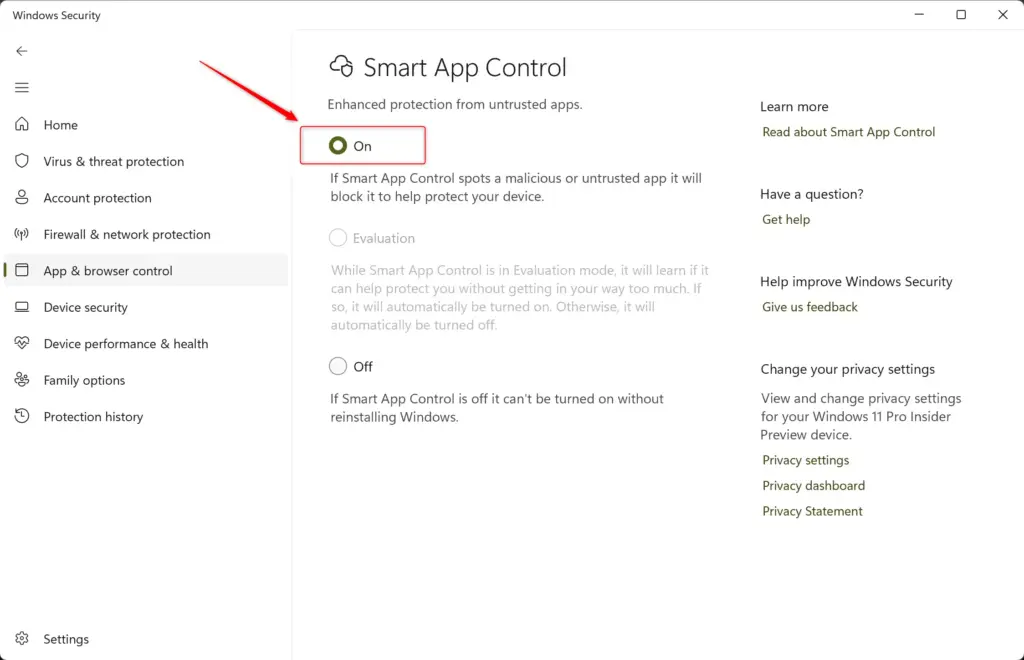
Open Windows Security, go to App & browser control, click Smart App Control settings, then select On, Off, or Evaluation mode. User Account Control will ask for permission—click Yes to apply your choice.
Smart App Control Modes
Smart App Control has three states: On, Off, and evaluation mode. In evaluation mode, Windows watches the apps you use without blocking anything. It then decides whether the feature suits how you work. If it does, Windows turns Smart App Control on permanently. If it would cause too many interruptions, Windows turns it off.
Microsoft recommends enabling Smart App Control on a fresh installation, because the feature works best when it can watch from the start.
If Smart App Control blocks an app you need, you can’t allow just that one app. You have two choices:
- Turn off Smart App Control completely.
- Ask the app’s creator to digitally sign their software. A digital signature is a cryptographic stamp that confirms who made the software and that it hasn’t been changed since. Windows uses it to verify the app is safe.
Smart App Control may show as off, or may not let you turn it on, for these reasons:
- You turned it off earlier.
- Your device runs Windows in "S mode". You would have to switch out of S mode and reset the PC.
- Optional diagnostic data is turned off in Windows.
If Smart App Control is off and your Windows version doesn't let you switch it back on, you will likely need to reset or reinstall Windows. During setup, select "Send optional diagnostic data".
Recent updates let you turn it on or off without a clean install.
How to Turn Smart App Control On or Off Using Windows Security
Windows Security is the main place to manage Smart App Control. To open it, search for it in the Start menu or click the shield icon in the taskbar tray. From there you can check your protection status and change how apps are blocked. This is the safest method, so try it before the registry.
- Open Windows Security. Search for "Windows Security" in the Start menu, or click the shield icon near the clock. You can also press Windows key + I to open Settings, then go to Privacy & security Windows Security Open Windows Security The Windows Security window opens.
- Go to App & browser control. Click App & browser control in the left pane. The app and browser protection options appear on the right.
- Find Smart App Control settings. On the right, click the Smart App Control settings link. A page with the Smart App Control options opens.
- Choose your setting. Click the circle next to the option you want:
- On: Blocks untrusted or harmful apps.
- Off: Turns off Smart App Control.
- Evaluation mode: Windows tests whether Smart App Control suits your system without blocking anything. This option is not always visible, usually because the PC is no longer in the evaluation period.
- Approve the change. If User Account Control asks for permission, click Yes. Windows applies your choice. You can come back to this page at any time to check the current state or change it.
That's it. You've changed your Smart App Control setting using Windows Security.
Manually Adjusting Smart App Control Using Registry Editor
You can also adjust Smart App Control in the Registry Editor. This is useful when the options in Windows Security are greyed out or missing. Be careful: a wrong edit in the registry can make Windows unstable. If you're not comfortable with this, use the Windows Security method instead.
Administrator rights are required for these steps. Before you change anything, create a backup. In Registry Editor, select File Export, choose a location, and save the file. If something goes wrong, you can import it again with File Import
The steps below turn Smart App Control on.
Turning Smart App Control ON
- Open Registry Editor. Press Windows key + R, type
regedit, and press Enter. Click Yes if User Account Control asks. Registry Editor opens. - Go to the Smart App Control registry key. Use the address bar at the top of Registry Editor to go to the key that controls Smart App Control, then set its value so the feature is on. When the standard menu options are greyed out, this is the way to force the feature active.
- Close and restart. Close Registry Editor and restart your computer. The change does not take effect until Windows restarts. After the restart, check the state in Windows Security App & browser control Smart App Control settings
The steps below put Smart App Control back into evaluation mode. Windows then tests your software environment again, without fully blocking unverified apps, to decide whether the feature is safe for how you use your PC.
Setting Smart App Control to Evaluation Mode
- Open Registry Editor. Press Windows key + R, type
regedit, and press Enter. Click Yes on the User Account Control prompt. Registry Editor opens. - Go to the Smart App Control registry key. Navigate to the same Smart App Control key in Registry Editor. Change its value to the evaluation setting. This makes Windows re-evaluate your app usage.
- Close and restart. Close Registry Editor and restart your PC. Windows then begins a new evaluation period.
The steps below turn Smart App Control off completely. Windows then stops blocking untrusted applications and unverified files. This is the route to take if the toggle in Windows Security is greyed out after your evaluation period ends.
Turning Smart App Control OFF
- Open Registry Editor. Press Windows key + R, type
regedit, and press Enter. Click Yes to approve the User Account Control prompt. Registry Editor opens. - Go to the Smart App Control registry key. Go to the same key and change its value to the off setting.
- Close and restart. Close Registry Editor and restart your computer. Smart App Control stays off until you change the setting again.
To undo any of these edits, repeat the steps with the value you want, or import the backup you exported earlier. If you're unsure about using the Registry Editor, the Windows Security app is the safer choice.
Summary
Smart App Control is a built-in security feature that stops unverified and potentially dangerous apps from running on your PC. Manage it in Windows Security, or adjust the underlying setting in the Registry Editor. Which method works depends on your device setup and whether the evaluation period has ended.
Have a question about this guide?
Answered by AI from this guide. Good questions may be added to this page — please don't include personal details.
Did this guide fix your problem?

About the Author
Richard
Tech Writer, IT Professional
Richard is a writer at Geek Rewind who turns complex IT tasks into clear, step-by-step guides. He draws on years of hands-on experience in system administration and enterprise IT operations, focusing on Windows, Linux and WordPress: the problems people actually run into, and the fixes that work. His server and WordPress guides come from systems he runs himself. Richard builds and maintains the platform behind Geek Rewind, from its Ubuntu servers and Nginx configuration to its custom WordPress plugins. Many new tutorials start with readers' questions, and he's always glad to answer them in the comments.
No comments yet — be the first to share your thoughts!