Start Registry Editor (Regedit) in Windows 11

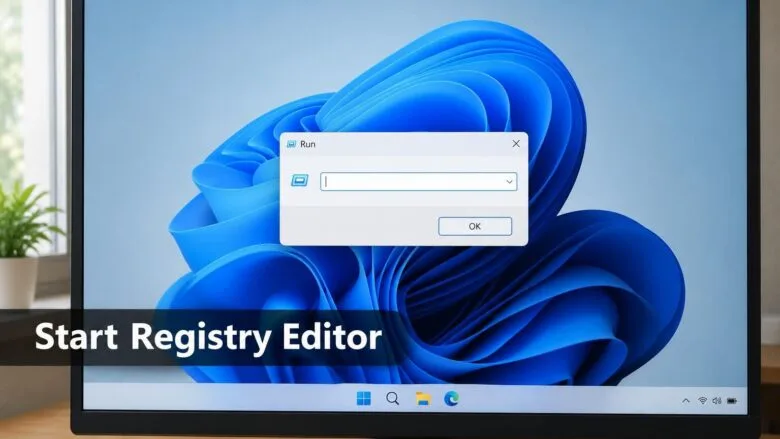
- 38 steps
- Needs administrator rights
- Group Policy needs Windows 11 Pro, Enterprise or Education
- Includes a restart or sign-out
Registry Editor (regedit) opens fastest when you press Win+R, type regedit, and press Enter. Windows 11 then asks for administrator approval through a User Account Control (UAC) prompt, the pop-up that asks whether to allow an app to make changes.
Registry Editor (regedit.exe) is the built-in tool for viewing and changing the Windows registry. The registry is the database where Windows and your apps store settings. The tool is included in every edition of Windows 11, including Home.
Open Registry Editor (regedit) by pressing Win+R, typing regedit, and pressing Enter. Windows 11 then shows a User Account Control prompt, so click Yes or enter an administrator’s password. You can also search “regedit” from the Start menu and choose Registry Editor, or type regedit in Windows Terminal.
Before you open Registry Editor
A wrong value can stop an app, a driver, or Windows itself from working. Opening the tool and looking around is safe. Changing values is where the risk starts.
On a standard account, the UAC prompt asks for an administrator’s password. If you do not have one, the editor does not open. Work PCs managed by an IT department may block it completely, as covered in the troubleshooting section below.
If you plan to change anything, back up the Windows 11 registry first. The backup steps are near the end of this post.
Open the regedit editor with the Run command
The Run command is the quickest route, and it works on every Windows 11 PC. These steps open Registry Editor from start to finish. Step 4 asks for administrator approval, so have the administrator password ready before you reach it.
- Press Win+R. The Run dialog box (a small window for launching a program by name) opens in the bottom-left corner of the screen.

Run dialog - Type regedit in the Open box. Type it exactly, with no spaces.
- Press Enter. The screen dims and a User Account Control prompt appears.
- Click Yes. On a standard account, enter an administrator’s password instead, then confirm.
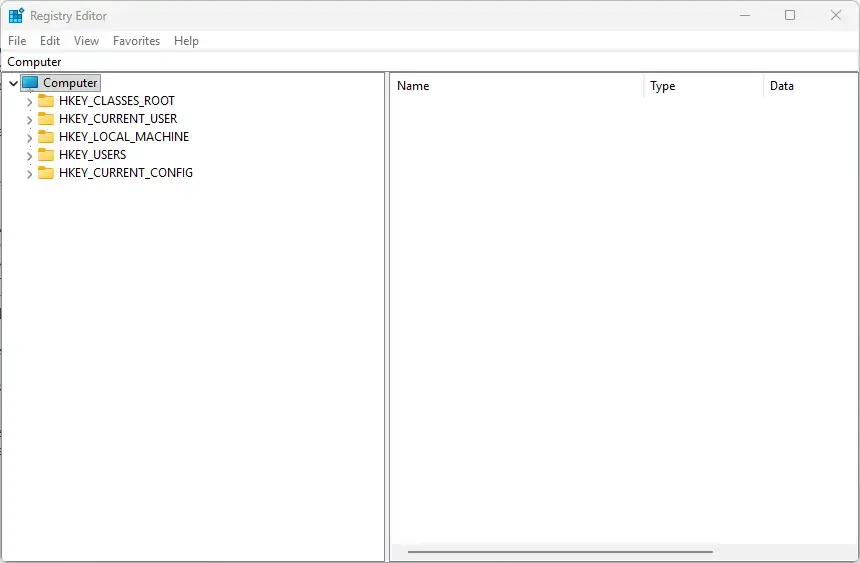
Registry Editor - Check the window title. It reads Registry Editor, with a folder-style tree on the left and a list of values on the right.
If you see the message “Windows cannot find ‘regedit'”, the text in the box has a typo. Close the message and repeat from step 1. If the screen dims and nothing else happens, look for a Registry Editor icon flashing in the taskbar and click it. The window sometimes opens behind other apps.
Other ways to open Registry Editor
Run is the fastest method, but it is not the only one. The methods below help when a keyboard shortcut is blocked, when you already have another tool open, or when you want a permanent shortcut.
Start menu search
Search is the best method if you do not remember the command. It also gives you a direct option to run the tool as administrator.
- Click Start, or press the Win. The Start menu opens with the search box active.
- Type regedit. Registry Editor appears under Best match.
- Click Registry Editor. You can also click Run as administrator in the right-hand pane.
- Click Yes on the UAC prompt. The editor opens.
To keep it close, right-click the Registry Editor result and choose Pin to Start or Pin to taskbar. To remove it later, right-click the pinned icon and choose Unpin from Start or Unpin from taskbar.
Windows Terminal, Command Prompt, or PowerShell
This method suits you if a command-line window is already open. Windows Terminal is the app that hosts Command Prompt and PowerShell in Windows 11. You do not need to open the terminal as administrator, because regedit asks for approval itself.
- Right-click Start and choose Terminal. Any Command Prompt or PowerShell window works too.
- Type regedit at the prompt.
- Press Enter. The UAC prompt appears.
- Click Yes. Registry Editor opens in its own window, and the terminal stays open.
If the terminal says the term is not recognized, check the spelling. A misspelled command is the usual cause.
File Explorer
File Explorer can launch the tool from its address bar, or you can open the program file directly.
- Press Win+E. File Explorer opens.
- Click the address bar at the top, the box that shows the current folder path.
- Type regedit and press Enter. The UAC prompt appears.
- Click Yes. Registry Editor opens.
As an alternative, go to the 📁C:\
Task Manager
Task Manager works when the Start menu or taskbar is not responding. It also lets you request administrator rights up front.
- Press Ctrl+Shift+Esc. Task Manager opens.
- Click Run new task in the top bar. In Windows 11 version 21H2, choose File Run new task instead.
- Type regedit in the Open box.
- Tick Create this task with administrative privileges. This option requires an administrator account.
- Click OK. Registry Editor opens, usually without a separate UAC prompt, because you already requested administrator rights.
A desktop shortcut
A shortcut gives you a double-click launcher on the desktop. Creating one needs no administrator rights, but opening Registry Editor still does.
- Right-click an empty area of the desktop.
- Choose New Shortcut The Create Shortcut wizard opens.
- Type 📁C:\
Windows\ in the location box.regedit.exe - Click Next.
- Type Registry Editor as the name, then click Finish. The shortcut appears on the desktop.
To delete the shortcut later, right-click it and choose Delete. This removes only the shortcut, not Registry Editor.
Make a shortcut always ask for administrator rights
This step is optional. It sets the shortcut to always open with full administrator permissions. Windows already asks for approval when you open regedit. This setting helps only when a program you open from the shortcut needs those same rights. You need administrator approval to use this setting.
- Right-click the shortcut and choose Properties.
- Click the Shortcut tab.
- Click Advanced. A small dialog opens.
- Tick Run as administrator.
- Click OK, then click OK again to close Properties.
To reverse this, repeat the steps and clear the box.
What you see when Registry Editor opens
The left pane is a tree of keys. A key works like a folder, and the five top-level keys, called root keys, start with HKEY. The right pane lists the values stored in whichever key you select. A value has a name, a type, and data.
The address bar under the menu bar shows the full path of the selected key. You can click it, paste a path, and press Enter to jump straight to that key. This saves a lot of clicking when a tutorial gives you a long path.
Registry Editor reopens at the last key you viewed. If the tree looks deeply expanded when you start, collapse it with the left arrow key. The tree has two main groups of keys: HKCU (settings for your user account) and HKLM (settings for the whole PC). Moving between them takes one click each.
Two other posts help with navigation. You can switch between HKCU and HKLM keys quickly. If the small text is hard to read, change the Registry Editor font.
Changes apply as soon as you confirm them. You do not save, and closing the window does not undo anything. Some changes take effect only after you sign out or restart. The tutorial you follow should say when.
If Registry Editor will not open
Most failures come from permissions or policy rather than a broken tool. Match what you see to the cases below.
The UAC prompt asks for a password you do not have. Your account is a standard account. Ask the person who manages the PC to type their administrator password, or sign in with an administrator account yourself.
You see "Registry editing has been disabled by your administrator." A policy on the PC blocks the tool. This is common on work and school computers. Only the person who manages the PC can lift it.
On a personal PC, a previous tweak or a security tool may have set the block. The exact setting is not known here, so the cause may be hard to find on your own. If you cannot find it, ask the person who manages the PC.
The UAC prompt never appears and nothing opens. Press Ctrl + Shift + Esc and check the Processes list for a second Registry Editor entry. If one is there, the window may be minimized or off-screen. Right-click the entry and choose End task, then try again.
If Windows says regedit.exe is missing or damaged, a system file may be corrupt. The fix below repairs it.
Open Terminal (Admin) from the right-click Start menu, which requires administrator rights. Run sfc /scannow, which checks Windows system files for damage. Wait for the scan to finish. Restart the PC if Windows reports that it repaired files.
Windows 11 Home is not the cause of any of these. Home includes Registry Editor. The edition difference is that Home lacks the Local Group Policy Editor, a separate tool, so a tutorial that sends you there needs Pro or higher.
Back up before you change anything
An export saves a copy of the registry to a .reg file that you can restore later. Do this before every edit session. Registry Editor already runs with administrator rights once you approve the prompt, so the backup export needs no extra permission.
- Open Registry Editor using any method above.
- Click Computer at the top of the left pane. This selects the whole registry.
- Choose File Export The Export Registry File dialog opens.
- Check that Export range at the bottom is set to All.
- Pick a folder and type a file name, such as registry-backup.
- Click Save. Windows writes the file, which can take several seconds.
To restore, open Registry Editor, choose File Import, and select the file. For fuller coverage, including System Restore, see how to back up and restore the Windows 11 registry. Windows can also take its own periodic copies, as described in how to enable automatic registry backup.
What to do next
Before you change any value, export a backup. If you want a fuller walkthrough of finding keys, adding values, and editing them, read how to open and edit the Windows 11 registry. If a change goes wrong later, import your .reg file with File Import and restart the PC.
Frequently asked questions
The 🪟 Windows 11 ‘expand folder’ doesn’t work. is there a registry fix or group edit fix?
Check the setting first: open File Explorer Options, go to the View tab, and tick Expand to open folder under Navigation pane. If that fails, Group Policy works only on Pro, Enterprise, and Education editions. Home users can set the registry value NavPaneExpandToCurrentFolder to 1 under HKEY_CURRENT_USER\Software\Microsoft\Windows\CurrentVersion\Explorer\Advanced.
Where is the start menu in 🪟 Windows 11?
The Start menu is at the bottom of the screen, in the middle of the taskbar by default. Press the Windows key or click the Windows logo to open it. To move the button to the left, open Settings, select Personalization, then Taskbar, and change Taskbar alignment to Left.
How to open registry editor?
Press Windows + R, type regedit, and press Enter. Click Yes when the User Account Control prompt appears, and enter an administrator password if asked. You can also type Registry Editor into the Start search box and select it. Registry Editor needs administrator rights.
Still have a question?
Answered by AI from this guide. Good questions may be added to this page — please don't include personal details.
Did this guide fix your problem?

About the Author
Richard
Tech Writer, IT Professional
Richard is a writer at Geek Rewind who turns complex IT tasks into clear, step-by-step guides. He draws on years of hands-on experience in system administration and enterprise IT operations, focusing on Windows, Linux and WordPress: the problems people actually run into, and the fixes that work. His server and WordPress guides come from systems he runs himself. Richard builds and maintains the platform behind Geek Rewind, from its Ubuntu servers and Nginx configuration to its custom WordPress plugins. Many new tutorials start with readers' questions, and he's always glad to answer them in the comments.
No comments yet — be the first to share your thoughts!