Open the Group Policy Editor (Gpedit.msc) in Windows 11

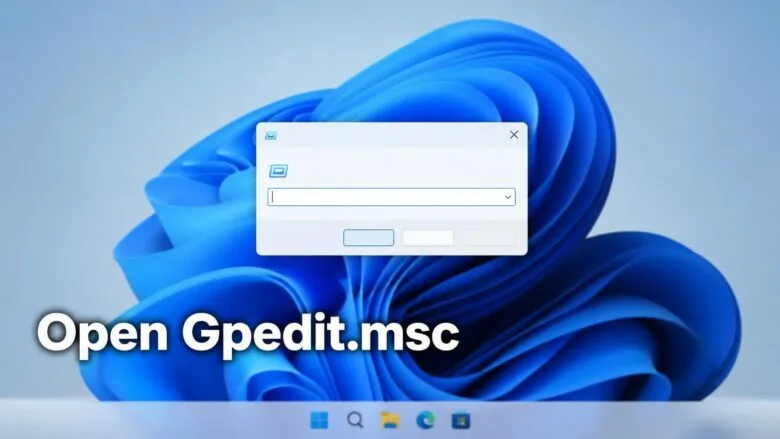
- 5 ways to do it
- Needs administrator rights
- Group Policy needs Windows 11 Pro, Enterprise or Education
- Includes a restart or sign-out
The gpedit.msc command opens the Local Group Policy Editor in Windows 11, the console where you change system and user policies. To open it, press Win+R, type gpedit.msc, and press Enter.
The editor ships with Windows 11 Pro, Enterprise and Education. It is not included in Windows 11 Home, so Home users see a “Windows cannot find ‘gpedit.msc'” error instead.
This guide shows five ways to open it, how to move around once it is open, and what to do if your PC is missing it. It also covers why policies sometimes fail to apply and how to undo a change.
To open the Group Policy Editor in Windows 11, press Win+R, type gpedit.msc, and press Enter. The Local Group Policy Editor opens on Windows 11 Pro, Enterprise and Education. Windows 11 Home does not include it, so you will see a “Windows cannot find ‘gpedit.msc'” error there instead.
What gpedit.msc Is and Which 🪟 Windows 11 Editions Include It
The file name gpedit.msc stands for Group Policy Editor. The .msc extension marks a Microsoft Management Console (MMC) file. MMC is the framework Windows uses to host admin tools as “snap-ins” (individual tool modules). When you run gpedit.msc, MMC loads the Local Group Policy snap-in and shows it as the Local Group Policy Editor window.
Local Group Policy is a set of rules that control how Windows behaves on one PC. It covers things like which Settings pages appear, how updates are handled, and what users may change. The editor presents these rules in a tree instead of making you hunt through the registry (the database where Windows stores its settings).
Before you start, check which edition you run. Open Settings, then go to Settings System About Under Windows specifications, read the Edition line.
- Windows 11 Pro, Enterprise, Educationgpedit.msc is installed. Use any method below.
- Windows 11 Homegpedit.msc is not installed. Skip to the Home section further down.
Changing policies needs administrator rights, which are the permissions that let you change system settings. If you sign in with a standard account, Windows asks for an administrator’s password when you open the editor.
Method 1Open gpedit.msc From the Run Dialog
This is the fastest way to open gpedit.msc, and it works from any screen. The steps below open the Local Group Policy Editor from start to finish. This method needs administrator approval.
- Press Win+R. The Run dialog box appears in the lower-left corner of the screen.

Run dialog - Type
gpedit.mscin the Open box. Include the dot, and type the name exactly as shown. - Press Enter. You can also click OK.
- Click Yes if User Account Control asks for permission. A standard user must enter an administrator’s password here. Admin rights needed for this step.
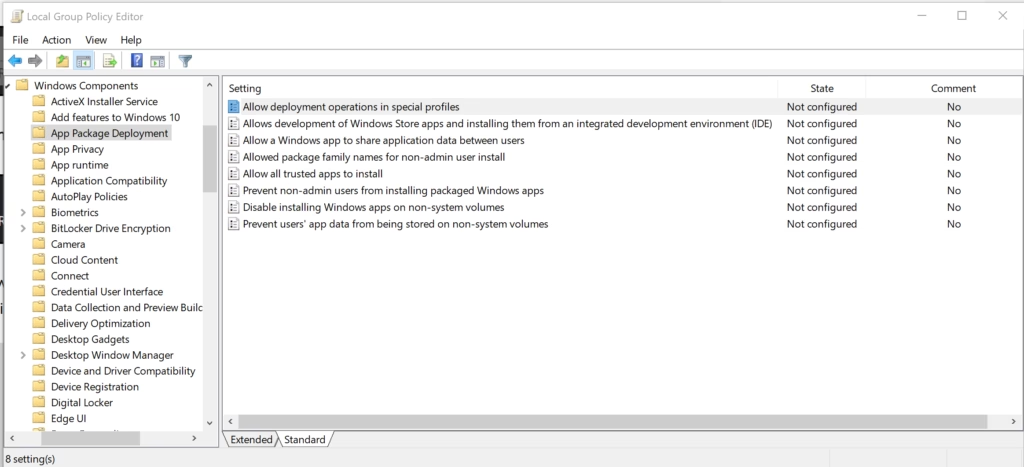
Group Policy Editor - Check the window title. It reads Local Group Policy Editor, with Local Computer Policy at the top of the left pane.
If a message says “Windows cannot find ‘gpedit.msc'”, your PC runs Windows 11 Home or the file is missing. Go to the Home section below. If you mistyped the name, the message is identical, so recheck the spelling first.
Method 2Open Local Group Policy Editor From Start Search
Windows Search does not list the file under the name gpedit.msc. It lists the tool as Edit group policy. Use this method if you prefer not to type commands or want to open the editor as an administrator in one move.
- Click the Search box on the taskbar , or press the Win.
- Type
Edit group policyin the search box. The result Edit group policy appears under Best match. - Click Run as administrator in the right pane of the search results. Admin rights needed for this step.
- Click Yes at the User Account Control prompt. The Local Group Policy Editor opens.
If you type gpedit.msc into search instead, the same result may appear, or nothing may match. Search the friendly name if the file name returns nothing.
To open the tool faster next time, right-click Edit group policy in the results and choose Pin to Start or Pin to taskbar.
Method 3Run gpedit.msc From Windows Terminal, PowerShell or Command Prompt
Typing the command in a console is useful when you already work in one, or when you connect to the PC remotely. The command is the same in all three tools.
- Right-click the Start button. A menu opens.
- Click Terminal (Admin). Admin rights needed for this step. On some builds the entry reads Windows Terminal (Admin).
- Click Yes at the User Account Control prompt. A console window opens.
- Type
gpedit.mscand press Enter. The Local Group Policy Editor opens in its own window.
The console prompt returns immediately because the editor runs as a separate window. You can close the console without closing the editor.
If you open Command Prompt or PowerShell without elevation, the command still works. Windows then shows the User Account Control prompt when the editor starts.
Method 4Open gpedit.msc From Task Manager
Task Manager can start any program by name. This method helps when the taskbar or Start menu is unresponsive, because Task Manager opens independently of both. It also lets you tick a box to run the task with administrator rights.
- Press Ctrl+Shift+Esc. Task Manager opens.
- Click Run new task at the top of the window. On Windows 11 22H2 and later, the button sits in the top bar. On the first release of Windows 11, use File Run new task.
- Type
gpedit.mscin the Open box. - Tick Create this task with administrative privileges. Admin rights needed for this step.
- Click OK. The Local Group Policy Editor opens.
Method 5Make a Desktop Shortcut to gpedit.msc
A shortcut saves you from typing the command each time. The steps create a desktop icon that launches the editor with a double-click.
- Right-click an empty area of the desktop.
- Click New Shortcut. The Create Shortcut wizard opens.
- Type
gpedit.mscin the location box. - Click Next.
- Type a name such as Group Policy Editor.
- Click Finish. The icon appears on the desktop.
To always run it with administrator rights, right-click the new icon and choose Properties. On the Shortcut tab, click Advanced and tick Run as administrator. Then click OK twice.
How to Find and Change a Policy in the Local Group Policy Editor
The window has two panes. The left pane is a tree, and the right pane lists the policies in whichever folder you select. A description appears in the middle of the right pane when you click a policy, so you can read what it does before you open it.
The tree has two top-level branches under Local Computer Policy:
- Computer Configurationpolicies that apply to the whole PC, no matter who signs in.
- User Configurationpolicies that apply to the people who sign in to this PC.
Each branch contains Software Settings, Windows Settings and Administrative Templates. Most everyday settings live under Administrative Templates. These are ready-made policies that Microsoft ships with Windows.
Enabled and Disabled describe the policy, not the feature. A policy named "Turn off something" set to Enabled turns that thing off. Read the policy name and the description before you click.
To change a policy:
- Expand Computer Configuration or User Configuration in the left pane.
- Expand Administrative Templates, then click the folder you want. For example, Computer Configuration Administrative Templates System The right pane lists the policies in that folder.
- Look at the State column. It reads Not configured for most policies, which means Windows uses its own default.
- Double-click the policy. A settings window opens with three options: Not Configured, Enabled and Disabled.
- Select Enabled or Disabled. Some policies show extra options in the Options box once you enable them.
- Click Apply, then OK. The State column now shows your choice.
The Extended and Standard tabs at the bottom of the right pane switch between a view with descriptions and a plain list. Use Standard when you want to see more policies at once.
Apply a Policy Change Without Restarting
Most policy changes take effect on their own within about 90 minutes, or the next time you sign in or restart. If you cannot wait, force a refresh from a console.
- Right-click the Start button and click Terminal (Admin). Admin rights needed for this step.
- Type
gpupdate /forceand press Enter. Windows reapplies the computer and user policies. - Read the output. It reports that Computer Policy update has completed successfully and the same for User Policy.
Some policies still need you to sign out or restart before they work. The policy description usually says so. If a change seems to do nothing, sign out and back in before you assume it failed.
If You Run 🪟 Windows 11 Home and Gpedit.msc Is Missing
Microsoft does not include the Local Group Policy Editor in Windows 11 Home. Running gpedit.msc on Home produces a "Windows cannot find" message, and there is no Settings page that turns it on. Check the edition under Settings System About before you try anything else. A Pro PC that shows this error is a different problem, covered in the next section.
You have three realistic options on Home.
Upgrade to 🪟 Windows 11 Pro
Upgrading is the only supported way to get the editor. Open Settings, go to Settings System Activation, and look for the option to upgrade your edition of Windows. You can enter a Pro product key or buy the upgrade from the Microsoft Store. The upgrade keeps your files and apps, and the editor appears after the PC restarts.
Change the setting in Settings or Registry Editor instead
Each policy changes a value somewhere in the registry. On Home, you can often set that value directly in Registry Editor (the built-in tool for viewing and editing the registry). The key, value name and data differ for every policy, so you need the exact details for the policy you want. Each policy needs its own key, value name and data, so this guide does not list them.
Back up the key first by right-clicking it in Registry Editor and choosing Export. For more on working in Registry Editor, see switching between HKCU and HKLM keys in Registry Editor and changing the Registry Editor font.
Third-party gpedit installers
Scripts and downloads that claim to install gpedit.msc on Home circulate widely. Microsoft does not support them, and they change system files. They can fail after a Windows feature update, and an untrusted download can carry malware.
This guide does not include one. If you need the editor regularly, upgrade to Pro.
If Gpedit.msc Fails on Pro, Enterprise or Education
On an edition that includes the editor, two problems come up most often. The first is a permissions problem, the second a policy that does not stick.
If the editor opens but you cannot save a change, you are not running as an administrator. Close it and reopen it with Method 2 or Method 4, which both run with administrator rights.
If a policy reverts or shows as set but has no effect, check whether your PC is managed. A work or school PC receives policies from a server (a domain or a device-management service), and those override local ones. A message at the top of Settings pages saying Some settings are managed by your organization points to this. Only your IT department can change it.
If the window opens but shows an error such as "MMC could not create the snap-in", the file or its components may be damaged. I cannot confirm a specific fix for every cause, so start with a system file check (a scan that repairs damaged Windows files), then check Event Viewer (the built-in log of system events) for details.
How to Undo a Change in the Local Group Policy Editor
Every change you make in the editor is reversible. Setting a policy back to Not Configured returns it to the Windows default.
- Open the Local Group Policy Editor with Method 1.
- Go to the folder that holds the policy and double-click it.
- Select Not Configured.
- Click Apply, then OK.
The State column reads Not configured again. Run gpupdate /force from a console opened as administrator, or restart, to apply the reversal.
If you have changed many policies and lost track, clear them all at once. The guide on resetting Group Policy in Windows 11 to default walks through it.
Local Group Policy Editor vs Local Security Policy
Local Security Policy is a separate, smaller console that opens with secpol.msc. It holds only security settings, such as password rules and account lockout. Windows 11 Pro includes both tools, and several security settings appear in both places.
Use gpedit.msc for the wider range of Windows behavior. Use Local Security Policy when the setting you want is a security rule. For an example of a task done there, see how to set a machine inactivity limit in Local Security Policy.
What to Do Next
With the editor open, pick one policy, read its description, and change it. Note the original state so you can set it back to Not Configured later. If you want a clean slate, reset Local Group Policy to default. Then check the security rules in Local Security Policy if you changed those as well.
Have a question about this guide?
Answered by AI from this guide. Good questions may be added to this page — please don't include personal details.
Did this guide fix your problem?

About the Author
Richard
Tech Writer, IT Professional
Richard is a writer at Geek Rewind who turns complex IT tasks into clear, step-by-step guides. He draws on years of hands-on experience in system administration and enterprise IT operations, focusing on Windows, Linux and WordPress: the problems people actually run into, and the fixes that work. His server and WordPress guides come from systems he runs himself. Richard builds and maintains the platform behind Geek Rewind, from its Ubuntu servers and Nginx configuration to its custom WordPress plugins. Many new tutorials start with readers' questions, and he's always glad to answer them in the comments.
No comments yet — be the first to share your thoughts!