How to Add and Remove Folders in the Windows 11 Start Menu

Custom folders in the Windows 11 Start menu put shortcuts to places like Documents, Downloads and File Explorer right next to the Power button. This small strip sits at the bottom of the Start menu, so you do not have to dig through File Explorer every time you need a file.
You can add and remove these shortcuts from the Settings app whenever your routine changes. The steps are the same on Windows 11 Home and Pro, and you do not need to restart.
Open Settings, go to Personalization Start Folders, then toggle the switches on or off next to folders like Documents, Downloads, File Explorer and Settings. Changes apply immediately without restarting.
How to Add or Remove Folders on the Start Menu
To add or remove Start menu folders, open the Settings app and go to Personalization Start Folders. Turn on the switches for the folders you want next to the Power button, such as Settings, File Explorer, Documents or Downloads. Turn a switch off to remove that folder.
- Open Settings : Click the Start button (the Windows icon) at the bottom of your screen, then click Settings. If Settings is not pinned, search for it. You can also press
Windows key + Ion your keyboard to open it directly. The Settings window should open with a list of categories on the left. - In the Settings window, click Personalization in the left-hand list. The right side of the window now shows personalization options such as Background, Colors and Themes.
- On the right side, scroll down if needed and click Start to open the Start menu settings. You should see options for layout, recently added apps and recommended items.
- Click Folders to see which folders you can add or remove. The page that opens lists each folder with its own on/off switch.
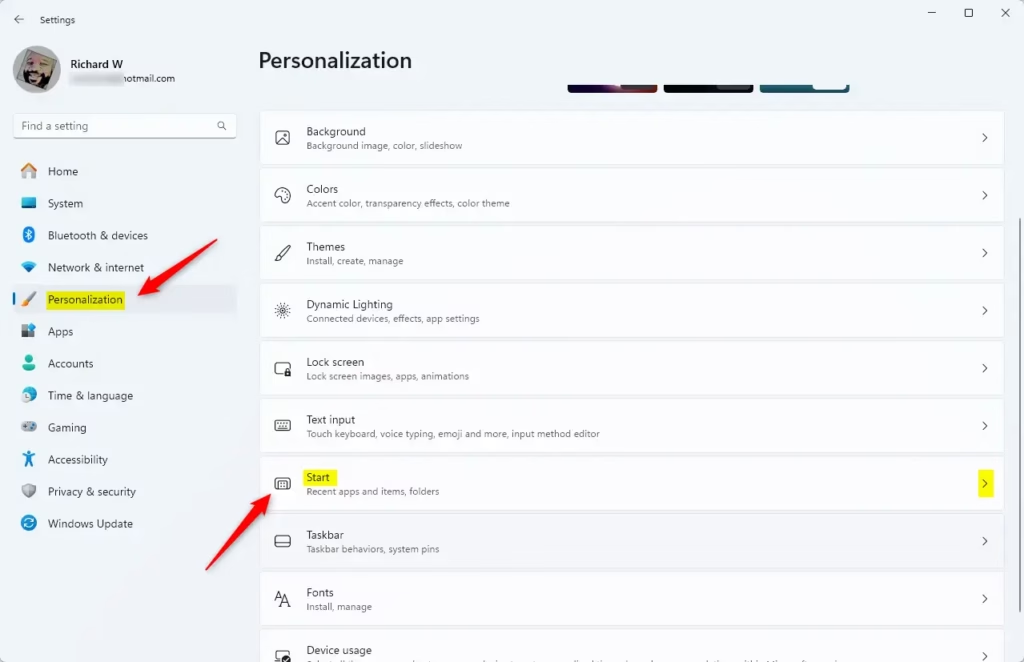
Open Personalization Start in Settings. If you cannot find Start, check that you clicked Personalization on the left first. The menu is laid out the same way on current builds of Windows 11.
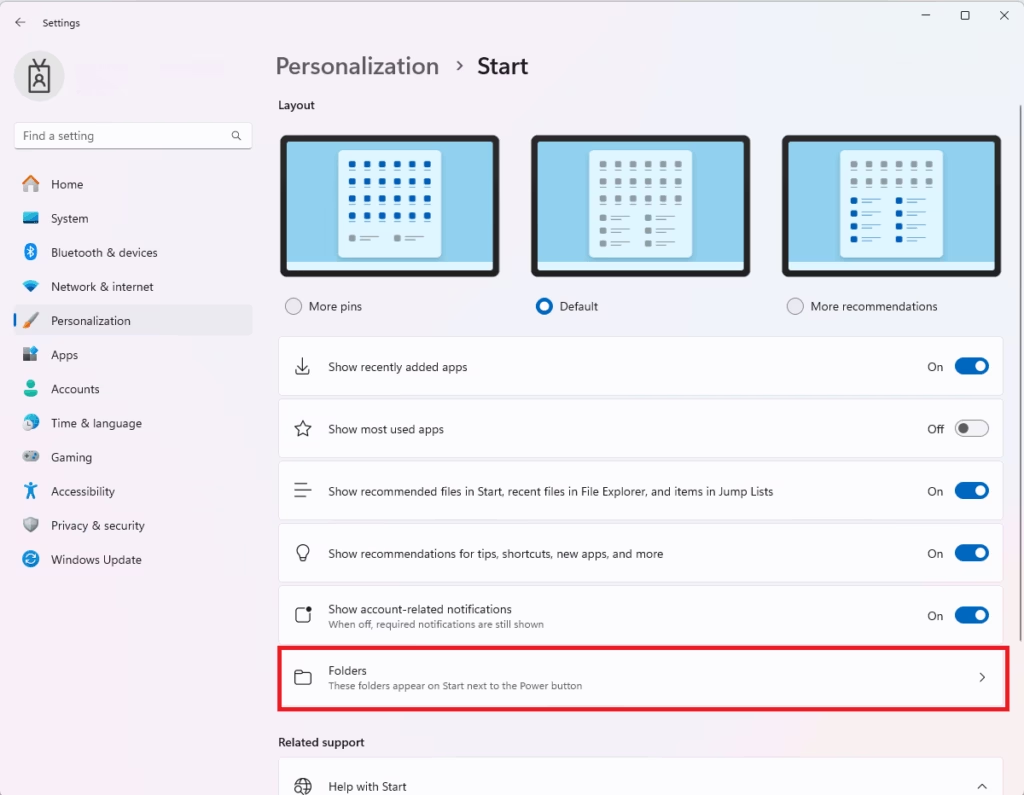
Select which folders to show on the Start menu. Click Folders on the Start page to open the list.
Each switch is independent, so you can turn on as many or as few as you like. Windows decides the order they appear in, and you cannot rearrange them.
- To add a folderTurn the toggle On next to the folder you want to see. The switch changes to the on position straight away.
- To remove a folderTurn the toggle Off next to the folder you don’t want to see. To bring it back later, return to this page and switch it on again.
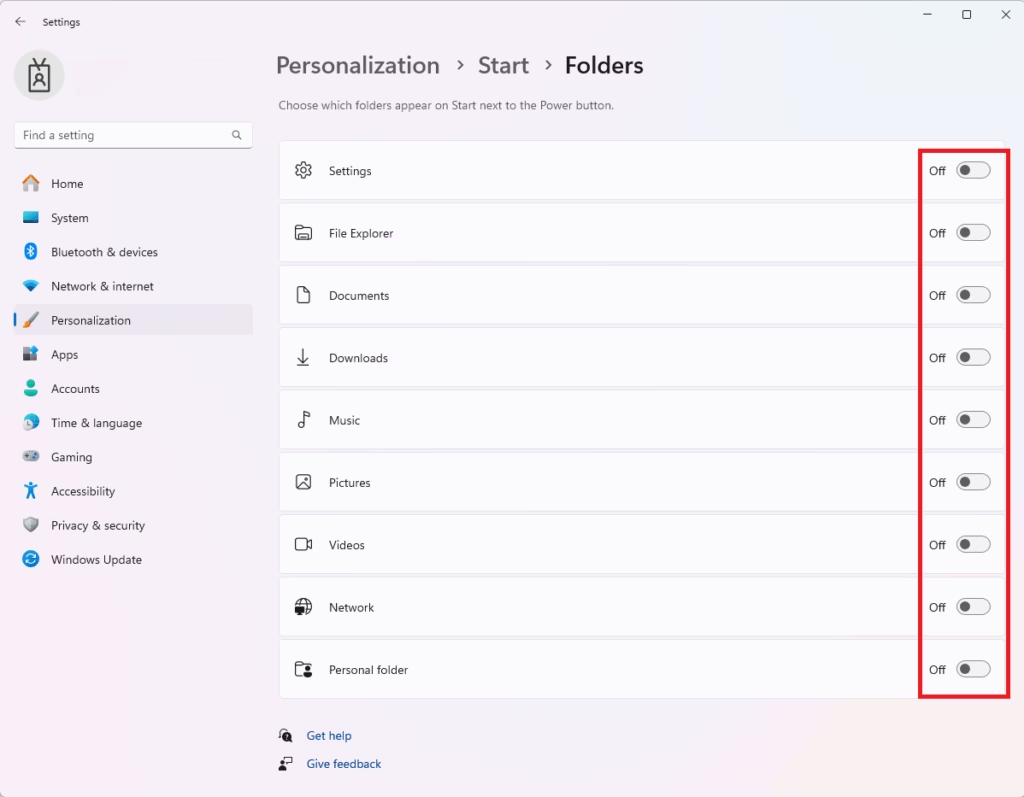
What happens? Changes apply as soon as you flip a switch, so there is no Save button and no restart. Open the Start menu and the folders you selected appear as small icons near the Power button. If a folder is missing, go back to the Folders page and check that its switch is on. If the switches are greyed out or will not change, your PC may be managed by a work or school account that controls Start settings.
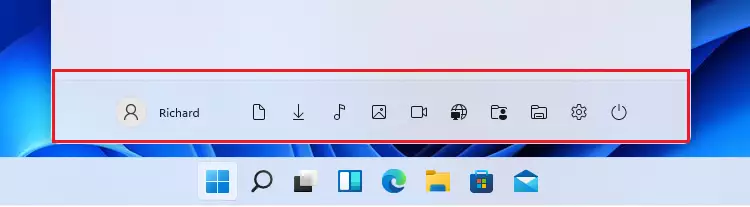
It takes you straight back to the Folders settings, so you can skip the clicks through Settings.

Summary
Managing Windows 11 Start menu folders puts your most-used locations within one click of the Start menu, which makes everyday file access faster. You can change the list at any time in the Settings app, and every change can be undone by flipping the same switch back.
- You can add or remove folder shortcuts from the Start menu in Windows 11 to reach your files faster.
- Use the Settings app and go to Personalization Start Folders to make changes.
- Changes take effect immediately, with no restart needed.
- Keep only the folders you actually use, so the Start menu stays tidy.
- Update your folder shortcuts anytime if your needs change.
- Now you know how to make your Start menu more useful by adding or removing folders.
Have a question about this guide?
Answered by AI from this guide. Good questions may be added to this page — please don't include personal details.
Did this guide fix your problem?

About the Author
Richard
Tech Writer, IT Professional
Richard is a writer at Geek Rewind who turns complex IT tasks into clear, step-by-step guides. He draws on years of hands-on experience in system administration and enterprise IT operations, focusing on Windows, Linux and WordPress: the problems people actually run into, and the fixes that work. His server and WordPress guides come from systems he runs himself. Richard builds and maintains the platform behind Geek Rewind, from its Ubuntu servers and Nginx configuration to its custom WordPress plugins. Many new tutorials start with readers' questions, and he's always glad to answer them in the comments.
No comments yet — be the first to share your thoughts!