How to Add and Remove Quick Access Folders on Navigation Pane of File Explorer in Windows 11

- 7 steps
- Needs administrator rights
- Includes a restart or sign-out
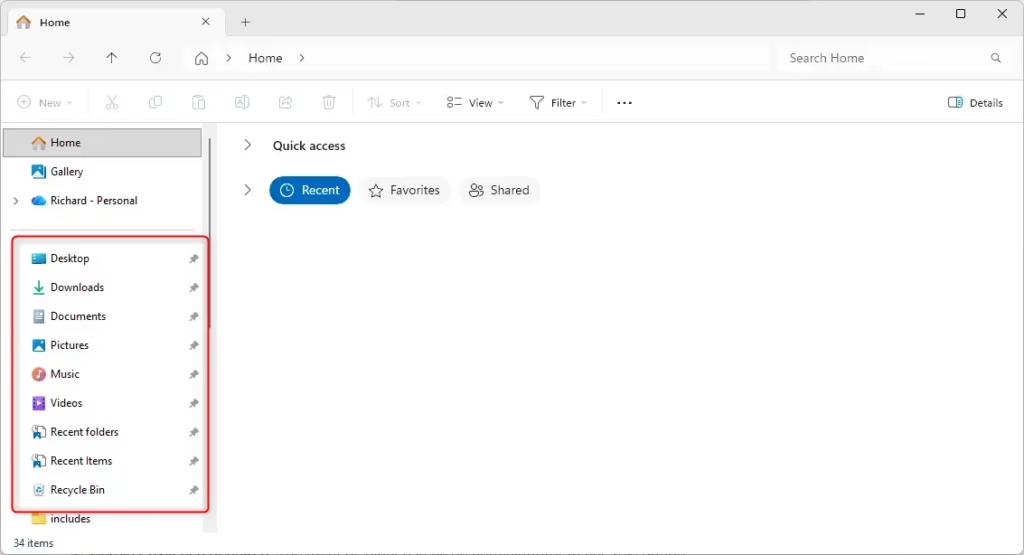
Quick Access sits at the top of the left-hand navigation pane in File Explorer in Windows 11. It holds the folders you pin, and Windows also lists some frequently used folders there. Pinned folders have a pin icon and stay in place until you remove them. Pinning or unpinning only changes the shortcut. The folder and its files are not moved or deleted.
To pin a folder:
- Open File Explorer. Press Win+E, or click the folder icon on the taskbar.
- Browse to the folder you want and right-click it.
- Click Pin to Quick access. If you don’t see it in the short menu, click Show more options first. Which menu holds it depends on your Windows 11 build.
- Look at the navigation pane. The folder should now appear under Quick access with a pin icon.
To remove a shortcut you no longer need:
- Find the folder under Quick access in the navigation pane.
- Right-click it.
- Click Unpin from Quick access. The shortcut disappears from the sidebar, and the original folder stays where it was.
If you change your mind, pin the folder again with the same steps. You can also drag a folder from the main window onto Quick access in the navigation pane.
To pin a folder to Quick access in File Explorer, press Win+E, browse to the folder, right-click it, and click Pin to Quick access. If you don’t see that option, click Show more options first. The folder then appears under Quick access in the navigation pane with a pin icon. Its files are not moved or deleted.
Add Quick Access Folders to Navigation Pane of File Explorer for All Users
reg add "HKEY_LOCAL_MACHINE\SOFTWARE\Microsoft\Windows\CurrentVersion\Explorer\Desktop\NameSpace\{3936E9E4-D92C-4EEE-A85A-BC16D5EA0819}" /ve /d "CLSID_FrequentPlacesFolder" /fRemove Quick Access Folders from Navigation Pane of File Explorer for All Users
reg delete "HKEY_LOCAL_MACHINE\SOFTWARE\Microsoft\Windows\CurrentVersion\Explorer\Desktop\NameSpace\{3936E9E4-D92C-4EEE-A85A-BC16D5EA0819}" /fApplying these steps resolves the issue. Close any open File Explorer windows and open a new one so the navigation pane reloads. If the sidebar still looks the same, sign out and back in, or restart the PC. Then check the navigation pane again.
Summary
Quick Access in File Explorer displays frequently used folders for fast navigation. Removing Quick Access from the File Explorer navigation pane requires executing a command in Windows Terminal. This cleanup keeps the File Explorer interface tidy by eliminating unwanted shortcuts. It only changes what the sidebar shows, so none of your files or folders are deleted. To get Quick Access back, use the default-setting steps earlier in this tutorial, then reopen File Explorer to see the change.
Have a question about this guide?
Answered by AI from this guide. Good questions may be added to this page — please don't include personal details.
Did this guide fix your problem?

About the Author
Richard
Tech Writer, IT Professional
Richard is a writer at Geek Rewind who turns complex IT tasks into clear, step-by-step guides. He draws on years of hands-on experience in system administration and enterprise IT operations, focusing on Windows, Linux and WordPress: the problems people actually run into, and the fixes that work. His server and WordPress guides come from systems he runs himself. Richard builds and maintains the platform behind Geek Rewind, from its Ubuntu servers and Nginx configuration to its custom WordPress plugins. Many new tutorials start with readers' questions, and he's always glad to answer them in the comments.
No comments yet — be the first to share your thoughts!