What to Do When SmartScreen Blocks an App You Trust in Windows 11

- 33 steps
- Needs administrator rights
What to do when SmartScreen blocks an app you trust in Windows 11 comes down to three moves: select More info, check the Publisher name, and select Run anyway. If the button is missing, unblock the file in its Properties or check whether Smart App Control or your organization is blocking it.
Microsoft Defender SmartScreen is the Windows feature that checks downloaded apps against Microsoft’s reputation data. When it does not recognize a file, it shows a blue Windows protected your PC window and stops the app from starting. The warning is about reputation, not a confirmed virus, so legitimate tools from small developers trigger it often.
This post covers the one-time override, a permanent unblock, the Edge download prompt, and the cases where the button never appears.
When SmartScreen blocks an app you trust in Windows 11, select More info on the blue “Windows protected your PC” window, check the Publisher name, then select Run anyway to start the app once. If Run anyway is missing, right-click the file, open Properties, and select Unblock, or check Smart App Control or your organization’s policy.
Why SmartScreen blocks apps you trust
SmartScreen judges a file by how many people have run it, not by what the file does. A brand-new release, a rarely downloaded utility, or an installer without a digital signature (a certificate that proves who published the file) all score low. A tool you built or received from a colleague scores low too, because Microsoft has never seen it.
Files you download also carry a hidden tag called the Mark of the Web. Windows stores the tag as hidden data attached to the file. The tag tells Windows the file came from the internet. SmartScreen only checks files that have this tag, which is why the same app can start without a warning when you copy it from a USB drive.
Knowing this changes how you fix the problem. You can approve the app once, remove the tag so the warning never returns, or find out that a different feature is doing the blocking.
Check the app before you override the block
They take less time than cleaning up an infection.
Read the Publisher name in the warning
The blue window shows a short message and two choices. Select More info to reveal the App and Publisher lines. A trusted vendor shows its company name. An Unknown publisher label means the file is unsigned. That is normal for hobby tools and internal scripts but worth a second look for anything that claims to come from a large company.
Check the digital signature and file hash
A signature check confirms the file has not been altered since the publisher signed it. A hash (a fixed-length fingerprint calculated from the file’s contents) lets you compare your download against the value the vendor publishes. Do both if the vendor provides a hash.
- Open File Explorer and go to the downloaded file.

File Explorer - Right-click the file and select Properties. The Properties window opens.
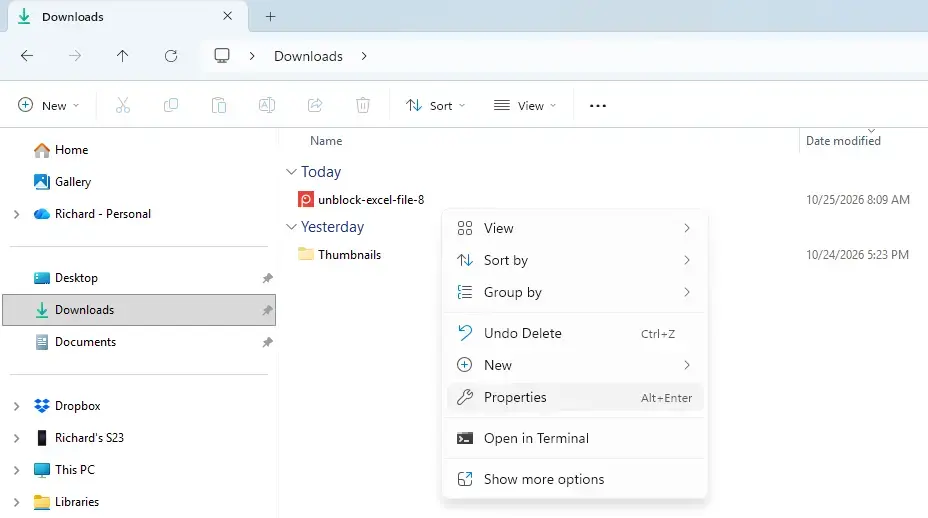
File Explorer - Select the Digital Signatures tab. If the tab does not exist, the file is unsigned.
- Select the signature in the list, then select Details. A healthy signature shows the message “This digital signature is OK.”
- Right-click the Start button and select Terminal. A PowerShell window opens.
- Type the following command, replacing the path with your file’s path, and press Enter:PowerShell
Get-FileHash -Path "C:\Users\USERNAME\Downloads\setup.exe" -Algorithm SHA256The output shows a long string under the Hash column.
- Compare that string with the SHA256 value (a type of hash) on the vendor’s download page. If the two differ, delete the file and download it again from the official site.
Scan the file with Microsoft Defender
Right-click the file and select Show more options (Windows 11 hides older menu entries behind it), then select Scan with Microsoft Defender. A result window reports whether the scan found a threat. A clean result does not prove the app is safe, but a detection tells you to stop.
Run the app once with Run anyway
This method approves the app for a single launch. Use it when you do not plan to run the file again or when you trust the source.
- Double-click the app or installer. The blue Windows protected your PC window appears.
- Select More info. The window expands and shows the App and Publisher lines, and a Run anyway button appears at the bottom.
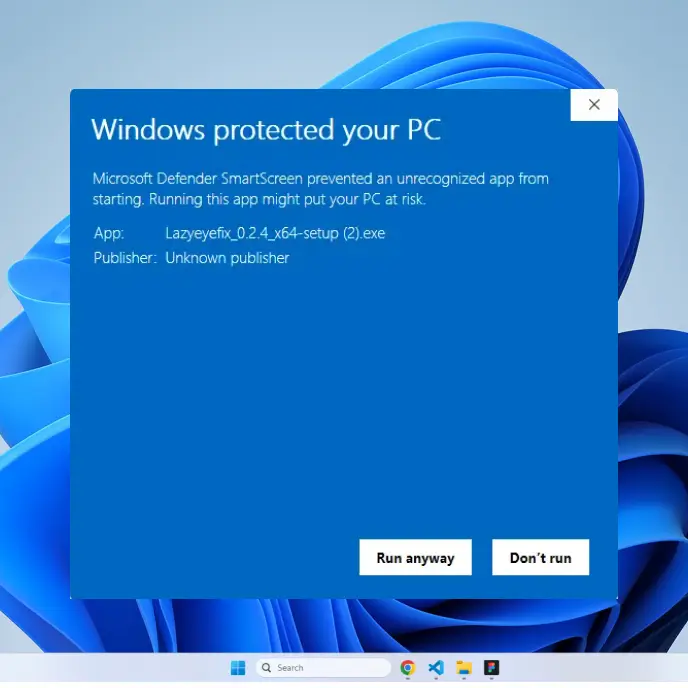
- Confirm the publisher matches what you expect.
- Select Run anyway. The app starts. If it needs administrator rights, a User Account Control prompt appears; select Yes to continue. This step requires an administrator account or an administrator’s password.
If you change your mind, select Don’t run instead. The file stays on your disk, unopened.
If Run anyway does not appear
Some blocks never show the button. Match what you see to the cause:
- The More info link is there but Run anyway is not. An administrator has configured SmartScreen to block rather than warn. Contact your IT team, or if the PC is yours, check for a work or school account connected under Settings Accounts Access work or school.
- A message says an administrator or your organization blocked the app. That is a rule set by an administrator (an app control policy), not a SmartScreen reputation check. Only the person who manages the policy can allow the app.
- The message names Smart App Control. That is a different feature, covered below.
- Microsoft Defender Antivirus reports a threat. That is a malware detection, also covered below.
Unblock the file permanently
If you will run the app often, remove the Mark of the Web from the file. SmartScreen then stops checking it. This is the right fix for internal tools and portable apps (programs that run without installing) that you keep in a folder.
Unblock a file in its Properties
- Open File Explorer and go to the file.
- Right-click the file and select Properties. The General tab opens.
- Look at the bottom of the tab for the Security line. It reads “This file came from another computer and might be blocked to help protect this computer.”
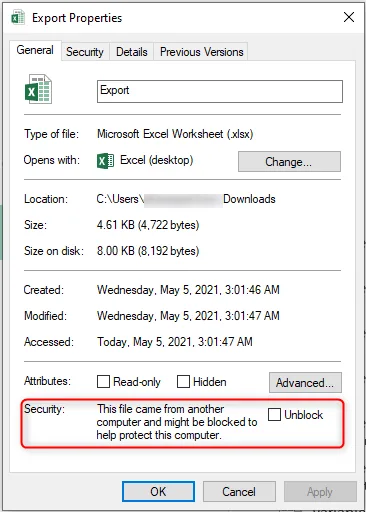
- Select the Unblock check box.
- Select Apply, then OK. The Security line disappears the next time you open Properties, and the app starts without the warning.
If you see no Unblock box, the file has no Mark of the Web. SmartScreen is not the cause, so look at Smart App Control or Defender Antivirus instead.
Unblock many files with PowerShell
Portable apps often ship as a folder with dozens of files, and each one carries the tag. The Unblock-File command (a PowerShell command that removes the tag) clears them all at once. You do not need administrator rights for files in your own user folders.
- Right-click the Start button and select Terminal.
- Type the following command, replacing the path with your folder, and press Enter:PowerShell
Get-ChildItem -Path "C:\Users\USERNAME\Downloads\ToolFolder" -Recurse | Unblock-FilePowerShell prints nothing when it succeeds.
- Open the Properties of one file in the folder to confirm the Unblock box is gone.
Unblock a ZIP file before you extract it
Files extracted from a downloaded ZIP archive usually inherit the tag from the archive. Unblock the ZIP first, using the Properties steps above, then extract it. Every file inside then comes out clean, and you avoid repeating the process file by file.
Keep a download that Microsoft Edge blocks
Edge runs its own SmartScreen check while a file downloads, so you can see a warning before Windows ever gets involved. The download appears in the Downloads list with a message that the file is not commonly downloaded or could harm your device. The wording changes between Edge versions.
- Select the Downloads icon in the Edge toolbar, or press Ctrl+J. The Downloads panel opens.
- Hover over the blocked file and select the More actions button (three dots).
- Select Keep. Edge may show a second prompt. If it does, select Show more, then Keep anyway. The file finishes saving to your Downloads folder.
A kept file still carries the Mark of the Web, so Windows can show the blue warning when you open it. Apply the unblock steps above if you want that gone. If Edge blocks a whole website rather than a file, the fix is different; the post on turning SmartScreen for Microsoft Edge on or off in Windows 11 explains that setting. Phishing warnings come from a separate feature described in how to turn on SmartScreen Enhanced Phishing Protection.
Tell SmartScreen apart from Smart App Control and Defender Antivirus
Three Windows features can stop an app, and each has its own fix. Changing a SmartScreen setting does nothing if the block comes from one of the others.
Smart App Control
Smart App Control is a stricter feature that allows only apps Microsoft considers safe, and it has no Run anyway button. It arrived with Windows 11 version 22H2 and is active mainly on PCs that received a clean installation. The message names the feature, for example that Smart App Control blocked a file that may be unsafe.
Turning it off may be difficult to reverse on some Windows 11 builds, so read what happens when you turn off Smart App Control before you change it.
Microsoft Defender Antivirus
Defender Antivirus blocks files it detects as malware, and it quarantines (isolates) them. If you are certain a detection is wrong, you can allow the file. This step requires administrator privileges.
- Open Settings Privacy & security Windows Security, then select Open Windows Security.
- Select Virus & threat protection.
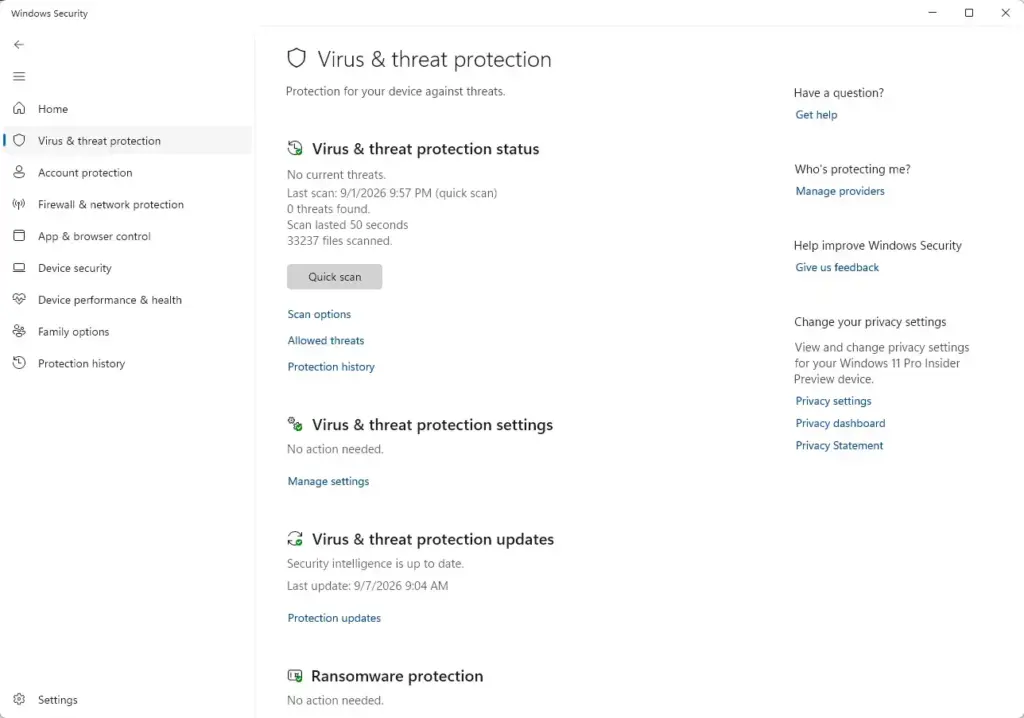
Windows Security › Virus & threat protection - Select Protection history. A list of recent detections opens.
- Select the item for your app. Its details expand.
- Select Actions, then choose Restore or Allow on device, whichever the item offers. Approve the User Account Control prompt if it appears.
Do this only for files you have verified with the checks earlier in this post. Defender detections are far more serious than SmartScreen reputation warnings.
If the app launches but cannot reach the network, you are looking at a firewall rule rather than a SmartScreen block. What to do when Windows Firewall blocks apps you need covers that case.
Turn off SmartScreen app checks as a last resort
Switching off SmartScreen's file checking removes protection for every download on the PC, not only the one app. Use it briefly, for a single installation, and turn it back on right after. This step requires administrator privileges.
- Open Settings Privacy & security Windows Security, then select Open Windows Security.
- Select App & browser control.
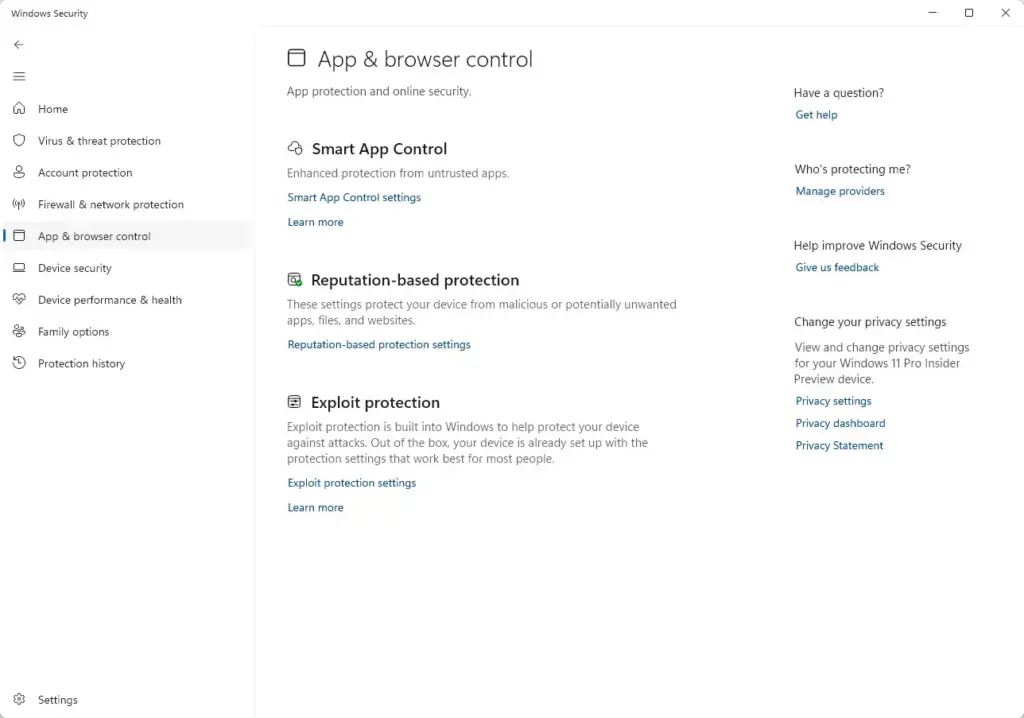
Windows Security - Select Reputation-based protection settings. The page lists several SmartScreen options.
- Set Check apps and files to Off. Approve the User Account Control prompt. Windows may show a notification that your device is vulnerable.
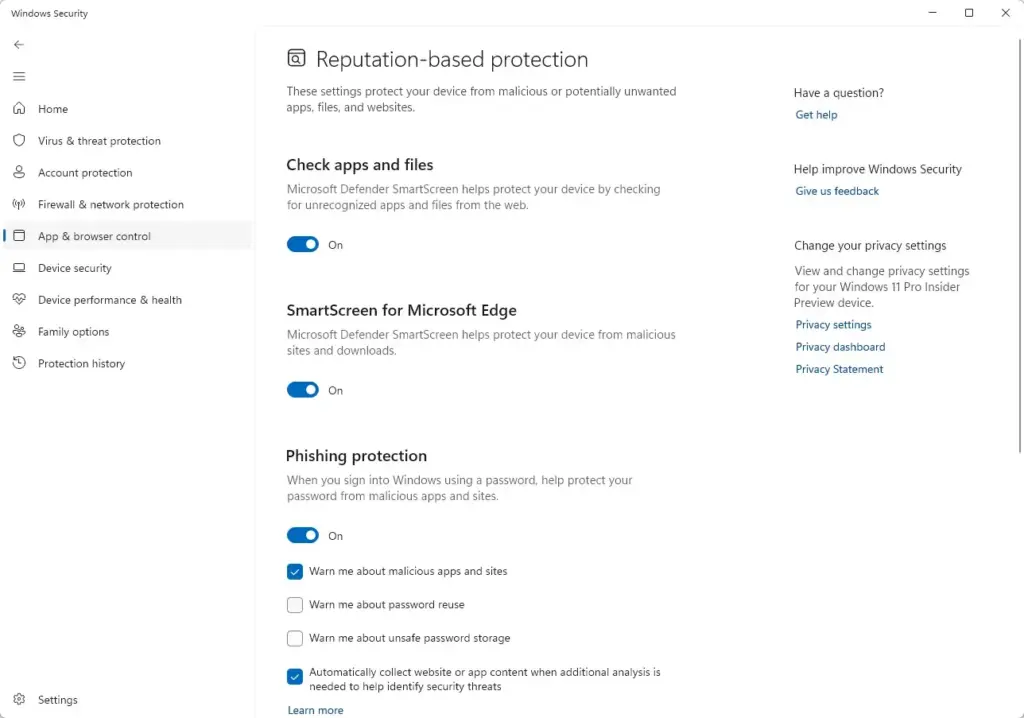
Windows Security - Run or install your app.
- Return to the same page and set Check apps and files back to its previous value, Warn or On.
Turning SmartScreen checks back on matters as much as turning them off. Do it as soon as the installation finishes. A PC left with app checking off accepts unknown downloads silently. The post on what breaks when you disable Windows SmartScreen file checking lists the protections you lose while it stays off.
SmartScreen has no list of approved apps. You cannot add one app to an exception list in the way you can in Defender Antivirus, so the per-file unblock above is the closest equivalent.
If Reputation-based protection is missing, greyed out, or will not open
Two causes account for most of these cases. If the page shows the message "Some of these settings are managed by your organization," an administrator controls SmartScreen on this PC, and your changes will not apply. Work or school devices usually behave this way, and only your IT team can change it.
If the Windows Security app opens blank, closes immediately, or lacks the App & browser control page, the app itself may be damaged. Follow how to reset the Windows Security app in Windows 11 and then check the page again.
Report a false block to Microsoft
Reputation improves as more people run a file. If you are the developer or you distribute the file to others, you can submit it to Microsoft through its Microsoft Security Intelligence file submission page and request a review. Signing your builds with a code signing certificate (a digital ID that proves who made the app) also helps, because reputation then attaches to your certificate and not to each new file. Newly signed files can still trigger warnings for a while, so expect some delay.
What to do next
If you turned off Check apps and files, confirm it is back to Warn or On under Reputation-based protection settings, since Windows does not turn it on again by itself. If the app still will not start after an unblock, the block comes from Smart App Control, Defender Antivirus, or an organization policy. The matching section above is your next stop. Next, review what apps can reach on your PC in Windows 11 privacy settings: control app access and data, which control app access to your data.
Have a question about this guide?
Answered by AI from this guide. Good questions may be added to this page — please don't include personal details.
Did this guide fix your problem?

About the Author
Richard
Tech Writer, IT Professional
Richard is a writer at Geek Rewind who turns complex IT tasks into clear, step-by-step guides. He draws on years of hands-on experience in system administration and enterprise IT operations, focusing on Windows, Linux and WordPress: the problems people actually run into, and the fixes that work. His server and WordPress guides come from systems he runs himself. Richard builds and maintains the platform behind Geek Rewind, from its Ubuntu servers and Nginx configuration to its custom WordPress plugins. Many new tutorials start with readers' questions, and he's always glad to answer them in the comments.
No comments yet — be the first to share your thoughts!