How to Turn On SmartScreen Enhanced Phishing Protection in Windows 11

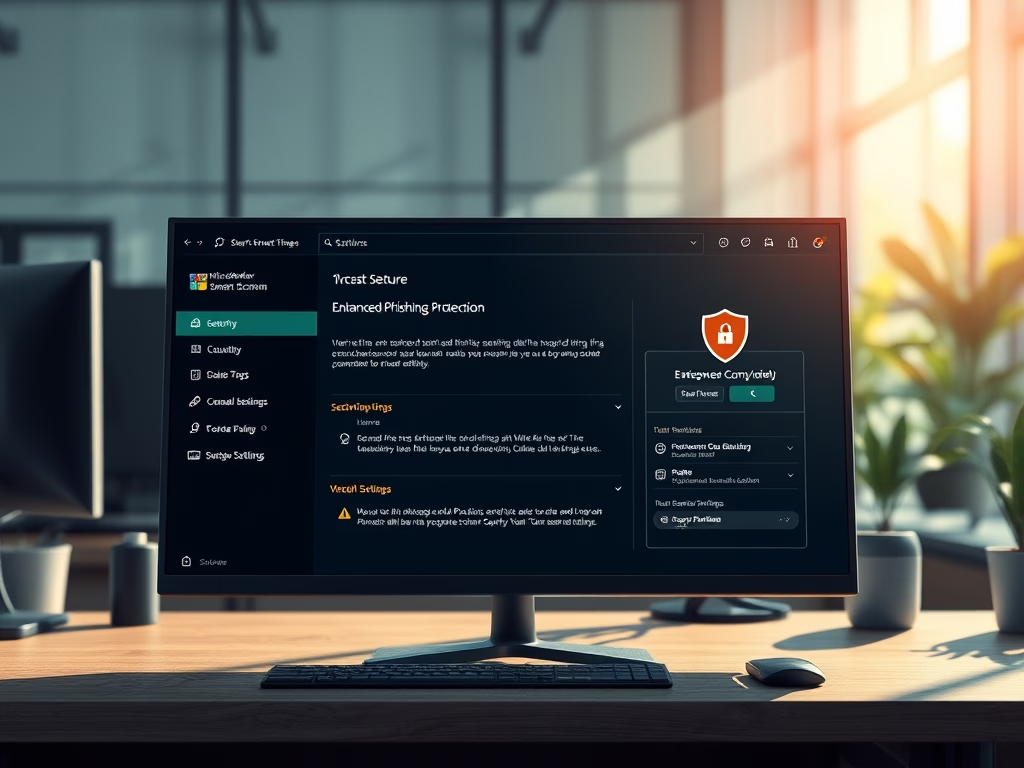
SmartScreen Enhanced Phishing Protection in Windows 11 helps stop password theft. It warns you when you type your Windows sign-in password into an unsafe app, such as Notepad or Word, or into a website that looks like phishing. It is available in Windows 11 version 22H2 and later. On earlier versions, you will not find these options.
The feature works alongside Microsoft Defender SmartScreen to spot dangerous websites and bad apps. If you save your password in an unsafe file, Windows alerts you right away, so you can delete the file before someone finds it.
Open Windows Security, click App & browser control, then Reputation-based protection settings, find Phishing protection and set it to On. The warning options for unsafe password storage then become available to enable.
How to Turn On or Off Password Storage Warnings in 🪟 Windows 11
The easiest way to manage these warnings is the Windows Security app. Open it, go to app and browser control, and find the reputation-based protection settings. There you choose whether Windows warns you when you type your password into untrusted apps or websites.
- Open Windows Security. Click the search box on your taskbar , type Windows Security, and click the app in the results. The Windows Security window opens with a set of tiles.
- Go to App & browser control. Click the App & browser control tile. The page shows reputation-based protection and other browser protections.
- Open the reputation-based settings. Under Reputation-based protection, click Reputation-based protection settings. You should now see a list of SmartScreen options.
- Turn on phishing protection. Find Phishing protection and set it to On. Once it is on, the related warning options become available, including the warning for unsafe password storage. Turn on the ones you want.
On a work or school PC, ask your administrator. To undo the change on your own PC, return to the same page and switch the options off.
Alternative: Use Local Group Policy Editor (For Advanced Users)
It is also useful when you want to set the behavior for the whole computer. The editor is only included in Windows 11 Pro, Enterprise and Education. Windows 11 Home does not have it, so Home users should use the Windows Security method above.
- Click the Start Menu , type Edit group policy, and select it from the results. The Local Group Policy Editor opens.
- In the left panel, expand this path: Computer Configuration Administrative Templates Windows Components Windows Defender SmartScreen Enhanced Phishing Protection The settings for this feature appear in the right pane.
- On the right side, find Notify Unsafe Apps and double-click it. A settings window opens for that policy.
- Choose one of these options:
- Not Configured (default): Windows uses its normal behavior and your Windows Security settings.
- Enabled: turns on warnings.
- Disabled: turns off warnings.
- Click OK to save your changes, then close the editor. If the warnings do not change right away, restart the PC.
To undo the change, open the same policy again and set it back to Not Configured.
Summary
- Enhanced Phishing Protection helps keep your passwords safe by warning you if you save them in unsafe apps.
- You can turn this protection on or off through Windows Security settings.
- Advanced users on Pro and higher editions can also use the Local Group Policy Editor to control these warnings.
- Using these features helps protect your personal info and keep your computer safer.
SmartScreen Enhanced Phishing Protection helps you avoid losing your account details by warning you whenever you type your password into unsafe apps or websites. You can turn it on using either the Windows Security app or the Local Group Policy Editor, depending on your Windows edition and setup.
Have a question about this guide?
Answered by AI from this guide. Good questions may be added to this page — please don't include personal details.
Did this guide fix your problem?

About the Author
Richard
Tech Writer, IT Professional
Richard is a writer at Geek Rewind who turns complex IT tasks into clear, step-by-step guides. He draws on years of hands-on experience in system administration and enterprise IT operations, focusing on Windows, Linux and WordPress: the problems people actually run into, and the fixes that work. His server and WordPress guides come from systems he runs himself. Richard builds and maintains the platform behind Geek Rewind, from its Ubuntu servers and Nginx configuration to its custom WordPress plugins. Many new tutorials start with readers' questions, and he's always glad to answer them in the comments.
No comments yet — be the first to share your thoughts!