Unblock Downloaded Files in Windows 11 File Properties

- 13 steps
- Needs administrator rights
To remove a download warning in Windows 11, open the file’s Properties window and tick Unblock. Right-click the file, select Properties, tick Unblock on the General tab, and select Apply. This removes the Mark of the Web (a hidden tag Windows attaches to files that come from the internet), so the file stops triggering security prompts.
The Unblock checkbox appears only on files that carry the tag. The steps work the same on Windows 11 Home and Pro, version 23H2 and 24H2. Below you also find how to unblock a ZIP archive, how to clear many files at once with PowerShell, and why the checkbox sometimes does not appear.
To unblock a downloaded file in Windows 11, right-click the file, select Properties, tick the Unblock checkbox at the bottom of the General tab, and select Apply. This removes the Mark of the Web, the hidden tag that makes Windows show security warnings. Only tick Unblock after confirming the file is safe.
What Does a Blocked File Mean in 🪟 Windows 11?
When a browser, an email app or a chat app saves a file to your PC, Windows records where it came from. It stores a small label called Zone.Identifier alongside the file. That label is the Mark of the Web. Windows reads it later and treats the file with more caution than one you created yourself.
You see the effect in a few places:
- A blue Windows protected your PC window from Microsoft Defender SmartScreen when you start a downloaded program.
- An Open File – Security Warning dialog before an installer or script runs.
- A yellow Protected View bar in Word, Excel or PowerPoint, with the Enable Editing button.
- A script or PowerShell file that refuses to run because it came from the internet.
The label does not change the file’s contents. It only tells Windows to ask before trusting it. Unblocking deletes the label, so Windows treats the file like any local file.
Before You Unblock a File
Once the label is gone, Windows stops warning you about that file, and nothing brings the warning back on its own.
Check three things first. Did the file come from the site or person you expected? Is the download page one you would trust with your passwords? Does a scan come back clean?
To scan, right-click the file and select Scan with Microsoft Defender. In the compact Windows 11 menu you may need to select Show more options first.
If you cannot answer yes to all three, leave the file blocked. The warning is doing its job. If you are not sure where a file ended up after downloading, the guide on locating and opening downloaded files in Windows 11 shows where to look.
Unblock a Downloaded File in File Properties
These steps change the file block settings on one file by removing the block through its Properties window. You do not need administrator rights for files in your own Downloads or Documents folders. A file stored in a protected location, such as 📁C:\
- Open File Explorer . Press Win+E, or select the folder icon on the taskbar .

File Explorer - Go to the folder that holds the file. Select Downloads in the left pane if the file came from your browser.
- Right-click the blocked file. A context menu opens.
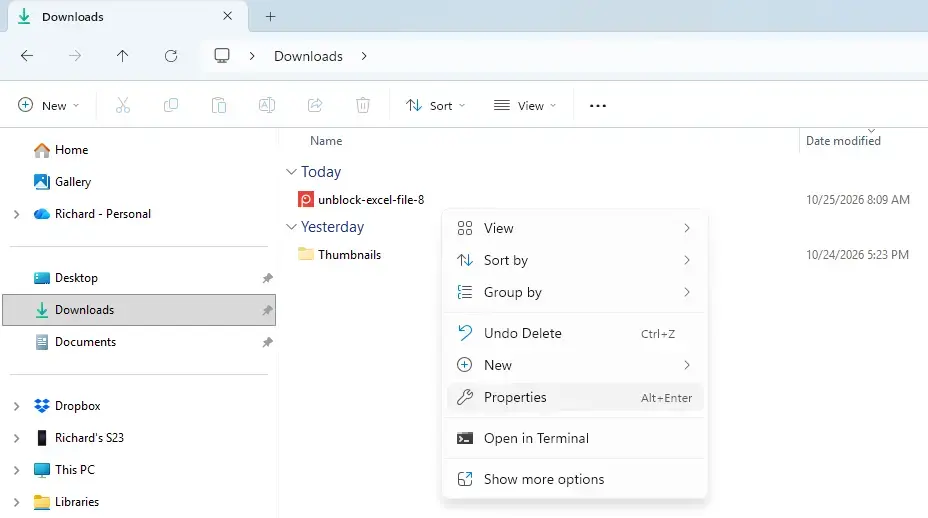
File Explorer - Select Properties. If you do not see it, select Show more options first. You can also select the file and press Alt+Enter.
- Stay on the General tab. It is the first tab and opens by default. It shows the file type, location, size and dates.
- Look at the bottom of the tab for Security. You see the text “This file came from another computer and might be blocked to help protect this computer.” Next to it is a checkbox labelled Unblock.
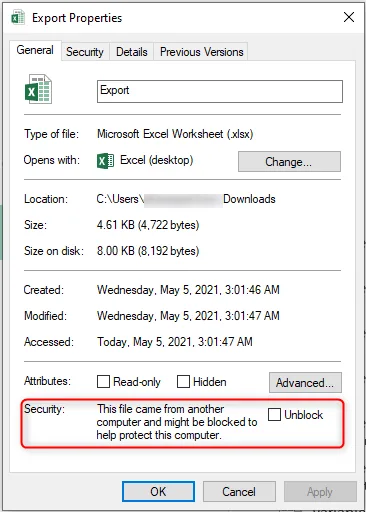
- Tick the Unblock checkbox. The Apply button, which was greyed out, becomes active.
- Select Apply. Windows removes the label from the file. If a permission prompt appears, select Continue and sign in with an administrator account.
- Select OK. The Properties window closes.
- Open the file. The security warning no longer appears. To confirm, open Properties again. The Security section is gone.
If the Security section does not appear in the General tab, the file is not blocked, or the drive cannot store the label. The section on missing options below explains both cases.
What Unblocking Changes and What It Leaves Alone
Unblocking affects one file only. Other files in the same folder keep their labels, and a new download is tagged again. The change is also instant. No restart or sign-out is needed.
A malicious file stays malicious after you unblock it, and Microsoft Defender Antivirus still scans it as usual. Unblocking turns off the “this came from the internet” prompts, not your antivirus.
Renaming, moving or copying the file within the same NTFS drive (the file system most Windows drives use) keeps its blocked or unblocked state. If you want to tidy files afterward, the guides on renaming files in Windows 11 and searching for files in Windows 11 explain both tasks.
Unblock a ZIP File Before You Extract It
Unblock the ZIP archive before you extract it. When File Explorer extracts a blocked archive, the files it creates inherit the Mark of the Web, so you end up with a folder full of blocked files.
Use the same steps as above on the .zip file itself: right-click it, select Properties, tick Unblock, and select Apply. Then right-click the ZIP and select Extract All. The extracted files open without warnings.
If you already extracted a blocked archive, you have two options. Unblock each file one at a time, or delete the extracted folder, unblock the ZIP and extract it again. For a folder with dozens of files, use the PowerShell method below. If you need to remove the bad extraction first, see how to delete files in Windows 11.
Unblock Many Files at Once with PowerShell
The Properties window handles one file at a time, and the Unblock checkbox is not dependable when you select several files. PowerShell (a command-line tool built into Windows) has an Unblock-File command that clears the label from every file you point it at. Administrator rights are not required for files in your own profile.
These steps unblock every file inside one folder, including its subfolders.
Point the command at the exact folder you want. Before you run it, make sure the folder holds only files you trust. Running it on your whole Downloads folder removes the block from everything in it, including files you have not looked at.
- Right-click the Start button . A short menu of system tools opens.
- Select Terminal. On some builds the entry is named Windows Terminal. A window opens with a PowerShell prompt.
- Type the command below and press Enter. Replace USERNAME and the folder name with your own.
Get-ChildItem -Path "C:\Users\USERNAME\Downloads\ExtractedFolder" -Recurse | Unblock-FileThe command prints nothing when it works. The prompt returns after a moment. Open Properties on one of the files to check that the Security section is gone.
To unblock a single file with PowerShell, run the command below with the full path to that file.
Unblock-File -Path "C:\Users\USERNAME\Downloads\setup.exe"Keep the quotation marks around any path that contains spaces. If PowerShell reports that it cannot find the path, check the folder name for typos. You can also drag the folder from File Explorer into the Terminal window (the window where PowerShell runs) to paste its full path.
Why the Unblock Option Is Missing
If the Security section does not appear on the General tab, one of these is the cause.
The File Is Not Blocked
Only files with the Mark of the Web show the checkbox. A file you created, or one that arrived by a route that does not add the label, has nothing to remove. If you still get a warning on such a file, see the next section.
The File Sits on a Drive That Cannot Store the Label
The label is stored in an alternate data stream, a hidden extra layer of data that NTFS attaches to a file. FAT32 and exFAT drives (older ways of organizing data, used by many USB sticks and SD cards) cannot hold it. A file copied from an NTFS drive to one of these formats loses the label, and the checkbox disappears. Copy the file back to an NTFS drive and the Security section stays absent, because the label is gone for good.
You Opened Properties on a Shortcut or Folder
A shortcut (.lnk file) has its own Properties window with a Shortcut tab, and no Security section. Blocking applies to the file the shortcut points to, so open the original file instead. Folders cannot carry the label at all.
Your Organization Manages the PC
On a work or school computer, an administrator can set rules, called policies, that change how Windows marks downloaded files. If the option is missing or the warning returns after you unblock a file, ask your IT department. Your organization's settings control this behavior, and changes you make on this PC cannot override them.
Why a File Still Shows a Warning After You Unblock It
Unblocking removes the label from that file, so a new warning points to something else.
- You unblocked a copy. This usually means you unblocked a copy. If you downloaded the file again, the new copy has a fresh label. Unblock the copy you actually open.
- The warning is for a different file. An installer may start a second program that is itself blocked. Unblock the archive before extracting, as described above.
- The file is an installer that asks for permission. A User Account Control prompt (the dialog asking "Do you want to allow this app to make changes to your device?") is a separate check. It has nothing to do with the Mark of the Web, and unblocking does not remove it.
- The file sits in a shared folder on another computer or server. Files opened from another computer can trigger their own prompts. If you manage a shared folder, see sharing files and setting folder permissions in Windows 11.
If an Office document still opens in Protected View after you unblock it, close it fully and open it again. Office reads the label when it opens a file, so a document that was already open keeps the old state.
How to Undo an Unblock
Properties has no Block checkbox, so you cannot reapply the label from there. The label returns only when a browser or app saves the file again.
To restore the protection, delete the file and download it again from the original source. Windows tags the new copy automatically. If the file came as an email attachment, save it again from the message.
If you deleted the wrong file while cleaning up, restoring files with File History in Windows 11 can bring back a previous version, provided File History was on before the deletion.
What to Do Next
Open the file you unblocked. It should start without the SmartScreen window, the security dialog or the Protected View bar. If it still does not run, check that the file is not damaged by downloading it again from the original source and scanning it with Microsoft Defender.
To keep track of what you download and where it lands, use the guide to managing recent files in File Explorer Home next.
Have a question about this guide?
Answered by AI from this guide. Good questions may be added to this page — please don't include personal details.
Did this guide fix your problem?

About the Author
Richard
Tech Writer, IT Professional
Richard is a writer at Geek Rewind who turns complex IT tasks into clear, step-by-step guides. He draws on years of hands-on experience in system administration and enterprise IT operations, focusing on Windows, Linux and WordPress: the problems people actually run into, and the fixes that work. His server and WordPress guides come from systems he runs himself. Richard builds and maintains the platform behind Geek Rewind, from its Ubuntu servers and Nginx configuration to its custom WordPress plugins. Many new tutorials start with readers' questions, and he's always glad to answer them in the comments.
No comments yet — be the first to share your thoughts!