How to Block Files Downloaded from Internet in Windows 11

- 2 ways to do it
- Needs administrator rights
- Group Policy needs Windows 11 Pro, Enterprise or Education
- Includes a restart or sign-out
Blocking files downloaded from the internet in Windows 11 adds a hidden security tag to web downloads. Microsoft Defender SmartScreen and other Windows checks use that tag to warn you about untrusted software. This Zone.Identifier tag makes Windows show a warning, or refuse to run the file, until you review it. It works on NTFS drives. FAT32 and exFAT drives can’t store the tag, so files copied there lose it.
You can remove the block for a single file, or change how Windows handles web downloads for the whole PC. For one file, right-click it, select Properties, tick Unblock on the General tab, then click Apply. For all downloads, use the Local Group Policy Editor or a command in Windows Terminal, both covered below. The feature is on by default in Windows 11 Home and Pro. Turn it off only if it keeps blocking tools you trust.
Right-click the downloaded file, select Properties, tick Unblock on the General tab, and click Apply. To block all internet downloads system-wide, open Local Group Policy Editor, navigate to User Configuration\Administrative Templates\Windows Components\Attachment Manager, double-click Do not preserve zone information in file attachments, and select Enabled.
How Does Windows Decide What to Block?
Windows looks at three things to decide whether to block a file:
- What program you are using to open it
- What type of file it is
- Where you downloaded it from (Internet, local network, trusted sites, or restricted sites)
A .txt file is treated very differently from an .exe or a script, even if both came from the same website.
File Risk Levels
Windows sorts files into risk levels based on the threat they could pose. High-risk files trigger a strong warning or are blocked outright. Medium-risk files need your confirmation before they run.
- High Risk – Windows stops you from opening these files if they come from a restricted zone. If they come from the Internet, you see a warning that says “Windows found that this file is potentially harmful.”
- Medium Risk – Windows warns you and asks if you really want to run this software.
- Low Risk – Windows lets you open these files without any warning.
What Happens If You Disable File Blocking?
You need administrator privileges to change these settings. The change only affects files you download afterward. Files that were already tagged stay blocked until you unblock them one by one in Properties.
Option 1Use Local Group Policy Editor
The Local Group Policy Editor is available in Windows 11 Pro, Enterprise, and Education. It is not included in Home, so Home users should skip to the command method further down. With this tool an administrator can enforce the setting so users can’t open risky downloads without a warning.
- Open the Local Group Policy Editor. If you’re asked, choose whether the policy applies to all users, specific users, or all users except administrators. You should now see the editor with a folder tree in the left pane.
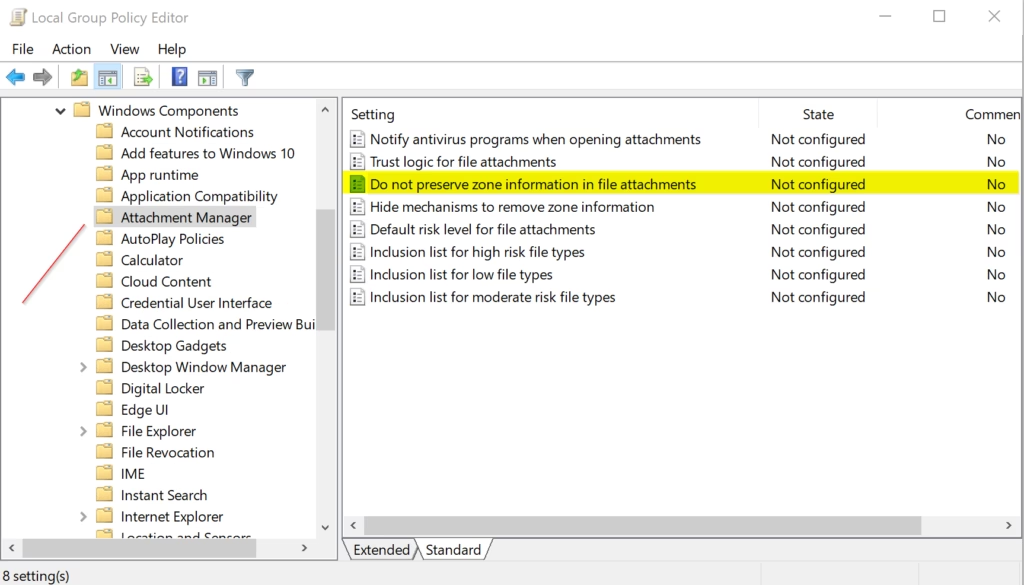
- In the left pane, go to this location:
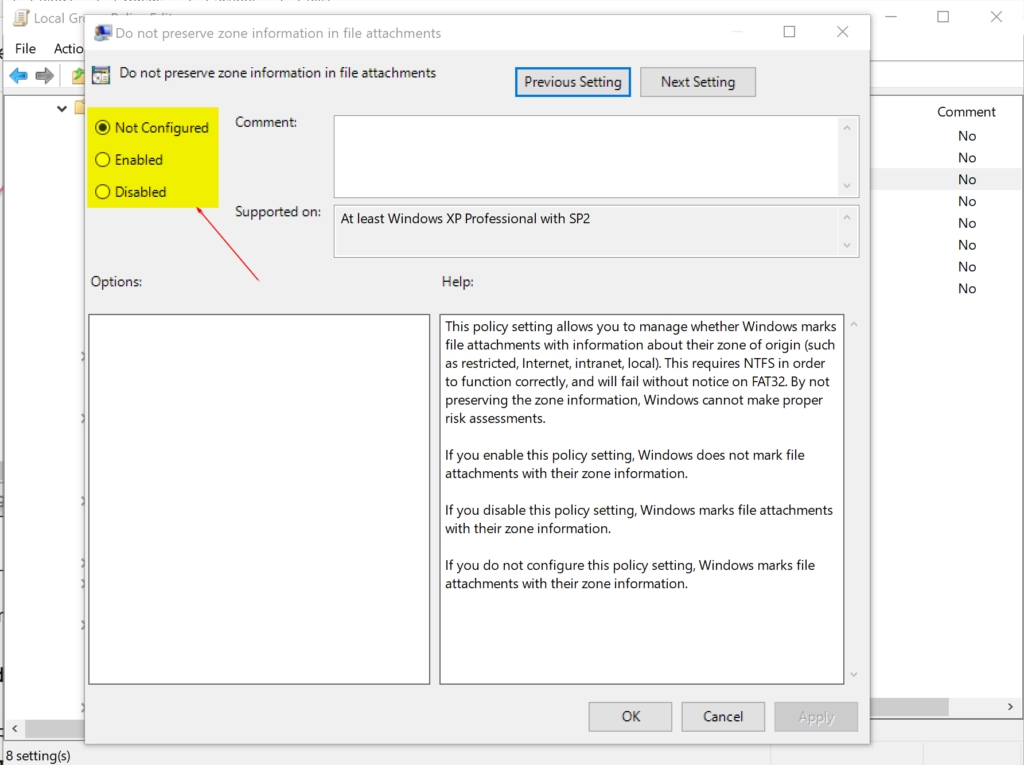
User Configuration\Administrative Templates\Windows Components\Attachment Manager - Look at the right pane and find the policy called Do not preserve zone information in file attachments. Double-click it. A settings window opens.
- To turn ON file blocking (default setting): select Not Configured and click OK. Disabled also keeps blocking on, but Not Configured is the default and the cleaner choice.
- To turn OFF file blocking: select Enabled and click OK. Windows will stop adding the zone tag to new downloads.
- Close the Local Group Policy Editor. You don’t normally need to restart. If an old download still behaves the same, download the file again and test it.
To undo the change at any time, go back to the same policy and set it to Not Configured.
Option 2Use Registry Editor (All 🪟 Windows 11 Versions)
You can block files downloaded from the internet on any Windows 11 edition, including Home, by changing a registry setting. The registry is the database that holds core system settings. This method works when the Group Policy tool isn’t available, and you make the change with a single command in Windows Terminal.
- Right-click the Windows Terminal app (or search for it in the Start menu) and select Run as administrator.
- If User Account Control asks for permission, click Yes. A terminal window opens with “Administrator” in the title bar.
- Choose the command below that matches what you want, and copy it exactly.
To turn ON file blocking (default setting):
reg delete "HKEY_CURRENT_USER\Software\Microsoft\Windows\CurrentVersion\Policies\Attachments" /v SaveZoneInformation /f
reg delete "HKEY_LOCAL_MACHINE\SOFTWARE\Microsoft\Windows\CurrentVersion\Policies\Attachments" /v SaveZoneInformation /f
To turn OFF file blocking:
reg add "HKEY_CURRENT_USER\Software\Microsoft\Windows\CurrentVersion\Policies\Attachments" /v SaveZoneInformation /t REG_DWORD /d 1 /f
reg add "HKEY_LOCAL_MACHINE\SOFTWARE\Microsoft\Windows\CurrentVersion\Policies\Attachments" /v SaveZoneInformation /t REG_DWORD /d 1 /f
Paste the command into the terminal and press Enter to run it. If the command worked, the terminal returns to a new prompt with no error message. If you see “Access is denied,” the terminal isn’t running as administrator, so close it and start again from step 1.
The setting applies to files you download from now on. If it doesn’t seem to take effect, sign out and back in. To undo it, run the “turn ON” command again.
Summary
Windows protects you by checking where a file came from and what type it is before it lets you run it. Leave this blocking on for everyday use. Turn it off only when you have a good reason, and consider unblocking single files in Properties first.
Frequently asked questions
How do I block a specific download?
Windows has no setting that blocks one specific download. To stop the file from running, delete it or move it to a folder you do not open. To stop a program from reaching the internet, add it as a blocked program in Windows Defender Firewall. Check the file with Microsoft Defender Antivirus first if you are not sure it is safe.
What is an alternative file explorer for 🪟 Windows 11?
Good alternatives to File Explorer include Files, a free app from the Microsoft Store with tabs and a modern look, and Total Commander, which shows two folders side by side. Directory Opus is a paid option with advanced tools for power users.
Why is Windows blocking downloaded files?
Windows blocks downloaded files because each file from the internet gets a hidden tag called Zone.Identifier, which records where it came from. Microsoft Defender SmartScreen reads that tag and warns you before the file runs. This is a safety check, not an error.
Can I block my kid from downloading an app?
Yes. Open Settings, select Accounts, then Family options, and set up a child account. Next, use Microsoft Family Safety to require your approval before your child installs apps from the Microsoft Store. Remove administrator rights from the child account so it cannot install software outside the store.
Still have a question?
Answered by AI from this guide. Good questions may be added to this page — please don't include personal details.
Did this guide fix your problem?

About the Author
Richard
Tech Writer, IT Professional
Richard is a writer at Geek Rewind who turns complex IT tasks into clear, step-by-step guides. He draws on years of hands-on experience in system administration and enterprise IT operations, focusing on Windows, Linux and WordPress: the problems people actually run into, and the fixes that work. His server and WordPress guides come from systems he runs himself. Richard builds and maintains the platform behind Geek Rewind, from its Ubuntu servers and Nginx configuration to its custom WordPress plugins. Many new tutorials start with readers' questions, and he's always glad to answer them in the comments.
No comments yet — be the first to share your thoughts!