How to Open Command Prompt at Boot In Windows 11

This guide shows you how to open Command Prompt before you log into Windows 11. It helps when Windows isn’t working right and you can’t reach the desktop.
Press Shift+F10 when the Windows Setup screen appears during boot from installation media to open Command Prompt before Windows loads. Alternatively, hold Shift and click Restart from the Power menu, then choose Troubleshoot Advanced options Command Prompt to access it from Windows.
What is Command Prompt?
Command Prompt is a black window where you type commands to tell your computer what to do. Windows 11 also has PowerShell, which is similar but more powerful. With these tools you can fix problems or automate tasks such as backups.
Why open Command Prompt before logging in?
If you open it early, as the computer boots, you can work on the problem before Windows fully loads. Because Windows isn’t running, the system files aren’t in use, so you can often repair or replace files that are normally locked.
How to open Command Prompt at startup on 🪟 Windows 11
There are two easy ways to do this:
- Using Windows installation media (a USB drive or DVD with Windows setup files)
- Using the Advanced Startup options built into Windows
Use the installation media method if Windows won’t start at all. Use Advanced Startup if you can still sign in to Windows, or if Windows has already booted into its recovery menu on its own.
Method 1Open Command Prompt with SHIFT + F10 during Windows setup
You can open Command Prompt during Windows setup with a keyboard shortcut. When your computer starts from the Windows installation USB or DVD and the setup screen appears, press Shift+F10. A Command Prompt window opens right away, before Windows begins to load. You don’t need to go through the install, and nothing on your PC is changed just by opening the window.
If you don't have installation media, you can create it on another working PC with Microsoft's media creation tool. You need a USB drive of at least 8 GB.
- Insert the USB drive or DVD and restart your computer.
- If the PC starts into Windows instead of the media, restart again and open the boot menu. The key depends on the manufacturer and is often F12, F2, Esc or Del. The key is usually shown for a moment on the first screen. Choose the USB drive or DVD from the list.
- If you see a message saying "Press any key to boot from CD or DVD", press any key on your keyboard. If you miss it, restart and try again.
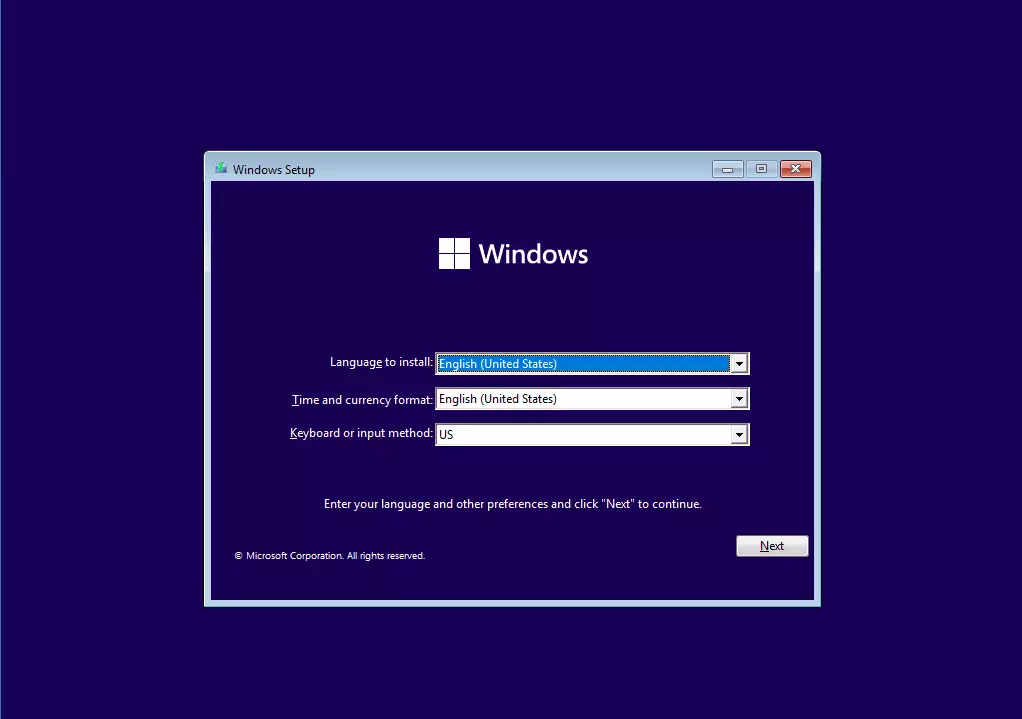
- Wait for the Windows Setup screen, where you pick language and keyboard settings. You should see it as in the image below.
- Press SHIFT + F10 on your keyboard. On some laptops you need to hold the Fn key as well, so try Fn + SHIFT + F10 if nothing happens.
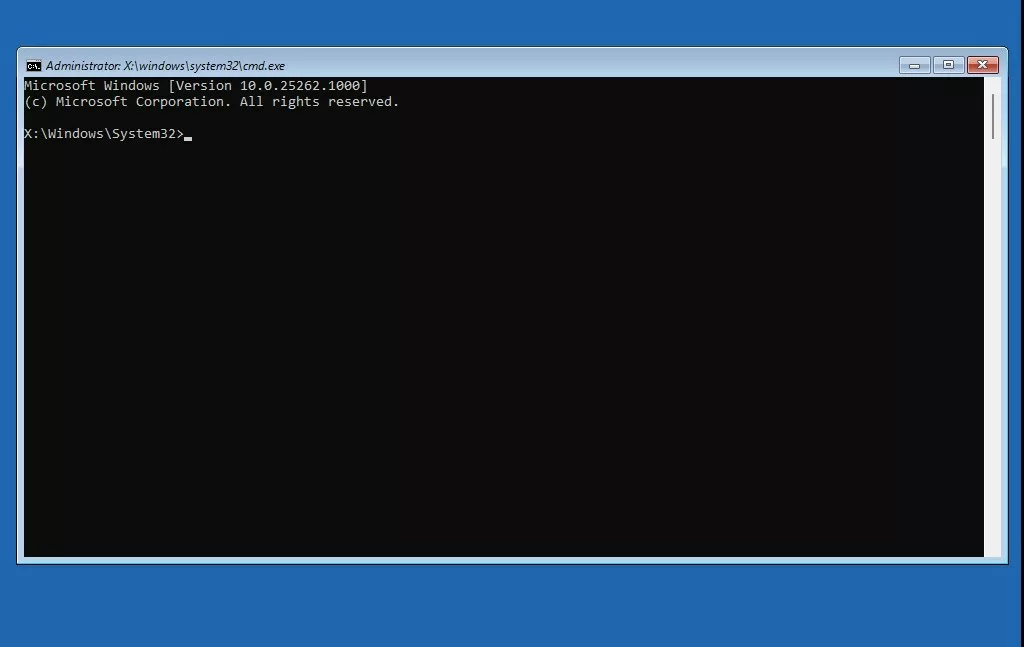
A Command Prompt window opens on top of the setup screen. You can now type commands. For example, type cd /d C:\ and press Enter to switch to another drive.
Keep in mind that in this environment the drive letters are often different from what you see in Windows. Your Windows drive may not be C:. Try the other letters until you find the drive that holds your Windows folder and your files.
Then close the Windows Setup window and confirm that you want to cancel. The PC restarts. Remove the USB drive or DVD as it restarts so the PC boots normally.
Method 2Open Command Prompt from Advanced Startup menu
The Advanced Startup menu is the easiest route if you can still get into Windows. Windows can also open it by itself after a few failed startups. In that case you will see a "Recovery" screen, and you can choose See advanced repair options to reach the same menu.
- Click the Start button, then the Power icon.
- Hold down the Shift key and click Restart. Keep holding Shift until the screen changes. Your PC restarts to a blue screen titled "Choose an option".
- Choose Troubleshoot.
- Click Advanced options.
- Choose Command Prompt.
- The PC restarts once more and asks you to pick an account. Choose an administrator account and enter its password. If the drive is protected by BitLocker, you may also be asked for the recovery key.
You can also get to the same menu from Settings System Recovery. Next to Advanced startup, click Restart now.
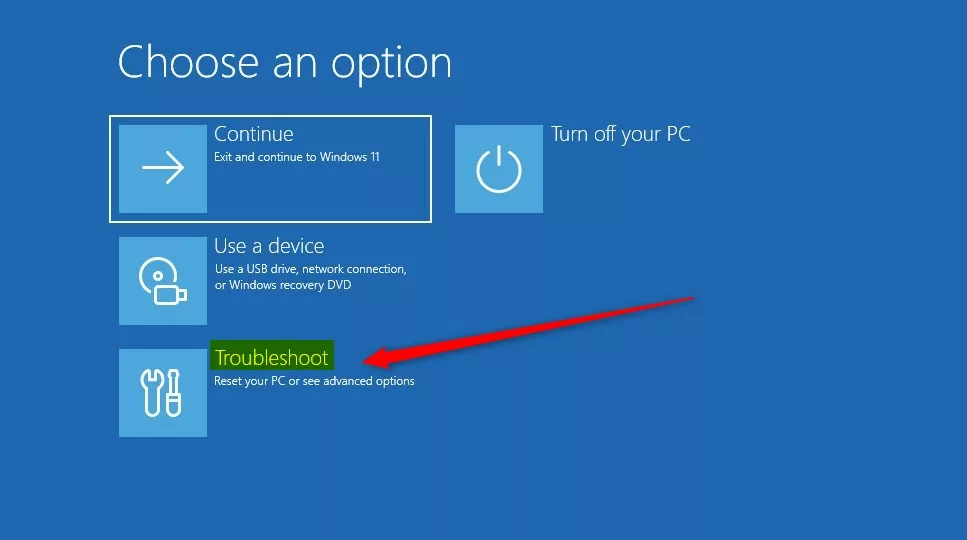
The blue "Choose an option" screen is where you select Troubleshoot.
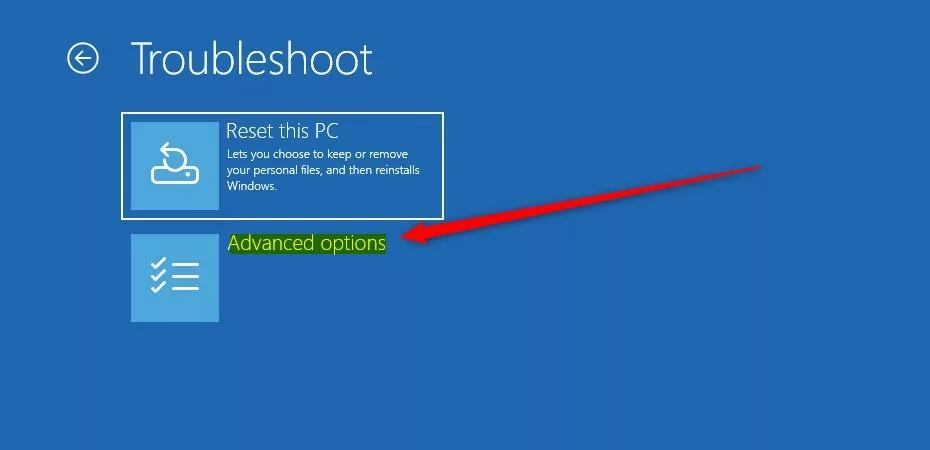
On the Troubleshoot screen, select Advanced options.
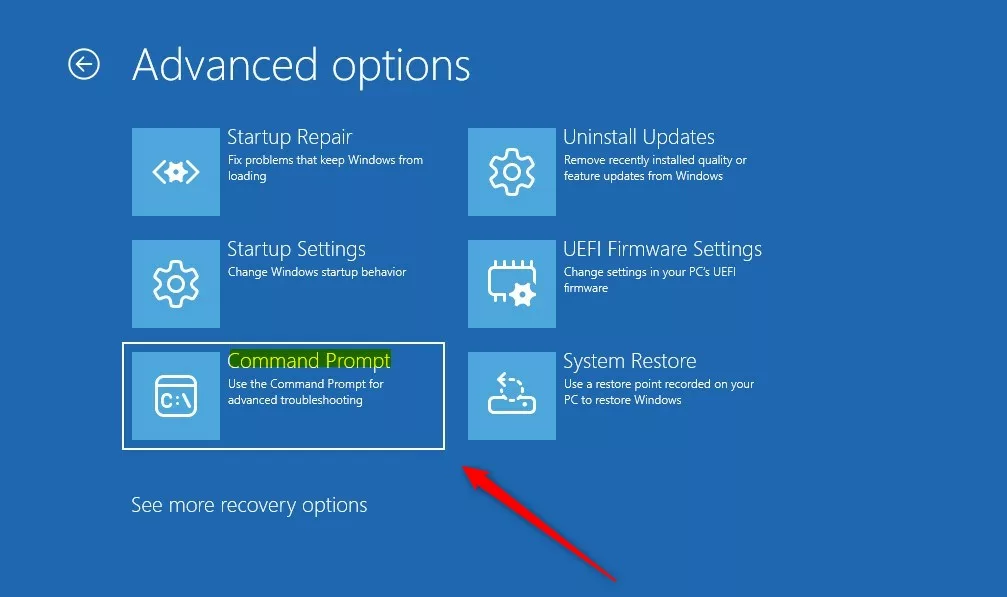
On the Advanced options screen, select Command Prompt.
After you sign in, a Command Prompt window opens and you can start typing commands. As with installation media, the drive letters can differ from what you see in Windows, so check which drive holds your Windows folder before you run anything.
When you are done, close the Command Prompt window. Then choose Continue on the Advanced options screen to start Windows normally, or Turn off your PC if you want to shut down.
Summary
- Opening Command Prompt at boot helps fix problems when Windows won't start normally.
- You can open it from Windows installation media with a simple key press (SHIFT + F10).
- Or you can use Advanced Startup from inside Windows to reach it.
- For more Windows command info, visit Microsoft's official page.
Opening Command Prompt at boot is a useful trick for fixing Windows problems when it won't start normally. You can reach it during Windows setup by pressing SHIFT + F10, or by using the Advanced Startup menu from within Windows. Both methods give you a powerful tool to repair your system.
Have a question about this guide?
Answered by AI from this guide. Good questions may be added to this page — please don't include personal details.
Did this guide fix your problem?

About the Author
Richard
Tech Writer, IT Professional
Richard is a writer at Geek Rewind who turns complex IT tasks into clear, step-by-step guides. He draws on years of hands-on experience in system administration and enterprise IT operations, focusing on Windows, Linux and WordPress: the problems people actually run into, and the fixes that work. His server and WordPress guides come from systems he runs himself. Richard builds and maintains the platform behind Geek Rewind, from its Ubuntu servers and Nginx configuration to its custom WordPress plugins. Many new tutorials start with readers' questions, and he's always glad to answer them in the comments.
No comments yet — be the first to share your thoughts!