How to Move App to Another Drive in Windows 11

Running low on storage? Moving Microsoft Store apps off your main installation drive gives Windows room to work. A full system drive slows down updates, temporary files and the page file, so it is worth fixing before it becomes a problem.
Open Settings with Win+I, go to Apps Installed apps, click the three dots next to the app you want to move, select Move, choose your destination drive from the dropdown, and click Move again. Windows relocates the app and its data to the new drive.
Why Move Apps to Another Drive?
System files fill the primary partition fast. Many programs, especially those downloaded from the Microsoft Store, install there by default. Windows, its updates and your apps all compete for the same space, so relocating the apps stops that partition from running out of room.
By default, Windows puts an app’s files in protected directories on the primary drive. The program files and the app data end up in two separate places:
%ProgramFiles%\WindowsApps(for the app files)%LocalAppData%\Packages(for your app data)
Don’t drag files out of them by hand, because the app will stop launching. Use the move option in Settings instead, which updates the app’s registration for you.
You can use any internal or external drive formatted with NTFS (the standard file system Windows uses for storage). SD cards and USB drives work too. If a drive shows up in File Explorer but isn’t offered as a destination, check its file system first. Drives formatted as FAT32 or exFAT are the usual cause.
What Happens When You Move an App?
Relocating an app copies its data to the target volume. That storage device must stay plugged into your machine for the program to launch. Unplugging the drive halts the software until you plug it back in. Certain programs lack support for this transfer method entirely.
If the Move option is missing or greyed out for an app, the app doesn't support relocation. This is common with older desktop programs that weren't installed from the Microsoft Store. For those, the usual route is to uninstall the program and reinstall it, choosing a different folder in its own installer if it offers one.
If you use a removable drive, keep these points in mind:
- Plug the drive in before you launch the app, and don't remove it while the app is running.
- Avoid moving apps you rely on every day to a drive you often unplug.
- If you want an app back on the main drive, move it again and choose the original drive as the destination.
Not all apps support being moved.
How to Move Your App
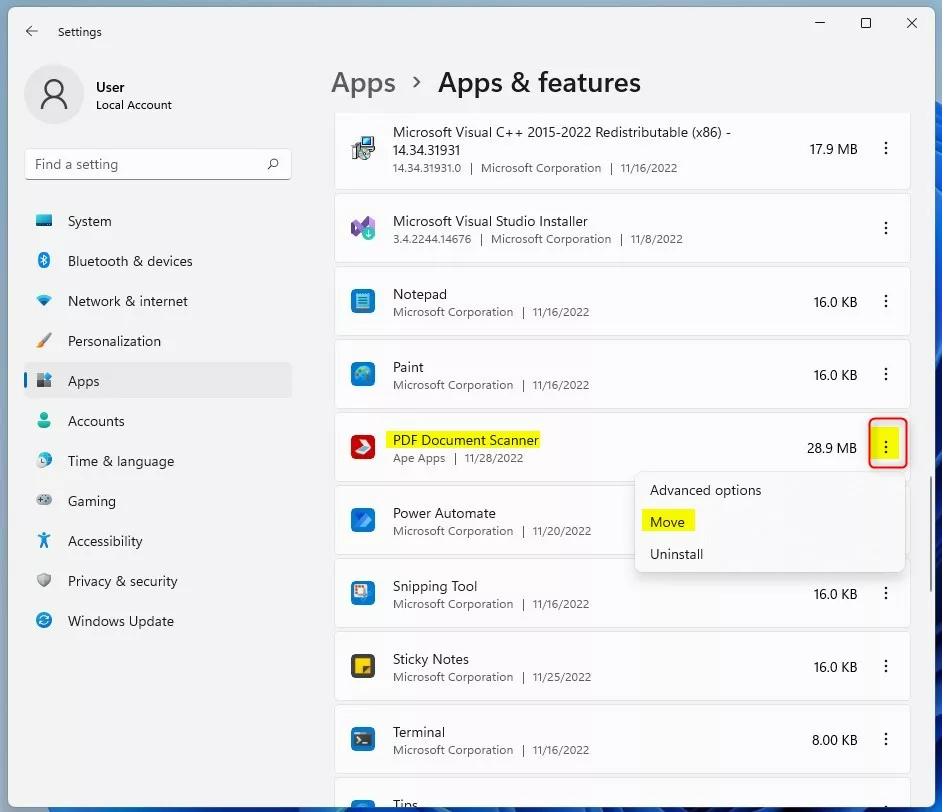
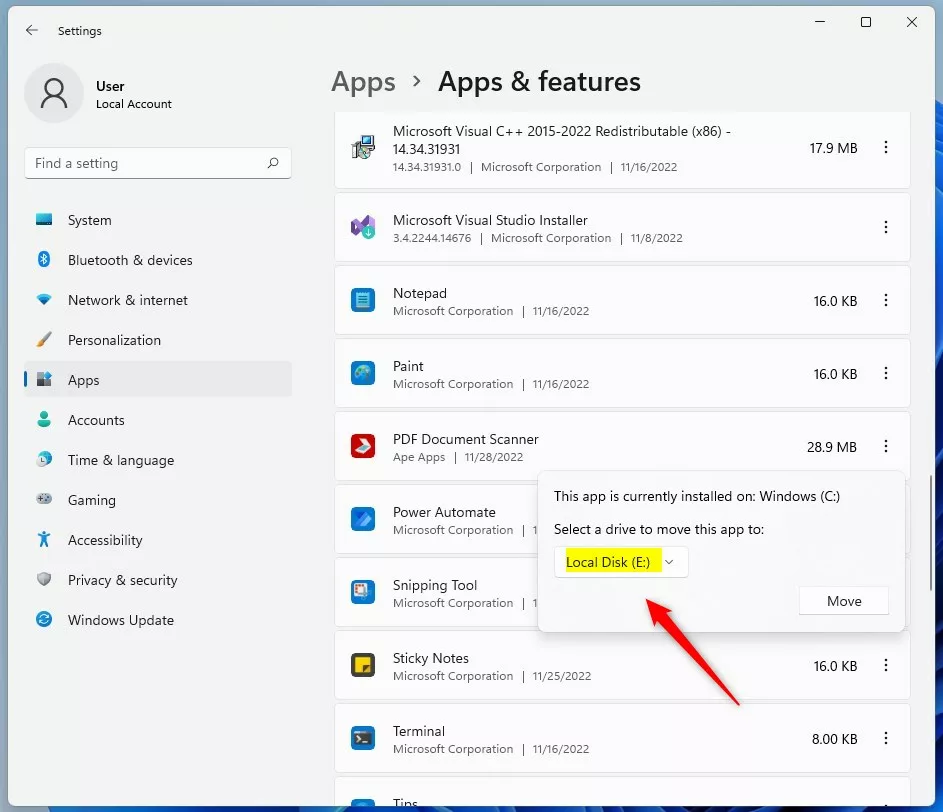
Moving apps to another drive in Windows 11 is possible using the Settings app. Press Win+I to open Settings. Select Apps from the left menu, then click Installed apps. Locate the app you wish to move, click the three dots next to it, select 'Move,' and then choose the new drive for the app.- Open Settings by pressing Win+I.
- Click on Apps on the left side. Then click on Installed apps on the right side. Open Installed apps settings Open System components settings
- Find the app you want to move. Click the 3 dots button next to it. Then click Move.
- A dropdown menu will appear. Select the drive you want to move the app to. Then click Move.
- Windows may ask: "Delete other apps?" You have two choices:
- Click Yes to delete apps already on that drive and move your app.
- Click No to cancel the move.
- Windows will now move your app to the new drive. Wait for it to finish.
- When done, you can close Settings.
Summary
Shifting Microsoft Store apps to secondary storage frees up vital capacity on the primary volume through the Settings app.
Have a question about this guide?
Answered by AI from this guide. Good questions may be added to this page — please don't include personal details.
Did this guide fix your problem?

About the Author
Richard
Tech Writer, IT Professional
Richard is a writer at Geek Rewind who turns complex IT tasks into clear, step-by-step guides. He draws on years of hands-on experience in system administration and enterprise IT operations, focusing on Windows, Linux and WordPress: the problems people actually run into, and the fixes that work. His server and WordPress guides come from systems he runs himself. Richard builds and maintains the platform behind Geek Rewind, from its Ubuntu servers and Nginx configuration to its custom WordPress plugins. Many new tutorials start with readers' questions, and he's always glad to answer them in the comments.
No comments yet — be the first to share your thoughts!