How to Find Printers and Scanners on This Computer

You find printers and scanners in Settings Bluetooth & devices Printers & scanners. Press Win+I, click Bluetooth & devices, then click Printers & scanners.
That one page lists every printer and scanner connected to this PC, whether by USB cable, Wi-Fi or Bluetooth . From there you can add hardware, check print queues and remove old devices without opening the older Control Panel . The menu names in this guide are for Windows 11. Windows 10 puts the same page under Devices in Settings, and the wording differs slightly.
To find printers and scanners on this computer, press Win+I, click Bluetooth & devices, then click Printers & scanners. That page lists every printer and scanner connected by USB cable, Wi-Fi or Bluetooth, and lets you add devices or remove old ones. On Windows 10, click Devices instead of Bluetooth & devices.
Open printers and scanners settings
The Printers & scanners page is part of the main Settings app . It lists every printing and scanning device Windows currently recognizes. These steps show the printers and scanners on this computer, from opening Settings to the full device list:
- Press Win+I to open Settings . The Settings window opens with a list of categories on the left.
- Click Bluetooth & devices in the left-hand list. The page shows your Bluetooth toggle and connected devices.
- Click Printers & scanners. You should now see the Add a printer or scanner section at the top, with your installed printers listed below it.
On Windows 10, click Devices instead of Bluetooth & devices, then choose Printers & scanners.
If a device you expect is missing, it is usually switched off, unplugged, or on a different network. The troubleshooting section later in this guide covers that.
Install a wired or local printer
Windows usually detects it and installs the right driver on its own, often within a few seconds of plugging it in. Check the Printers & scanners page first, because the printer may already be listed. If it is not, add it manually. Before you start, make sure the printer is powered on and the USB cable is firmly seated at both ends.
- Open Settings. You can press Windows key + I to get there quickly.

- Click Bluetooth & devices. The page shows your connected devices.

- Click Printers & scanners. Your installed printers are listed on this page.
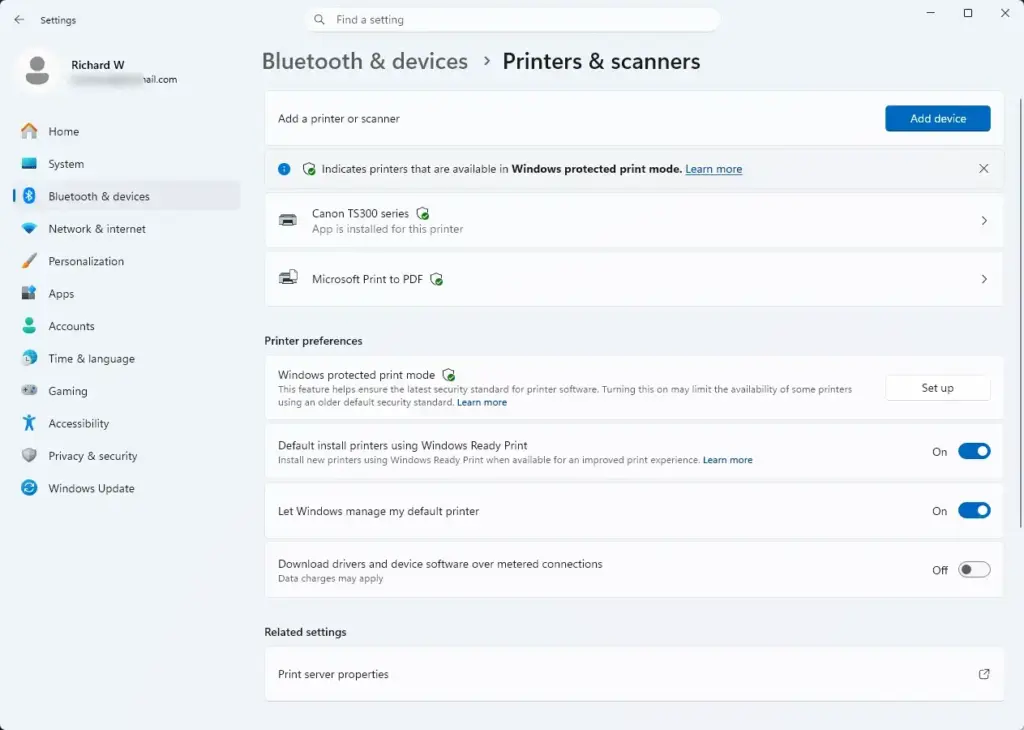
- Click the Add device button next to Add a printer or scanner. Windows starts searching and shows a short "searching" message.
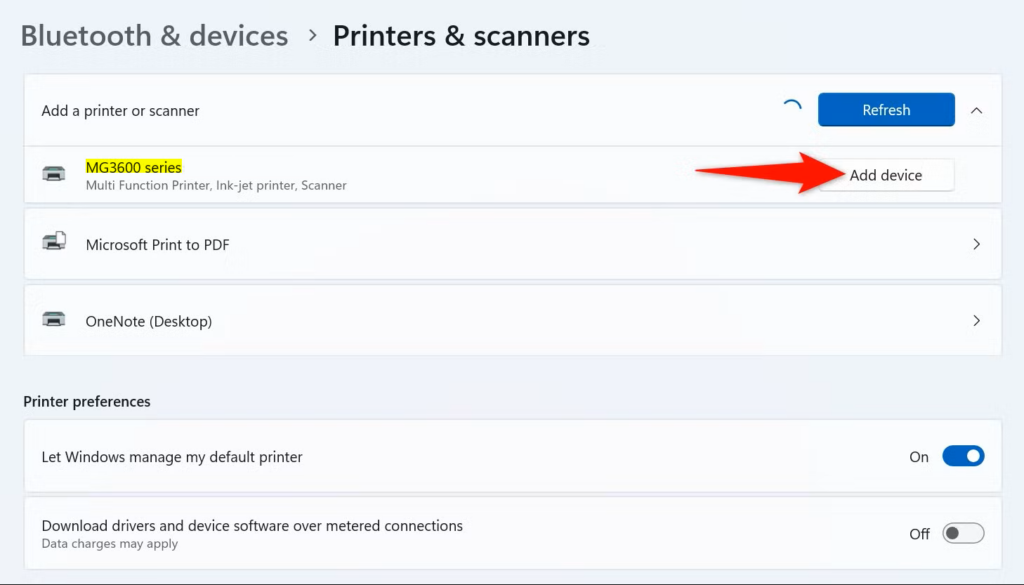
- Wait for Windows to finish scanning. This can take up to a minute, and found devices appear under the search message.
- Click Add device next to your printer model. It appears in the results once Windows finds it. The printer then shows up in the list on the Printers & scanners page once the driver has installed.
If nothing appears, try a different USB port, or plug the cable directly into the PC instead of a hub.
Install a network or wireless printer
A wireless or network printer connects through your Wi-Fi router instead of a cable. Before you begin, make sure your computer and the printer are on the exact same Wi-Fi network. Many routers offer a separate guest or 5 GHz network, and a printer on a different network will not be found.
- Open Settings.
- Click Bluetooth & devices.
- Click Printers & scanners.
- Click the Add device button. Windows starts searching the network for printers.
- Select your network printer from the search results. Click Add device next to it. Windows installs the driver and adds the printer to your list.
- Wait for the manual option if Windows finds nothing. If it cannot find your network printer automatically, a link appears after a few seconds.
- Click the Add manually link. It sits near the bottom of the section.
- Select The printer that I want isn't listed. This opens the legacy Add Printer wizard dialog box.
- Choose your connection method. For example, pick the option to add a printer using an IP address or hostname.
- Follow the on-screen prompts to finish. This installs the manufacturer-approved driver.
For the IP address method, you can usually print a network configuration page from the printer's own control panel to find its address. If the driver you need is not in the list, download it from the manufacturer's website and choose Have Disk in the wizard.
Install a Bluetooth printer
Bluetooth printers pair directly with your PC over a wireless radio link. First turn the printer on and put it into pairing mode, usually by holding its Bluetooth button until a light starts blinking. Check the printer's manual if your model uses a different method. Your PC also needs Bluetooth hardware. If you do not see a Bluetooth toggle in Settings, your PC does not have a working Bluetooth adapter.
- Open Settings.
- Click Bluetooth & devices.
- Turn the main Bluetooth toggle switch On. If it is already on, leave it.
- Click Add device at the top of the window. The Add a device window opens.
- Select Bluetooth in the Add a device window. Windows starts searching for nearby devices.
- Choose your printer from the list of discovered Bluetooth devices. This finishes pairing, and Windows installs the driver automatically.
If the printer does not appear, check that it is still in pairing mode. Many printers stop broadcasting after a minute or two.
Remove a printer
Removing a printer clears an offline or duplicate device from your Windows device list. This stops print jobs from going to a queue that no longer works. You can remove it from the same Bluetooth & devices settings. If you ever need the printer again, you can add it back using the steps above.
- Open Settings.
- Click Bluetooth & devices.
- Click Printers & scanners.
- Click the name of the printer you want to delete. This opens its properties and management page.
- Click the Remove button near the top right of the device page. A confirmation prompt appears.
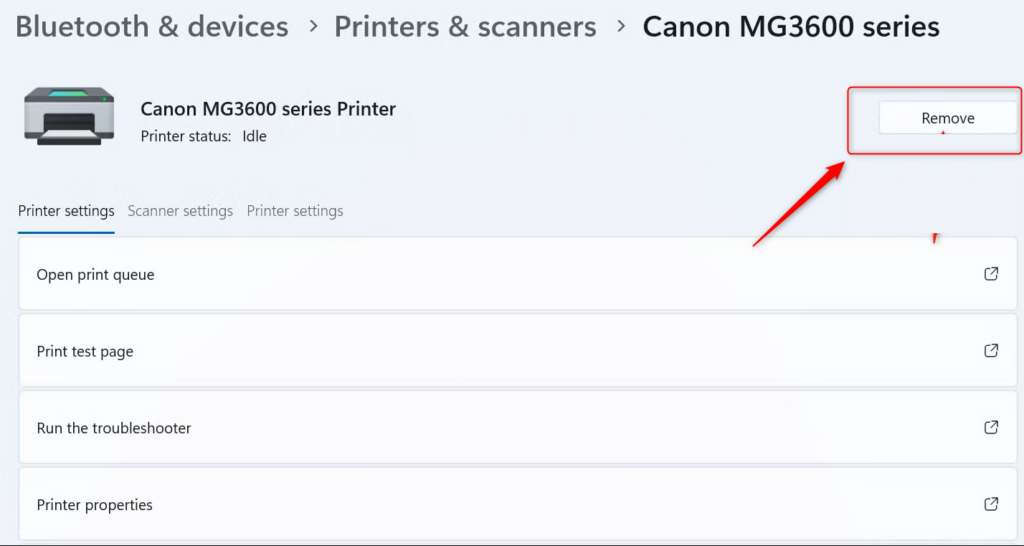
- Click Yes on the confirmation prompt. The printer should disappear from the printer list.
Removing a printer deletes it from your list, but it does not uninstall the manufacturer's software. If a stale printer keeps coming back, make sure the physical device is switched off or disconnected before you remove it.
Check scanner status and imaging devices
Scanners and other imaging devices appear in the same hardware menu as your printers, so you can check scanners and printers on this PC in one place. You can see whether a flatbed scanner, document scanner, or all-in-one printer is recognized by looking there. An all-in-one printer is normally listed as a single entry that handles both printing and scanning.
- Open Settings.
- Click Bluetooth & devices.
- Click Printers & scanners.
- Scroll down past your printer list to find your scanner model. It appears under the same hardware heading. You can also check the Connected devices inventory.
- Open the Windows Scan app from your Start menu. Use it to test the scanner and capture digital copies of documents.
If the Scan app is not on your Start menu, search for it in the Microsoft Store and install it. It is a free app from Microsoft and is not always installed by default. If your scanner is not listed at all, install the scanner software from the manufacturer's website, because some scanners need their own driver.
Troubleshoot undetected printers and scanners
Check the physical cable connections and the power. For a network device, verify that the PC and the device share the same Wi-Fi network. As a test, you can also temporarily disable any third-party firewall that might be blocking the connection. Turn the firewall back on once you have finished testing. Then run the built-in troubleshooter:
- Open Settings.
- Click System.
- Click Troubleshoot.
- Click Other troubleshooters. A list of troubleshooters appears.
- Click the Run button next to the Printer troubleshooter. Windows then looks for print spooler errors, corrupted driver states, and network port issues, and tries to fix them automatically.
Follow any prompts the troubleshooter shows, such as choosing which printer to check. When it finishes, it tells you what it found and whether it fixed it. No restart is normally needed, but restarting the PC and the printer is a reasonable next step if the problem remains.
What to do next
You should now see your connected hardware correctly listed on the Printers & scanners page, ready to print or scan. If the device keeps dropping its connection, update your motherboard and network adapter drivers, or reinstall the official manufacturer software package.
Frequently asked questions
Where do I find Printers and Scanners on my computer?
Open Settings by pressing Windows key + I, then go to Bluetooth & devices and select Printers & scanners. You'll see every printer and scanner connected to your computer through USB or Wi-Fi.
Where do I find Printers in my settings?
Press Windows key + I to open Settings, click Bluetooth & devices, then click Printers & scanners. This shows all printers installed on your system in one place.
Why isn't my computer detecting my printer?
Make sure your printer is turned on and connected by USB or Wi-Fi. Go to Bluetooth & devices Printers & scanners and click Add device to let Windows scan for it. If it still doesn't appear, restart both the printer and your computer.
How can I find my printer on this computer?
Open Settings, go to Bluetooth & devices, then click Printers & scanners. Your printer appears in the list if it's connected. If you don't see it, click Add device and wait for Windows to find connected hardware.
Still have a question?
Answered by AI from this guide. Good questions may be added to this page — please don't include personal details.
Did this guide fix your problem?

About the Author
Richard
Tech Writer, IT Professional
Richard is a writer at Geek Rewind who turns complex IT tasks into clear, step-by-step guides. He draws on years of hands-on experience in system administration and enterprise IT operations, focusing on Windows, Linux and WordPress: the problems people actually run into, and the fixes that work. His server and WordPress guides come from systems he runs himself. Richard builds and maintains the platform behind Geek Rewind, from its Ubuntu servers and Nginx configuration to its custom WordPress plugins. Many new tutorials start with readers' questions, and he's always glad to answer them in the comments.
No comments yet — be the first to share your thoughts!