What to Do When Your Printer Appears in Devices but Fails to Print

A printer that appears in Settings but won’t print is usually blocked by a stuck print queue or a Print Spooler service (the background process that sends jobs to your printer) that has stopped working. Clearing the queue, restarting the Print Spooler, and checking that the printer isn’t set to offline mode fixes most cases within a few minutes.
If those quick fixes don’t work, the issue is typically one of four things: an outdated or corrupted driver, a loose or broken connection, the printer not set as default, or a print job that won’t clear. The steps below go from fastest and safest to more involved. Work through them in order until the printer starts working again. Most of them work the same on Windows 11 Home and Pro, and I’ll say so where that isn’t the case.
A printer that appears in Settings but won’t print is usually blocked by a stuck print queue or a stopped Print Spooler service. Open Settings Bluetooth & devices Printers & scanners, select your printer, then select Open print queue and cancel stuck jobs.
Check the Print Queue for Stuck Jobs
Check this first, before touching any services or drivers. It takes about a minute and changes nothing on your system.
- Open Settings and go to Bluetooth & devices Printers & scanners You should see a list of every printer and scanner Windows knows about.
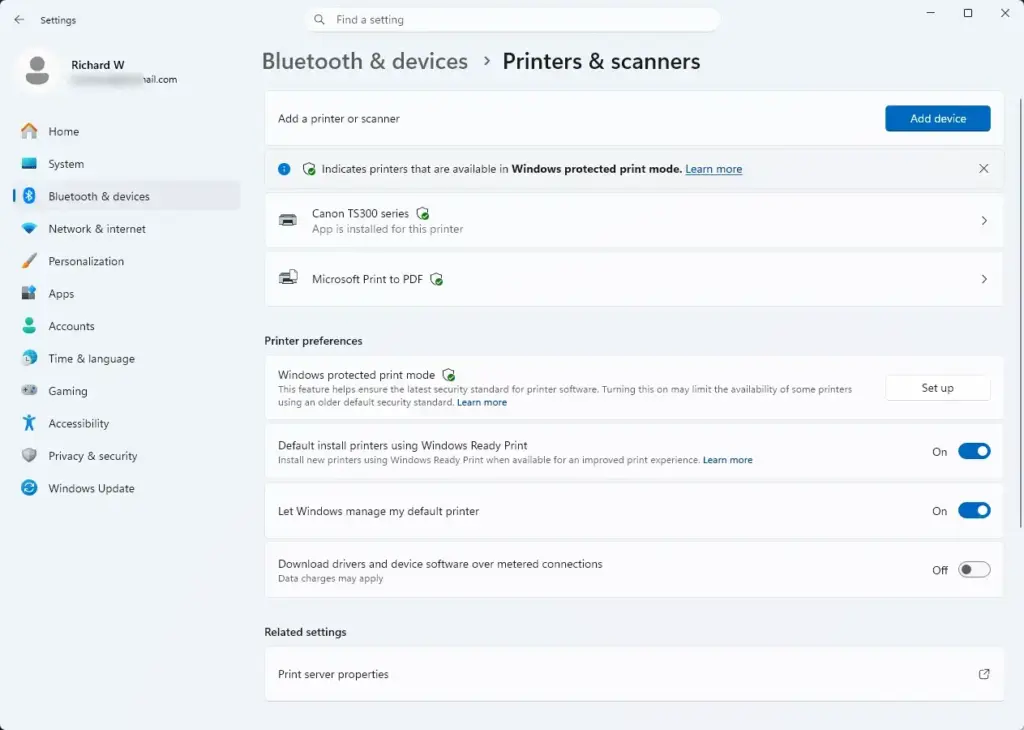
Settings › Bluetooth › Printers - Select your printer from the list. You’ll see a details page with buttons for printer properties, driver options and a print queue.
- Select Open print queue. A separate window opens showing every document waiting to print, along with a status column.
- Right-click any document stuck at the top of the list and select Cancel. The document should disappear from the list within a few seconds.
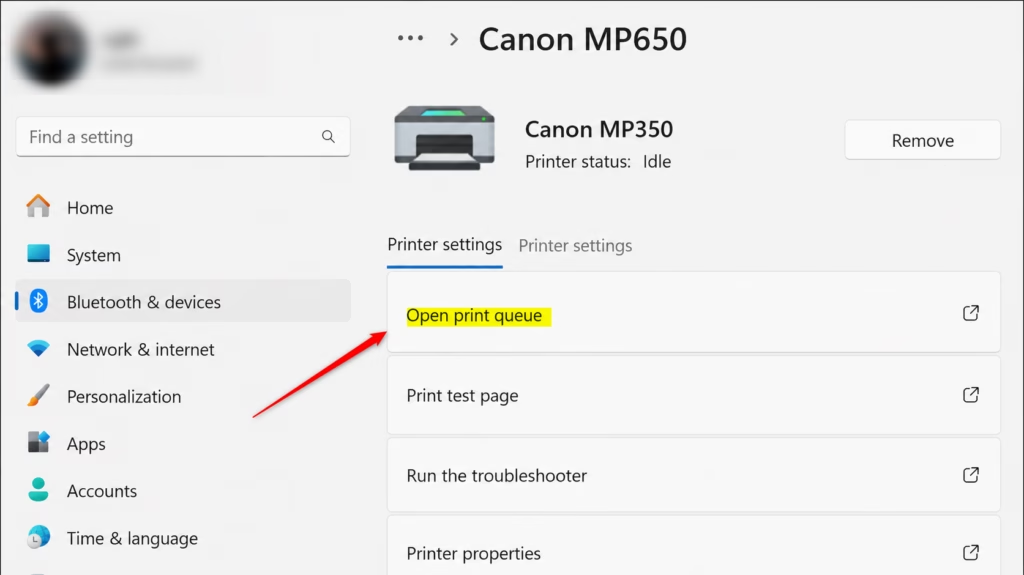
Clicking the Open print queue button to check print queue on this computer - If the job won’t cancel, or the status column says “Deleting” and never finishes, move on to restarting the Print Spooler service below. A stuck job often can’t be removed while the spooler is holding onto it.
Clear a Stuck Queue by Restarting the Print Spooler Service
This is the single most useful fix if your printer shows up but won’t print. Restarting the Print Spooler service clears whatever the queue window couldn’t delete and gives the printer a clean slate.
Before you start: stopping and starting Print Spooler, and deleting files in C:\Windows\System32\spool\PRINTERS, both require administrator rights. Make sure you’re signed in to Windows with an administrator account. If you’re on a standard account, sign out and use an administrator account, or ask whoever manages the PC. When you open the PRINTERS folder in File Explorer , Windows will prompt you for permission to continue. Select Continue to proceed. If you’re asked for a password instead, an administrator needs to enter it.
- Press Win+R, type
services.msc, and press Enter. The Services window opens, listing every background service running on your PC. - Scroll down and find Print Spooler in the Name column.
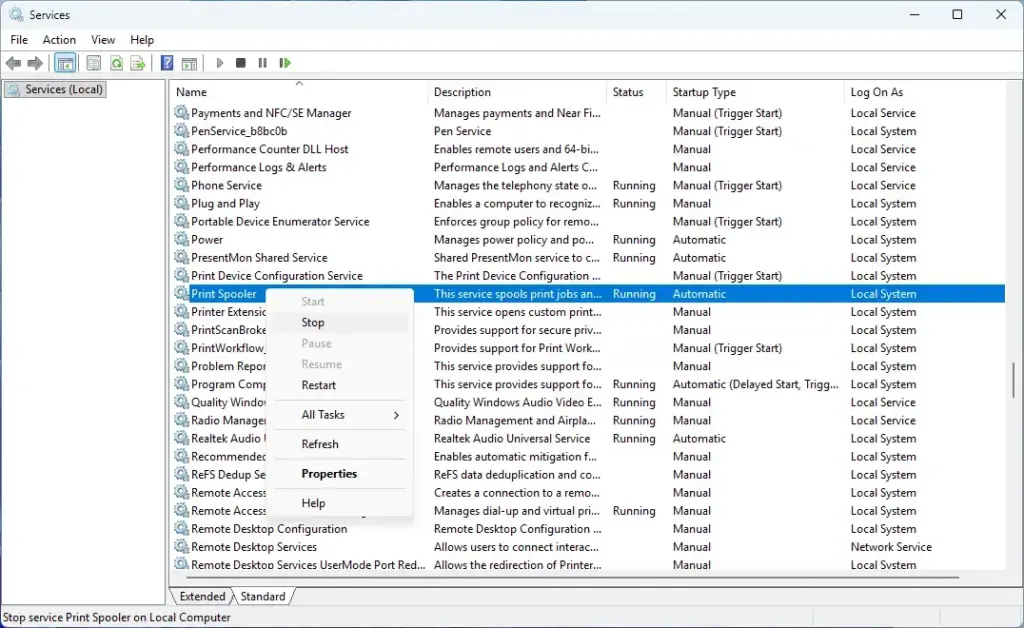
- Right-click Print Spooler and select Stop. The Status column next to it should go blank, meaning the service isn’t running.
- Open File Explorer and go to
C:\Windows\System32\spool\PRINTERS. Select Continue if Windows asks for permission to open the folder. - Delete every file inside this folder, but leave the folder itself. These are the leftover job files that the spooler couldn’t clear on its own. Deleting them doesn’t affect your printer or driver, only the stuck jobs.
- Go back to the Services window, right-click Print Spooler again, and select Start. The Status column should now show Running.
- Try printing a test page. If it goes through, the stuck queue was the problem and you’re done.
If the PRINTERS folder won’t let you delete files because they’re “in use,” that confirms the spooler was still holding them. Make sure you stopped the Print Spooler service before trying again.
Faster alternative: if you’re comfortable with a command line, you can do the same thing from an elevated terminal. Right-click the Start button and select Terminal (Admin), then select Yes at the permission prompt. Run net stop spooler and wait for the message that the service was stopped successfully. Then clear out the PRINTERS folder, either in File Explorer as described above or from the terminal. Finally, run net start spooler. The result is the same as using the Services window, just quicker if you need to do it often.
Make Sure the Printer Isn’t Set to “Use Printer Offline”
Windows sometimes flips a printer into offline mode on its own, usually after a failed connection attempt, even though the printer is switched on and connected. When this happens, jobs sit in the queue instead of producing an error, which is the exact “shows up but does nothing” symptom you’re seeing.
- Open the print queue again from Settings Bluetooth & devices Printers & scanners > your printer > Open print queue.
Clicking the Open print queue button to check print queue on this computer - Select the Printer menu at the top of the queue window. A drop-down list of options opens.
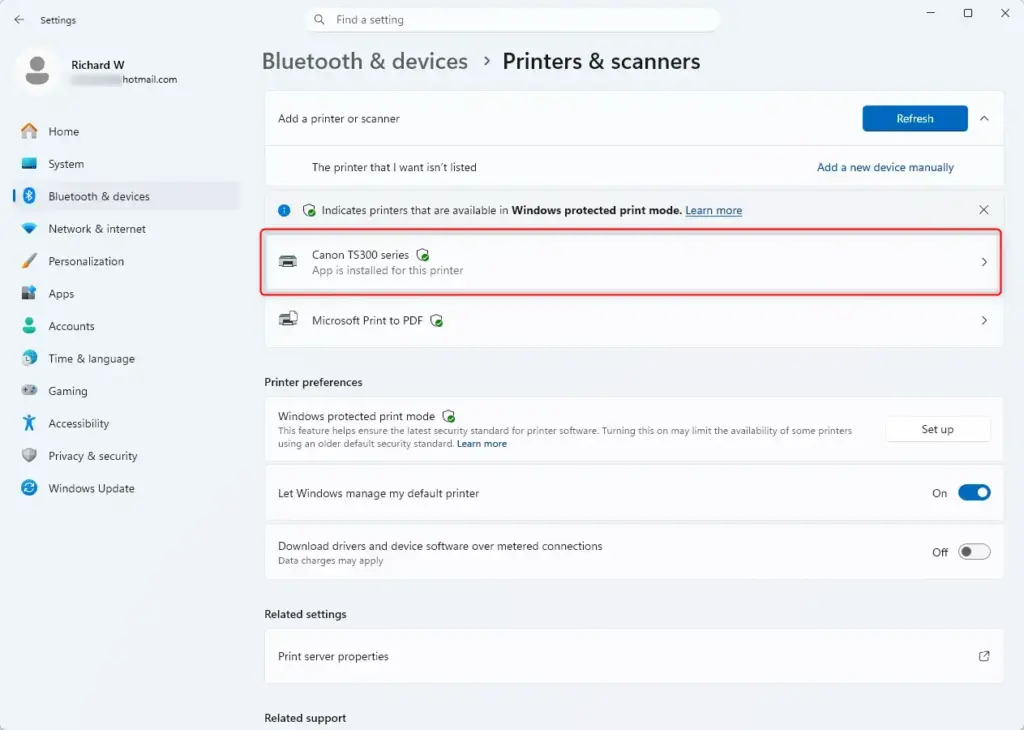
Windows 11 Settings app showing list of installed printers. - Check whether Use Printer Offline has a checkmark next to it. If it does, select it once to remove the checkmark. If it has no checkmark, Windows doesn’t think the printer is offline, so go on to the next section.
- Send a test print. The printer should now show as online and start processing jobs normally.
Set the Correct Printer as Default
If you have more than one printer installed, including virtual ones like “Microsoft Print to PDF,” jobs can silently go to the wrong device while the one you’re staring at in the printer list never receives anything.
- Open Settings Bluetooth & devices Printers & scanners
- Check that Let Windows manage my default printer is turned off if you want to force a specific default. With it on, Windows automatically switches the default to whichever printer you used most recently, which can be confusing if you print to different devices.
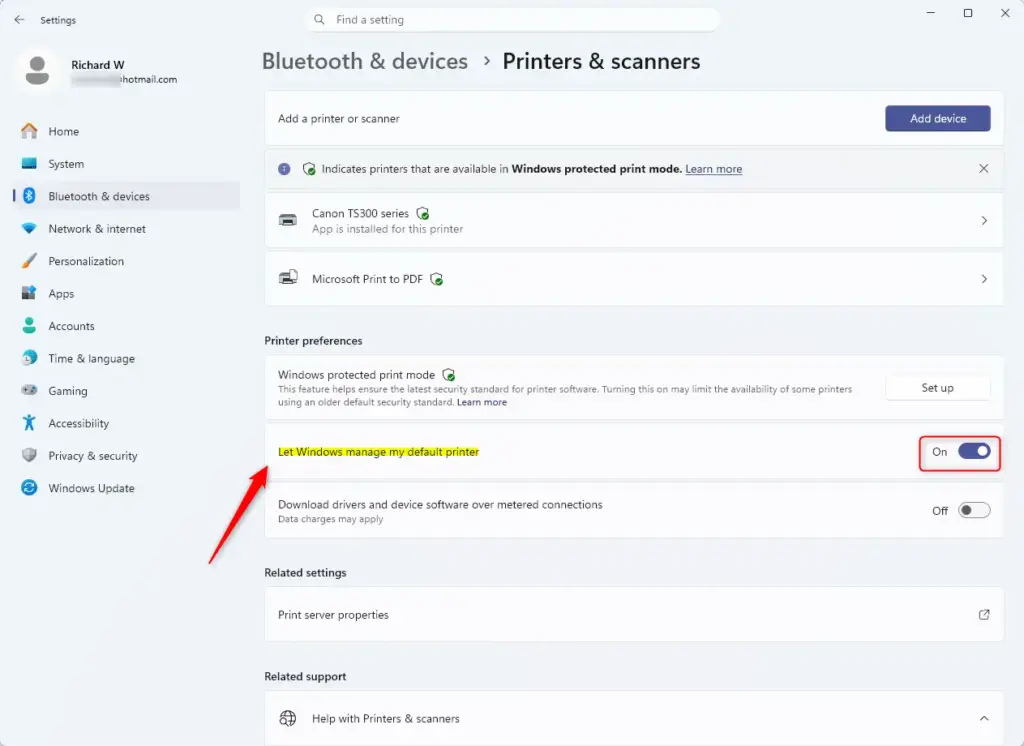
Windows 11 setting to let Windows manage the default printer. - Select your printer from the list, then select Set as default. You’ll see “Default” appear under the printer’s name on the main list.
- If the Set as default button is missing or greyed out, turn Let Windows manage my default printer off first, then select your printer again.
Run the Windows Printer Troubleshooter
Windows 11 includes a built-in troubleshooter that checks for the most common causes automatically (stuck spooler, missing driver, and connection problems) and fixes several of them without you needing to know which one applies.
- Open Settings and go to System Troubleshoot Other troubleshooters
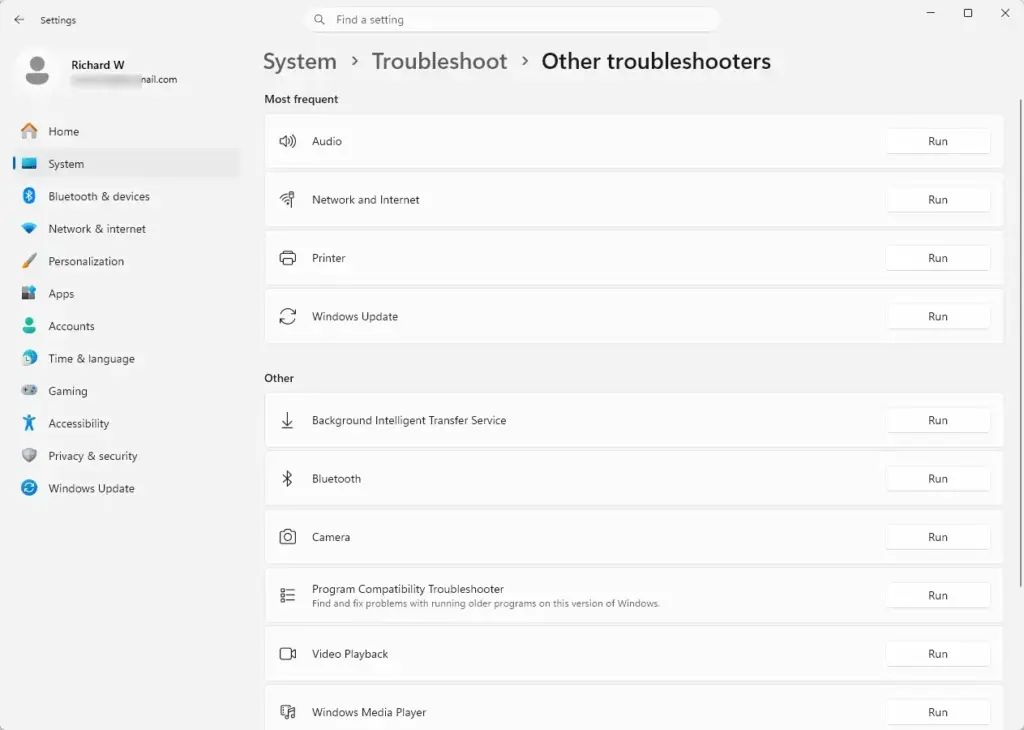
Settings › System › Troubleshoot › Other troubleshooters - Find Printer in the list and select Run. A window opens and starts detecting problems.
- Follow the prompts. It will ask you to select the specific printer if you have more than one installed, then run a series of automated checks.
- Read the results at the end. It either reports the problem is fixed, or lists what it found so you can jump to the right section. If it offers to apply a fix as administrator, accept it, then test a print.
Update or Reinstall the Printer Driver
An outdated or corrupted driver often lets the printer show up as connected while silently failing every job. Reinstalling the driver clears this out.
- Press Win+X and select Device Manager. This requires administrator access.
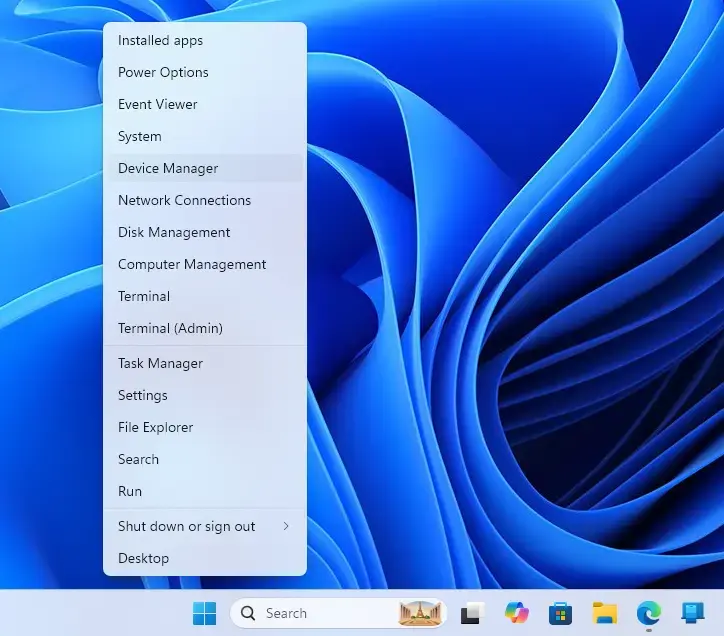
- Expand Print queues or Printers, depending on how your device is listed.
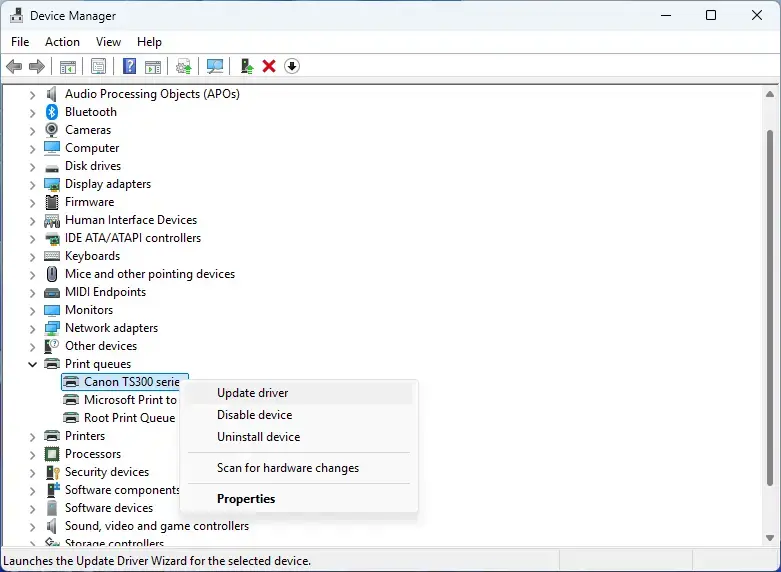
- Right-click your printer and select Update driver, then choose Search automatically for drivers. Windows checks online for a newer version. If it says “The best drivers for your device are already installed,” the driver itself probably isn’t the problem. Move to the next step instead.
- If the automatic search finds nothing, look for a driver another way. Open Settings Windows Update Advanced options Optional updates and check for a printer driver in the list. If you find one, tick it and select Download & install.
- If there’s no driver under Optional updates either, go to the printer maker’s support website, search for your exact model, and download the driver or the printer app from there. Run the installer and follow its prompts. Makers often supply a newer or fuller driver than the one Windows has.
- Right-click the printer again and select Uninstall device if updating didn’t help. Confirm the prompt. The printer disappears from Device Manager and from the printers list in Settings.
- Restart your computer. Windows re-detects the printer on startup and reinstalls a fresh driver automatically if it’s connected and turned on. If it doesn’t reappear, add it manually through Settings Bluetooth & devices Printers & scanners > Add device.
Check the Physical Connection (USB and Network)
A printer can report itself as “ready” to Windows over USB or Wi-Fi even when the data isn’t getting through. The connection is active enough for Windows to detect the device, but not reliable enough to carry a full print job.
- Try a different USB port if your printer is connected by cable, ideally one directly on the back of your desktop rather than a front-panel port or a USB hub. Some hubs can’t supply enough power, which stops a printer from processing jobs reliably.
- Try a different USB cable if you have one, especially if the current cable is old or has visible wear. A cable can pass enough signal to be detected without reliably carrying the larger data volume of a print job.
- Reconnect to Wi-Fi if your printer is networked. Check its control panel or display for the network name it’s connected to, and confirm it matches the network your PC is on. A printer connected to a different Wi-Fi band or a guest network will show up in your printer list (if it was added before) but never actually receive jobs.
- Restart the printer itself by turning it off, waiting about 10 seconds, and turning it back on. This clears any internal error state that doesn’t show up on the Windows side at all. Wait until the printer finishes its startup and shows it’s ready before you test a print.
Remove and Reinstall the Printer From Scratch
If none of the above worked, removing the printer entirely and adding it back gives Windows a completely clean connection, queue, and driver pairing.
- Open Settings Bluetooth & devices Printers & scanners
- Select your printer, then select Remove device. Confirm the prompt. The printer disappears from the list.
- Select Add device at the top of the Printers & scanners page. Windows searches for available printers.
- Select your printer from the results and follow the prompts to finish installing it. If it doesn’t appear in the search results, confirm the printer is turned on and connected, then select Add manually to add it by IP address or through a local port.
- Print a test page once it’s installed. If Windows installs a generic driver and printing still fails, use the driver steps earlier to get the maker’s driver.
Delete a Corrupted Printer Entry From the Registry (Last Resort)
Editing the registry can cause other problems if you delete the wrong key, so back up the registry first and only do this if every step above has failed.
- Press Windows key + R, type
regedit, and press Enter. Accept the administrator prompt. Registry Editor opens. - Select File Export and save a full backup of the registry before changing anything, so you can restore it if something goes wrong. Choose All under Export range.
- Navigate to
HKEY_LOCAL_MACHINE\SYSTEM\CurrentControlSet\Control\Print\Printers. This is where Windows stores the configuration for every printer that's ever been installed. - Expand the key and look for a subkey matching your printer's exact name.
- Right-click that subkey and select Delete, then confirm. Close Registry Editor and restart your computer.
- Add the printer again through Settings Bluetooth & devices Printers & scanners > Add device, exactly as described in the previous section.
To undo this if anything looks wrong afterward, open Registry Editor, select File Import, and load the backup file you exported in step 2.
What to Do Next
If your printer still won't print after working through all of this, the fault is more likely in the printer's own hardware than in Windows. Try the printer directly from another computer to confirm. If print jobs keep stalling on a regular basis rather than as a one-off, it's worth checking whether the Print Spooler service is crashing repeatedly, which points to a driver conflict rather than a one-time glitch. From here, a natural next step is learning how to keep the Print Spooler running reliably long-term, or checking Device Manager for other flagged hardware if the printer connects over USB and shares a hub with other devices.
Frequently asked questions
What is the Old English word for "but"?
The Old English word for "but" is "ac," which appeared in texts like Beowulf and the Anglo-Saxon Chronicles. It's rarely used in modern English except in historical or linguistic contexts.
What does "but only" mean?
"But only" means an exception or restriction to what was just said. It introduces a single condition that changes the meaning: "You can go, but only if you finish your homework first."
How to say but without saying but?
Use "however," "yet," "though," "although," "still," or "on the other hand" as alternatives. You can also restructure with a dash or semicolon: "The plan looked good—it had one major flaw."
What does "but a" mean?
"But a" introduces a small or insignificant thing after mentioning something larger: "He wasn't wealthy, but a modest man" or "It's but a minor issue." It emphasizes that what follows is minor compared to what came before.
Still have a question?
Answered by AI from this guide. Good questions may be added to this page — please don't include personal details.
Did this guide fix your problem?

About the Author
Richard
Tech Writer, IT Professional
Richard is a writer at Geek Rewind who turns complex IT tasks into clear, step-by-step guides. He draws on years of hands-on experience in system administration and enterprise IT operations, focusing on Windows, Linux and WordPress: the problems people actually run into, and the fixes that work. His server and WordPress guides come from systems he runs himself. Richard builds and maintains the platform behind Geek Rewind, from its Ubuntu servers and Nginx configuration to its custom WordPress plugins. Many new tutorials start with readers' questions, and he's always glad to answer them in the comments.
No comments yet — be the first to share your thoughts!