How to Remove a Printer in Windows 11

Removing a printer in Windows 11 deletes old or broken printer entries from your device list, and it takes less than a minute. It keeps your print menu tidy and stops you from sending a file to the wrong machine.
Old printer entries often stay on your PC long after you unplug the hardware or get rid of it. Clearing them out leaves only the devices you actually use. This is also a good first step before you reinstall a printer that has stopped working, because you start from a clean entry.
Open Settings Bluetooth & devices Printers & scanners, click the printer you want to remove, then click Remove device at the top of its page. The printer disappears from your list immediately and no restart is needed.
Step 1Open Printer Settings
Start by opening Settings, where Windows manages all connected devices.
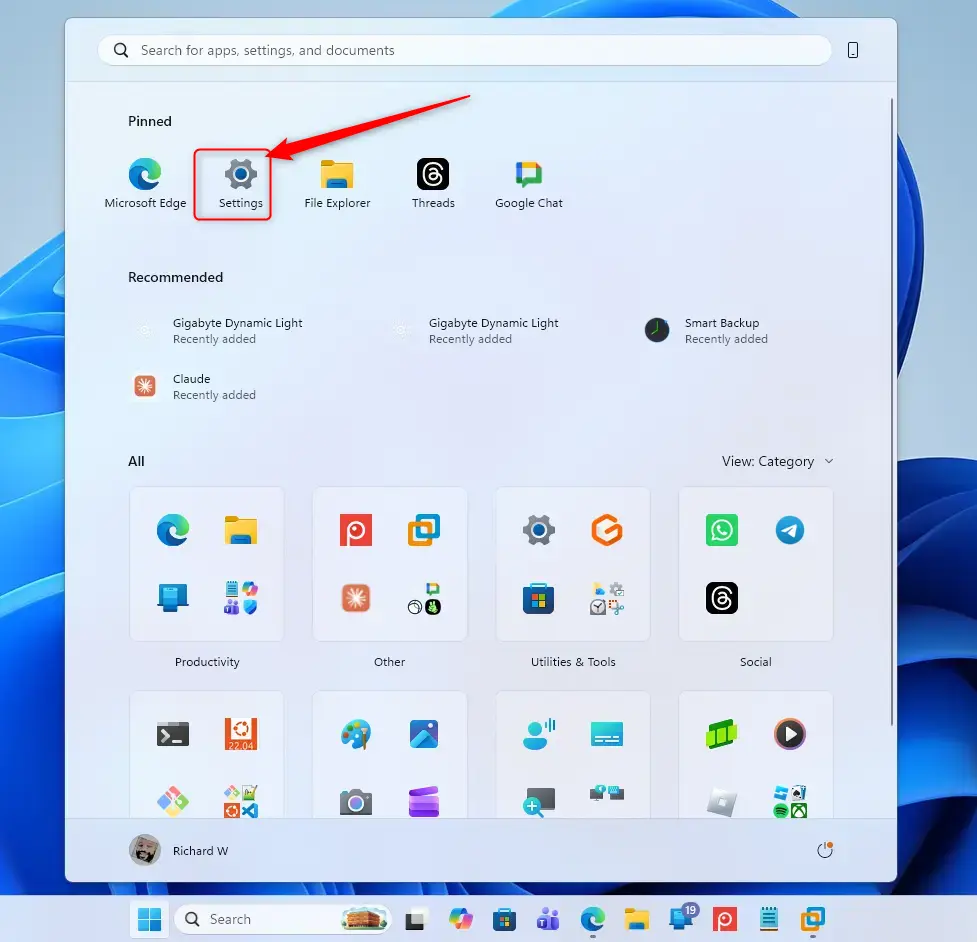
- Click the Start button on the taskbar .
- Select Settings, the gear icon. If you don’t see it in the pinned apps, type “Settings” into the search box and open it from the results.
The Settings window opens, with a list of categories down the left side.
Step 2Find Printers & Scanners
Next, go to the page that lists your printers.
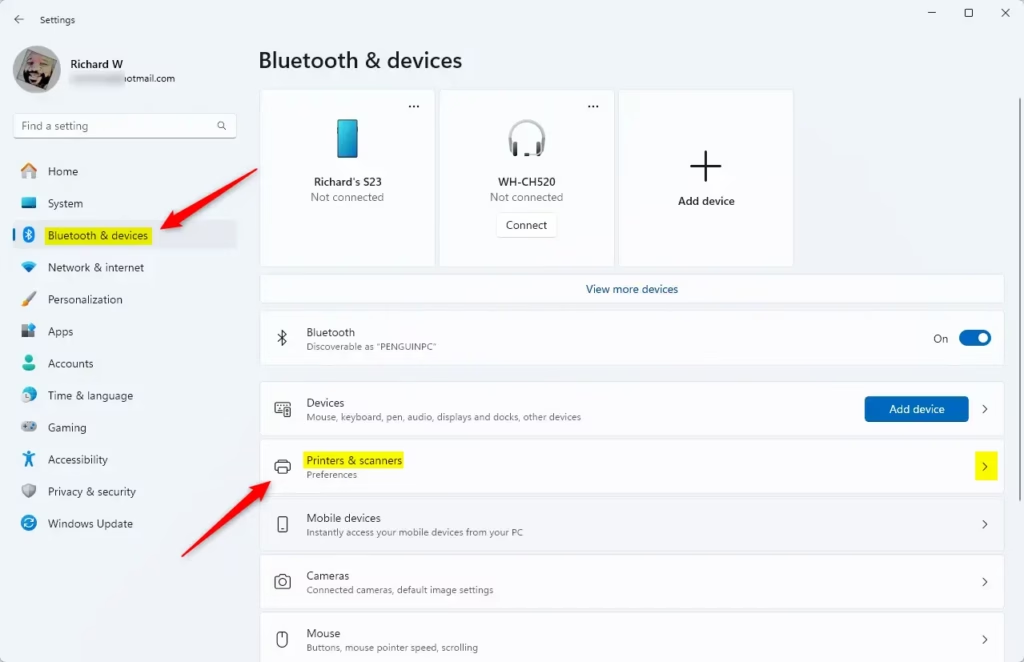
- In the left-hand list, click Bluetooth & devices.
- Click Printers & scanners.
You should now see the Printers & scanners page, with an Add device button at the top and your installed printers below it. The path is Settings Bluetooth & devices > Printers & scanners.
Step 3Choose the Printer to Remove
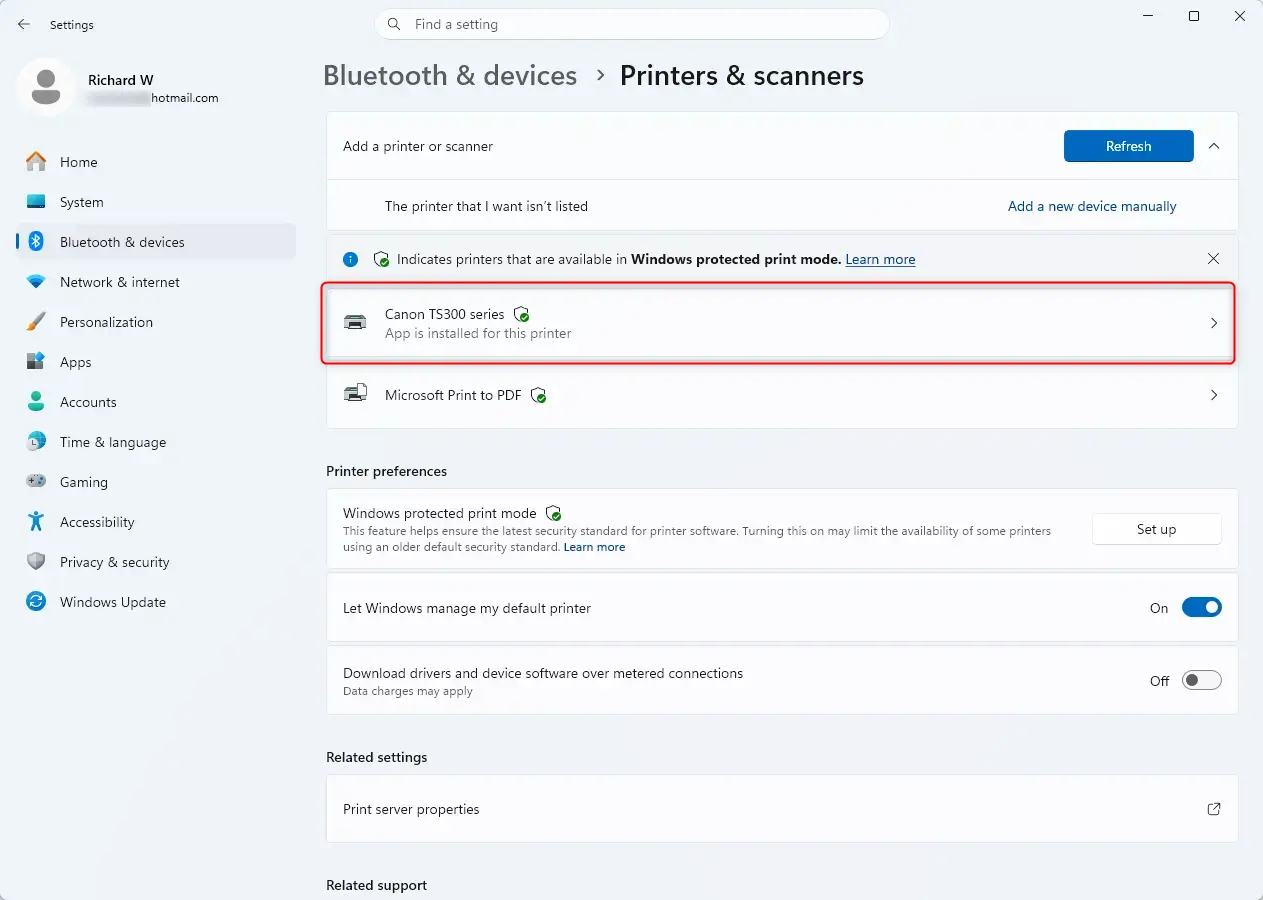
The page lists every printer Windows knows about. That includes network printers, USB printers and virtual ones such as Microsoft Print to PDF.
- Find the printer you want to remove in the list.
- Click its name.
Check the name carefully before you go on. Several entries can look alike, especially when a printer was installed more than once and shows up as "Copy 1".
Step 4Start Removing the Printer
With the right printer selected, you can remove it.
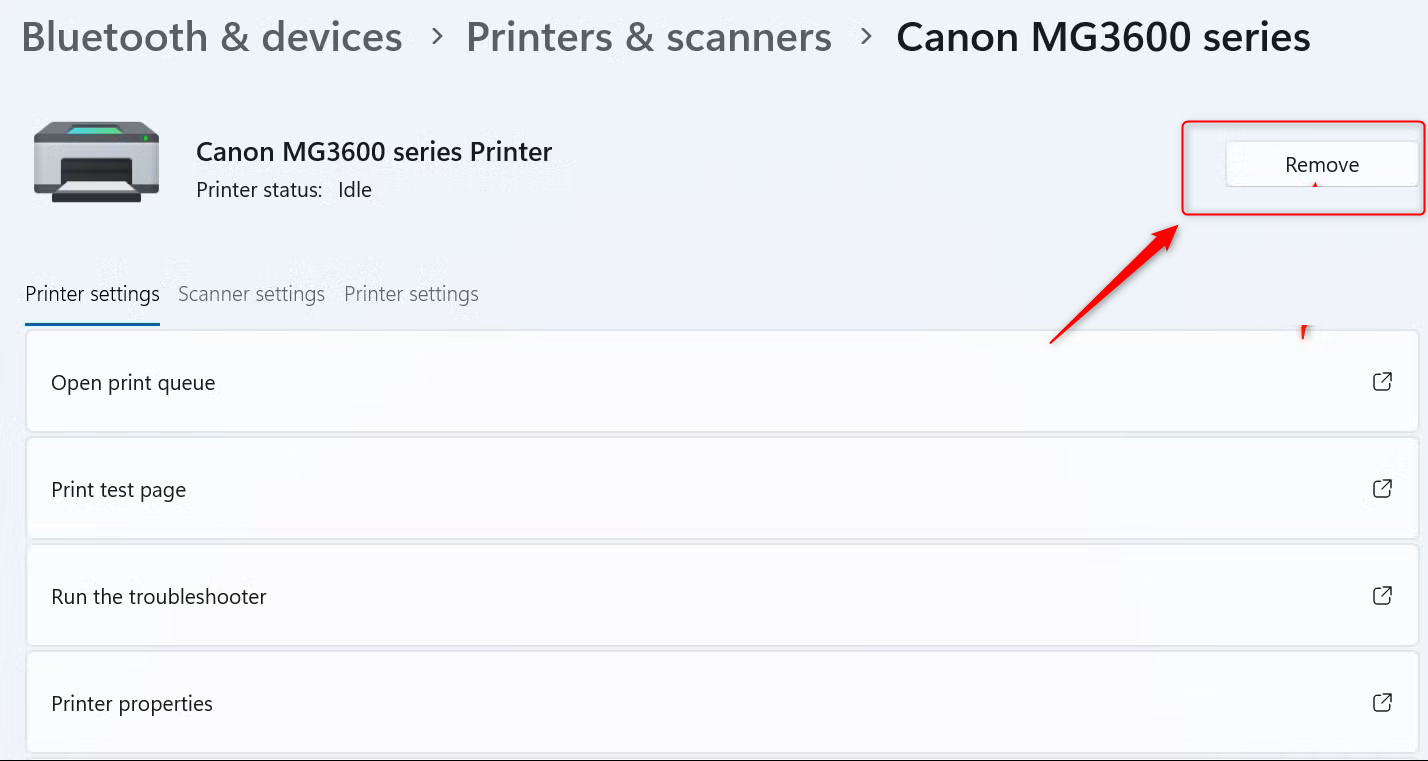
- Click Remove device at the top of the printer's page. On some Windows 11 builds the button is labelled just Remove.
- If Windows asks you to confirm, click Yes.
If the button is greyed out or the removal fails, close any open print jobs first. Check that nothing is stuck in the print queue and that you are signed in with an administrator account. Some printers, such as Microsoft Print to PDF, are built-in Windows features and can't be removed here.
Step 5Finish Removing the Printer
Windows now removes the printer. This takes a few seconds, or a little longer depending on the printer and its software.
- Wait for the page to return to the Printers & scanners list.
- Check that the printer's name is gone from the list.
You don't need to restart the PC. If the printer still appears, close Settings, reopen it and check again. A printer that keeps coming back is usually a network printer being rediscovered, so check whether it is still switched on and connected.
Summary
Removing an old printer keeps your device list tidy and prevents print jobs from going to the wrong machine.
Once the removal finishes, the printer's icon is gone from Windows 11 and it no longer appears in the list of available printers. Windows may keep the driver package stored on the PC, which is harmless and saves time if you reinstall the same model later. If you need the printer again, click Add device on the Printers & scanners page and Windows will search for it.
Have a question about this guide?
Answered by AI from this guide. Good questions may be added to this page — please don't include personal details.
Did this guide fix your problem?

About the Author
Richard
Tech Writer, IT Professional
Richard is a writer at Geek Rewind who turns complex IT tasks into clear, step-by-step guides. He draws on years of hands-on experience in system administration and enterprise IT operations, focusing on Windows, Linux and WordPress: the problems people actually run into, and the fixes that work. His server and WordPress guides come from systems he runs himself. Richard builds and maintains the platform behind Geek Rewind, from its Ubuntu servers and Nginx configuration to its custom WordPress plugins. Many new tutorials start with readers' questions, and he's always glad to answer them in the comments.
No comments yet — be the first to share your thoughts!