How to Find Your Device Setup Country in Windows 11

- 3 ways to do it
- Needs administrator rights
The device setup country in Windows 11 is the region you picked when you first turned on and set up your PC. Windows tracks this location with a GeoID (a Geographical Location Identifier), a number that points to a specific country or region.
Each country has its own number. For example, 244 is the United States and 242 is the United Kingdom. A code of 1 is not the United States. It is Antigua and Barbuda. Finding this code can help explain why some apps behave a certain way, or why some regional features are missing or locked on your computer.
This guide covers three ways to find it: the Settings app, the Registry Editor, and PowerShell. Start with Settings, since it is the quickest and shows the country name directly.
To find your device setup country in Windows 11, press Win+I, go to Time & language, then Language & region, and scroll to the Region section to read Device setup region. It shows the country chosen when the PC was first set up. If that entry is missing, read the GeoID under 🗝️HKEY_LOCAL_MACHINE\
Method 1Checking in Windows Settings
The Settings app is the easiest place to check. It shows the region you chose during first-time setup as a country name, so you do not need to look up a code. The steps below are for Home and Pro editions of a currently supported Windows 11 version (24H2 or 25H2). Nothing here changes any setting, so there is nothing to undo.
- Open Settings. Press Win+I. The Settings window opens.
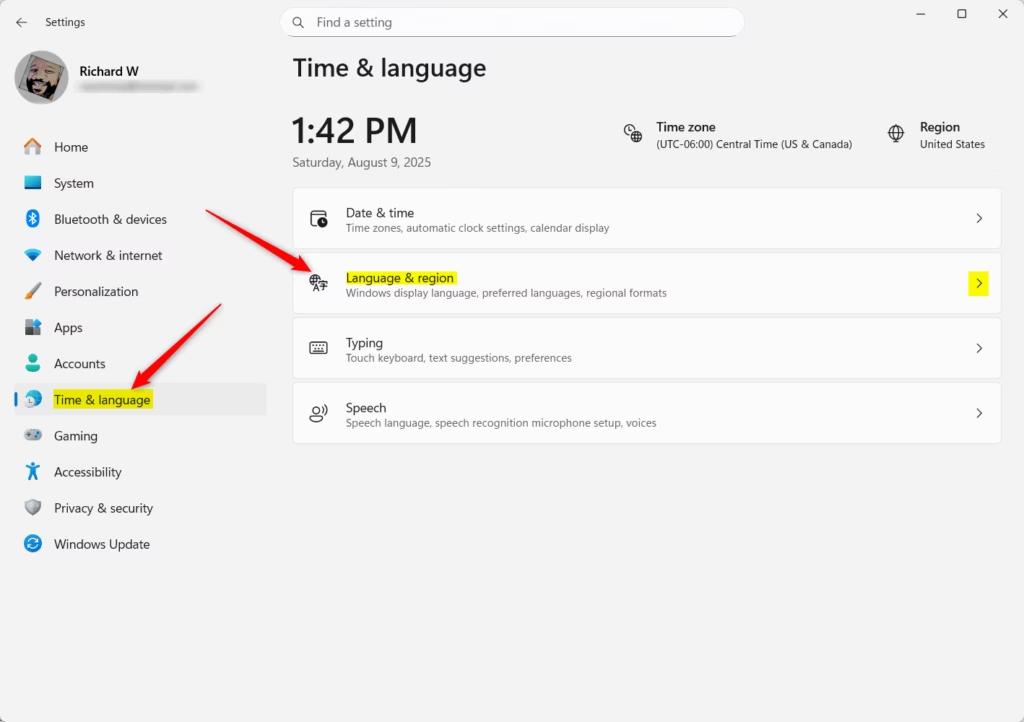
- Go to Time & language. In the left-hand menu, click Time & language. The right side now shows date, time and language options.
- Open Language & region. On the right side of the window, click Language & region.
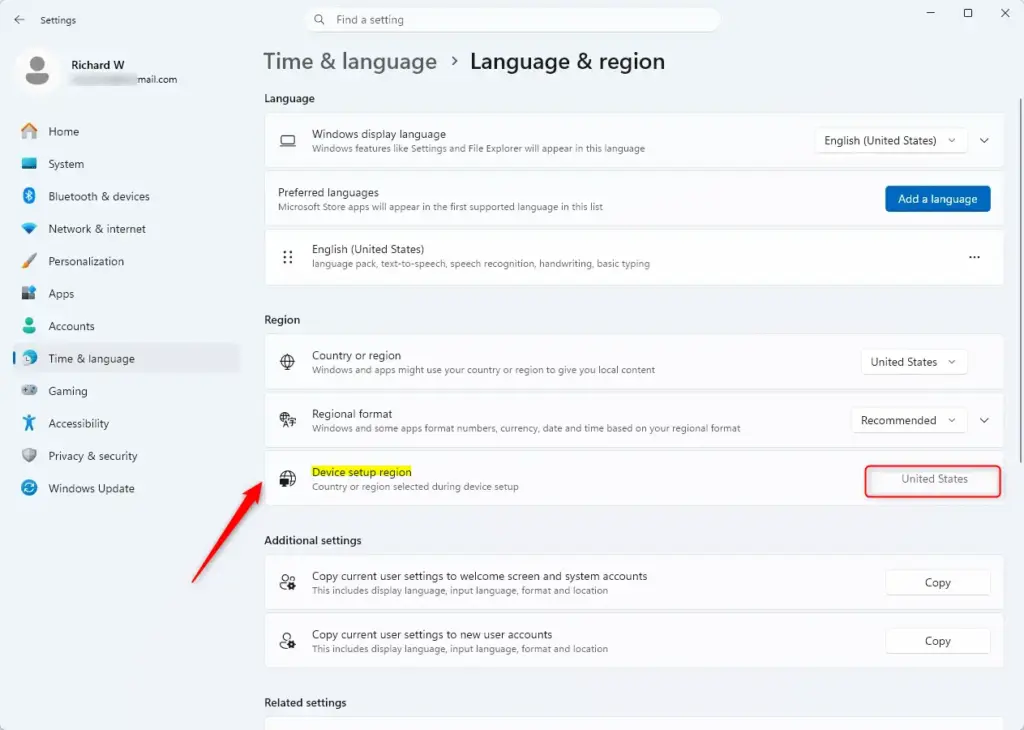
- Locate the Device setup region. Scroll down to the Region section. Below it, look for Device setup region, followed by a country or region name. This is the region that was chosen when the PC was first set up. It is not always the same as your current Country or region setting, because you can change that one later.
- Close Settings. Close the window when you have the answer.
If you cannot find Device setup region on your build of Windows 11, the entry may not be shown on your PC. Use the Registry Editor or PowerShell method below instead. Both read the same stored value.
Method 2Using the Registry Editor
If the setting does not appear in Settings, you can read the value from the Registry Editor (a database that holds core Windows settings). The original setup location is stored at this path:
🗝️HKEY_LOCAL_MACHINE\
The Registry Editor is included in Home and Pro editions of a currently supported Windows 11 version (24H2 or 25H2). You only need to look at the value, not edit it.
- Open Registry Editor. Press Win+R to open the Run box. Type
regeditand press Enter or click OK. A prompt may ask whether you want to allow this app to make changes to your device. Click Yes. Opening Registry Editor asks for administrator approval, so on a standard account you will be asked for an administrator password. Reading this value does not require it. The Registry Editor window then opens, with a folder tree on the left. - Go to the correct folder. In the left pane, expand each folder in turn until you reach this path:
🗝️HKEY_LOCAL_MACHINE\
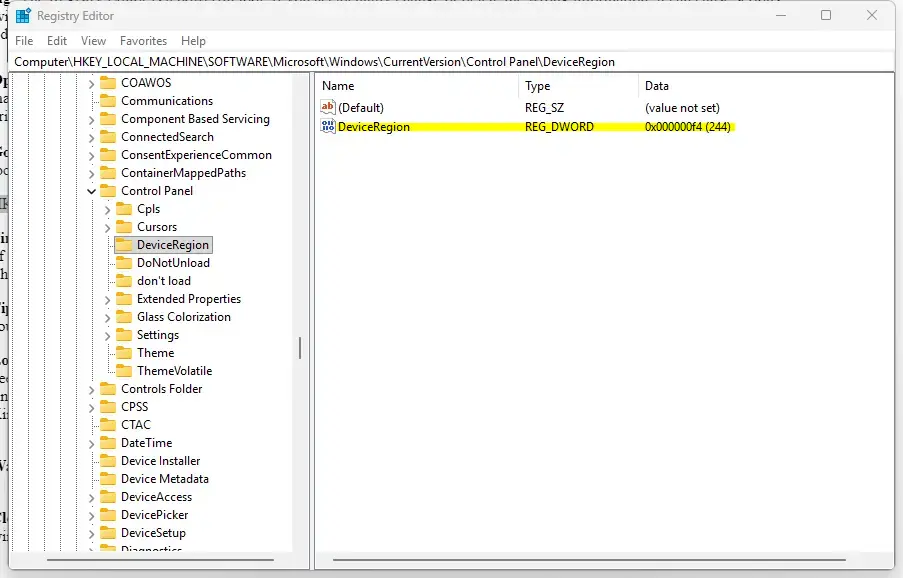
SOFTWARE\ Microsoft\ Windows\ CurrentVersion\ Control Panel\ DeviceRegion As a shortcut, you can paste the path into the address bar at the top of the Registry Editor window and press Enter.
- Find the DeviceRegion value. Click the
DeviceRegionfolder, then look in the right-hand pane. You will see a list of items. Find the one namedDeviceRegion. It will likely have a Type ofREG_DWORDand some numbers under the Data column. These numbers are the code.💡TipYou are looking for a number such as 242 or 244. This is the GeoID, which represents a specific country or region. The Data column may show the number in hexadecimal first, followed by the decimal value in brackets. Use the decimal value when you look it up. - Look up the GeoID code. Microsoft uses this number to identify a country, so you need to match it against a table. Search online for “Windows GeoID table” or “Geographical location identifier decimal”. The table lists each number next to its country or region name. For example, 242 is the United Kingdom and 244 is the United States. Use a reliable source, such as Microsoft’s official pages, so you get the correct mapping.
- Close Registry Editor. Once you have the number and know which country it matches, close the Registry Editor window. Nothing needs to be saved, and no restart is required.
Method 3Using PowerShell
PowerShell (a command-line tool for managing computer settings) can read the same registry value with a single command. This is handy when you want a quick answer, or when you are checking several PCs. You do not need administrator rights to read the value.
- Open Windows Terminal (or PowerShell). Right-click the Start button and select Windows Terminal. If you do not have Windows Terminal, search for “PowerShell” in the Start menu and open it. A window opens with a command prompt, ready for typing.
- Enter the command. Type or paste the following command and press Enter. It tells Windows to read the same
DeviceRegioninformation we found in Method 2.Get-ItemProperty -Path "HKLM:\SOFTWARE\Microsoft\Windows\CurrentVersion\Control Panel\DeviceRegion" | Select-Object DeviceRegion - Note the output. After you press Enter, PowerShell shows the
DeviceRegionvalue. It is a number, like the one in the Registry Editor. For example, it might show:DeviceRegion : 244This is the GeoID code for your device’s original setup country. If you get an error instead, check that the command was pasted completely and that you did not add extra characters.
- Look up the GeoID code. As with the Registry method, you need to match this number against a GeoID table to find the country or region. Search online for “Windows GeoID table”. Keep a lookup table bookmarked or saved, so you can check the code quickly on another PC.
- Close Windows Terminal. Once you have the information, close the Windows Terminal window.
Summary
Knowing your device setup country helps explain stubborn regional defaults, wrong time zones, or date formats that refuse to change through the normal menus. With the original region in hand, you can troubleshoot language conflicts and work out why some region settings keep reverting.
These methods only show the setup region. They do not change it. The setup region is chosen during first-time setup, so resetting or reinstalling Windows is what gives you the chance to pick a different one.
Get-ItemProperty -Path "HKLM:\SOFTWARE\Microsoft\Windows\CurrentVersion\Control Panel\DeviceRegion" | Select-Object DeviceRegionDeviceRegion : 242Have a question about this guide?
Answered by AI from this guide. Good questions may be added to this page — please don't include personal details.
Did this guide fix your problem?

About the Author
Richard
Tech Writer, IT Professional
Richard is a writer at Geek Rewind who turns complex IT tasks into clear, step-by-step guides. He draws on years of hands-on experience in system administration and enterprise IT operations, focusing on Windows, Linux and WordPress: the problems people actually run into, and the fixes that work. His server and WordPress guides come from systems he runs himself. Richard builds and maintains the platform behind Geek Rewind, from its Ubuntu servers and Nginx configuration to its custom WordPress plugins. Many new tutorials start with readers' questions, and he's always glad to answer them in the comments.
No comments yet — be the first to share your thoughts!