How to Change Your Country or Region in Windows 11

Changing your country or region in Windows 11 updates your geographic location (GeoID). Apps, games, and Microsoft Store services use it to match your actual physical location. Windows also uses it to pick local news, the right currency, and regional apps.
You can change it in under a minute from Settings, under Time & language and then Language & region. Update it when you move to a new country, or when you travel for a long time, so your PC gets the right updates and local software. The setting applies to your user account. You don’t need administrator rights, and it works the same on Home and Pro.
Open Settings , go to Time & language, click Language & region, scroll to Country or region, select the drop-down menu, and pick your new country. The change saves immediately without requiring a restart.
Option 1Change Country or Region in Settings
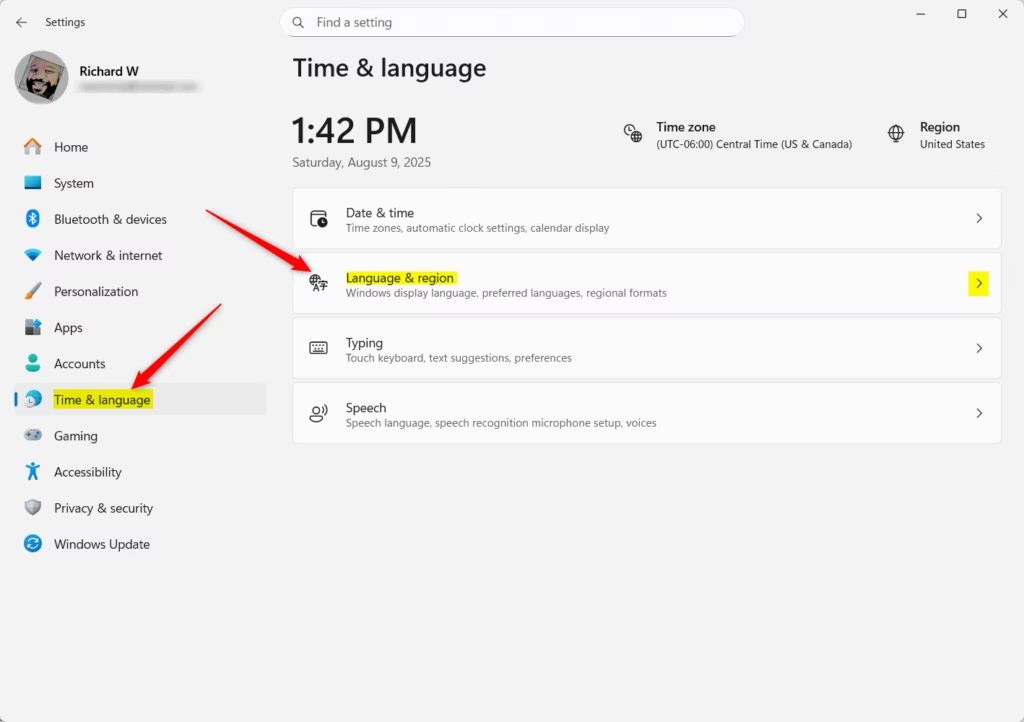
- Press Win+I to open Settings. The Settings window opens with a list of categories on the left.
- Click Time & language on the left side.
- Click Language & region on the right side. The page lists your display language, preferred languages, and regional settings.
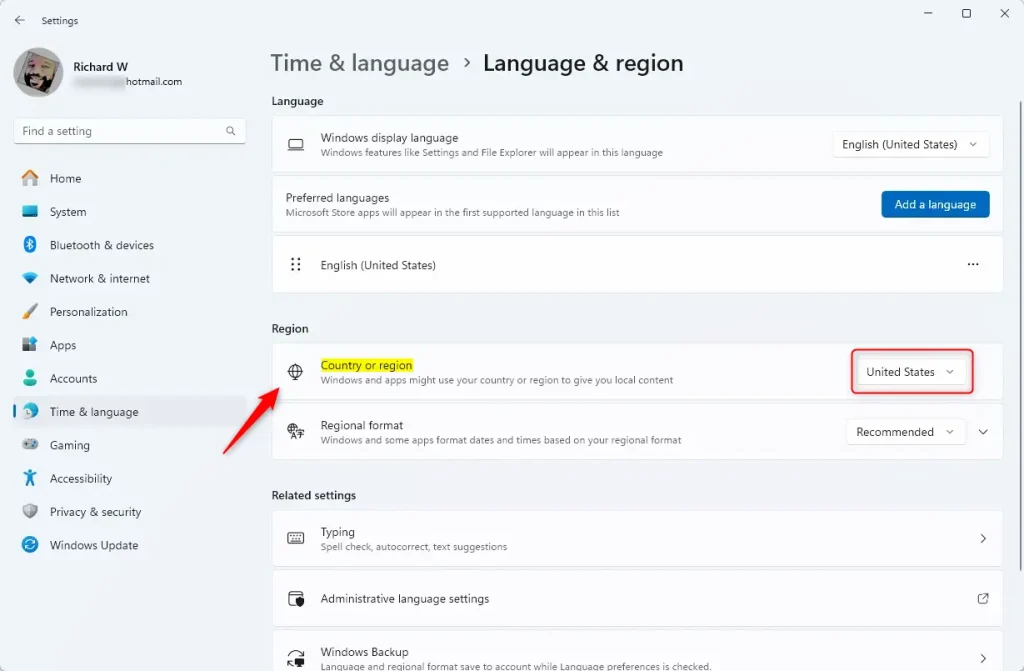
- Scroll to Country or region, click the drop-down menu, and pick your new location. You can type the first letters of the country name to jump to it in the list.
- Close Settings when you’re done. The change is saved as soon as you pick the country.
This is the built-in method, and it is the one most people need. It updates your location for the Microsoft Store and local apps without any advanced tools. You don’t normally need to restart. If an app still shows content for the old country, close it and open it again, or sign out and back in.
Those are separate options on the same page. To undo the change, go back to the same drop-down and pick your previous country.
Store purchases and some subscriptions can still follow the account rather than this setting.
Option 2See Your Current Country or Region Using Command
Before you change anything from the command line, check what Windows currently has set. This is also a quick way to confirm that a change from Settings was applied.
- Open Windows Terminal by searching for it in the Start menu.
- Choose the Windows PowerShell or Command Prompt tab. If the command isn't recognized in Command Prompt, switch to the PowerShell tab and run it there.
- Type or paste this command and press Enter:PowerShell
Get-WinHomeLocation - Read the output. You will see your current country or region and its code.
- Close Windows Terminal when done.
Option 3Change Your Country or Region Using a Command
If you prefer typing to clicking through menus, you can change your region from the command line instead. This updates your geographic location directly in Windows Terminal. You enter the numeric GeoID for your country, so you need to look that number up first. Settings stays closed the whole time, and the change takes effect right away.
- Open Windows Terminal and pick PowerShell or Command Prompt. If the command doesn't work in Command Prompt, use the PowerShell tab.
- Type this command and press Enter:PowerShell
Set-WinHomeLocation -GeoID <GeoID number> - Replace
<GeoID number>with the correct number for your country before you press the key. A wrong number sets the wrong country, so check it twice. - Close Windows Terminal when finished.
To confirm it worked, open Settings and look at Country or region under Time & language and Language & region. You can also run the check command from the previous section again. To undo the change, run the same command with your old country's number, or pick the old country in Settings.
You can find the list of GeoID numbers on Microsoft's website here: Geographical Location Identifiers
Example: To set your location to the United States, use:
Set-WinHomeLocation -GeoID 244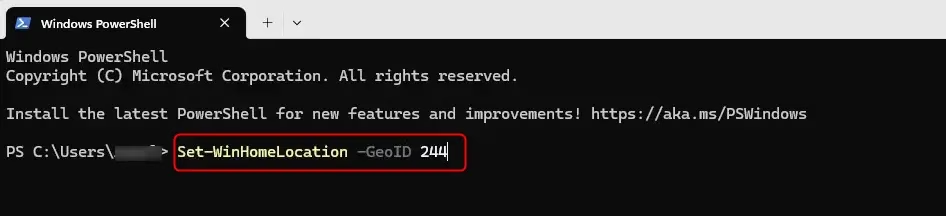
Summary
- Your country or region setting controls which apps and services you can access in Windows 11.
- You can change it in Settings or with commands in Windows Terminal. Settings is the easier route for most people.
- Pick the correct location so Microsoft Store, Xbox, and other apps show the right content for you.
- When using commands, check the official GeoID list to find the right number for your country.
- No restart is normally needed. If an app still shows the old region, close and reopen it.
Your region setting decides which apps, games, and services appear in the Microsoft Store and other built-in programs. Use either the Settings app or the command in Windows Terminal to change it. Pick the country where you currently live so your device downloads local content and shows the right regional services.
Frequently asked questions
How to change region in 🪟 Windows 11?
To change your region, press Windows key + I to open Settings. Click Time & language, then Language & region. Under Country or region, open the drop-down menu and pick your new country. Close Settings. The change applies to your user account and needs no administrator rights.
How to change device setup region?
If you're still on the first setup screens, choose your country or region from the list when Windows asks, then select Next. After setup, open Settings with Windows key + I, go to Time & language, then Language & region, and change Country or region there.
Where is the option to change the country here?
The option is in Settings, under Time & language, then Language & region. Find the Country or region row, then open its drop-down menu to choose a different country. To get there, press Windows key + I, click Time & language on the left, and click Language & region on the right.
How to change country region in setting up Windows?
When Windows asks for your country or region during setup, pick it from the list and select Next. If setup is already finished, open Settings with Windows key + I, go to Time & language, then Language & region, and change Country or region.
How to change region on PC to hawaii?
Windows doesn't list Hawaii as its own region. Hawaii is a U.S. state, so set Country or region to United States. Open Settings with Windows key + I, select Time & language, then Language & region, and choose United States from the Country or region drop-down menu.
How to change region in laptop?
The steps are the same on a laptop. Press Windows key + I to open Settings, click Time & language, then Language & region. Open the Country or region drop-down menu, pick your new country, and close Settings. You don't need administrator rights.
Still have a question?
Answered by AI from this guide. Good questions may be added to this page — please don't include personal details.
Did this guide fix your problem?

About the Author
Richard
Tech Writer, IT Professional
Richard is a writer at Geek Rewind who turns complex IT tasks into clear, step-by-step guides. He draws on years of hands-on experience in system administration and enterprise IT operations, focusing on Windows, Linux and WordPress: the problems people actually run into, and the fixes that work. His server and WordPress guides come from systems he runs himself. Richard builds and maintains the platform behind Geek Rewind, from its Ubuntu servers and Nginx configuration to its custom WordPress plugins. Many new tutorials start with readers' questions, and he's always glad to answer them in the comments.
No comments yet — be the first to share your thoughts!