Why Does Windows 11 Automatically Change My Default Language Region Settings

- 35 steps
- Needs administrator rights
- Includes a restart or sign-out
Windows 11 can change your default language and region settings on its own for a few reasons. Cloud sync pushes preferences from your other linked devices. Two account profiles on the same PC clash. A feature update resets regional formats. When one of these happens, the PC can fall back to its default country or language at startup or sign-in.
You can usually stop it by turning off language syncing, applying your language rules to the welcome screen and new accounts, and making sure your display language, country and regional format all match. The sections below go through each fix, then cover a few less obvious causes.
Windows 11 automatically changes your language and region settings because cloud sync pushes preferences from other linked devices using your Microsoft account, or a feature update resets regional formats. Turn off Language preferences in Settings Accounts Windows backup Remember my preferences, then ensure your display language, country, and regional format all match in Settings Time & language Language & region.
How to Stop Windows from Syncing Your Language Settings
If you sign in with a local account, you will not see the sync options below. In that case sync is not the cause, so skip to the next section.
- Click the Start button and open the Settings app.
- Click Accounts in the left menu.
- Click Windows backup. You should see the backup options for your Microsoft account.
- Find the section called Remember my preferences and click the arrow to expand it. A list of items appears, such as Accessibility, Language preferences, Passwords and Personalization.
- Find Language preferences and turn it Off. On some builds this is a checkbox rather than a switch. Clear the checkbox if so.
Windows will now stop pulling language and region settings from your other synced devices. This is what stops your PC from switching its display language or regional formats without you asking.
Make this change on every PC that shares the account. One machine that still syncs can push its settings to the others.
Checking Your Display Language and Regional Format Settings
A mismatch between your display language, your country and your regional format can cause settings to change after an update. Checking that all three agree is a quick way to rule this out.
- Open the Settings app from your Start menu.

Settings - Click Time & language on the left side.

Settings › Time & language - Click Language & region.
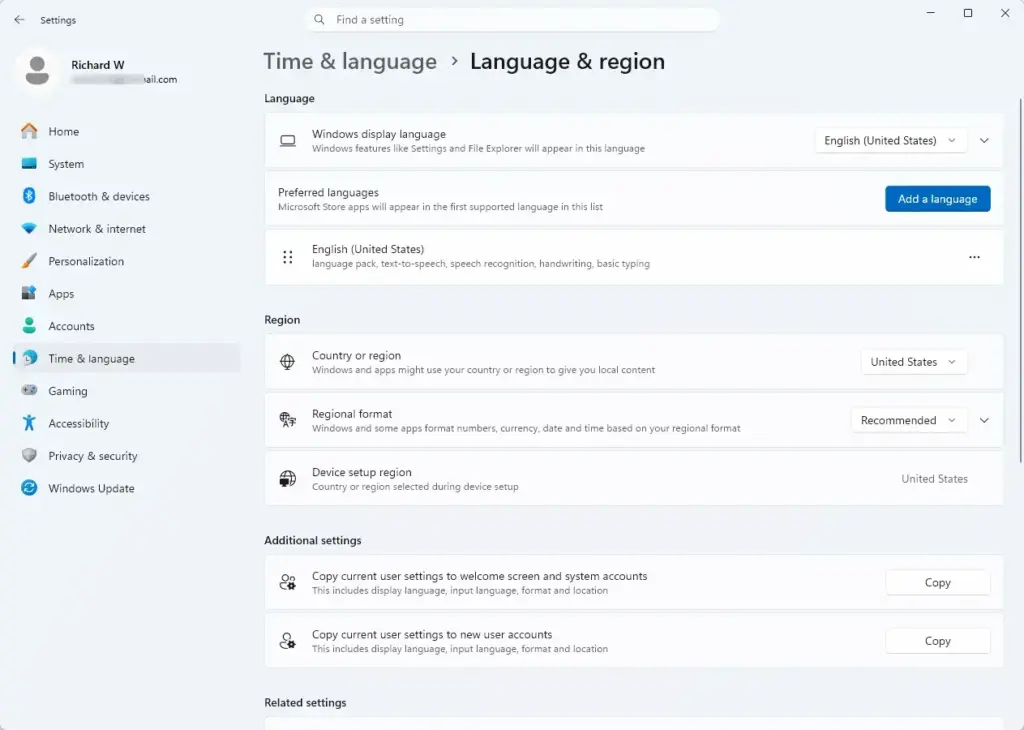
- Under Windows display language, make sure your preferred language is selected. If it is not, pick it from the list. Windows may ask you to sign out and back in to apply it.
- Scroll down to the Region section.
- Open the Country or region dropdown and make sure it shows your actual location.
- Open the Regional format dropdown and make sure your date, time and number formats look the way you want. The dropdown has a Recommended option that matches your display language. You can pick a different format if you prefer.
If the display language is missing from the list, it is not installed yet. Add it under Preferred languages first, then come back and select it.
Copying Your Settings to the Welcome Screen and New Accounts
Your personal settings apply only to your own account. The welcome screen, system accounts and any new accounts have their own copy. If those copies differ from yours, Windows can show the default language at the sign-in screen or flip back after an update. Copying your settings to those places makes the whole system use the same ones.
- Click the Start button, type Control Panel in the search box, and open it.
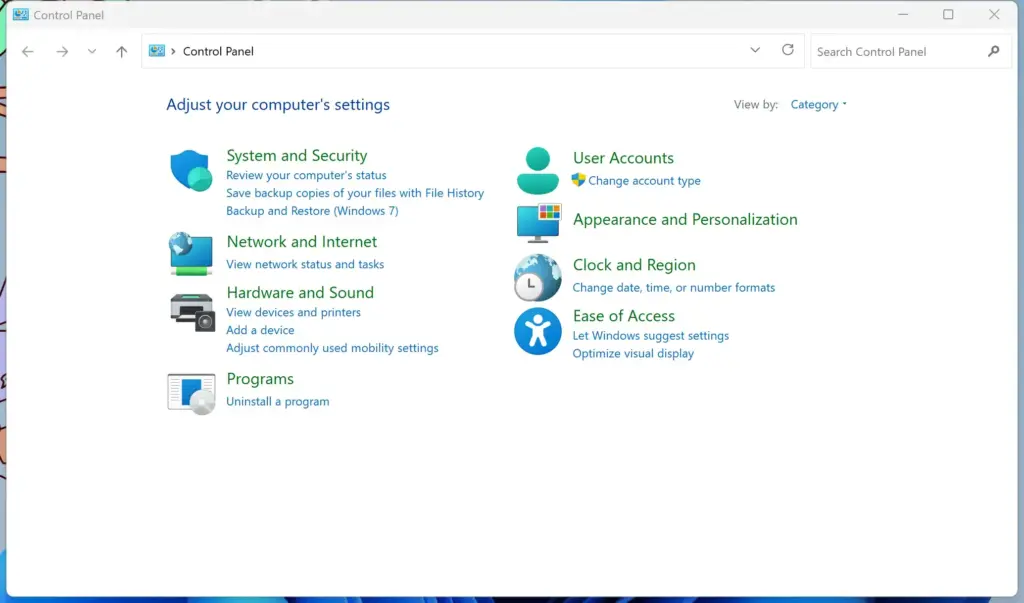
Control Panel - In the top right corner, change View by to Large icons or Small icons. You should now see a full list of Control Panel items.
- Click Region. The classic Region window opens.
- Click the Administrative tab at the top of the window.
- Click the Copy settings… button. This step needs administrator privileges, so approve the prompt if one appears.
- A new window opens showing your current settings. At the bottom, check the boxes for Welcome screen and system accounts and New user accounts.
- Click OK to save your changes, then click OK again on the main Region window.
- Restart your computer so the settings take effect.
If the Copy settings… button is greyed out, you are not signed in as an administrator. Sign in with an administrator account and try again. You can also repeat this later if you change your language or format.
Checking Location Services and Privacy Settings
If Windows detects your location automatically, a change in your network, such as a new router, a hotel connection or a VPN, can make it think you have moved. That can lead to the wrong time zone, region or language. Checking your location settings shows whether this is the cause.
- Open the Settings app.
- Click Privacy & security on the left menu.
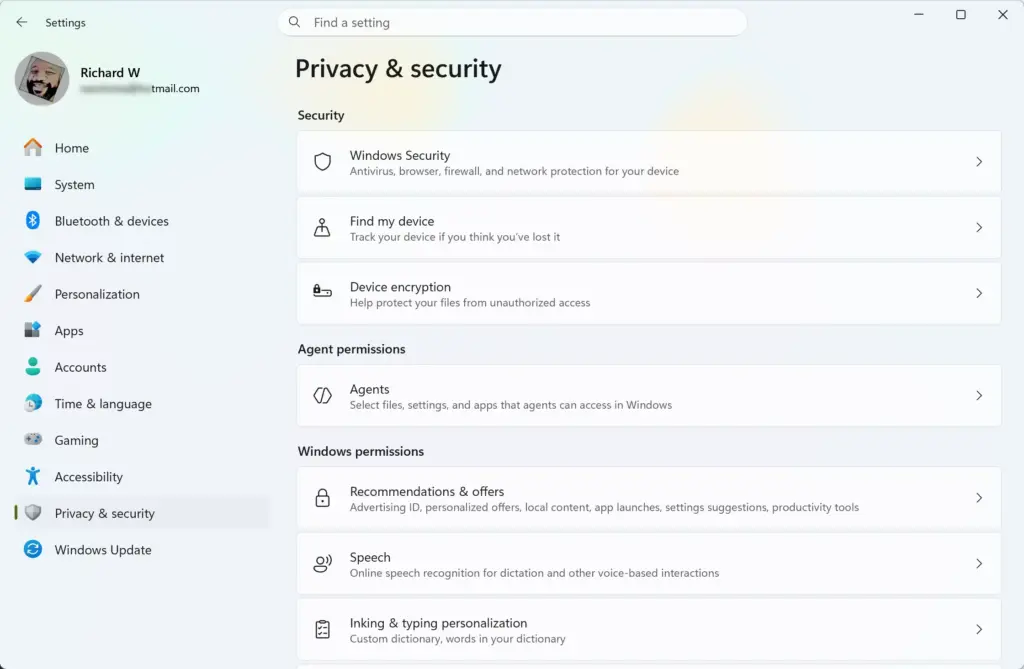
Settings › Privacy & security - Click Location under the app permissions section.
- Check whether Location services is turned on. If you want to stop Windows from guessing your region from your internet connection, turn this switch Off.
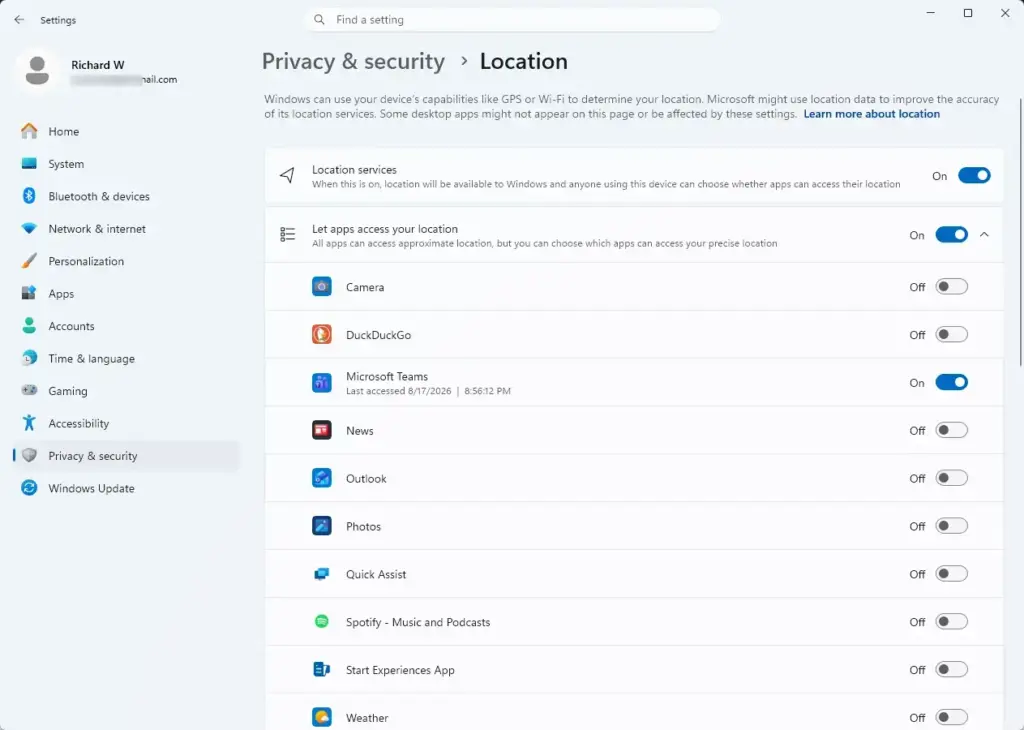
Settings › Privacy › Location
Turning this off also stops apps like Maps and Weather from using your location. To undo it, switch Location services back on. If your time zone is the part that keeps changing, also check Settings Time & language Date & time and turn off automatic time zone if you prefer to set it yourself.
Fixing Persistent Keyboard Layout Changes
If a keyboard layout keeps coming back, it is usually because an extra language is still in your preferred languages list. Windows can add keyboards from that language to the taskbar again, for example after an update. Removing languages you do not use stops this.
- Open the Settings app and go to Time & language.
- Click Language & region.
- Look under the Preferred languages section. You will see every language Windows has installed or added.
- If you see any languages you do not use, click the three dots next to them and select Remove. The language disappears from the list.
- Keep only the language and keyboard layout that you actually use every day.
You cannot remove the language that is currently your Windows display language. Change the display language first if you need to remove it. If you only want to remove an extra keyboard, open the three-dot menu for that language, choose Language options and remove the keyboard under Keyboards. If you remove something by mistake, use Add a language to put it back.
Advanced Fix: Managing Settings Through the Desktop Interface
Some changes in this guide, such as copying settings to the welcome screen, need administrator rights. Without them the changes may not save, or Windows may appear to accept them and then revert. Check that your account is an administrator before you start.
If you share the PC, give each person their own user account. When several people sign in with the same login, they overwrite each other’s language and region choices, and it looks as though Windows is changing them by itself.
Unique Expert Tips: Preventing Future Resets
Most basic guides stop at checking the Control Panel and turning off sync. But there are less obvious triggers that can bring the problem back. The two checks below cover them.
Tip 1Check for Conflicting Third-Party Software
VPNs and some security programs can interfere with regional settings. A VPN routes your traffic through another country, so any background task that works out your location from your IP address may decide you are somewhere else. That can change your region, time zone or language.
To test this, disconnect the VPN and see whether the settings stop changing. If they do, choose a VPN server in your own country, or turn off any “match location” or similar option in the VPN or security program. If you recently installed a new security or system tuning tool, check its settings or try turning it off for a while.
Tip 2Check the System Language for Older Apps
The system locale controls which language Windows uses for programs that do not support Unicode. Older software built for a specific foreign market can depend on it, and a wrong system locale can cause conflicts during startup or updates.
- Open the Control Panel and click Region.
- Click the Administrative tab.
- Click the Change system locale… button. This step needs administrator privileges.
- Make sure the language listed matches your current region and display language.
- Uncheck any beta option for UTF-8 support, such as Beta: Use Unicode UTF-8 for worldwide language support, unless a specific app requires it. It can sometimes confuse standard Windows regional formatting.
- Click OK and restart your computer. The change does not apply until you restart.
If an old program stops displaying text correctly after this change, it may need a different system locale. Check what that program requires before changing it back.
Summary
Windows 11 changes language and region settings because of cloud syncing, incorrect location data, or background updates overriding your preferences. To fix it, turn off language syncing, remove unwanted languages and keyboard layouts, and copy your correct settings to the welcome screen and new accounts. If the problem returns, check for a VPN and the system locale.
Have a question about this guide?
Answered by AI from this guide. Good questions may be added to this page — please don't include personal details.
Did this guide fix your problem?

About the Author
Richard
Tech Writer, IT Professional
Richard is a writer at Geek Rewind who turns complex IT tasks into clear, step-by-step guides. He draws on years of hands-on experience in system administration and enterprise IT operations, focusing on Windows, Linux and WordPress: the problems people actually run into, and the fixes that work. His server and WordPress guides come from systems he runs himself. Richard builds and maintains the platform behind Geek Rewind, from its Ubuntu servers and Nginx configuration to its custom WordPress plugins. Many new tutorials start with readers' questions, and he's always glad to answer them in the comments.
No comments yet — be the first to share your thoughts!