Change the Currency Symbol in Windows 11 Region Settings

To change the currency symbol in Windows 11, you edit the Currency tab in the Region window. The symbol is the $, €, or £ that appears next to amounts in apps that follow your regional format. Go to Settings Time & language Language & region Administrative language settings, then open Formats Additional settings Currency
The Settings app lets you pick a regional format, but it has no box for the symbol itself. That box sits in the older Region window, which Windows 11 still ships. The change takes about two minutes, and a standard user account can make it for that account.
The steps below match current Windows 11 builds, including versions 23H2 and 24H2. A label can differ slightly on an older build.
To change the currency symbol in Windows 11, open Settings , select Time & language, then Language & region, and click Administrative language settings. In the Region window, select the Formats tab, click Additional settings, and open the Currency tab. Replace the symbol in the Currency symbol box, then click OK. The change applies to your account only.
What the Currency Symbol Setting Changes
The currency symbol is one part of your regional format (the set of rules Windows uses to show numbers, dates, times, and money). Apps that read these rules, such as Excel and many Microsoft Store apps, use your symbol whenever they format an amount as currency.
The setting changes how amounts are displayed. It does not convert money, and it does not fetch exchange rates. If you set the symbol to €, an amount of 100 shows as €100 and stays the number 100.
The currency symbol is also separate from your country or region. Changing the country or region in Settings affects things like Microsoft Store content and local news. It does not edit the symbol field. If you want to switch the whole region, see how to change your country or region in Windows 11 or change your device region in Windows 11.
Before You Start
Check these points first. They save time if something does not match what you see.
- Editions: The steps work the same in Windows 11 Home and Pro.
- Administrator rights: Not needed for your own account. They are needed only for the optional step that copies your settings to the sign-in screen and new accounts, which is marked in its own section.
- Work or school devices: If your organization manages the PC, some of these options may be locked. Ask the person who manages the PC if a control is greyed out.
- Restart: Windows does not need a restart. Apps that are already open may need to be closed and reopened.
How to Change the Currency Symbol in 🪟 Windows 11
These steps change the currency setting for your account, from opening Settings to checking the result.
- Open Settings. Press Windows + I, or right-click Start and choose Settings.

- Select Time & language. It is in the left pane. The page on the right shows date and time options.

Settings › Time & language - Select Language & region. The page lists your Windows display language, preferred languages, Country or region, and Regional format.
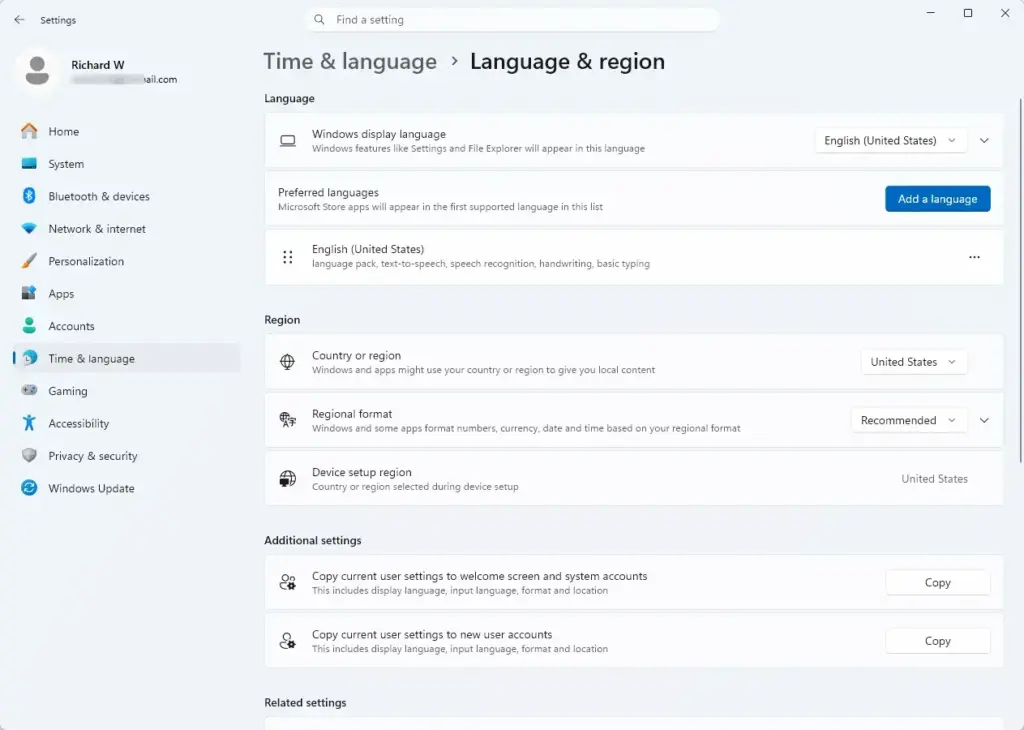
Settings › Time & language › Language & region - Scroll to Related settings. It sits near the bottom of the page.
- Select Administrative language settings. A window titled Region opens on its Administrative tab. If you do not see this link, press Windows + R, type
intl.cpl, and press Enter. That opens the same window. - Select the Formats tab. It is the first tab in the Region window. If you used
intl.cpl, you are already on it. The Format list shows your current regional format, for example English (United States). - Select Additional settings. The button is at the bottom right of the tab. A window named Customize Format opens with tabs for Numbers, Currency, Time, and Date.
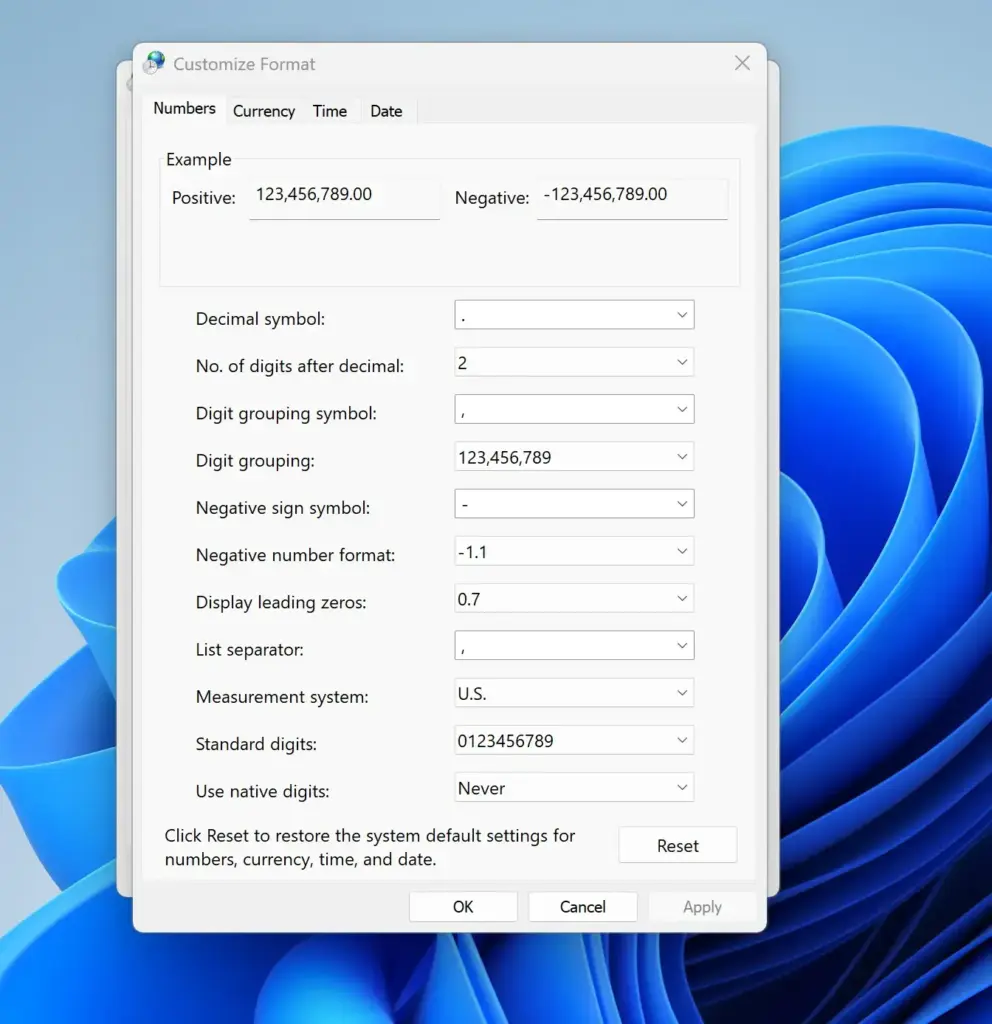
- Select the Currency tab. It shows Currency symbol, Positive currency format, Negative currency format, Decimal symbol, No. of digits after decimal, Digit grouping symbol, and Digit grouping. An Example area above these fields shows how a positive and a negative amount look.
- Click the Currency symbol box. The current symbol, such as $, is already in it.
- Delete the current symbol. Press Backspace until the box is empty.
- Type the new symbol. For example, enter € or £. If your keyboard has no key for it, see the troubleshooting section below for ways to enter it.
- Check the position of the symbol. Open Positive currency format and choose whether the symbol goes before or after the number, with or without a space. Do the same for Negative currency format. Skip this step if the position is already right.
- Select Apply. The Example area updates to show your new symbol on a positive and a negative amount. If the symbol is wrong, fix it and select Apply again.
- Select OK. This closes Customize Format and returns you to the Region window.
- Select OK again. This closes the Region window and saves your choice.
- Close and reopen your apps. Apps that were already running may keep the old symbol until they restart. Open an app that formats money, such as Excel, and check a currency-formatted cell.
If the Example area still shows the old symbol after you select Apply (step 13), you probably typed in the wrong field. Return to the Currency tab and confirm you changed Currency symbol, not Decimal symbol or Digit grouping symbol.
Open the Region Window From Control Panel Instead
Control Panel gives the same result by another route. Open Start, type Control Panel, and open it. Choose Clock and Region, then Region.
On the Formats tab, select Additional settings and continue from step 8 above. Control Panel is labelled by category in its default view. If you see icons instead, set View by to Category.
Choose Where the Symbol Appears
The symbol itself is only half of how an amount looks. The two format lists on the Currency tab decide where the symbol sits and how negative amounts show.
Positive currency format offers four layouts. The symbol goes before or after the number, with or without a space between them. A symbol before the number suits $ and £. Many European countries put € after the number with a space.
Negative currency format offers more layouts. They place the minus sign or brackets in different spots. Pick the layout your accounts or reports use, and check the Example area before you apply it.
The same tab also holds the digit and separator settings. If amounts also look wrong in other ways, such as a period where you expect a comma, change Decimal symbol and Digit grouping symbol here. The related post on how to change the currency format in Windows 11 covers the format side in more detail.
Apply the Change to the Sign-In Screen and New Accounts
Your edit applies to your account only. Other users on the PC, the sign-in screen, and accounts created later keep their own formats. The next step copies your formats to those places.
- Open the Region window again, using steps 1 to 5 above or by running
intl.cpl. - Select the Administrative tab.
- Before you select Copy settings, note your other regional settings. This step also copies them to the sign-in screen and new accounts, so you need administrator rights. Then select it. Approve the User Account Control prompt (the pop-up that asks permission to make changes) if one appears. A window titled Welcome screen and new user accounts settings opens.
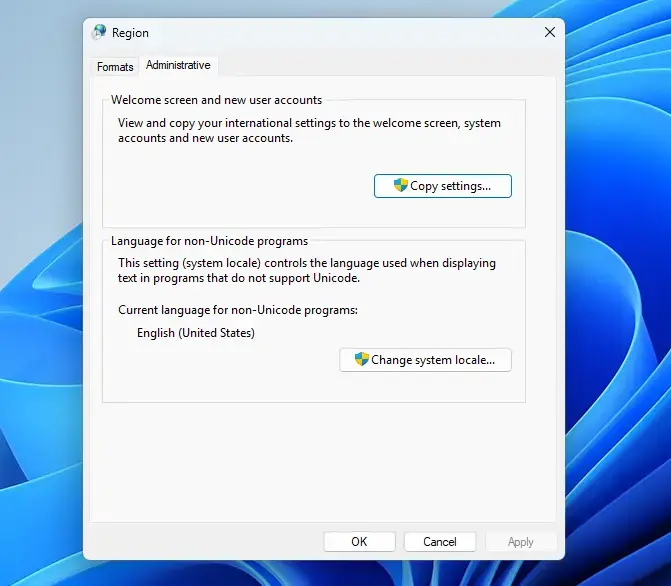
- Tick Welcome screen and system accounts, New user accounts, or both.
- Select OK, then select OK in the Region window.
This step leaves other existing accounts alone. Each of those users must make the edit while signed in to their own account.
How to Undo the Change
Open Customize Format again (steps 1 to 7 above) and select Reset. This restores every field on all four tabs to the defaults for the format shown in the Format list, not only the currency fields. If you changed numbers, dates, or times as well, they reset too.
If you want to keep the other changes, go to the Currency tab instead. Type the original symbol back into Currency symbol, set the two format lists to your previous choices, and select OK.
Troubleshooting
The Currency Symbol Box Will Not Take Your Symbol
Some symbols are not on a standard keyboard. Use one of these methods to enter the character, then copy or type it into the box:
- Press Windows + period to open the emoji panel, then open its Symbols tab and look for the currency symbols.
- For the euro sign, hold Alt and type 0128 on the number pad (the block of number keys on the right of a full keyboard), then release Alt. This method needs Num Lock turned on, so check the Num Lock key first.
- Copy the symbol from a web page or document and paste it into the field.
If the box still rejects what you typed, the field may have a length limit. Try a shorter entry, such as one character or the standard abbreviation.
Additional Settings Is Greyed Out or Missing
On a PC managed by an employer or school, an administrator may lock regional settings. The button can appear greyed out, or Windows can undo your change the next time it reapplies the organization's settings. Only your IT team can lift that. On a personal PC, close the Region window and open it again, then check that you are on the Formats tab and not Administrative.
The Old Symbol Still Shows in an App
Close the app fully and open it again. Check that the app is closed in Task Manager (press Ctrl + Shift + Esc) and not minimized to the system tray (the small icons next to the clock).
Some apps have their own formatting rules and ignore the system value. In Excel, for example, a cell that already has a fixed currency format keeps that symbol. Change the cell's number format in Excel, or switch the cell to the system default format.
The Symbol Changes Back Later
A change to the language or region may do the same. Open Customize Format and check the Currency tab if the symbol reverts. The post on why Windows 11 automatically changes your default language and region settings explains the usual causes.
What to Do Next
If amounts now show the right symbol but dates look wrong, adjust them on the same screen. See how to change date and time formats in Windows 11, and how to change your first day of the week if calendars start on the wrong day. If the symbol changes back after a Windows feature update, repeat the steps in this post and check the Currency tab again.
Have a question about this guide?
Answered by AI from this guide. Good questions may be added to this page — please don't include personal details.
Did this guide fix your problem?

About the Author
Richard
Tech Writer, IT Professional
Richard is a writer at Geek Rewind who turns complex IT tasks into clear, step-by-step guides. He draws on years of hands-on experience in system administration and enterprise IT operations, focusing on Windows, Linux and WordPress: the problems people actually run into, and the fixes that work. His server and WordPress guides come from systems he runs himself. Richard builds and maintains the platform behind Geek Rewind, from its Ubuntu servers and Nginx configuration to its custom WordPress plugins. Many new tutorials start with readers' questions, and he's always glad to answer them in the comments.
No comments yet — be the first to share your thoughts!