How to Change Display Language in Windows 11

Open Settings Time & language Language & region, click Add a language, select your language from the list, check Set as my Windows display language, click Install, then sign out and back in. The display language changes system-wide after you sign back in.
Steps to Change the Display Language in 🪟 Windows 11
Changing the display language in Windows 11 updates the menus, Settings pages, buttons and system messages across the whole computer. You do it in the Settings app : download a language pack, then set it as your main display language.
For example, to switch from English to Spanish, you download the Spanish language pack and sign out and back in. The new language then applies everywhere.
One edition limit to know about: Windows 11 Home Single Language can’t add extra display languages. Windows 11 Home and Pro can.
Step 1Open Settings
- Click the Start button, the Windows icon on the taskbar .
- Click Settings. If you don’t see it, type “Settings” in the search box and open it from the results.
This works from anywhere in Windows.
The Settings window should now be open.
Step 2Go to Language Settings
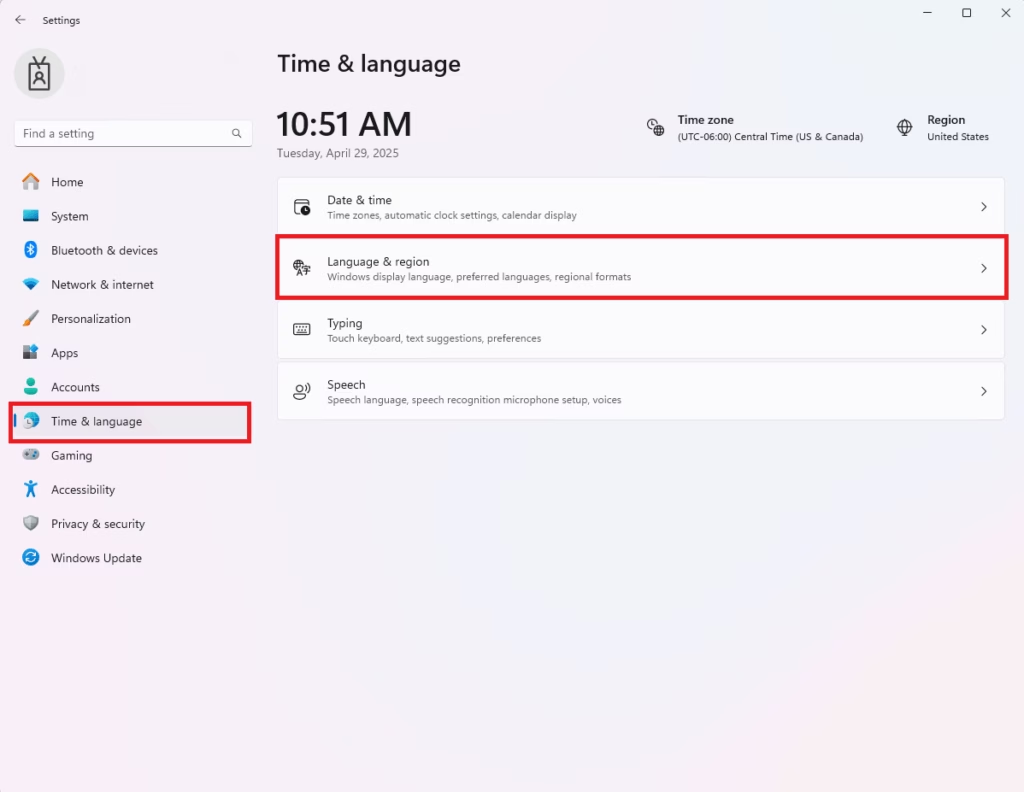
- In the Settings window, click Time & language in the left-hand list.
- Click Language & region on the right.
You should now see a Windows display language drop-down at the top. Below it is a Preferred languages list showing the languages already installed.
Step 3Add a New Language
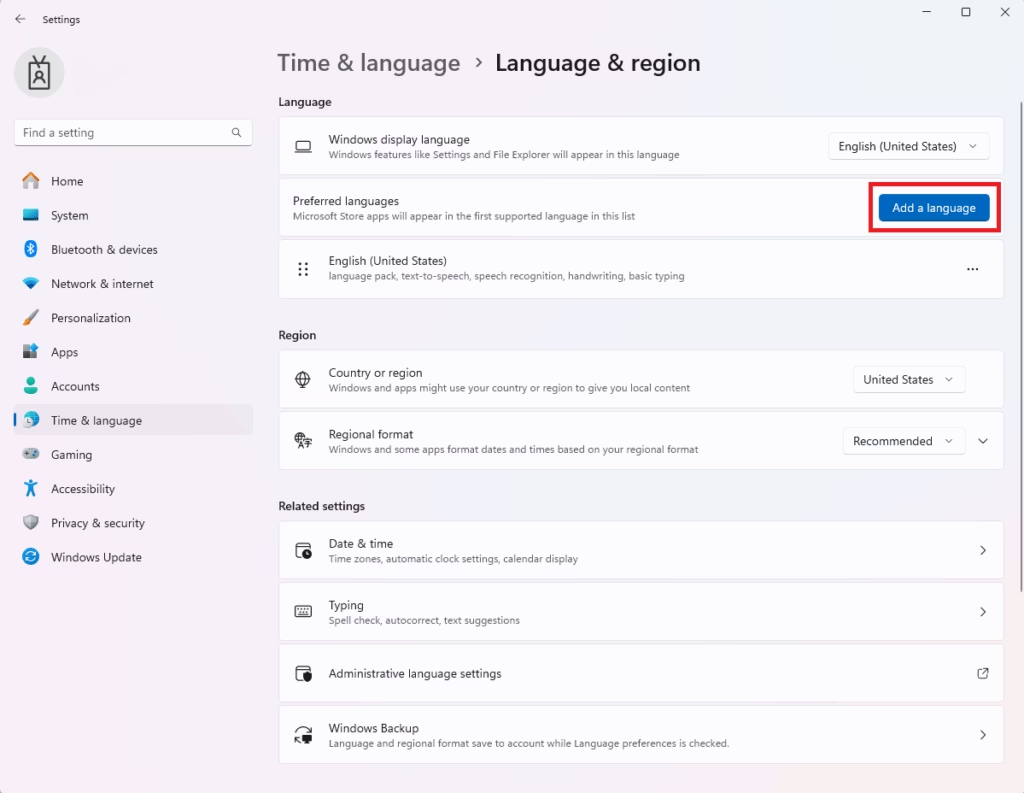
- Find the Preferred languages section.
- Click the Add a language button.
A window called Choose a language to install opens.
Step 4Pick Your Language
- Find the language you want in the list. The list is long, so type the name in the search box to find it faster. If a language has regional versions, such as Spanish (Spain) and Spanish (Mexico), pick the one closest to yours.
- Click the language to select it.
- Click Next.
The next screen shows the optional features for that language.
Step 5Set as Display Language
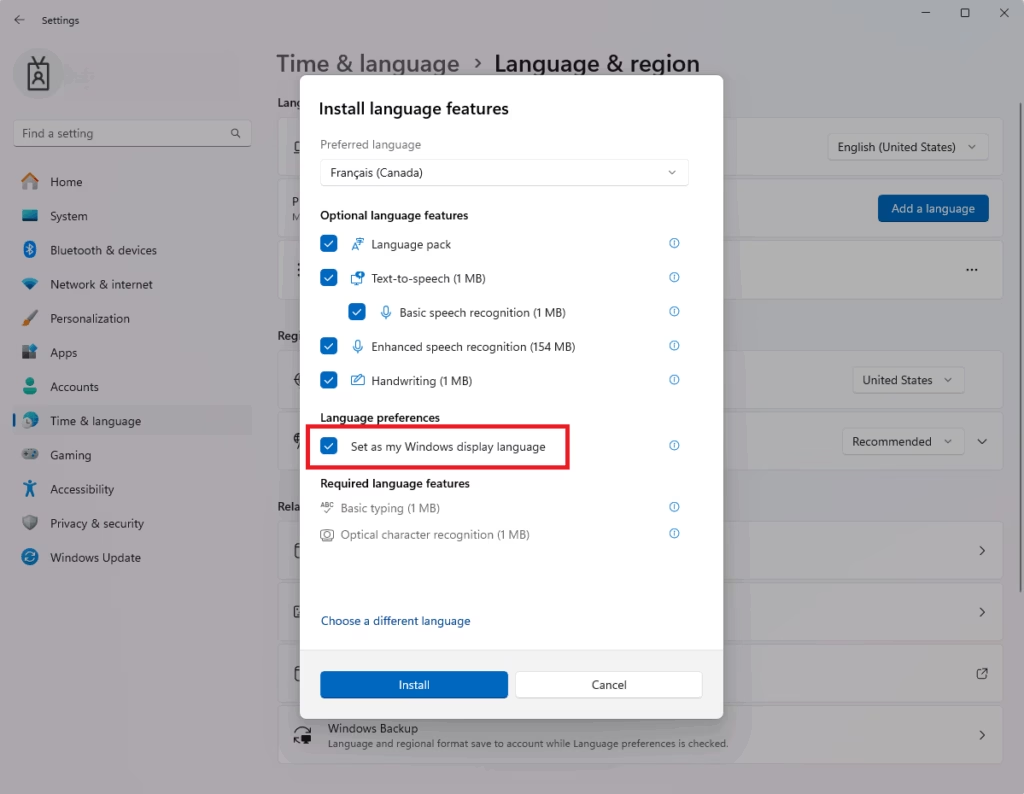
- Look for the box labeled Set as my Windows display language and check it.
- Review the other options on the screen. Depending on the language, these can include text-to-speech, speech recognition and handwriting. Leave them as they are if you aren't sure. They're optional, and you can add them later.
- Click Install.
If you leave the display language box unchecked, the language is still installed. You can then pick it later from the Windows display language drop-down.
Step 6Wait for Installation
Download times vary depending on your internet connection. Windows shows the progress next to the language in the Preferred languages list. You can keep using the computer while it downloads.
- Wait until the download finishes.
- When Windows prompts you, click Sign out. If there's no prompt, sign out yourself from the Start menu by clicking your account name and then Sign out.
- Sign back in.
Menus, Settings and system messages should now appear in the new language. A restart isn't normally required, though it does no harm if something still shows the old language.
To undo the change, go back to Language & region. Choose your old language from the Windows display language drop-down, then sign out and back in. You can also remove the unused language pack. Click the three dots next to it in the Preferred languages list and choose Remove.
Step 7 (Optional): Add Keyboard Layout
Typing in a new language works best alongside a matching keyboard layout.
- Go back to the Language & region settings.
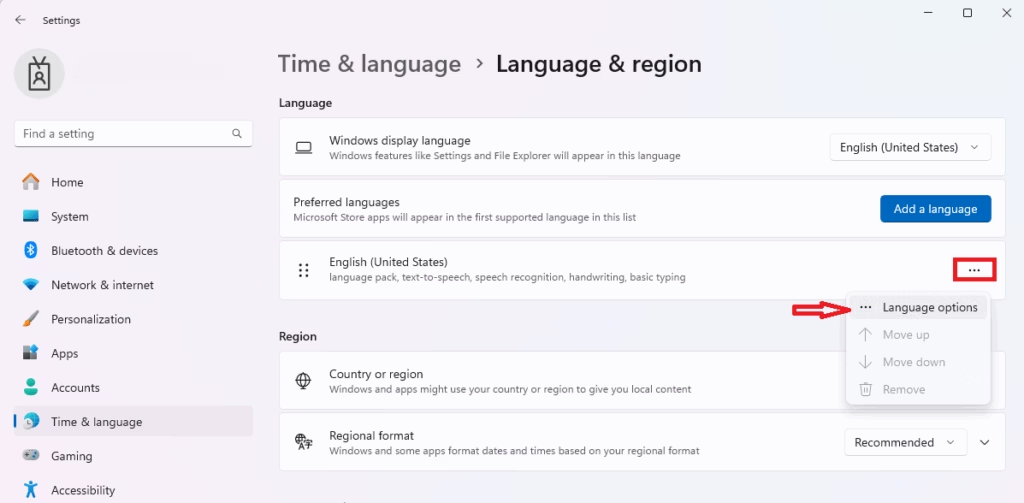
- Click your new language in the Preferred languages list. On some builds, click the three dots next to it instead.
- Click Language options.
- Under Keyboards, click Add a keyboard and choose the keyboard layout for your language.
The new layout is added to your keyboard list. Switch between layouts from the language indicator at the right end of the taskbar, or press Windows key + Space.
Extra Tips
- If Windows doesn't install the language automatically, you might need to download the language pack manually. Check your internet connection first, since a dropped connection is the usual cause. Then try the install again from Language & region.
- If the language you want isn't offered as a display language, check your edition. Single Language editions can't add display languages.
- Some folder names like "Music," "Pictures," and "Documents" will change to the new language after you log back in.
- The change applies to your user account. The sign-in screen and new accounts may keep the old language until you copy your settings over. To do that, open Administrative language settings on the Language & region page and use Copy settings.
Summary
You can change Windows 11 language settings by opening the Settings app, downloading the language pack you want, and setting it as your main display language. After you add the new language and sign out or restart your computer, Windows applies the update across all menus, buttons, and system text.
Here's how:
- Open Settings.
- Go to Time & language Language & region.
- Click Add a language and choose your new language.
- Check Set as my Windows display language.
- Click Install to download the language pack.
- Sign out and sign back in.
A matching keyboard can also be added for typing in that language. If you want to go back, pick your old language from the Windows display language drop-down and sign out again.
Enjoy using Windows 11 in the language that feels best for you!
Was this guide helpful?

About the Author
Richard
Tech Writer, IT Professional
Richard is a writer at Geek Rewind who turns complex IT tasks into clear, step-by-step guides. He draws on years of hands-on experience in system administration and enterprise IT operations, focusing on Windows, Linux and WordPress: the problems people actually run into, and the fixes that work. His server and WordPress guides come from systems he runs himself. Richard builds and maintains the platform behind Geek Rewind, from its Ubuntu servers and Nginx configuration to its custom WordPress plugins. Many new tutorials start with readers' questions, and he's always glad to answer them in the comments.


No comments yet — be the first to share your thoughts!