How to Change Display Language in Microsoft Edge


Display language in Microsoft Edge controls all the text on menus, buttons, and settings inside the browser. Edge supports over 80 languages. You can pick a new one and switch back at any time, and you do not have to change your main Windows display language to do it.
This setting only changes the browser interface. It does not change the language of the web pages you visit. Those stay exactly as the site publishes them, unless you use Edge’s translation feature (covered at the end).
Change the Microsoft Edge display language by going to Settings Languages. Click the three dots next to your desired language in the Preferred languages section and select “Display Microsoft Edge in this language,” then restart the browser.
Change the language Edge is displayed in
The change is made in Edge’s settings. You add your preferred language to the language list, then tell Edge to use it for the interface. Adding a language and making it the primary one are two separate actions. Many people add the language and then wonder why nothing changed.
Before you start, check two things. First, make sure you have an internet connection, because Edge may need to download the language pack. Second, if your PC is managed by an employer or school, some language options may be missing or locked by policy. In that case, ask your IT administrator.
Follow these steps:
- Open the Microsoft Edge browser.
- Click the Settings and more (three dots) menu in the top right corner.
- Select Settings.
- On the left sidebar, click Languages.


With the language added, you now set it as the language Edge uses for its own interface. Work through these steps in the same Languages settings page:
- On the right, find the Preferred languages section.
- Click the three dots next to the language you want to use.
- Select Display Microsoft Edge in this language.
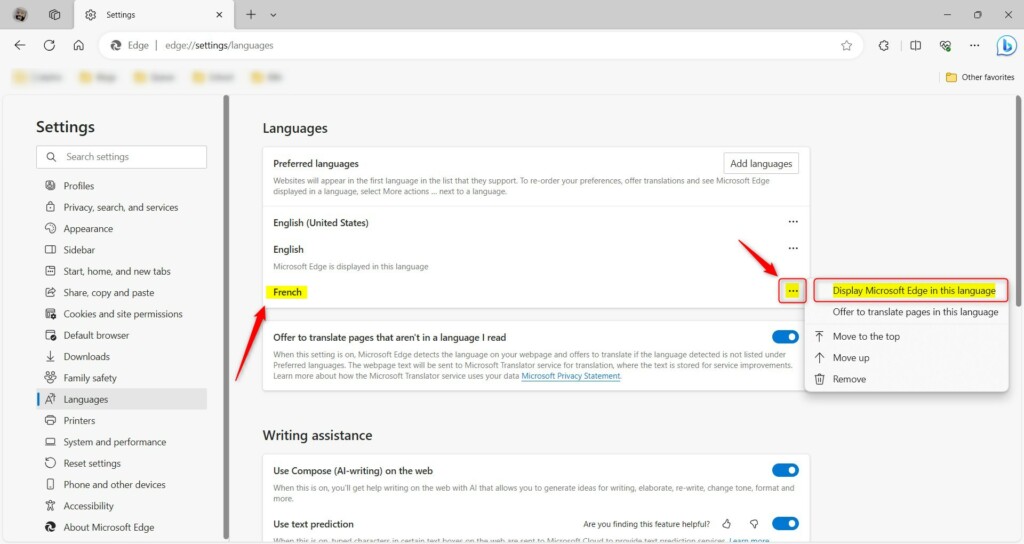
Edge will prompt you for a browser restart. Save anything you are working on in open tabs, such as half-filled forms or drafts, and then click the Restart button to apply the change. The change does not take effect until Edge restarts. When it reopens, the menus, buttons, and settings should appear in the new language.
To undo the change, go back to the same language settings, choose your previous language as the display language, and restart Edge again. Your Windows display language is not affected either way.
Using Edge's Built-in Translation and AI Features
Edge's built-in translation and AI features help you read sites in languages you do not know. Full webpage translation converts an entire foreign-language page for you. The AI tools can also summarize, rewrite, or explain text you highlight, in your preferred language.
Highlighting text on a website activates the sidebar, where you can get a quick summary or explanation without leaving the page. This saves time when you are researching across international websites.
Conclusion
Setting up your language preferences makes reading foreign content faster. Keeping your language priorities in order means the browser interface and the AI assistants both match the way you work day to day.
Was this guide helpful?

About the Author
Richard
Tech Writer, IT Professional
Richard is a writer at Geek Rewind who turns complex IT tasks into clear, step-by-step guides. He draws on years of hands-on experience in system administration and enterprise IT operations, focusing on Windows, Linux and WordPress: the problems people actually run into, and the fixes that work. His server and WordPress guides come from systems he runs himself. Richard builds and maintains the platform behind Geek Rewind, from its Ubuntu servers and Nginx configuration to its custom WordPress plugins. Many new tutorials start with readers' questions, and he's always glad to answer them in the comments.




[…] you add a new language to Edge, the language you added appears at the bottom of the list of Preferred languages already set for Microsoft […]