Change Voice and Speed for Read Aloud in Microsoft Edge


Read Aloud in Microsoft Edge is a built-in text-to-speech tool that turns web pages, PDFs, and eBooks into spoken audio so you can listen to long articles instead of reading them on screen. You can choose from dozens of narration voices, including regional accents, and adjust the reading speed slider to go up to 3 times faster than normal speech. It works the same on Windows 11 Home and Pro, and you don’t need to install anything or sign in to use it.
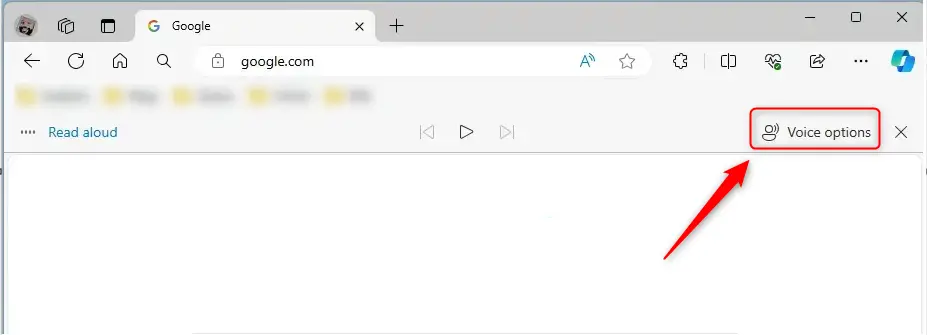
Access the Read Aloud toolbar when the feature is active. Click “Voice options” to adjust the narration speed with a slider and select different voices and accents.
Change Read aloud voice and speed in Edge
You change the Read Aloud voice and speed from the voice options menu while the reader is running. The short version:
- Start Read Aloud on any webpage.
- Click Voice options on the Read aloud toolbar near the top of the window.
- Pick a different speaker from the voice drop-down menu.
- Drag the reading speed slider to match how fast you want to listen.
Changes apply right away, so you can adjust while the article is playing and hear the result without restarting.
Open Microsoft Edge and start Read aloud.
Once the page is open, start Read Aloud. You should see the Read aloud toolbar appear just below the address bar, and Edge begins reading from the top of the page. You can also press Ctrl+Shift+U to start it. If you only want part of a page read, select the text first, right-click it, and choose Read aloud selection. If the option is missing, the page may not have readable text, for example if it is a scanned image.
The Voice options button on the Read aloud toolbar, found just below the address bar, controls how the text sounds. Next to it you will find the play and pause button and the buttons for jumping to the previous or next paragraph.
- Look at the Read aloud toolbar and find Voice options.
- Click it.
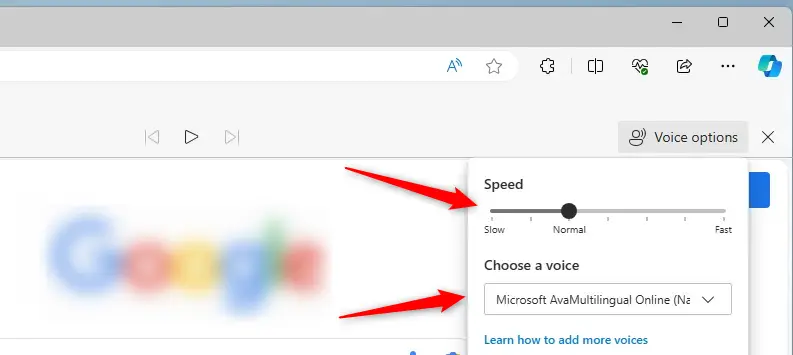
A panel opens with the settings for voice speed and voice selection. Reading keeps going in the background while the panel is open.
The panel lets you tweak speech speed and pick a voice. Here is how to use each setting:
- Drag the reading speed slider to the right to speed up narration, or to the left to slow it down. The top end is 3 times normal speed. Most people find somewhere between 1.25x and 1.75x comfortable for articles, but try a few settings with the page playing.
- Open the voice drop-down menu and choose a speaker. The list includes different regional accents, so pick the one that is easiest for you to follow.
- Listen for a few sentences to confirm you like it, then close the panel by clicking away from it or pressing Esc.
You might need to download extra language packs for certain regional accents. If a voice you expect is missing, check the voices installed in Windows 11 under Settings Time & language > Language & region. These settings work online and offline, meaning commutes or poor Wi-Fi will never interrupt narration. One caveat: the higher-quality natural voices in Edge are generally labeled as online voices and need an internet connection, while the voices built into Windows keep working without one. If narration stops when you lose signal, switch to a local voice.
To undo a change, open Voice options again and set the voice and slider back to what you had before. Edge remembers your last choices for future pages.
This feature helps anyone who prefers listening over reading, or needs assistance with text. That includes people with dyslexia or low vision, people learning a new language who want to hear correct pronunciation, and anyone who wants to catch up on an article while doing something else. Slowing the speed down is useful for dense material, and speeding it up is handy for quick skims.
- Microsoft Edge's Read Aloud feature provides a text-to-speech tool for web pages, PDFs, and eBooks, catering to users with difficulty reading or prefer audio content.
- Users can easily change the Read Aloud voice and reading speed to suit their preferences, with the option to choose from various voices and accents and adjust the narration pace to their liking, from slow up to 3 times normal speed.
- Accessible settings for different accents and languages, coupled with the ability to use these features online and offline, make the Read Aloud feature in Microsoft Edge an inclusive and versatile tool for diverse users. Keep in mind that natural online voices need a connection, while local voices do not.
Have a question about this guide?
Answered by AI from this guide. Good questions may be added to this page — please don't include personal details.
Did this guide fix your problem?

About the Author
Richard
Tech Writer, IT Professional
Richard is a writer at Geek Rewind who turns complex IT tasks into clear, step-by-step guides. He draws on years of hands-on experience in system administration and enterprise IT operations, focusing on Windows, Linux and WordPress: the problems people actually run into, and the fixes that work. His server and WordPress guides come from systems he runs himself. Richard builds and maintains the platform behind Geek Rewind, from its Ubuntu servers and Nginx configuration to its custom WordPress plugins. Many new tutorials start with readers' questions, and he's always glad to answer them in the comments.
No comments yet — be the first to share your thoughts!