How to Change Voice Access Filtering Options in Windows 11

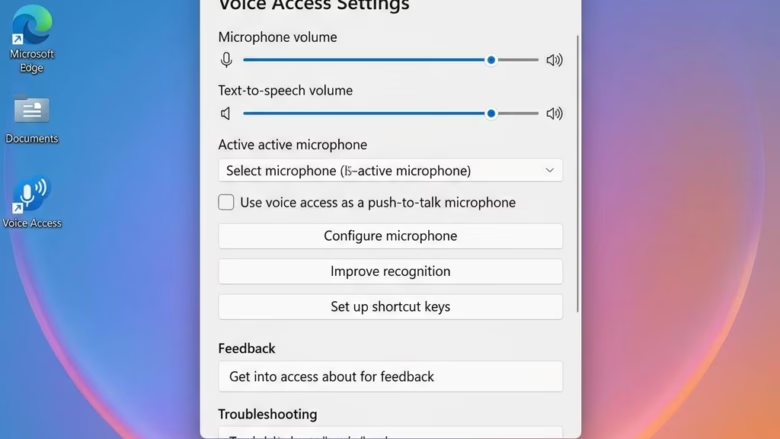
Voice Access filtering options in Windows 11 control how your microphone handles background noise while Voice Access is listening. Voice Access is a built-in feature that lets you control your PC and type using only your voice. It needs Windows 11 version 22H2 or later.
You can pick from three sound filtering levels to match your workspace: Voice Isolation, Remove background noise only, or No filtering. In a quiet room, No filtering is usually fine. In an open office, a café or a house with a TV on, a filter helps Voice Access ignore background chatter and focus on your speech. If it keeps mishearing you, try a different level.
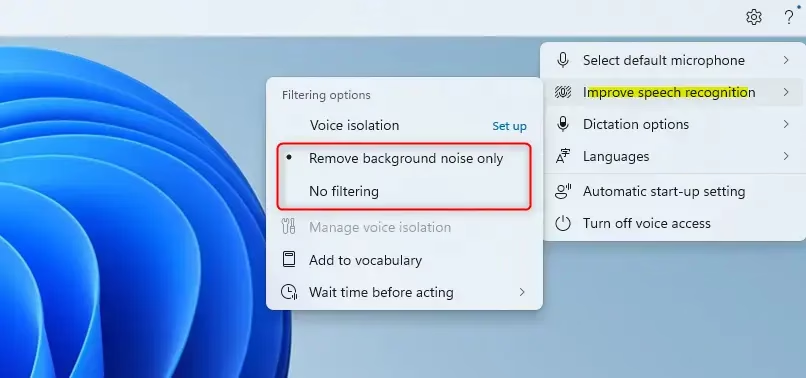
Access Voice Access settings by clicking the gear icon on its toolbar. Then, select “Improve speech recognition” and choose your desired filtering option: Voice Isolation, Remove background noise only, or No filtering. These adjustments improve how Voice Access hears you.
How to Change Voice Access Sound Settings
Method 1Using Settings
This is the method most people should use. It works the same on Windows 11 Home and Pro, and it needs no administrator rights.
- Turn on Voice Access. If it is not running, open Settings Accessibility Speech and switch on Voice access. You should see the Voice Access toolbar appear at the top of your screen.
- On that toolbar, click the Settings (gear) icon. A menu opens.
- In the menu, click Improve speech recognition. The filtering choices appear.
- Choose the option you want: Voice Isolation, Remove background noise only, or No filtering.
The change applies to Voice Access straight away, so there is no restart. To undo it, repeat the steps and pick a different option. If you do not see the toolbar or the gear icon, Voice Access is not running or your Windows 11 version is too old. Check Windows Update and install the latest feature update.
Try a few voice commands after each change. It is the quickest way to tell whether a level suits your microphone and room.
Method 2Using the Registry Editor (Advanced)
You can also adjust Voice Access filtering with Registry Editor, a database that stores Windows configuration settings. This is for advanced users who prefer manual tweaks. A wrong edit in the registry can cause problems, so back up first. In Registry Editor, you can use File Export to save a copy of the key you are about to change. Registry Editor is included in both Home and Pro editions.
- Press Win+R to open the Run box.
- Type
regeditand press Enter. Click Yes if prompted by User Account Control. Registry Editor opens. - Navigate to the following key:
Use the Voice Access Settings toolbar (gear icon > Improve speech recognition) instead; no documented registry key exists for this setting. - In the right-hand pane, find the value named
Use the Voice Access Settings toolbar (gear icon > Improve speech recognition) instead; no documented NoiseFilteringMode value exists.. - Double-click
Use the Voice Access Settings toolbar (gear icon > Improve speech recognition) instead; no documented NoiseFilteringMode value exists.. The Edit window opens with a Value data box. - To use “Remove background noise only,” change the “Value data” to
Use the Voice Access Settings toolbar instead of setting a registry value.. - To use “No filtering” (the default), change the “Value data” to
Use the Voice Access Settings toolbar instead of setting a registry value.. - Click OK. The new value shows in the right-hand pane.
- Close Registry Editor. You may need to restart your computer for the changes to take effect.
To undo the change, set the value data back to what it was, or import the backup you exported earlier. These steps cover only the two options listed above. For Voice Isolation, use the Voice Access toolbar method.
Reference:
https://learn.microsoft.com/en-us/windows-insider/release-notes/beta/preview-build-26220-8491
Summary
You can change how Voice Access filters sound in Windows 11 through the Voice Access toolbar or by editing the registry. The toolbar is the recommended path for most users, because it is quick, reversible and covers all three options. Use the registry only if you are comfortable with it and have a backup. Either way, the goal is the same: reduce background noise or isolate your voice so Voice Access understands you better.
Have a question about this guide?
Answered by AI from this guide. Good questions may be added to this page — please don't include personal details.
Did this guide fix your problem?

About the Author
Richard
Tech Writer, IT Professional
Richard is a writer at Geek Rewind who turns complex IT tasks into clear, step-by-step guides. He draws on years of hands-on experience in system administration and enterprise IT operations, focusing on Windows, Linux and WordPress: the problems people actually run into, and the fixes that work. His server and WordPress guides come from systems he runs himself. Richard builds and maintains the platform behind Geek Rewind, from its Ubuntu servers and Nginx configuration to its custom WordPress plugins. Many new tutorials start with readers' questions, and he's always glad to answer them in the comments.
No comments yet — be the first to share your thoughts!